
Check whether a lead reached your CRM
Each lead has its own page with the shopper's details, their message and a CRM Push Status box. Open it when a salesperson says a lead never showed up in the CRM.
Open a lead
- In the sidebar, under Customers, click Leads.
- Find the lead and click View →.
- The top of the page lists Name, Email, Phone, Source, Form and Page type. Some leads also show Topic, Preferred location and Submitted from, the page the shopper was on.
Below that are three numbered sections: 01 CRM Push Status, 02 Message (only when the shopper wrote one) and 03 Attribution.
Pushed: the CRM accepted it
Pushed ✓ means your CRM took the lead. The Last attempt time shows when, and Response from your CRM shows the CRM's reply, for example "HTTP 200". Click Full response to see the whole reply.
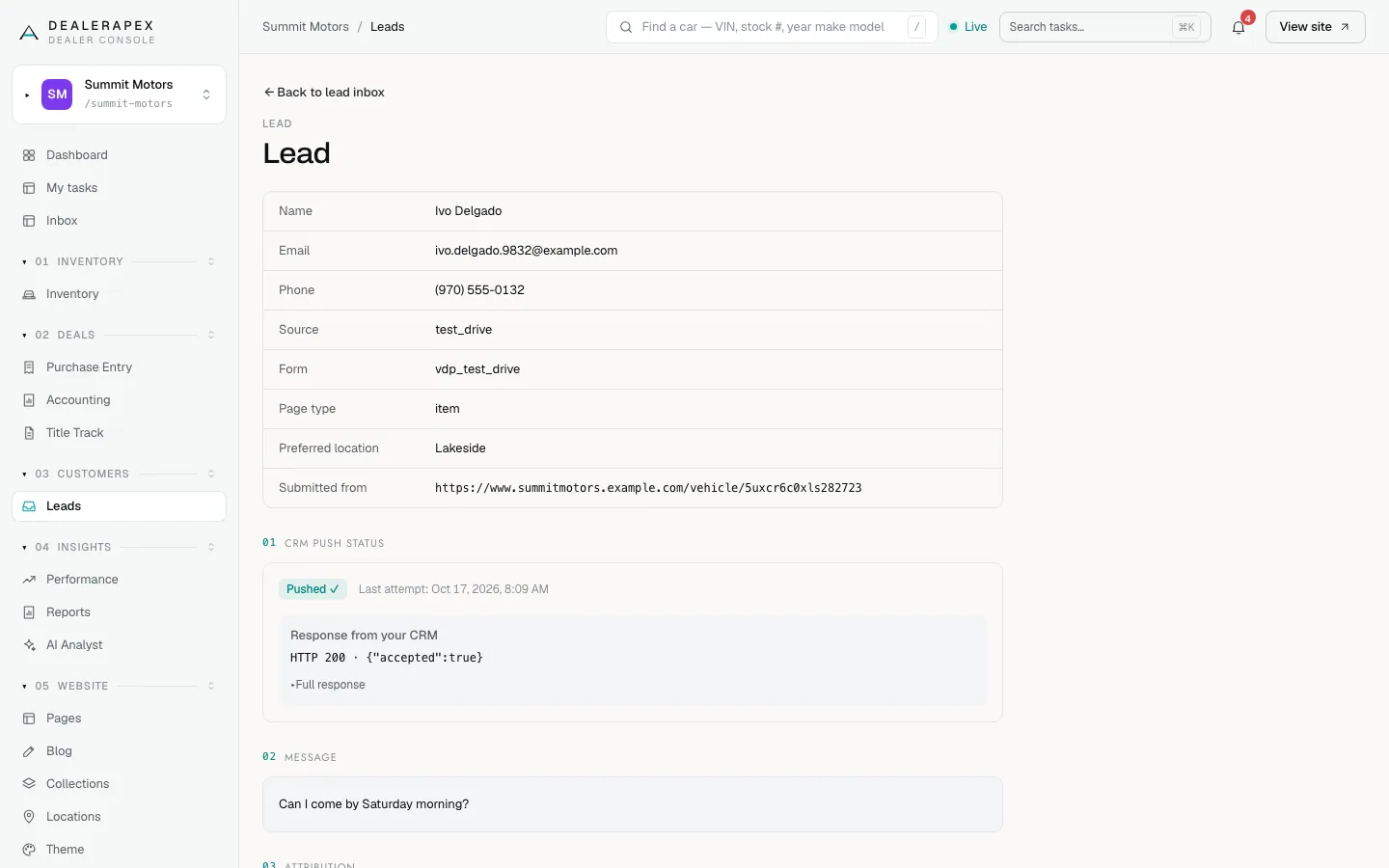
If a pushed lead still is not in your CRM, the CRM received it but did something else with it, such as filing it as a duplicate. Send your CRM provider the time and the response shown here.
Failed: we are trying again
Failed ✗ (attempt 3 of 6) means your CRM did not accept the lead. We try again automatically, waiting a little longer each time, up to six attempts in about an hour. Response from your CRM shows the error, such as "HTTP 502".
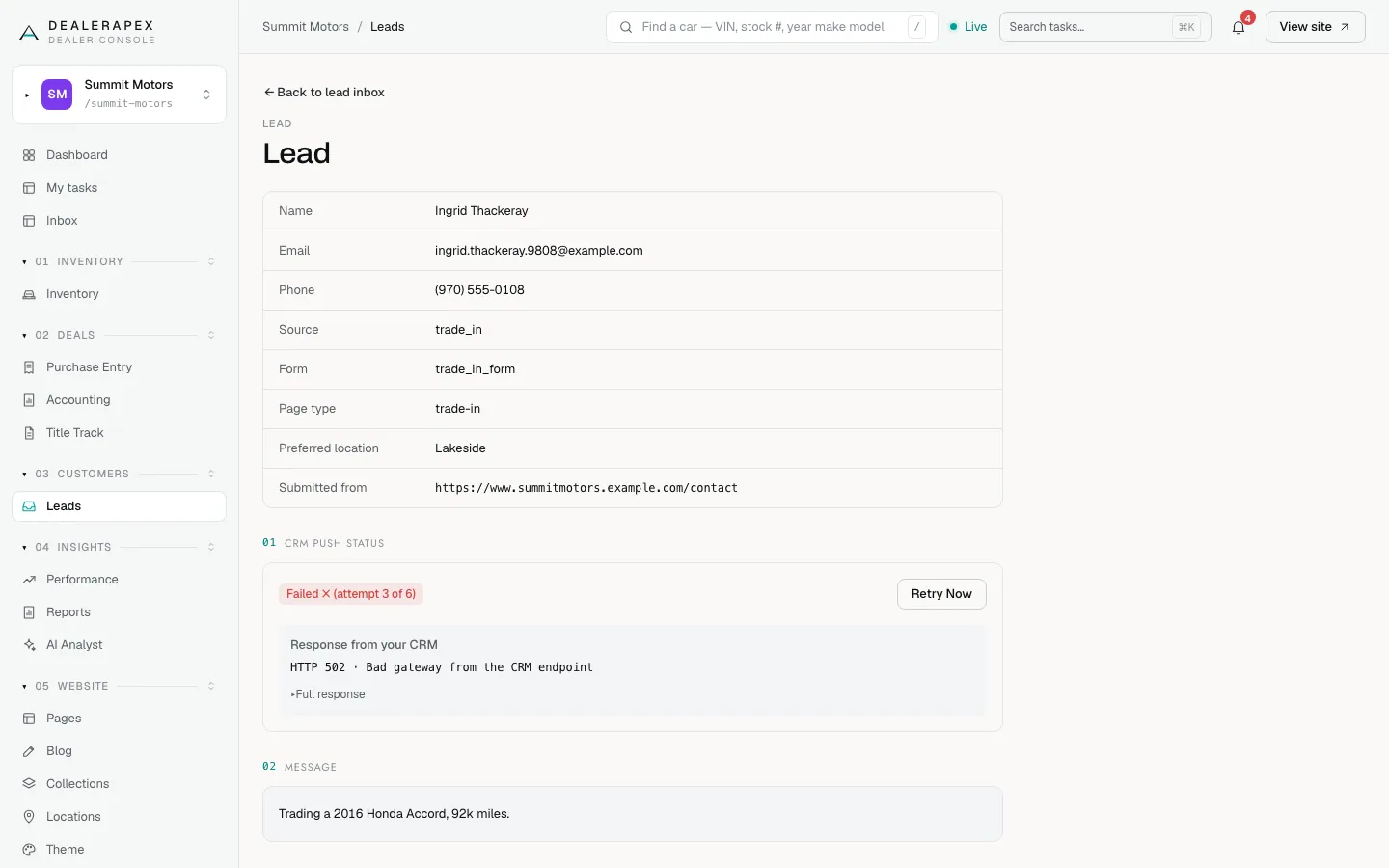
After the sixth failed attempt the status becomes Failed — gave up ✗ and we stop trying. In the inbox, that lead shows permanently_failed.
What to do about a failed lead
- Read the error under Response from your CRM. A 4xx error usually means the address or settings are wrong. A 5xx error usually means the CRM was down.
- If a setting is wrong, ask your account owner to fix it under Settings → Integrations → CRM Lead Push. See Send leads to your CRM.
- Come back to the lead and click Retry Now. The button shows Retrying… while it works.
- Check the page again in a few minutes. Retry Now restarts the count at attempt 0 and the next attempt runs within a few minutes.
- If it still fails, add the lead to your CRM by hand so the shopper is not left waiting, and email [email protected].
Pending: never sent
Pending means the lead was saved but not sent to a CRM. This happens when no CRM delivery was set up at the time the lead arrived.
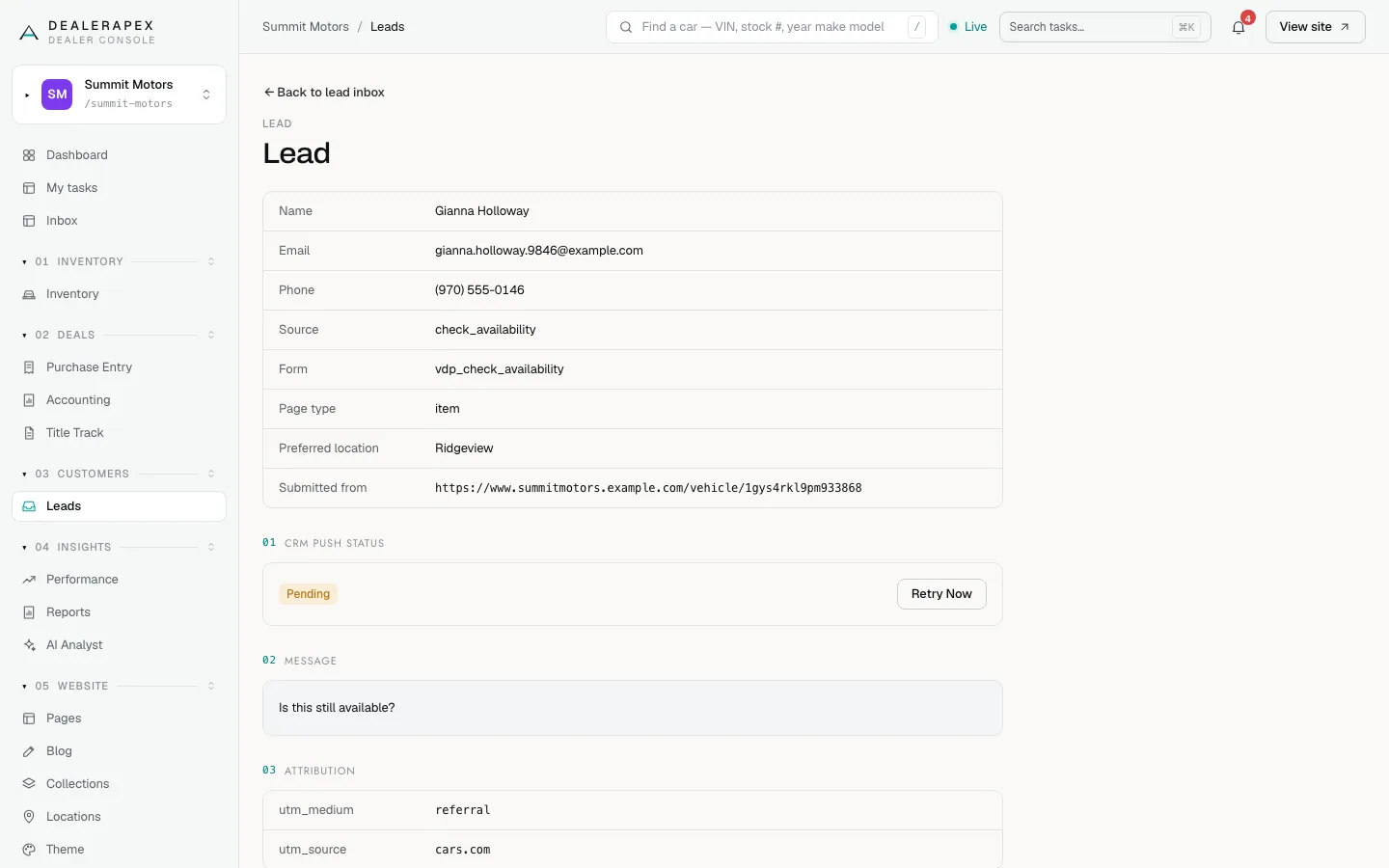
Clicking Retry Now on a Pending lead does not send it, because nothing was prepared for a CRM when it arrived. Enter the lead in your CRM by hand, then set up delivery so future leads go through. Your lead notification emails still go out for these leads.
Attribution
Section 03 Attribution shows any campaign tags the shopper arrived with, such as utm_source and utm_medium. Organic — no campaign tags means they came without tags, for example from a search engine or by typing your address.
At the bottom, ADF/XML sent to CRM opens the exact lead file we sent. Your CRM provider may ask for it.
Who can do this
Owners, editors and viewers can read a lead. Only owners and editors can click Retry Now.
Common questions
Do I lose a lead when the CRM push fails?
No. Every lead is saved in your Lead Inbox before we send it anywhere, and the notification email goes out either way.
Will Retry Now create a duplicate in my CRM?
Retry Now is only offered for leads that were not pushed, so a lead your CRM already accepted cannot be sent twice from here.
How long does the automatic retry keep going?
Up to six attempts, spaced out over about an hour. After that it stops until someone clicks Retry Now.
Still stuck? Email [email protected] with the page you were on and what you expected to see.