
Send your website leads to your CRM
Every lead from your website is saved in your console. CRM Lead Push also delivers each one to your CRM in ADF/XML, the standard lead format most automotive CRMs accept. You can set it up and change it yourself.
Who can do this: only an owner.
Before you start
Ask your CRM provider how they accept ADF leads. They will give you one of these:
- a webhook URL to post leads to, or
- an email address (an ADF inbox) your CRM watches for leads.
Set up delivery
- Open Settings → Integrations and find CRM Lead Push.
- If you already have delivery set up, click Unlock "CRM Lead Push" to edit first.
- Choose a Delivery method: Webhook — POST ADF/XML to a URL or Email — send ADF/XML to an inbox.
- For webhook, paste the address into CRM webhook URL (ADF/XML).
- For email, enter your CRM's address in Default ADF inbox.
- Click Save CRM. The label in the corner changes to Delivering.
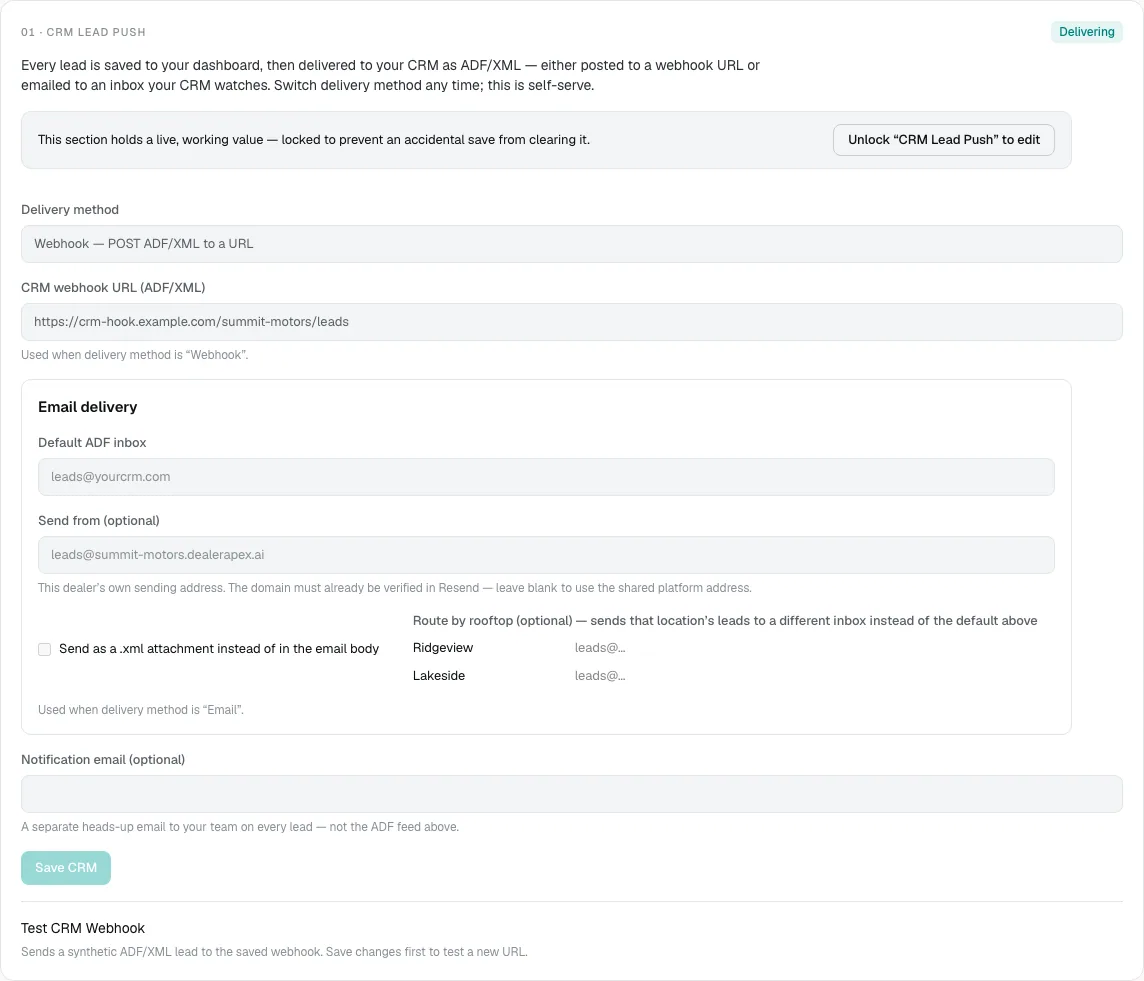
Email delivery options
- Send from (optional): your own sending address. Leave it blank unless DealerApex has set up your domain for sending, or the email won't go out.
- Send as a .xml attachment instead of in the email body: tick this if your CRM expects the lead as an attachment.
- Route by rooftop (optional): shows when your inventory is at more than one location. Enter a different inbox for a location, and that location's leads go there instead of the default inbox.
Notification email (optional) sends your team a plain heads-up email for every lead. It is not the ADF feed. For a longer list of people, use Lead notification emails in General settings.
Send a test lead
Once delivery is saved, test buttons appear under the form:
- Test CRM Webhook sends a made-up ADF lead to your saved webhook. You see "Webhook responded" with a code if it worked, or "Webhook returned … check the URL" if it didn't.
- Test ADF Email sends a made-up ADF lead to your default ADF inbox, and shows "Test ADF email sent to" the address.
The tests use your saved settings, so click Save CRM before testing a new URL or address. Then check that the test lead arrived in your CRM.
Common questions
Do I lose leads if my CRM is down?
No. Every lead is saved in your console first, in the lead inbox, whatever happens to the CRM delivery.
Can I switch from webhook to email later?
Yes. Unlock the section, change Delivery method, fill in the new details and click Save CRM. The change applies to the next lead.
Why are the fields greyed out?
The section is locked because it holds working settings. Click Unlock "CRM Lead Push" to edit. See Why integration settings are locked.
The email test says the send failed.
Check the Default ADF inbox address and clear Send from if you filled it in. If it still fails, email [email protected].
Still stuck? Email [email protected] with the page you were on and what you expected to see.