
Read your lead inbox
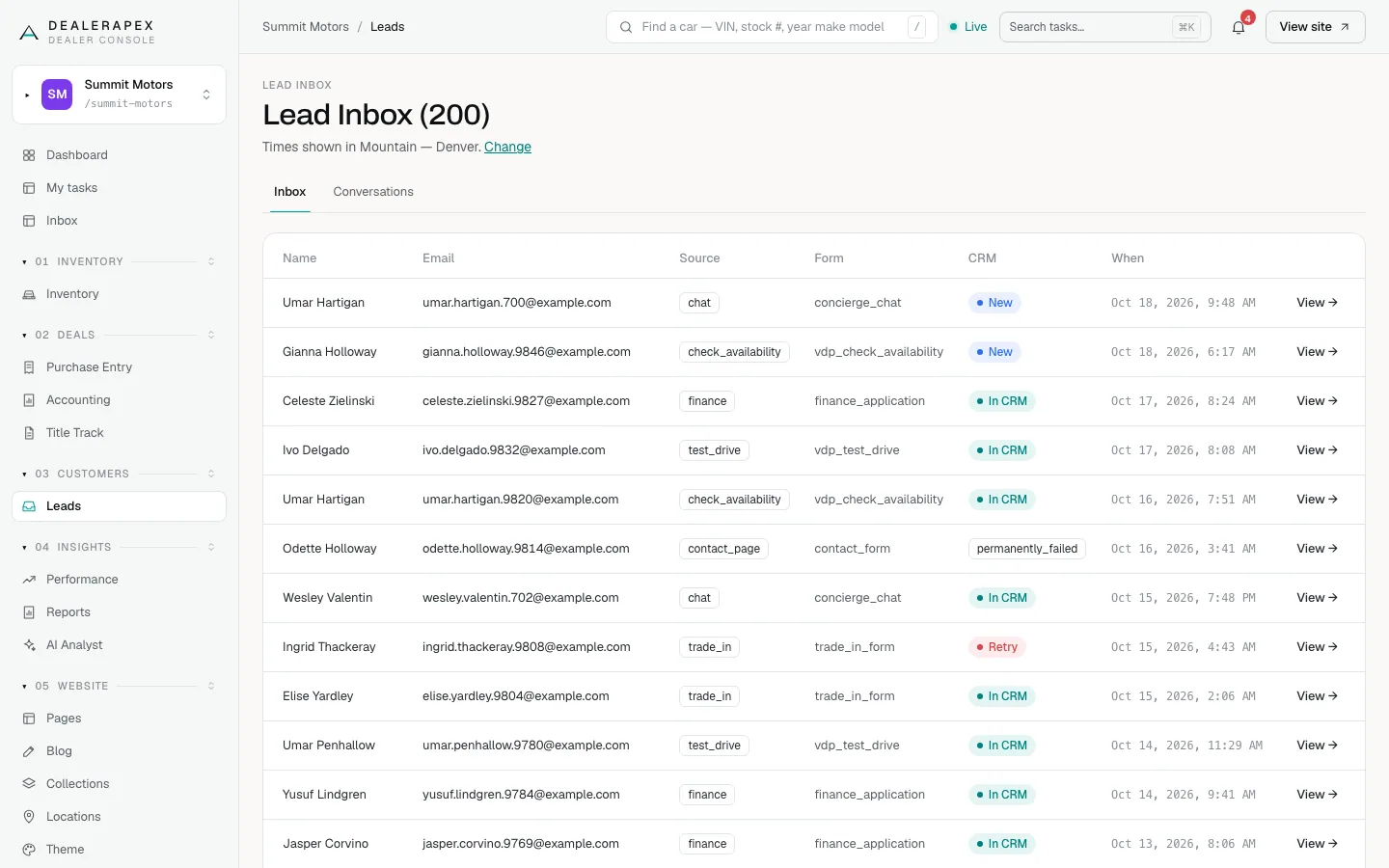
The Lead Inbox lists every enquiry shoppers send from your website, newest first. Use it to check that a lead came in, see which form it came from, and confirm it reached your CRM.
Who can do this
Owners, editors and viewers can open the Lead Inbox. Team members with a narrower role, such as sales manager, title clerk or accountant, do not see it. See Roles and permissions.
Open the inbox
- In the sidebar, under Customers, click Leads.
- The Inbox tab opens. The title shows how many leads are listed, for example Lead Inbox (200).
- To read a lead, click View → at the end of its row.
What each column means
| Column | What it tells you |
|---|---|
| Name | The name the shopper typed. A dash means the form did not ask for one. |
| The shopper's email address. | |
| Source | The kind of form, such as check_availability, test_drive, trade_in, finance, contact_page or chat. |
| Form | The exact form on your site, such as vdp_check_availability (the Check availability button on a vehicle page). |
| CRM | Whether the lead reached your CRM. See below. |
| When | When the lead arrived, in your dealership's timezone. |
The CRM status
- In CRM: your CRM accepted the lead.
- New: the lead has not been sent to a CRM. This usually means no CRM delivery was set up when it arrived.
- Retry: sending failed, and we are trying again automatically.
- permanently_failed: we tried six times and stopped. Open the lead and click Retry Now once the problem is fixed.
Every lead is saved in the inbox first, whatever happens with your CRM. A failed delivery never loses a lead. For what to do about Retry and permanently_failed, see Check whether a lead reached your CRM.
Read a lead on your phone
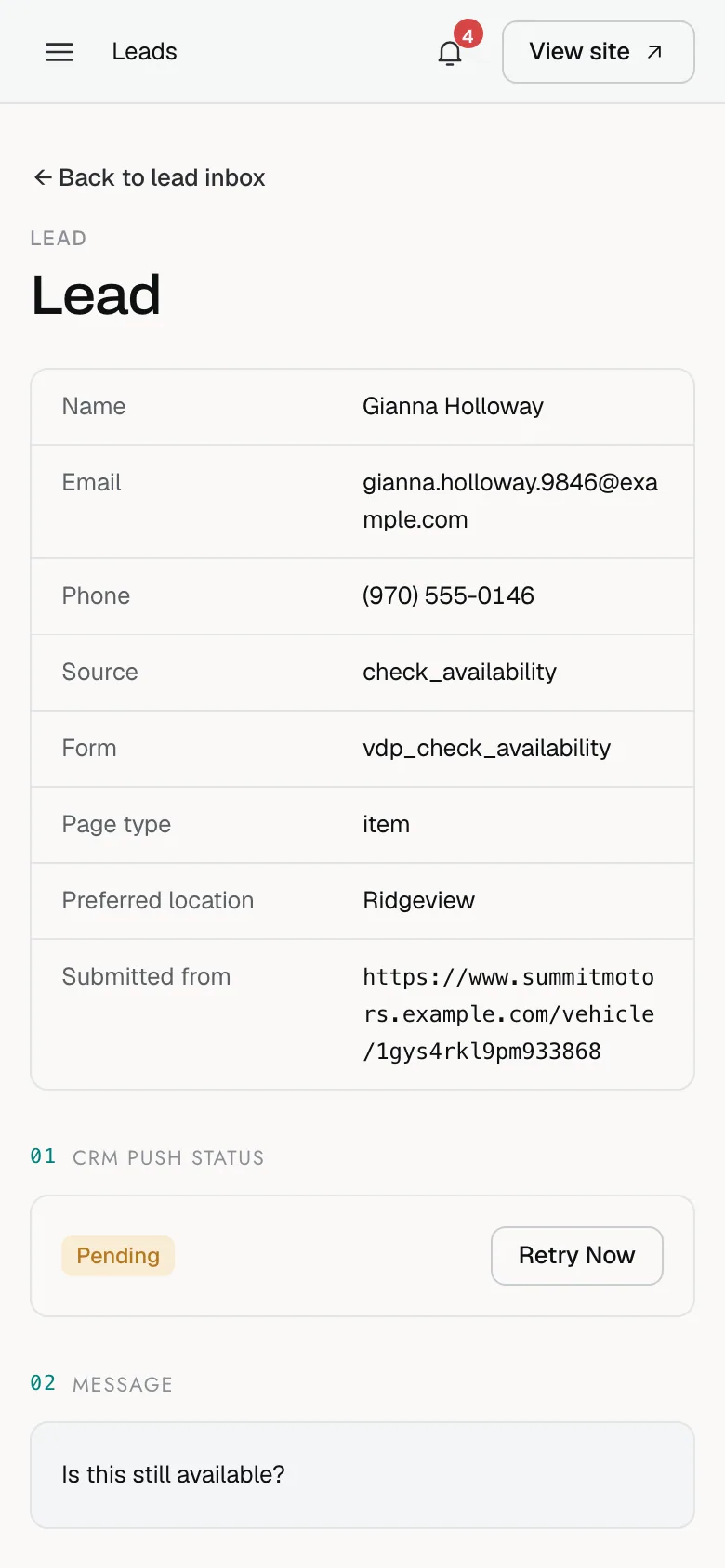
The inbox works on a phone. Tap View → on a lead to see the shopper's name, email, phone, the form they used and their message. Tap Back to lead inbox to return to the list.
Times and filters
- Times are shown in your dealership's timezone, named under the title, for example "Times shown in Mountain — Denver." Click Change to set the timezone in General settings.
- When you follow the leads count for one car, for example from that car in Inventory or from the Dashboard, the inbox shows only that car's leads and says Filtered to leads for one vehicle. Click Clear filter to see every lead again.
The inbox shows your most recent 200 leads. It has no search box or date filter yet. For counts over a date range, use the Performance reports (see Marketing channels and leads).
Common questions
Why does the count in the title stop at 200?
The inbox shows your 200 most recent leads, so the number counts the leads on screen, not every lead you have ever had. Your Performance reports count leads over the dates you pick.
Why does the Lead Inbox show a different number from the All leads report?
The inbox lists raw website enquiries. The Performance reports use your CRM and sales data and can hide some lead types. See Why the numbers differ.
Can I reply to a shopper from the inbox?
No. The inbox is a record of what arrived. Reply from your CRM, or by email or phone using the details on the lead.
Still stuck? Email [email protected] with the page you were on and what you expected to see.