
Choose who gets new leads
Every lead from your website can go to two places: a heads-up email to your team, and your CRM. This article shows where to set both.
Who can do this
Only an owner can change these settings. Editors and viewers see a notice that they cannot change them.
Set your lead notification emails
These addresses get a plain email for every new lead, with the shopper's details, message and the car they asked about.
- Click Settings in the sidebar. The General tab opens.
- In Lead notification emails, type one address per line.
- Click Save settings. A Changes saved. message appears.
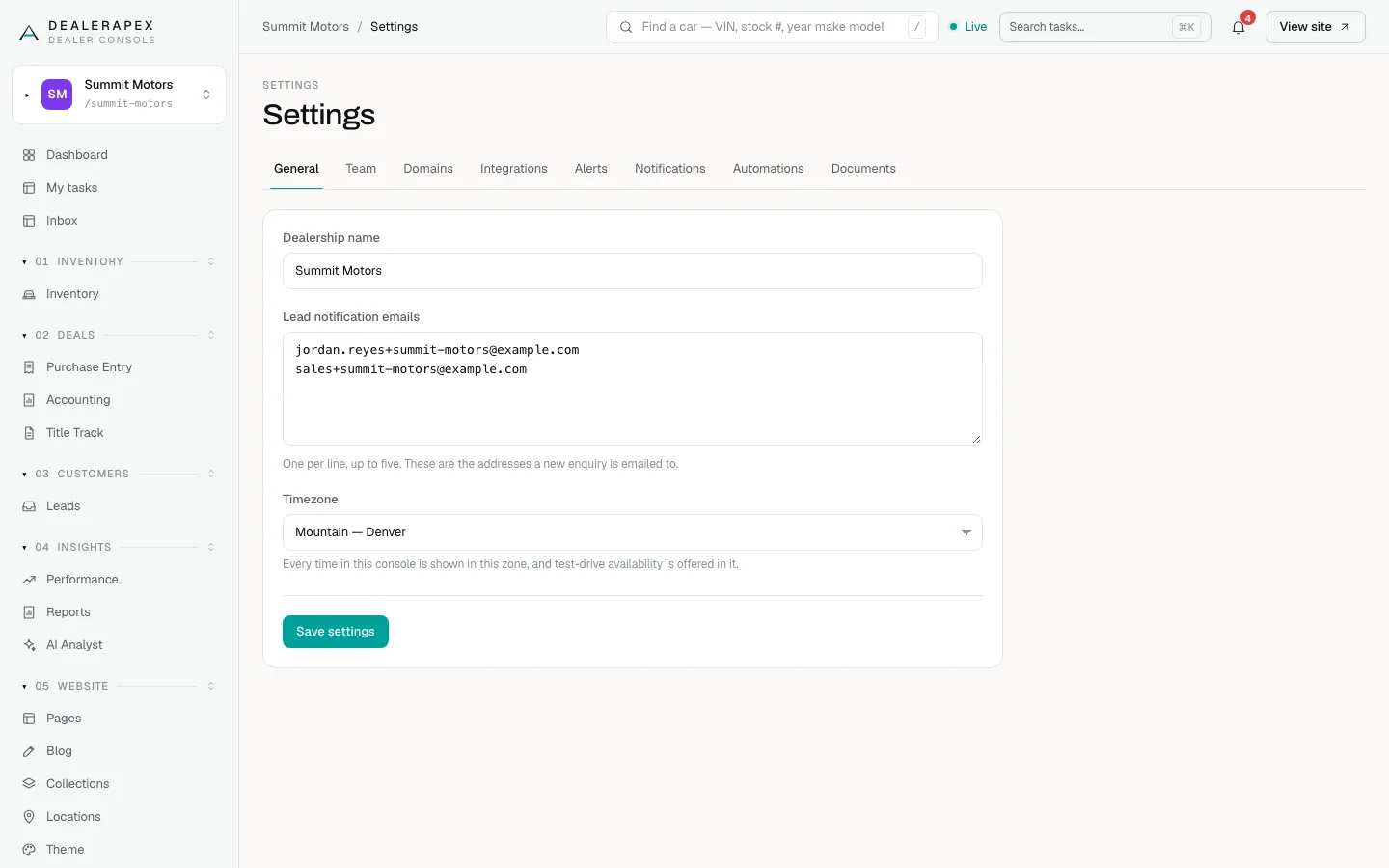
You can enter up to five addresses. We keep the first five valid ones and quietly drop anything that is not a valid email address, so check the list after you save. The same page sets your dealership's timezone; see General settings.
Send leads to your CRM
The CRM Lead Push section sends each lead to your CRM in ADF/XML, the standard lead format dealer CRMs read. You choose one of two delivery methods:
- Webhook — POST ADF/XML to a URL: we post the lead to a web address your CRM gives you.
- Email — send ADF/XML to an inbox: we email the lead to an address your CRM watches.
- Go to Settings → Integrations.
- Find CRM Lead Push. If it already holds working settings, click Unlock “CRM Lead Push” to edit first.
- Choose a Delivery method.
- For a webhook, paste the address into CRM webhook URL (ADF/XML). For email, type the address into Default ADF inbox.
- Click Save CRM.
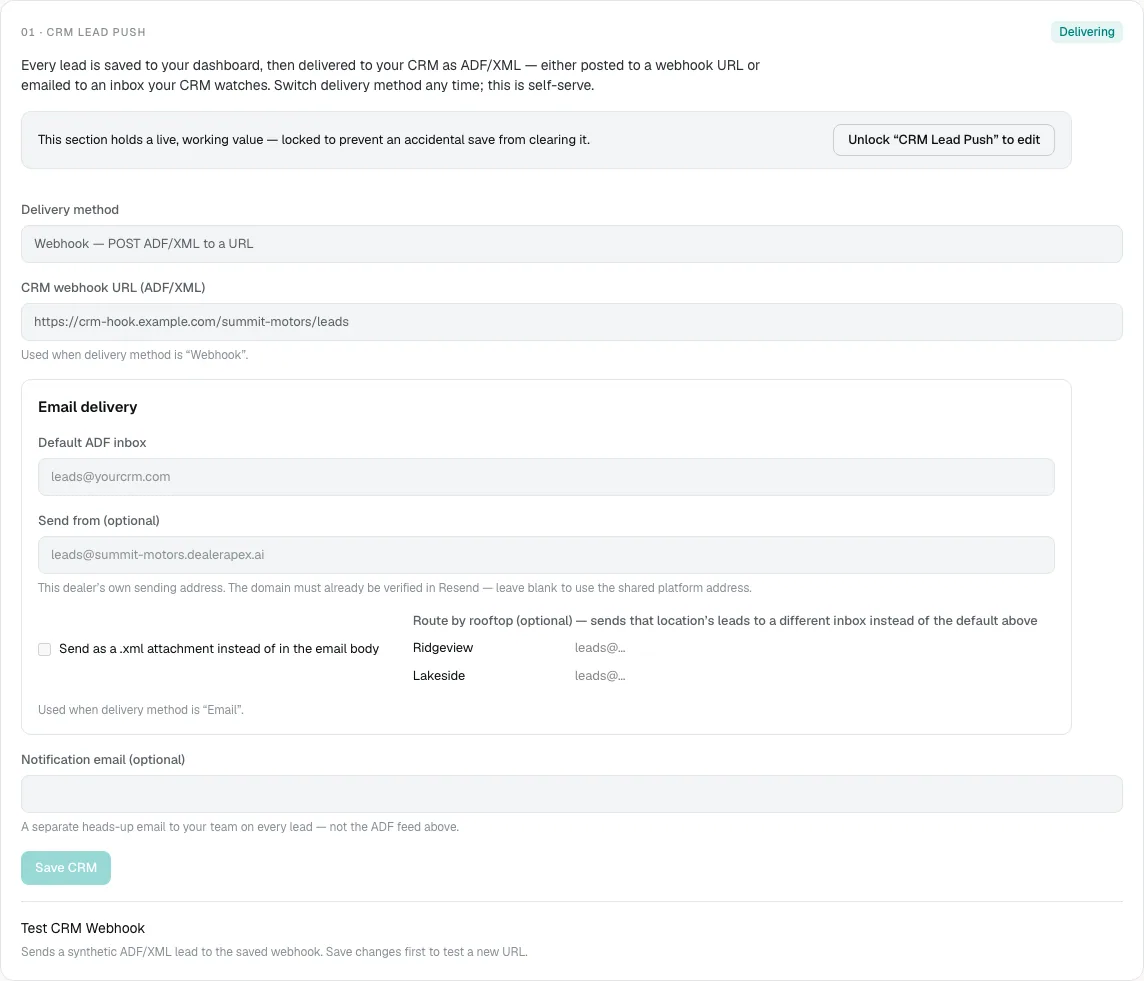
The badge at the top right of the section says Delivering once a webhook URL or ADF inbox is saved, and Not connected when neither is.
Optional email settings
- Send as a .xml attachment instead of in the email body: turn this on if your CRM expects the lead as an attached file.
- Route by rooftop (optional): shown when your inventory spans more than one location. Leads about a car at that rooftop go to its own inbox instead of the default.
- Send from (optional): your own sending address. Leave it blank unless DealerApex has set up your email domain for you.
Notification email (optional) adds one more address that gets the plain heads-up email. It is added to your Lead notification emails, so nobody gets two copies.
Test the connection
Once settings are saved, a test button appears under the form:
- Test CRM Webhook sends a made-up test lead to your saved webhook and shows the reply, such as "✓ Webhook responded 200".
- Test ADF Email sends a made-up test lead to your Default ADF inbox.
The tests use the saved settings, so click Save CRM before you test a new address. Ask your CRM provider to confirm the test lead, named "Test Lead", arrived.
For more on each field, see Send leads to your CRM.
Common questions
What is the difference between notification emails and the ADF inbox?
Notification emails are easy-to-read messages for people. The ADF inbox receives a structured file that your CRM reads to create the lead automatically. See Send your website leads to your CRM.
Do notification emails still go out if my CRM is down?
Yes. The heads-up email is sent for every lead, whether or not the CRM accepted it.
Can I add more than five notification addresses?
No, the limit is five. Use a shared mailbox or group address if more people need every lead.
Still stuck? Email [email protected] with the page you were on and what you expected to see.