
Welcome to DealerApex
Start here if you are new to DealerApex. This page explains what the console is for, where to find help on each part of it, and how to reach us when you are stuck.
What the console is
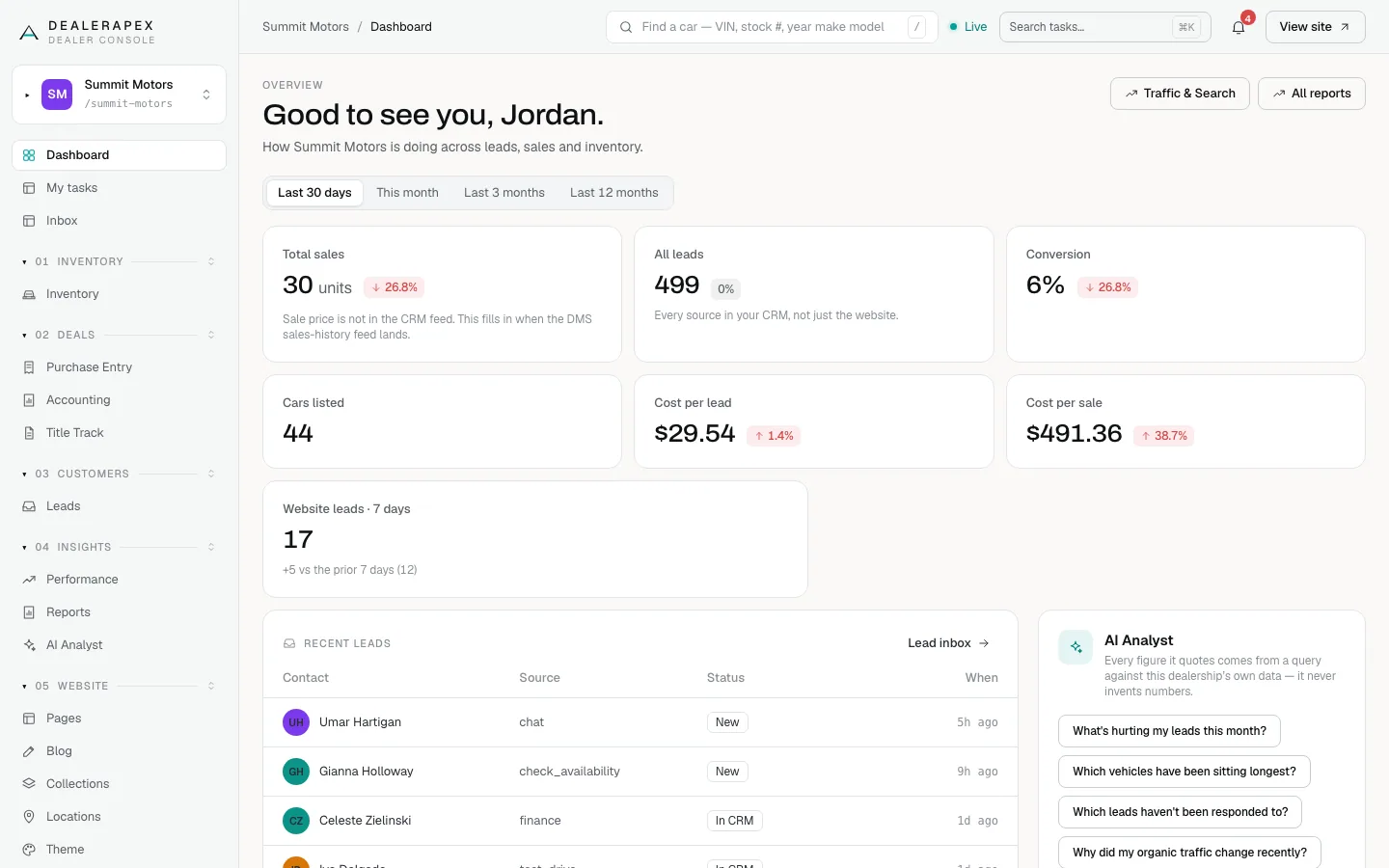
The DealerApex console is where your dealership runs its website and the work behind it. From one place you can:
- Keep your inventory up to date: prices, photos, descriptions and which cars show on your website.
- Log the cars you buy, record what you paid, and chase titles.
- Read the leads your website sends and pass them to your CRM.
- See how your website, leads and sales are doing.
- Edit your website's pages, blog, theme and search settings.
- Invite your team and give each person the right access.
Your website is what shoppers see. The console is the private side that only your team can sign in to. A change you save in the console shows on your website, usually within a minute.
How this help center is organised
Articles are grouped by the job you are trying to do. Each group matches a part of the console:
| Topic | What it covers |
|---|---|
| Get started | Signing in, finding your way around, and roles. |
| Inventory | Viewing, editing and adding cars, photos, specials and your feed. |
| Purchases, accounting and titles | Logging purchases, recording payments, title tracking and documents. |
| Customers and leads | Reading leads, sending them to your CRM, chats and test drives. |
| Performance and reports | Your dashboard, marketing channels, ad spend and reports. |
| Your website | Pages, blog posts, theme, pop-ups and financing display. |
| SEO and getting found | Page titles, search visibility, redirects and answer engines. |
| Settings, integrations and team | Team invites, your domain, your DMS feed, CRM delivery and tracking. |
| Tasks, alerts and automations | Your task list, notifications, alerts and automation recipes. |
Use the search box at the top of any help page to jump straight to an answer. Most articles end with a short list of common questions.
Where to begin
- Sign in to your console and add your name.
- Take the tour of the console to learn the sidebar, tabs and the Find box.
- If you are setting up a new dealership, work through the setup wizard.
- If you manage the team, read roles and permissions before you invite anyone.
Contact support
Email [email protected]. To get a fast answer, include:
- your dealership's name;
- the page you were on, and what you clicked;
- what you expected to happen and what happened instead;
- a screenshot, if you can take one.
If your question is about turning on a feature or changing your plan, you can also ask your DealerApex account manager.
Common questions
Is the console the same as my website?
No. Your website is public and shows your cars to shoppers. The console is private: only people your dealership invites can sign in, and it is where you change what the website shows.
Why does my console look different from the screenshots here?
Some features are not on for every account, and each role sees only its own sections. See Why your sidebar shows what it shows.
How do I contact support?
Email [email protected] with your dealership name, the page you were on and a screenshot if you can.
Still stuck? Email [email protected] with the page you were on and what you expected to see.