
Set up your dealership with the setup wizard
When a new dealership signs in for the first time, the console opens a five-step setup wizard. It collects the basics your website needs. This article explains each step and what Skip onboarding does.
Before you start
You need the owner or editor role to fill in the wizard. Until someone finishes or skips it, every page of the console sends you back to the wizard.
Every field except the dealership name is optional. If you leave a step blank and click Next →, nothing on that step is saved, and you can set it later from Settings.
The five steps
- Tell us about your dealership: enter your Dealership display name. This is the name shoppers and your team see.
- Connect your inventory feed: choose a Feed type, either HomeNet or CSV / spreadsheet, and paste your Feed URL. Both are needed for the step to save.
- Pick your brand colors: choose your Primary color and, if you have one, paste a Logo URL (optional).
- Add your reviews: enter your Number of reviews and Average rating (1.0–5.0), and your Google Business Profile URL (optional). The review count and rating are saved only if you fill in both.
- Where should leads go?: paste your CRM webhook URL (ADF/XML, optional) and a Lead notification email (optional), then click Finish setup →.
A progress bar and Step 1 of 5 at the top show where you are. Click ← Back to return to the previous step. Your answers on earlier steps are already saved.
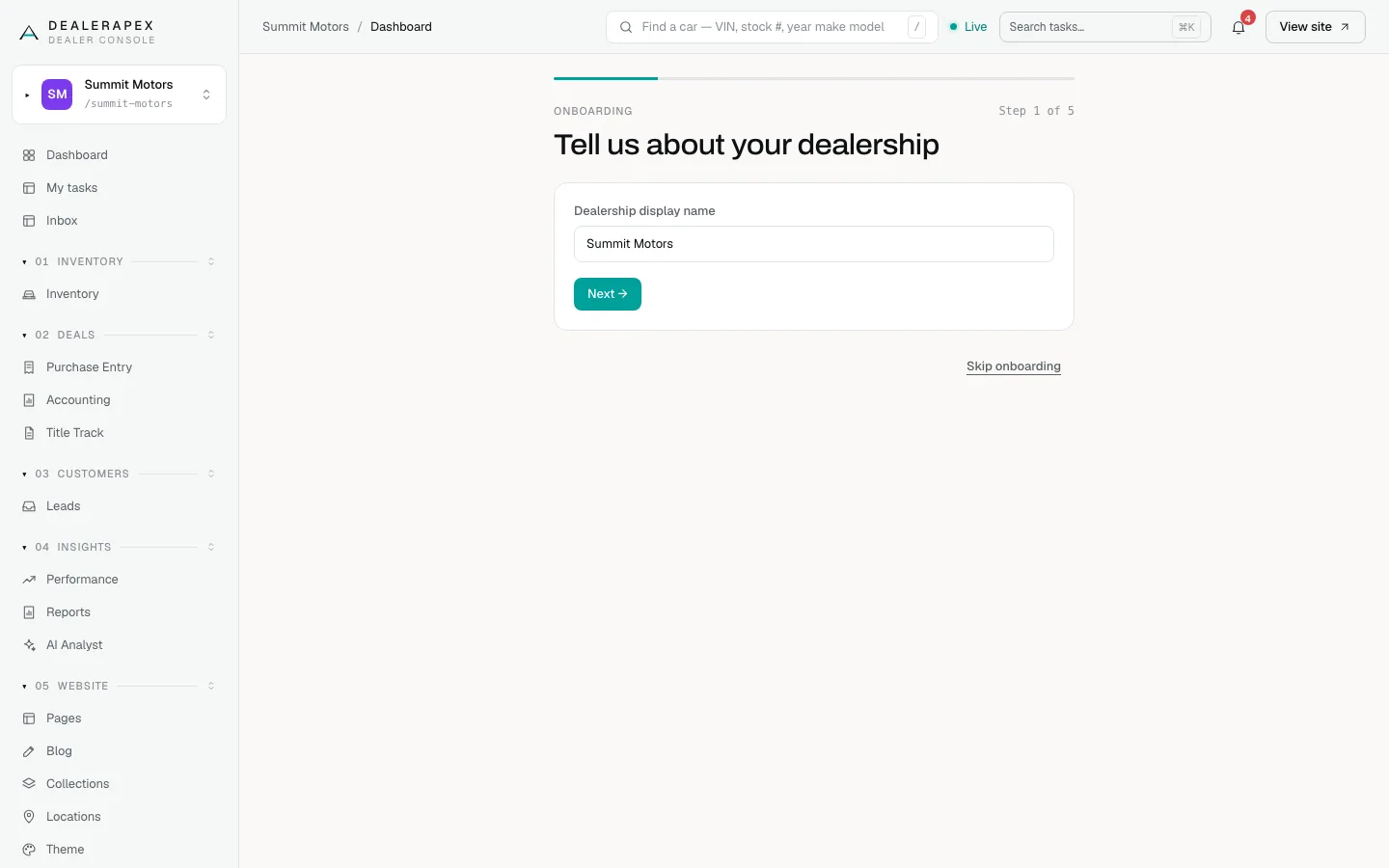
When you click Finish setup →, the console opens your dashboard.
What Skip onboarding does
Skip onboarding is at the bottom of every step. It marks setup as done for the whole dealership and takes you to the dashboard. Anything you saved on earlier steps is kept. Anything on the current and later steps is not.
The wizard does not come back after you skip or finish it, for you or anyone else at the dealership. Set the rest up from the console instead:
- Inventory feed: Connect your DMS feed.
- Colours and logo: Theme, brand and homepage.
- Reviews: Reviews on your homepage.
- Leads: Send leads to your CRM.
Common questions
I clicked Next but nothing seemed to save. Why?
A step saves only when its fields are filled in. The feed step needs both a feed type and a URL, and the reviews step needs both a count and a rating.
Can I go back to the wizard after skipping it?
No, it does not reopen. Everything it asks for can be set later: see Connect your inventory feed, Set your brand and homepage and Send your website leads to your CRM.
My feed isn't HomeNet or a CSV. What do I pick?
Leave the feed step blank and click Next →. Email [email protected] and we will help you connect the feed you have.
Still stuck? Email [email protected] with the page you were on and what you expected to see.