
Roles and permissions
Every person at your dealership has one role, and the role decides which pages they see and what they can change. Read this before you invite your team, or when someone asks why a page is missing.
The three general roles
These roles can open every section of the console. They differ in what they can change.
| Role | Can see | Can change |
|---|---|---|
| owner | Everything | Everything, including Settings, Domains, Integrations, ad spend and the team |
| editor | Everything | Content: inventory, pages, blog, theme, collections, SEO and redirects. Not Settings, Domains, Integrations or Team |
| viewer | Everything | Nothing. A viewer can browse but not save |
An editor sees a note at the top of the page: "Editor — you can manage content. Settings, domains, integrations, and team require an owner." A viewer sees "View only — you can browse this console but cannot save changes."
The four job roles
These roles see only the sections for their job. Everything else is hidden, and typing the address of a hidden page shows "page not found".
| Role | Sections they see | Notes |
|---|---|---|
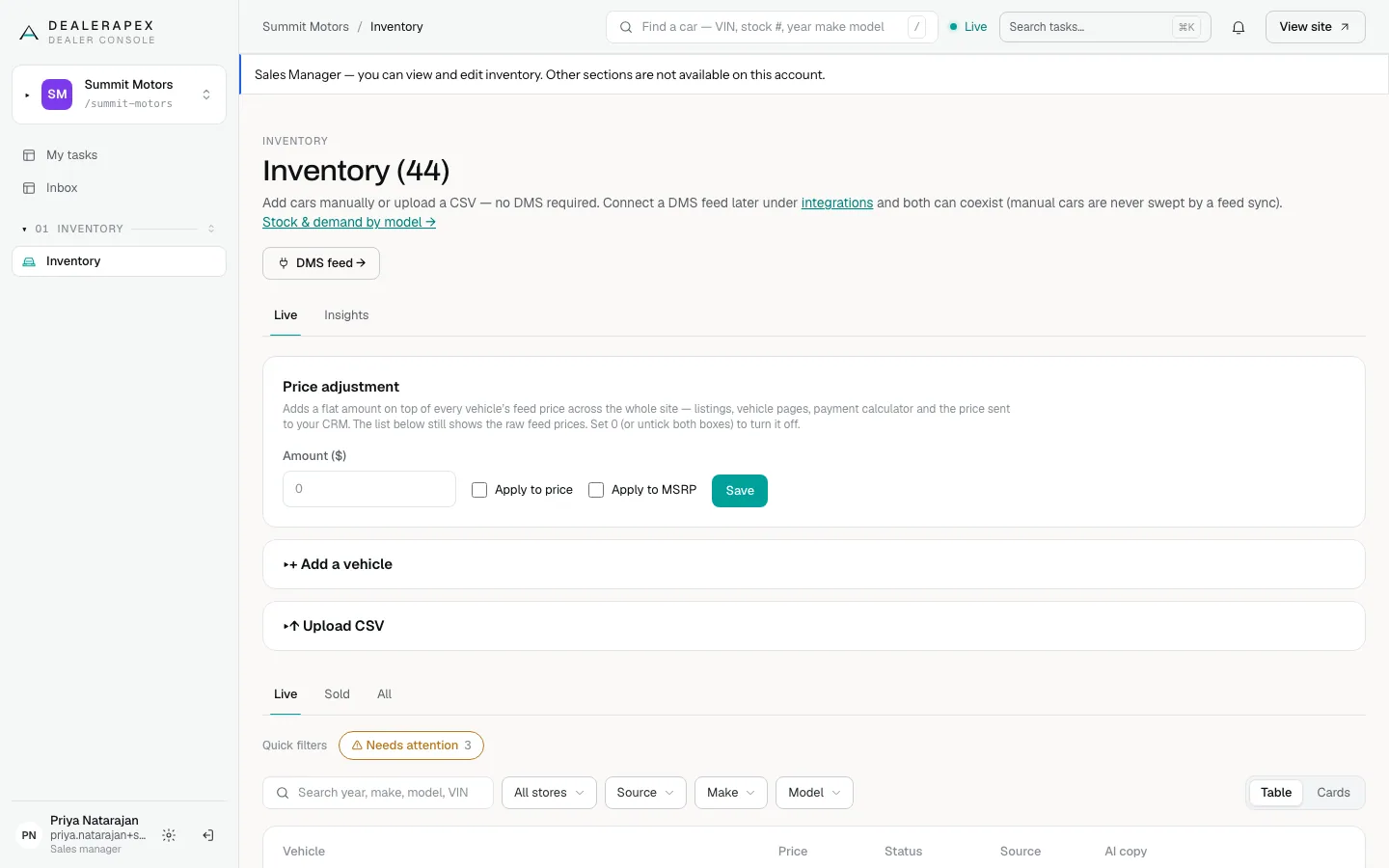
| sales manager | Inventory, with its Live and Insights tabs | Can edit and add cars and change prices. No dashboard, leads or reports. Opens on Inventory. |
| inventory manager | Inventory, Purchase Entry, Title Track, Accounting and Documents | Can log purchases, approve them and work titles. Can edit cars and prices, but not add cars. Accounting is read-only. |
| title clerk | Title Track and Documents | Can work titles and upload titles. Sees whether a car is paid, but not what it cost. Opens on Title Track, or on My tasks when tasks are turned on. |
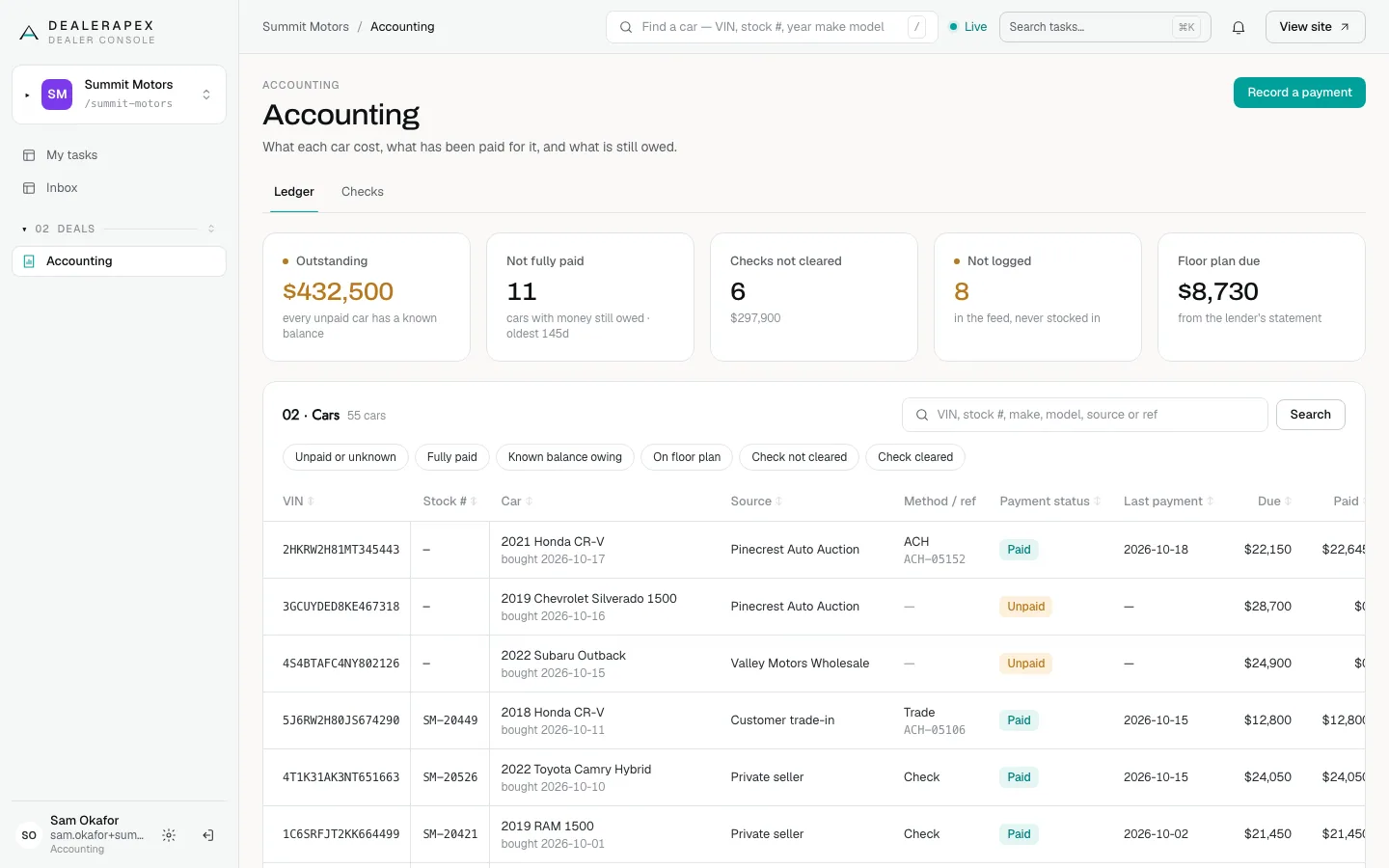
| accountant | Accounting | Can record payments, cheques and notes. Opens on Accounting. |
Your role is shown under your name at the bottom of the sidebar. Two roles appear under a different name there and in task queues: an inventory manager shows as Acquisitions and an accountant as Accounting.
When tasks are turned on for your account, every job role also gets My tasks and Inbox. Inventory managers, title clerks and accountants also get the store-wide All tasks list.
Job roles also see the Find box, if your account has it, except accountants. Find shows each person only the records their role can open.
Job roles do not see the dashboard, because it lists customer leads.
Choose a role when you invite someone
Only an owner can invite people, change roles or remove someone.
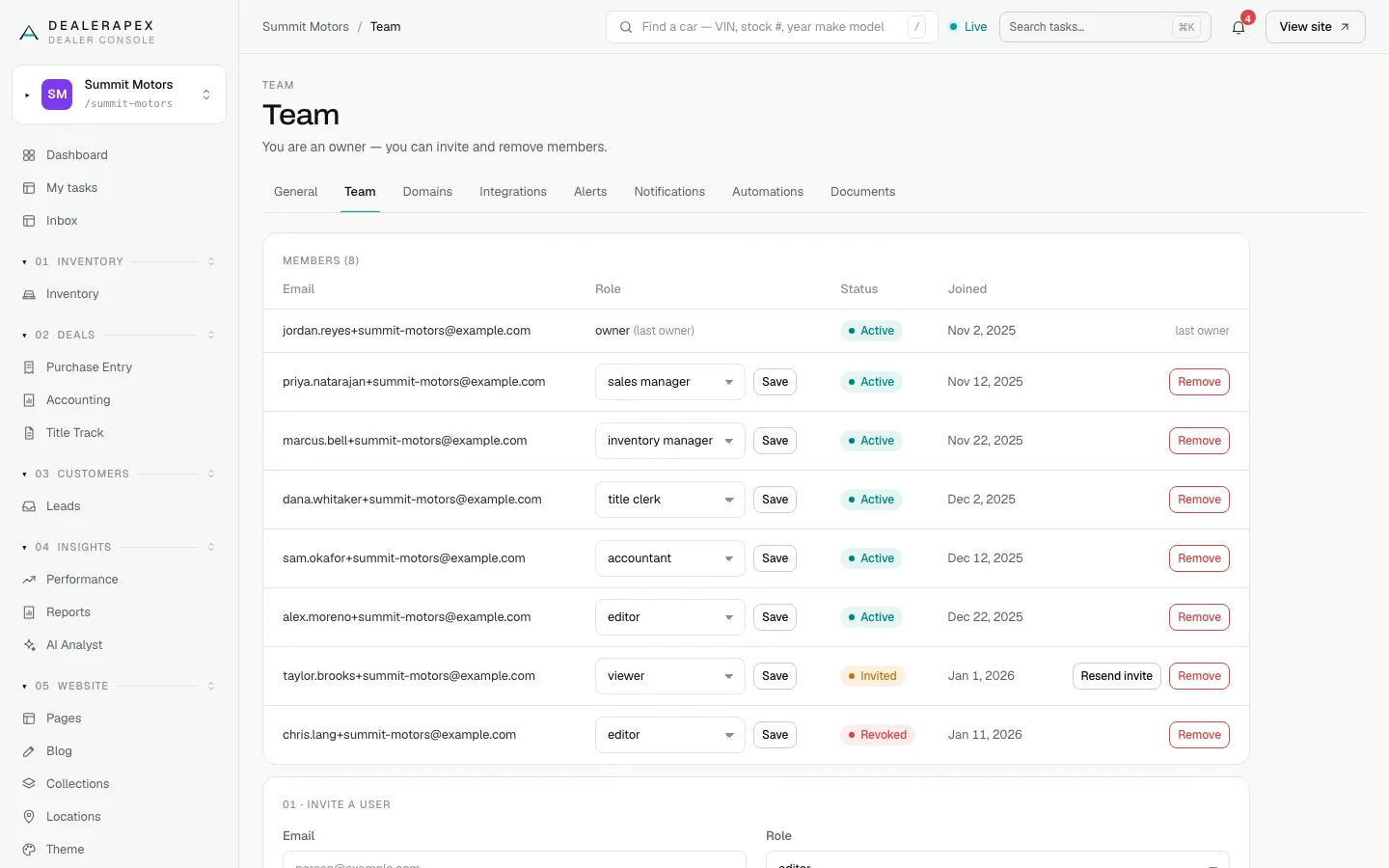
- Open Settings → Team.
- Under Invite a user, enter the person's Email.
- Choose their Role.
- Click Invite.
To change someone's role later, choose the new role next to their email and click Save. The full steps are in Invite your team.
Why a page might be missing
- Your role does not include it. Ask your owner whether you need a different role.
- The feature is not turned on for your account. Tasks, Inbox, notification settings and Automations are examples. See Why your sidebar shows what it shows.
- You can see it but cannot save. You are a viewer, or the page is owner-only. Ask an owner to make the change, or to change your role.
For who can do what on purchases, accounting and titles, see Who can do what in Deals.
Common questions
Can a dealership have more than one owner?
Yes, and it is a good idea. The last owner on a team cannot be removed or changed to another role, so promote a second owner first.
Can I give someone two roles?
No. Each person has one role per dealership. Pick the one that covers what they need, or use owner, editor or viewer if they need several sections.
Why does a sales manager not see the dashboard or leads?
The dashboard and Leads show customer details. Sales managers get inventory only, so customer data stays with the roles that need it.
What is the difference between Remove and Revoked?
Remove takes someone off your dealership. Revoked, shown in red on the Team page, means their DealerApex access has been switched off everywhere. Email [email protected] if you need it restored.
Still stuck? Email [email protected] with the page you were on and what you expected to see.