
Find your way around the console
This tour shows you the main parts of the console: the dashboard you land on, the sidebar, the tabs at the top of each section, and the Find box. Read it once and you will know where everything lives.
The dashboard
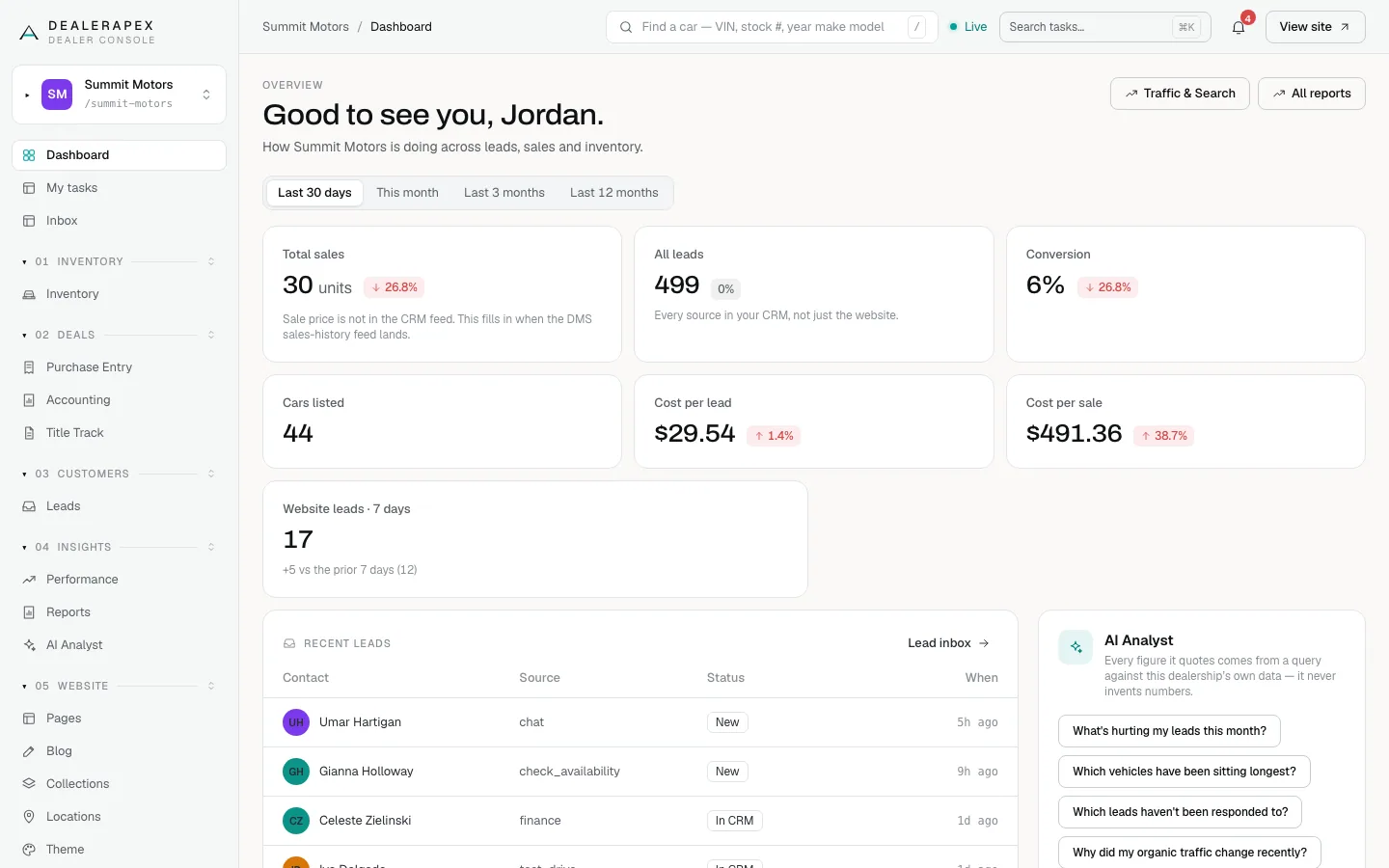
The dashboard opens when you sign in. It greets you by name and shows how your dealership is doing across leads, sales and inventory.
- Choose a period at the top: Last 30 days, This month, Last 3 months or Last 12 months.
- The six tiles are Total sales, All leads, Conversion, Cars listed, Cost per lead and Cost per sale. The small coloured figure on a tile compares it with the period before.
- Click a tile to open the report behind it.
- Website leads · 7 days counts only the leads from your own website forms. All leads counts every source in your CRM, so the two numbers differ on purpose.
- Recent leads lists your newest leads. Click Lead inbox to see them all.
- Top inventory lists cars on your lot. Click Manage to open Inventory.
- The AI Analyst box answers questions about your own data. Click one of the suggested questions to try it.
For what each tile measures, see Understand your dashboard numbers.
The sidebar
The sidebar on the left is how you move between sections.
- Dashboard, My tasks and Inbox are pinned at the top.
- Below them, sections are grouped by job: Inventory, Deals, Customers, Insights, Website and Settings.
- Click a group name to collapse it if you want a shorter list. Groups start open.
- The dealership name at the very top switches between dealerships, if you have more than one.
- Your name is at the bottom, with a gear icon for Your account and an icon to log out.
You only see the sections your role allows, and some sections need a feature turned on. See Why your sidebar shows what it shows.
On a phone or small tablet the sidebar is hidden. Tap the menu button at the top left to open it.
Tabs on each section
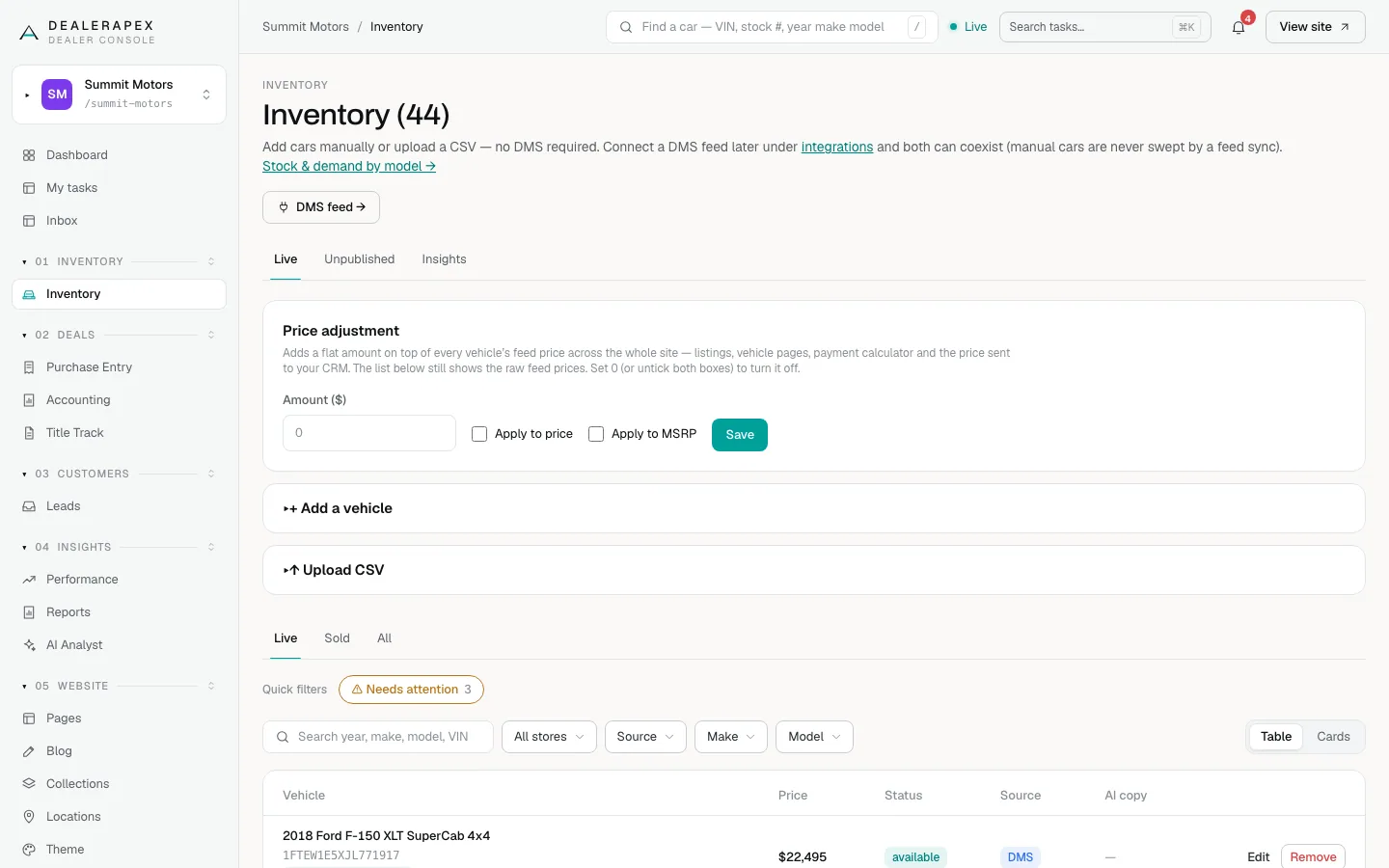
Many sections have a row of tabs under the page title. Each tab is a related page. For example, Inventory has Live, Unpublished and Insights, and Settings has General, Team, Domains, Integrations and more.
You only see the tabs your role can open.
The top bar
- The path on the left shows where you are, for example Summit Motors / Inventory.
- The Find box looks up any car. See below.
- Search tasks… and the bell appear when tasks are turned on for your account. The bell shows how many unread items are in your inbox.
- View site opens your public website in a new tab.
Find a car
The Find box at the top of every page searches your inventory, purchase records and title records at once.
- Click the box, or press the / key on your keyboard.
- Type a VIN, a stock number, or a year, make and model, such as "2019 Toyota RAV4".
- Press Enter.
If you type a full VIN or a stock number that matches a car in your inventory, the car opens straight away. Otherwise you see a results page with up to 10 matches in each group: Vehicles, Purchase records and Title records. Click Show all in to see the rest in that section. Click a result to open it.
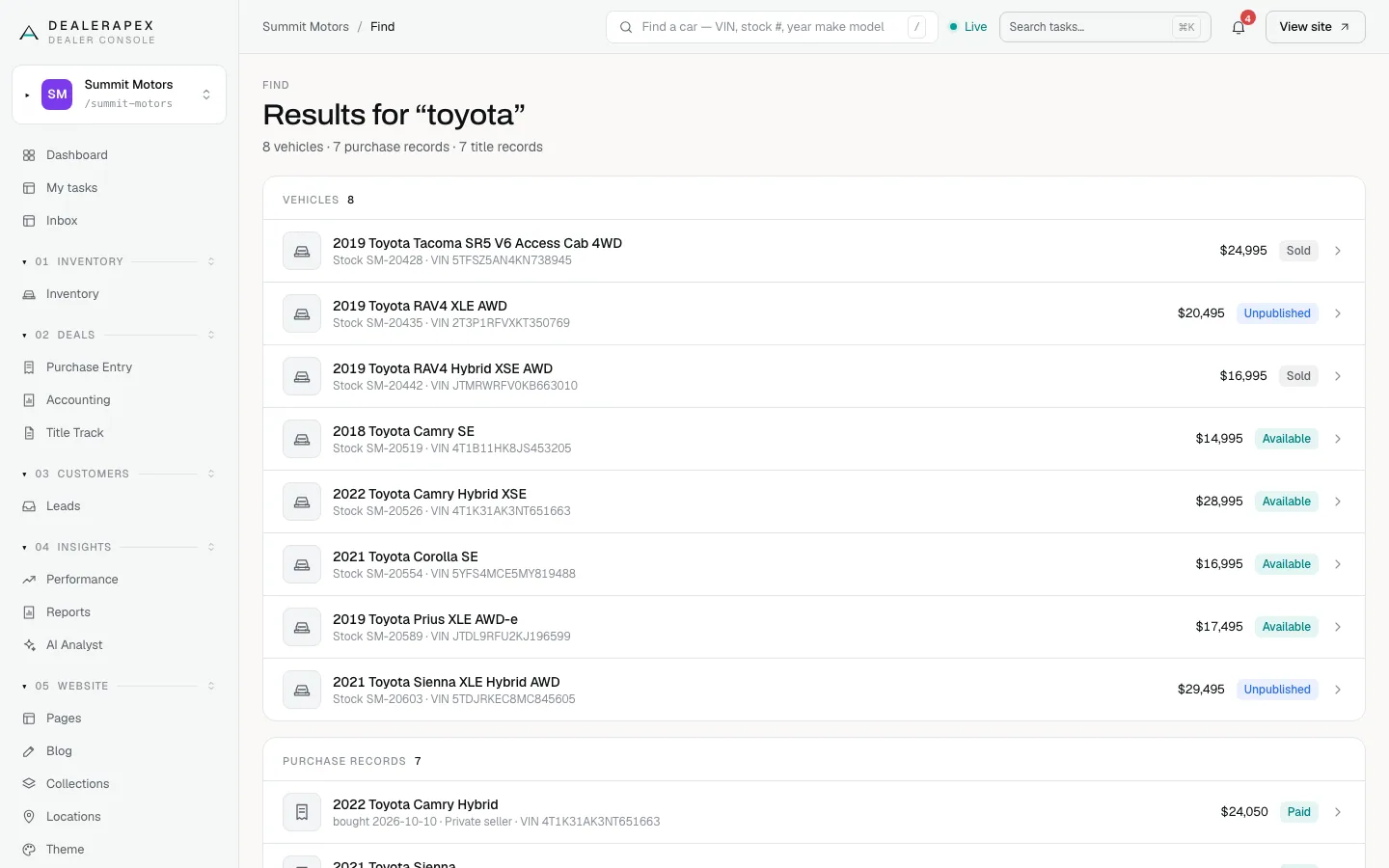
Your results include only what your role can see. A title clerk, for example, sees title records only.
Common questions
I don't see the Find box. Why?
The Find box is not on for every account yet. Ask your DealerApex account manager or email [email protected] to turn it on.
Why is "All leads" bigger than "Website leads"?
All leads counts every lead in your CRM, including phone calls, walk-ins and marketplaces. Website leads counts only the forms on your own website, over the last 7 days.
Why can't I see the dashboard?
The job roles (sales manager, inventory manager, title clerk and accountant) do not see the dashboard because it lists customer leads. They land on their own section instead. See Roles and permissions.
Still stuck? Email [email protected] with the page you were on and what you expected to see.