
Slack and the automation canvas
These extras help you see and share what your automations do: a flowchart of each one, a list of cars an automation is waiting on, and Slack messages for your team.
Who can do this: owners and editors can connect Slack. Anyone who can open Automations can view the canvas.
View an automation as a flowchart
- Go to Settings → Automations and click an automation's name.
- Click Canvas (read-only) above the steps.
- Read it top to bottom: When, Only if, then each step as a box.
- Click List to go back.
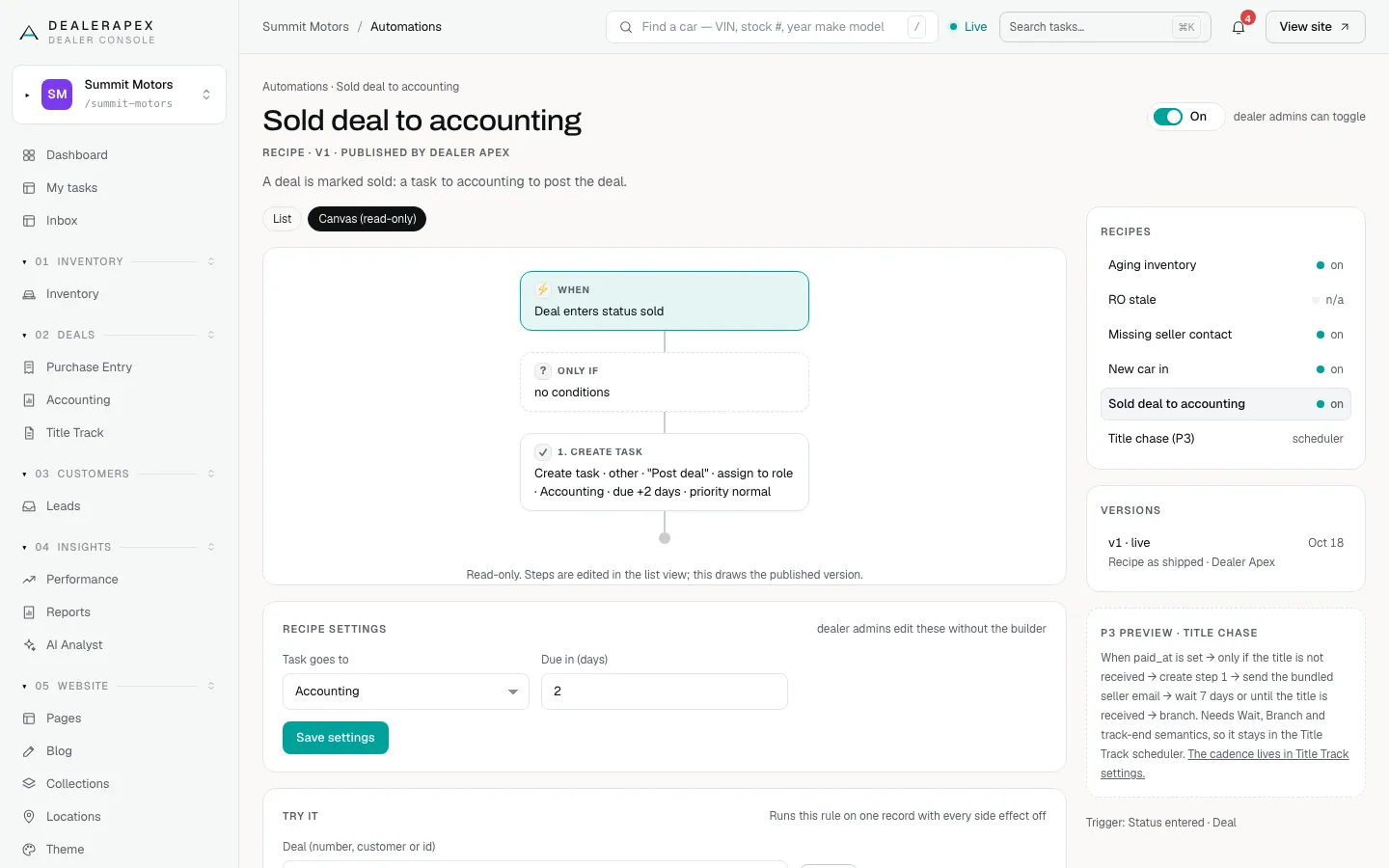
The canvas draws the published version and can't be edited. To change a number, use Recipe settings on the list view.
Wait and Branch steps
Some automations can pause before the next step (Wait), for example "wait 7 days or until the title is received", or take a different path depending on the car (Branch). On the canvas these appear as their own boxes.
When an automation is paused on a Wait step, a Waiting section on its page lists each car and the date of its next check. DealerApex maintains the steps, so to add a Wait or Branch to an automation, email [email protected].
Connect a Slack channel
- In Slack, go to Apps → Incoming Webhooks → Add to a channel, and copy the webhook URL.
- In DealerApex, go to Settings → Automations and scroll to Slack channel.
- Paste the URL into Webhook URL.
- Type a Channel label, such as #gm-alerts, so your team knows where messages go.
- Leave Post to Slack ticked and click Save.
- Click Send test message and check it arrives in Slack.
Any automation whose notify step includes Slack now posts in that channel, and people can tick the Slack column in their Notification settings. The URL is stored encrypted and only its last four characters are ever shown. To stop, untick Post to Slack or click Disconnect.
Send Slack direct messages
If Slack direct messages is on for your account, an automation can message each person directly.
- Create a Slack app with the chat:write permission, install it, and copy its Bot User OAuth Token (it starts xoxb-).
- In Slack direct messages on the Automations tab, paste it into Bot token and click Save token.
- For each person, paste their Slack member ID and click Save. In Slack it is under their profile → ⋯ → Copy member ID.
- Click Send me a test DM to check yours.
Anyone without a member ID gets the message in their DealerApex inbox instead, so nobody is skipped.
Common questions
Can I edit an automation on the canvas?
No. The canvas is read-only. Change the numbers in Recipe settings on the list view, and email [email protected] for a different step.
Do Slack messages replace the email digest?
No. Slack is one more channel. Each person still picks in-app, email or Slack for each event in their Notification settings.
Can another app start one of our automations?
DealerApex can set that up for you. Email [email protected] and tell us which app and what it should start.
Still stuck? Email [email protected] with the page you were on and what you expected to see.