
Work your tasks and inbox
My tasks is your to-do list for the day: title chase steps, tasks an automation created, and anything a teammate gave you. The Inbox holds the notices that go with them.
Who can do this: everyone who can sign in. Owners and editors can also look at everyone's tasks. Other roles see the tasks assigned to them or to their role. Viewers can read tasks but can't mark them done.
Read your list
- Click My tasks, pinned at the top of the sidebar. A title clerk lands here when they sign in.
- Read the three tiles: Overdue (do these first), Today (due by end of day) and Next 7 days.
- Use the chips to change whose tasks you see: Mine, Everyone, Unassigned or Done. Mine means tasks assigned to you or to your role.
- Scroll the groups: Overdue, Today, Next 7 days, Later and No due date. Snoozed and Backlog (before go-live) stay closed until you click them.
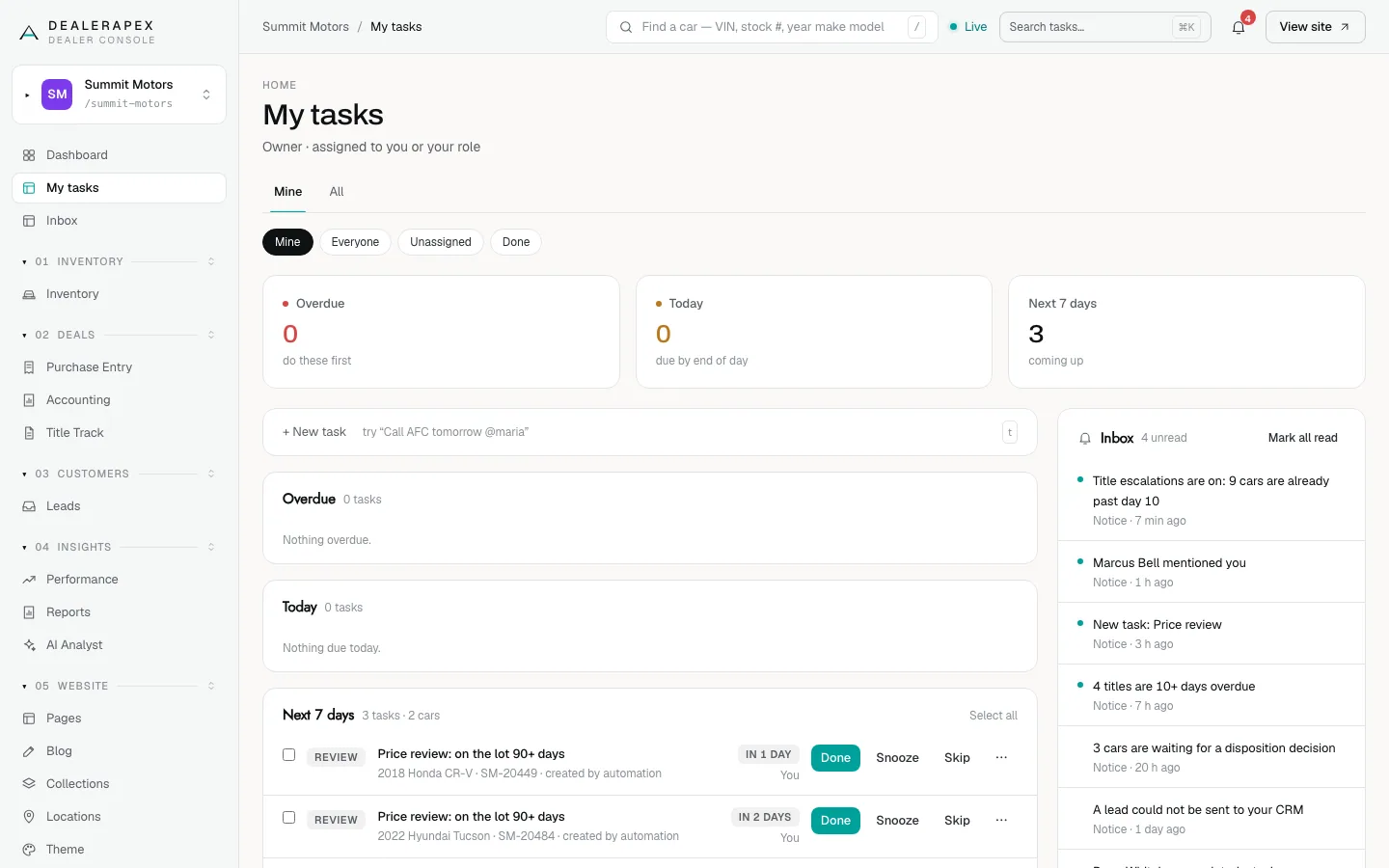
Backlog tasks are never counted as overdue. Done shows what was closed in the last 14 days.
Add a task
- Click + New task, or press t anywhere on the page.
- Type the task in plain words, for example "Call AFC re payoff tomorrow @maria".
- End with a day if it has one: "tomorrow", "fri", "in 3 days", "next week" or "10/20". A time of day is ignored, because tasks are due by the end of a day.
- Type @ to give it to a person or a role queue. After three letters, @ also finds a car by VIN, stock number or year, make and model, or a deal, and links the task to it.
- Use Due or For if you would rather pick the date or the person yourself.
- Click Add.
A task with no car or deal linked is a personal to-do.
Work a task
- Done closes it. A toast appears with Undo for a moment. After that, click Reopen on the closed task.
- Snooze hides it for 1 day, 3 days or until Next week, or pick a date and click Set. Wake up brings it back early.
- Skip asks Why skip this? Type a reason and click Skip it.
- The ⋯ menu lets you Reassign the task or add a Note. Type @ and a name in a note to tell that person.
- Click a task's title to open its notes and history.
To act on several at once, tick their boxes (or Select all) and use the bar that appears: Done, Reassign, Snooze or Skip.
Title chase steps show the seller's phone and email with Copy buttons, and a Send request button for the email. See Chase titles and escalate late ones.
Keyboard shortcuts: t new task, j and k move up and down, d marks the selected task done, o opens its notes, Esc closes a panel.
On your phone
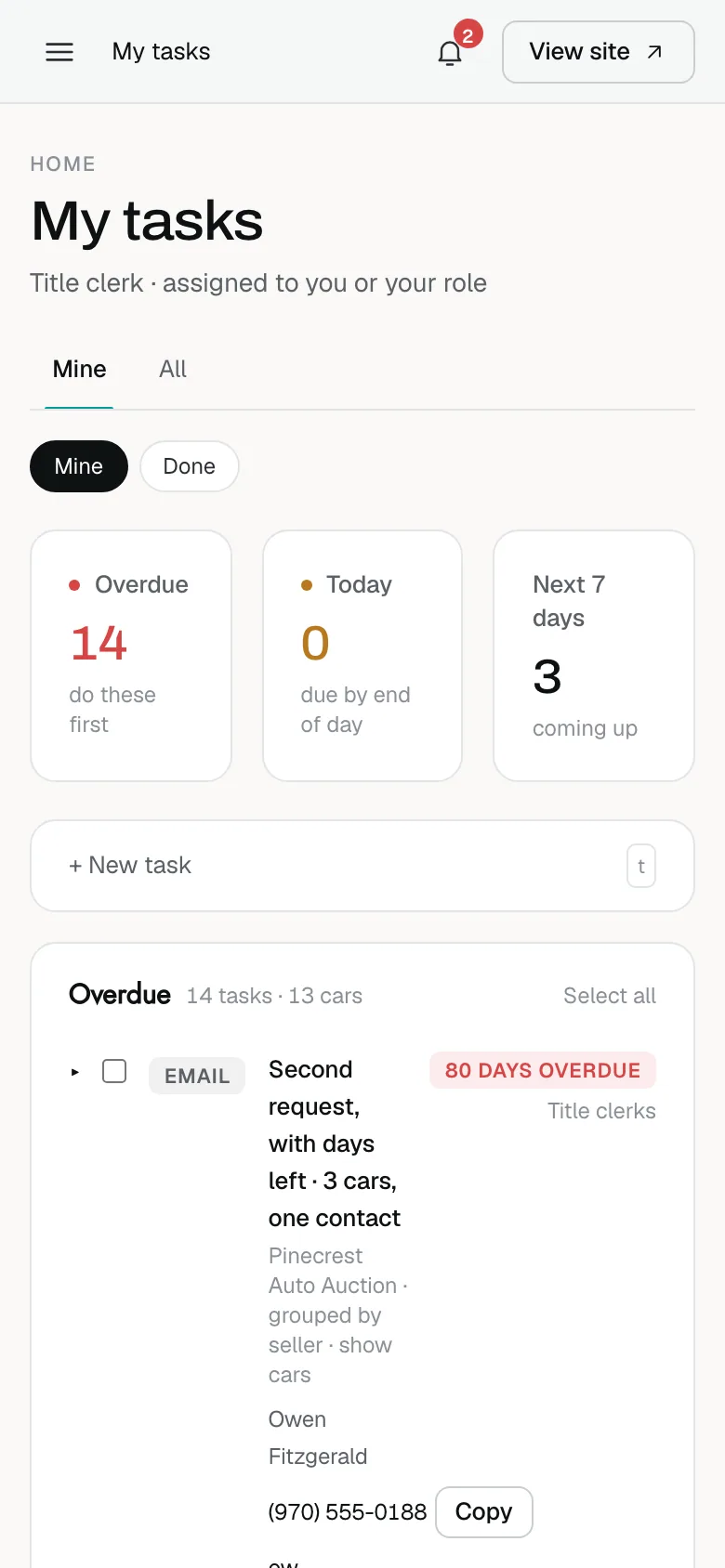
My tasks works the same on a phone. The tiles sit side by side and each task stacks its buttons under the title.
Read your inbox
- Click Inbox in the sidebar, or the bell in the top bar. The bell shows how many notices are unread.
- Read the notices from the last 30 days, grouped by car. Notices not about one car are under Other. A dot marks each unread notice.
- Click a notice to open the task or car it is about.
- Click Mark read on a group, or Mark all read at the top.
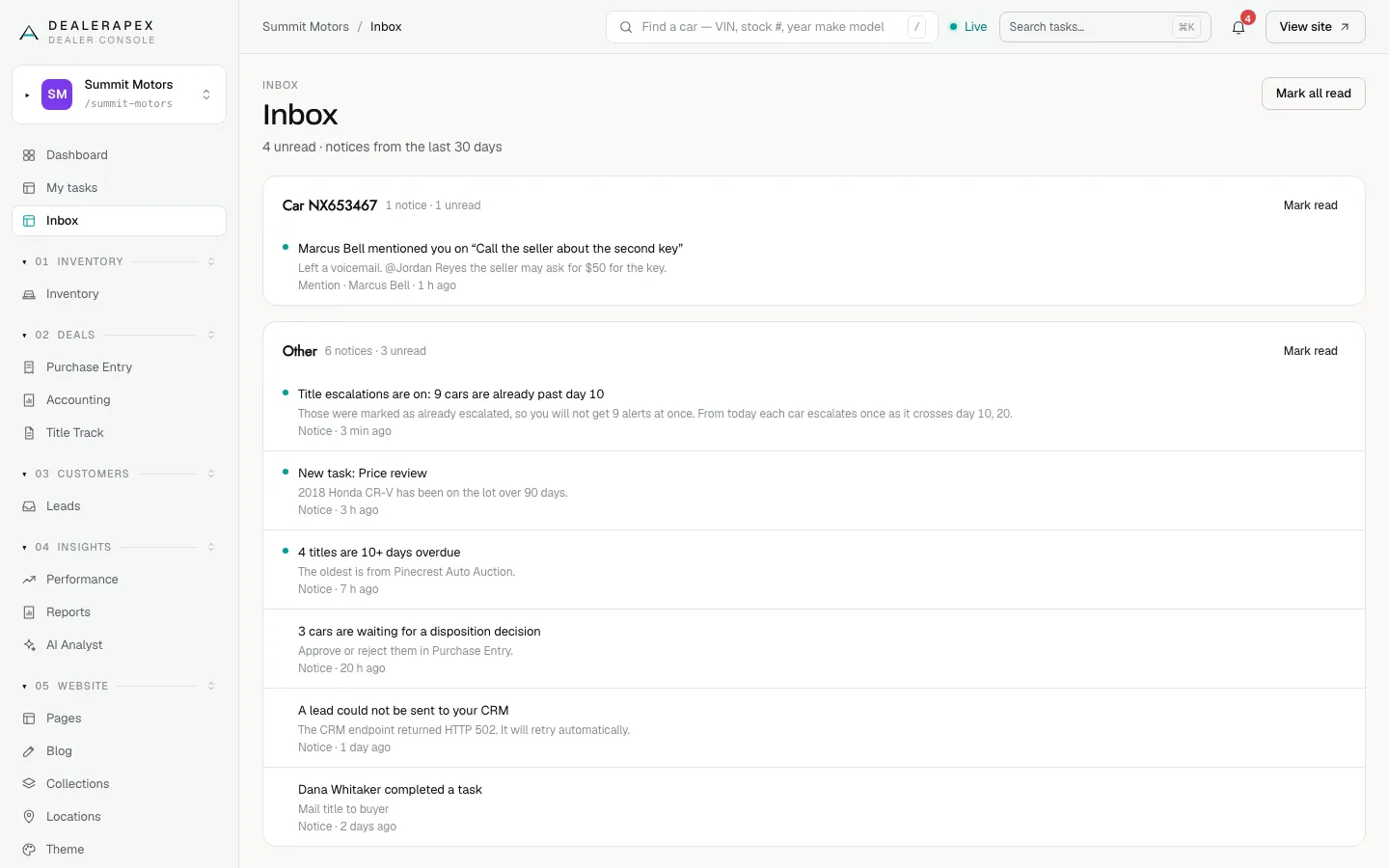
You get a notice when someone assigns you a task, moves one to you, snoozes yours or mentions you, and when an alert or automation tells you about a car. The Inbox itself never sends email. Whether a notice also reaches you by email is up to you, in Notification settings.
Common questions
Why is a task assigned to "Title clerks" on my list?
Tasks can go to a role queue instead of one person. Everyone in that role sees it under Mine until someone marks it done or reassigns it.
I skipped a task by mistake. Can I get it back?
Click Undo in the toast straight away. If it has gone, choose Done in the chips, find the task and click Reopen.
Why do I only see the Mine and Done chips?
Only owners and editors can look at everyone's tasks and unassigned ones. Other roles see their own tasks and their role's queue.
Still stuck? Email [email protected] with the page you were on and what you expected to see.