
Set up alerts and decide who hears about them
Alerts email the right people when a car or title has waited too long, for example a title that has not arrived two weeks after the car was stocked in. Rules say what to watch. Routes say who hears about it, and who hears next if it is still waiting.
Who can do this: owners and editors can add and change rules. Only owners can change routes. Viewers can read both. Inventory managers, title clerks, accountants and sales managers can't open Alerts.
Add a rule
- Go to Settings → Alerts. The Rules tab opens.
- Scroll to Add your first rule (or Add another rule).
- Choose When, then the condition and the number of days in and.
- Under Notify, tick the people who should get the email.
- Leave On ticked and click Add rule.
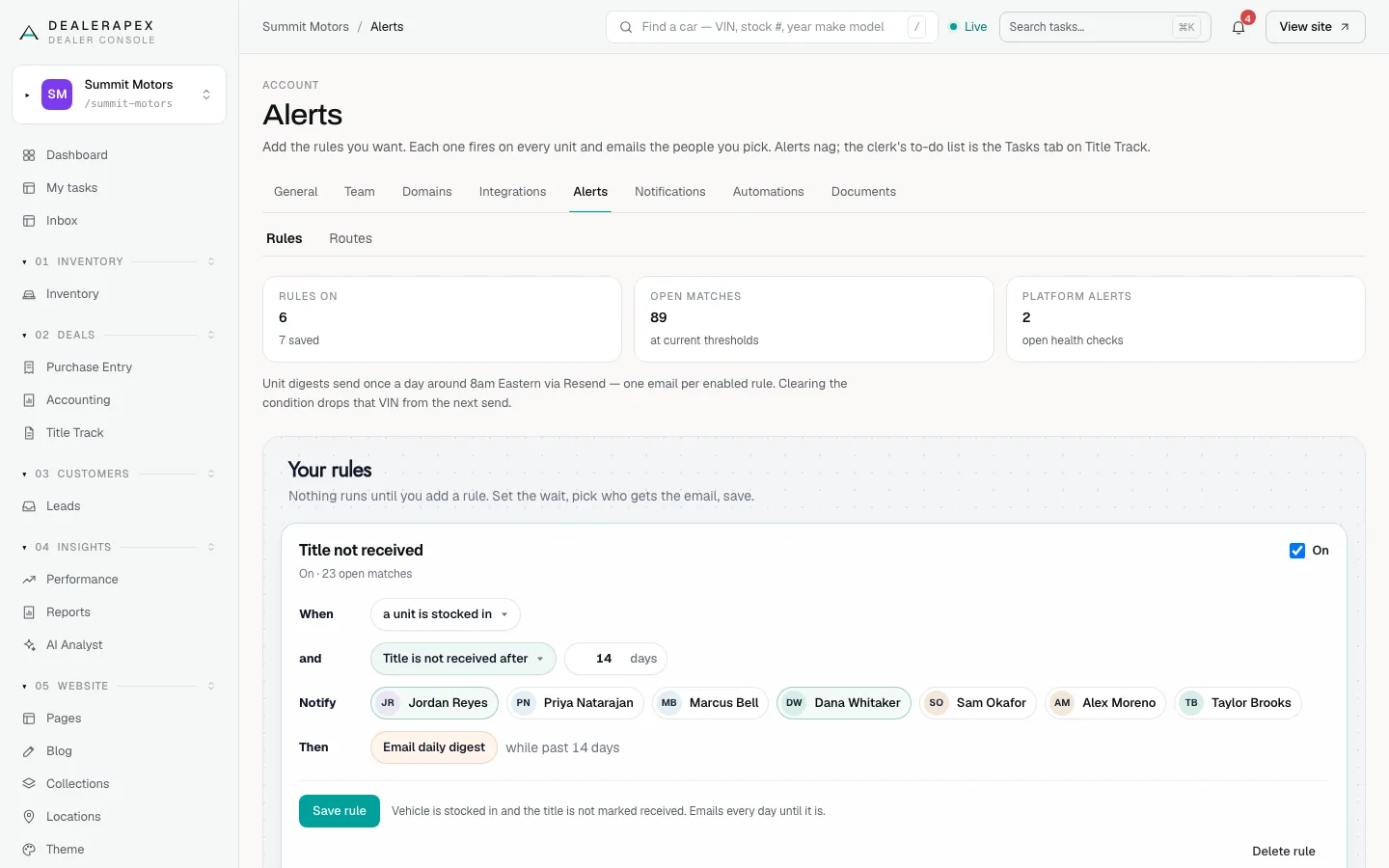
Each rule sends one email a day, around 8am Eastern, listing every car that matches. When a car stops matching, for example its title is marked received, it drops off the next email. Nothing is sent until you add a rule.
The alerts you can add:
| Alert | What it watches |
|---|---|
| Title not received | The car is stocked in and the title is not marked received. |
| Stuck chasing title | The cheque has cleared and the title is still not in hand. |
| Awaiting cheque too long | Stocked in, with no cleared cheque and no title yet. |
| Title received, not sent | The title is in hand but not marked sent. |
| Disposition awaiting approval | A car proposed for retail, wholesale or return is still waiting on approval. |
| Approved, not in the DMS | A manager approved the car and it is still not in your inventory feed or marked as entered. |
| Title task overdue | A title chase step is past its due date and nobody has marked it done or skipped. |
Change or delete a rule
- Find the rule under Your rules. Its header shows whether it is on and how many cars match now.
- Change the days or the people, or untick On to pause it.
- Click Save rule.
- To remove it, click Delete rule.
Click Preview under a rule to see the matching cars. The preview shows up to 12; the email lists all of them.
If Title task overdue is on but your Title Track has no go-live date, the page says Overdue tasks email is paused. Set the go-live date in Title Track settings to start it.
Decide who hears, and when
- Click the Routes tab.
- Find the alert. Each route is a row: Days past grace, Audience, Urgent, Roll-up and On.
- Click + Add route under an alert to add a later step, for example the owner at day 10. Set Days past grace, Who and Roll-up, then click Add route.
- On an existing route, add people with the + add… menu, tick Urgent if they should hear straight away, and click Save.
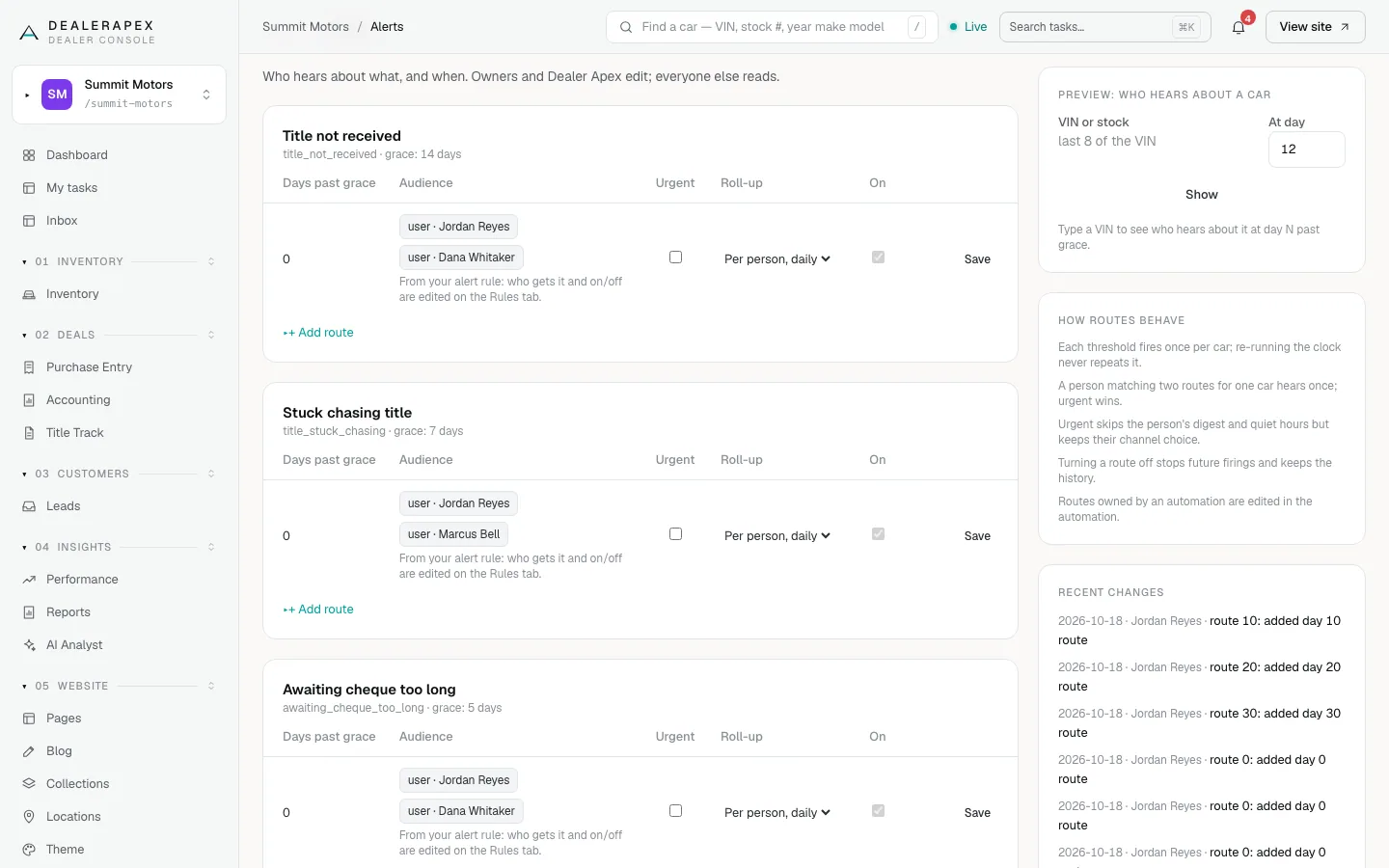
A route can go to a role (such as Owner / GM or Title clerk), a named person, or someone relative to the car, such as its Record owner. Per person, daily gathers a person's cars into one message; Per record sends one per car.
Your rules become day-0 routes automatically. On those rows the people and the on/off switch come from the rule, so change them on the Rules tab.
Some rules to know:
- Each step fires once per car. Restarting a car's clock never repeats it.
- Someone on two routes for the same car hears once, and urgent wins.
- Urgent skips the person's digest and quiet hours, but still uses the channel they chose.
- Turning a route off stops future alerts and keeps the history.
To check a car, type its VIN or stock number in Preview: who hears about a car, pick a day in At day and click Show. Recent changes lists who changed which route.
Each person still chooses email, in-app or Slack for themselves in Notification settings. For the ready-made title ladder, see Chase titles and escalate late ones.
Common questions
Why did someone not get an alert email?
Check they are ticked under Notify on the rule, that the rule is On, and that they have not turned email off in their own Notification settings.
Can I send an alert to someone who is not on my team?
No. Only people on your team can be notified. Invite them first under Settings → Team. See Invite your team.
What is Platform health at the bottom of the page?
Checks that DealerApex runs on your account every day. Mute 30 days pauses the email about one, but does not fix the problem behind it.
Still stuck? Email [email protected] with the page you were on and what you expected to see.