
Choose how you get notified
Notification settings decide how a notice reaches you: in the console, by email or in Slack, and straight away or in one daily email. Use it when you are getting too much email, or missing something.
Who can do this: everyone, for their own settings only. You can turn a channel off for yourself, but you can't change who an alert goes to. That is set on Alerts.
Change your settings
- Go to Settings → Notifications.
- Find the event in the table. Events are grouped under Tasks, Records I own and Automations.
- Tick In-app, Email or Slack for each event.
- Choose the Timing: Instant, or Daily digest.
- Click Save. Changes apply from the next delivery.
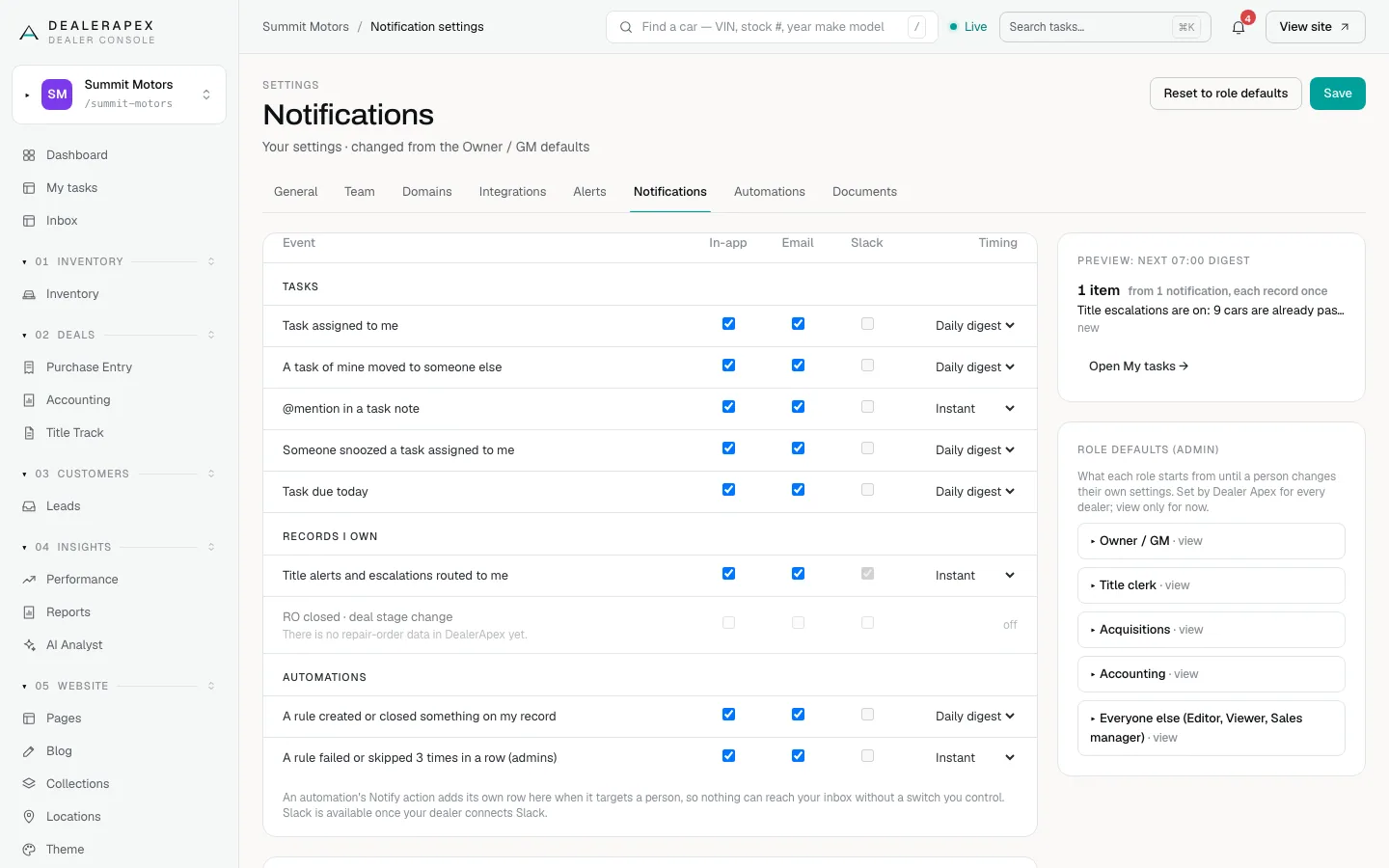
The events you can set:
- Tasks: Task assigned to me, A task of mine moved to someone else, @mention in a task note, Someone snoozed a task assigned to me, Task due today.
- Records I own: Title alerts and escalations routed to me.
- Automations: A rule created or closed something on my record, and A rule failed or skipped 3 times in a row (admins).
An automation that notifies a person adds its own row here, so nothing reaches your inbox without a switch you control. A greyed-out row, such as repair-order events, is for data DealerApex does not have yet.
Set your digest and quiet hours
- In Delivery, set Daily digest time. You get one email a day with everything you chose as a digest, in your dealership's time zone.
- Tick Quiet hours and set the start and end times. The default is 21:00 to 07:00. Instant emails wait until quiet hours end.
- Tick Roll up to get one message per car per day instead of one per task. Later updates on the same car wait for your digest.
- Click Save.
The Preview box on the right shows what is waiting for your next digest. If nothing new arrives, no digest is sent. Open My tasks takes you to the tasks behind it.
Start again from your role
Everyone starts from defaults for their role. The line under the title says whether your settings are still the role defaults or have been changed. Click Reset to role defaults to go back.
Owners also see Role defaults (admin), which shows what each role starts with. DealerApex sets these for every dealer, so they are view only.
Slack
The Slack column only works once your dealership has connected a Slack channel. Until then it stays off. An owner or editor connects it on the Automations tab, see Slack and automation canvas.
Common questions
Will quiet hours hold back an urgent escalation?
No. Urgent escalations still arrive during quiet hours and skip your digest. They still use the channels you ticked.
Can I stop getting a title alert email I didn't ask for?
You can untick Email for Title alerts and escalations routed to me. To be taken off the alert itself, ask an owner to change it on Alerts. See Set up alerts and decide who hears about them.
Why is the Slack column greyed out?
Your dealership has not connected a Slack channel yet. Once an owner or editor connects one on the Automations tab, you can tick Slack here. See Slack and the automation canvas.
Still stuck? Email [email protected] with the page you were on and what you expected to see.