
See every task, and the tasks on one car
All tasks is the whole store's task list in one table, from every part of the console. Use it to check nothing is stuck, or to hand work out. A car's Tasks tab shows the same tasks for just that car.
Who can do this: owners, editors and viewers can open All tasks. Inventory managers, title clerks and accountants can open it too, but see only their own tasks and their role's queue. Viewers can't change tasks.
Open All tasks
- Click My tasks in the sidebar, then the All tab.
- Read the line under the title, for example "22 open (record-linked) · 22 in this view". Personal to-dos with no car or deal are left out unless you tick Include personal to-dos.
- Pick whose tasks with the chips: All, Mine, Unassigned or Done. Each shows a count.
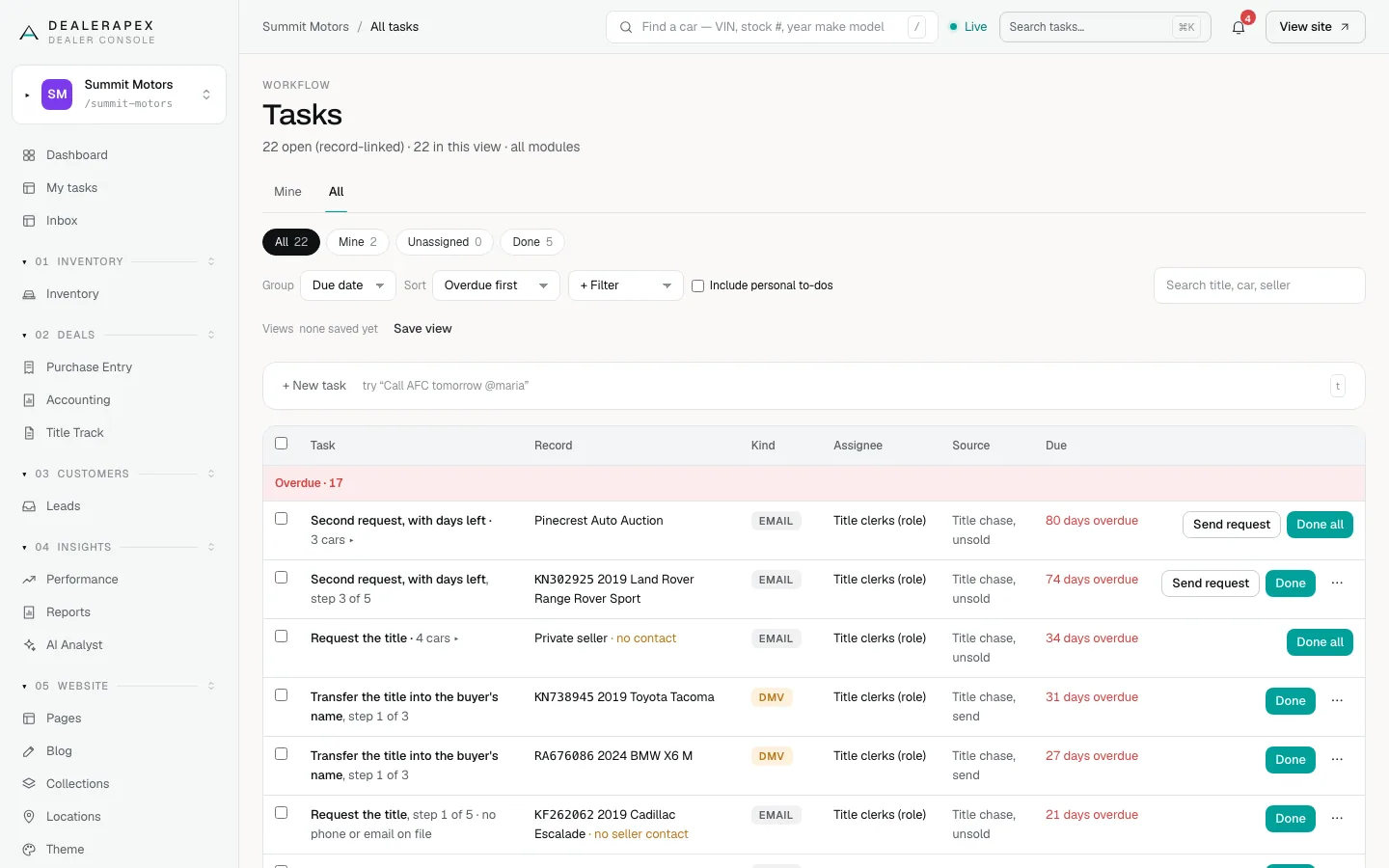
Filter and sort
- Group splits the table by Due date, Kind, Assignee or Record.
- Sort orders it Overdue first, Due latest first or Title A–Z.
- + Filter adds one filter at a time: a kind of task (Email, Call, DMV, Recon and so on), a due window (Overdue, Due today, Next 7 days, Later, No due date), an assignee, or a source (Manual, Automation or Title chase). Each filter shows as a chip you can remove.
- The search box finds a task by title, car or seller.
The table shows Task, Record, Kind, Assignee, Source and Due for each row.
Save a view
- Set up the filters, group and sort you want.
- Click Save view.
- Type a name in Name this view and click Save.
Your saved views appear next to Views, so you can come back to the same list in one click.
Act on tasks
- Click Done on a row to close it. The ⋯ menu has Snooze, Skip, Reassign and Notes & history.
- To act on many rows, tick their boxes and use the bar that appears: Done, Reassign, Snooze or Skip. Each button says how many of the ticked rows it applies to.
When the table is sorted Overdue first, title requests to the same seller are rolled into one row, such as "Second request, with days left · 3 cars". Done all logs one chase for every car on that row, and Send request opens the email to the seller. Closing a title step needs Title Track access.
A car's Tasks tab
- Open a car from Inventory.
- Click the Tasks tab next to Details.
- Read the open tasks for this car, grouped by Overdue, Today and so on.
- Click + New task on followed by the car's name to add one. It is linked to this car automatically.
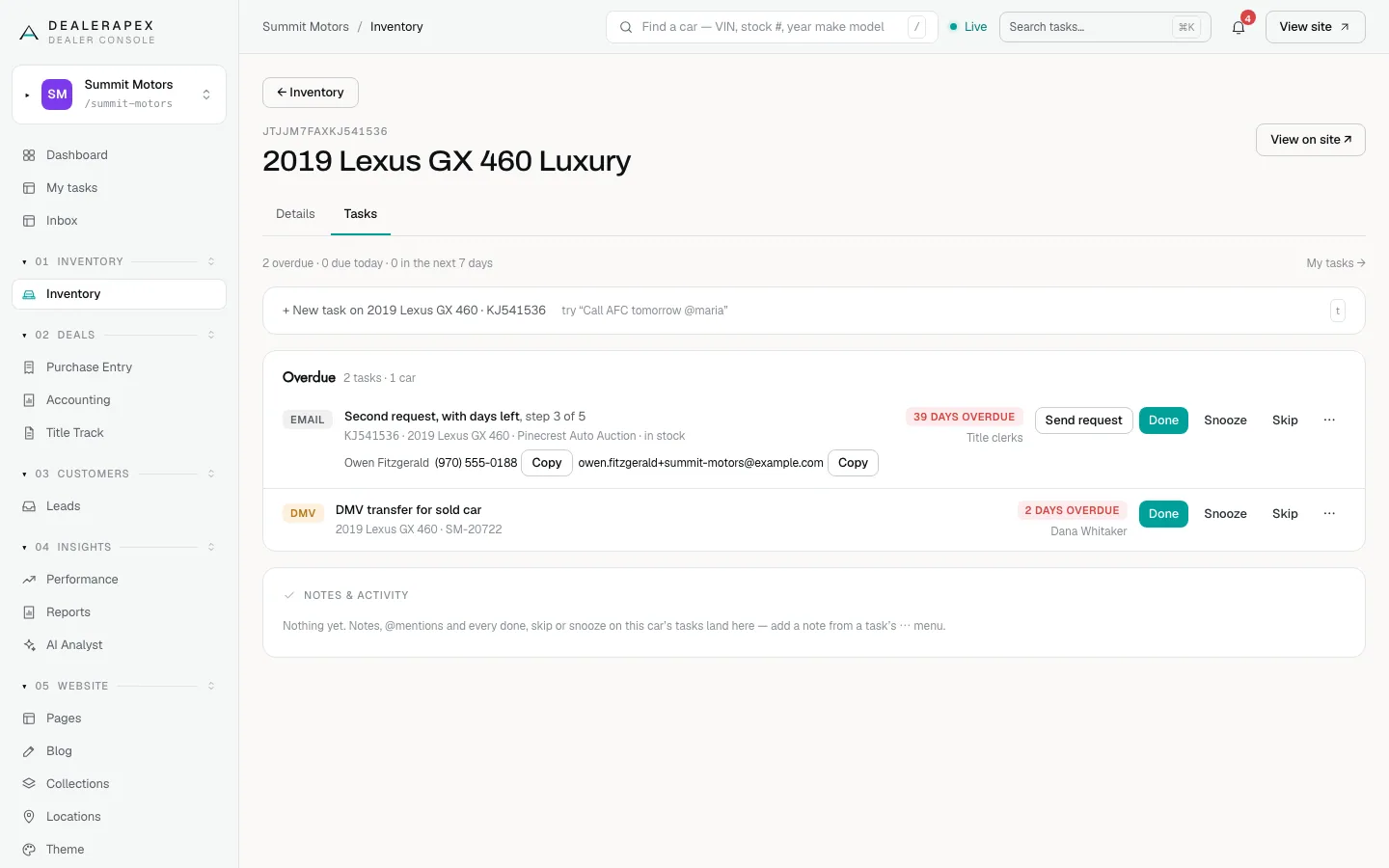
Under the tasks, Notes & activity lists every note, @mention, done, skip and snooze on this car's tasks, newest first. The same Tasks tab appears on a car's sheet in Title Track. For the other tabs on a car, see Vehicle sheet tabs.
Common questions
Why is a task missing from All tasks?
It is probably a personal to-do with no car or deal linked. Tick Include personal to-dos to show them, and check no filter chip is hiding it.
What does the Source column mean?
Manual means a person added it, Automation means one of your automations created it, and Title chase means it is a step in the title chase cadence.
Why can I see a title task but not mark it done?
Title chase steps need write access to Title Track as well as to tasks. Ask an owner to check your role. See Roles and permissions.
Still stuck? Email [email protected] with the page you were on and what you expected to see.