
Chase titles and escalate late ones
The title chase turns every title you are owed into a short list of steps: email the seller, call, ask again, then escalate. Escalation makes sure the owner hears when a title is still late.
Who can do this: title clerks, inventory managers, owners and editors work the chase. Owners, editors and inventory managers set the steps. Title clerks can't change the steps or the clocks. Only owners set up the escalation ladder.
How the chase works
Each car that is paid for and has no title gets the next step of its cadence as a task, on Title Track's Tasks tab and on My tasks. A sold car switches to the daily cadence by itself, because a customer is waiting. A received title ends the chase.
The Workstation in Title Track ranks every outstanding title so you know what to chase first:
- High: sold, or the chase clock is past due.
- Medium: unsold, inside the last quarter of the window.
- Low: unsold, comfortably in time.
- On deck: not paid yet, so you can't ask for it.
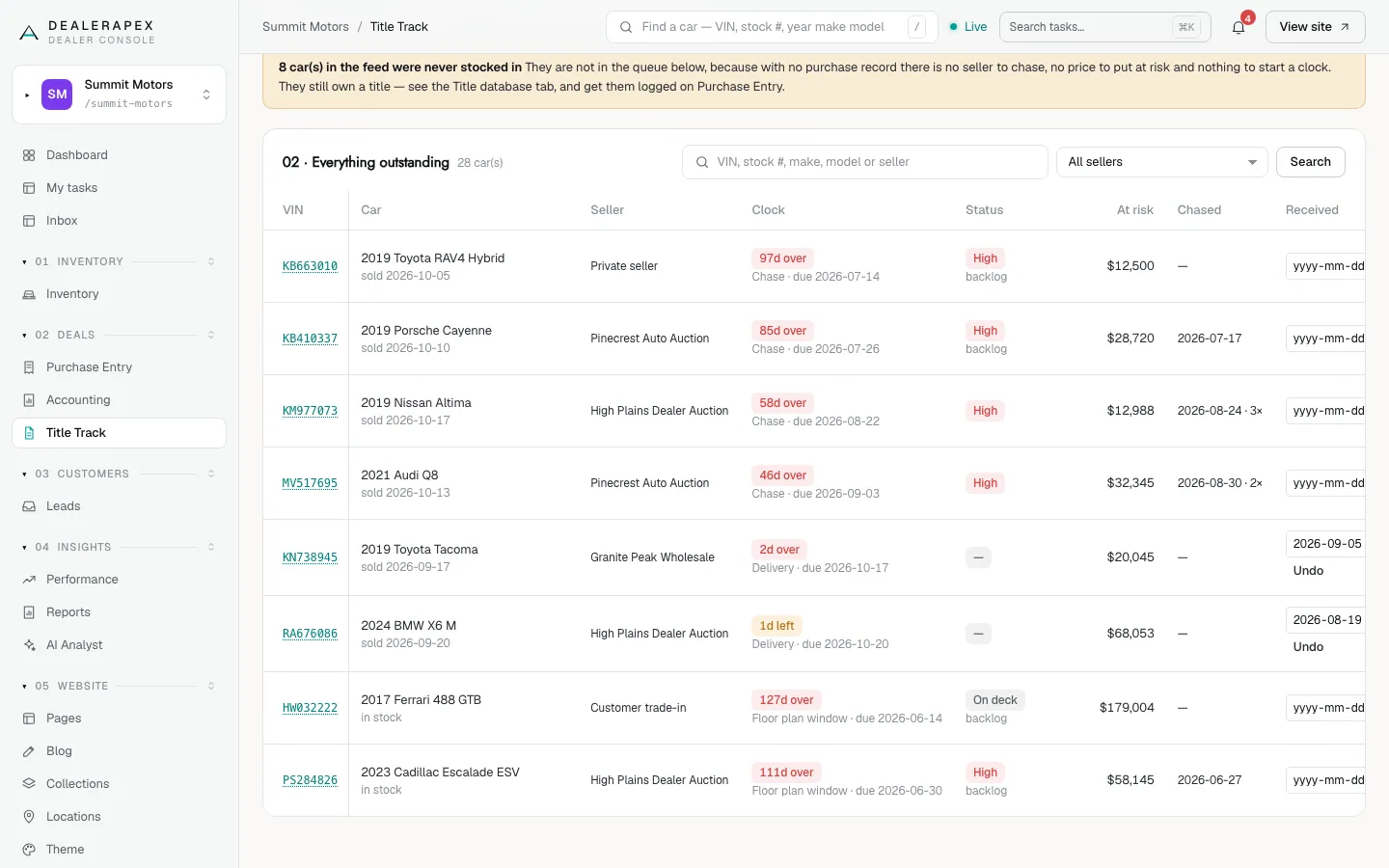
For the rest of the Workstation, see Title Track workstation.
Set the steps
- Open Title Track and click the Settings tab.
- Find the track to change: Get the title (unsold), Get the title (sold) or Send the title.
- For each step, choose a Channel, the Day it is due, and What to do. You can have up to 15 steps.
- In Then repeat the last step every, enter a number of days, or leave it blank to stop after the last step.
- Click Save cadence.
Reset to defaults puts a track back. The defaults are:
| Track | Steps |
|---|---|
| Get the title (unsold) | Day 1 email, day 4 call, day 8 second request by email, day 11 second call, day 14 escalate to the manager, then every 3 days |
| Get the title (sold) | Day 0 email, day 1 call, then every day |
| Send the title | Day 0 transfer at the DMV, day 1 mail or hand it over, day 3 call to confirm the buyer has it |
Two more settings on the same tab affect the chase. Set a Go-live date so cars bought before you started using Title Track count as Backlog, not as overdue. Tick Skip weekends on DMV steps to move a DMV step due on a Saturday or Sunday to Monday. Click Save the clocks after either. More in Title settings and contacts.
Log a chase
- On My tasks or Title Track's Tasks tab, find the step. It shows the seller's phone and email with Copy buttons.
- For an email step, click Send request. A panel shows the email, ready to send. Click Copy, Gmail or Email app, and send it yourself.
- Click Done. Choose how you reached them, set a follow-up date if you need one, note what they said, and tick the cars this covers.
- Click Mark done.
Steps for several cars from the same seller are rolled into one row, so one call covers every title that seller owes. Done all logs one chase for all the ticked cars. If the seller has no phone or email on file, Add contact lets you fill it in without leaving the list.
Escalate late titles
- Go to Settings → Alerts and click the Routes tab.
- Click Set up ladder in Set up the title escalation ladder.
The ladder adds routes to the Title task overdue alert:
- Day 0: the title clerk, in the daily digest.
- Day 10: the owner, urgent.
- Day 20: the owner and accounting, urgent.
- Day 30: the owner and the DealerApex team. This step stays off unless DealerApex switches it on.
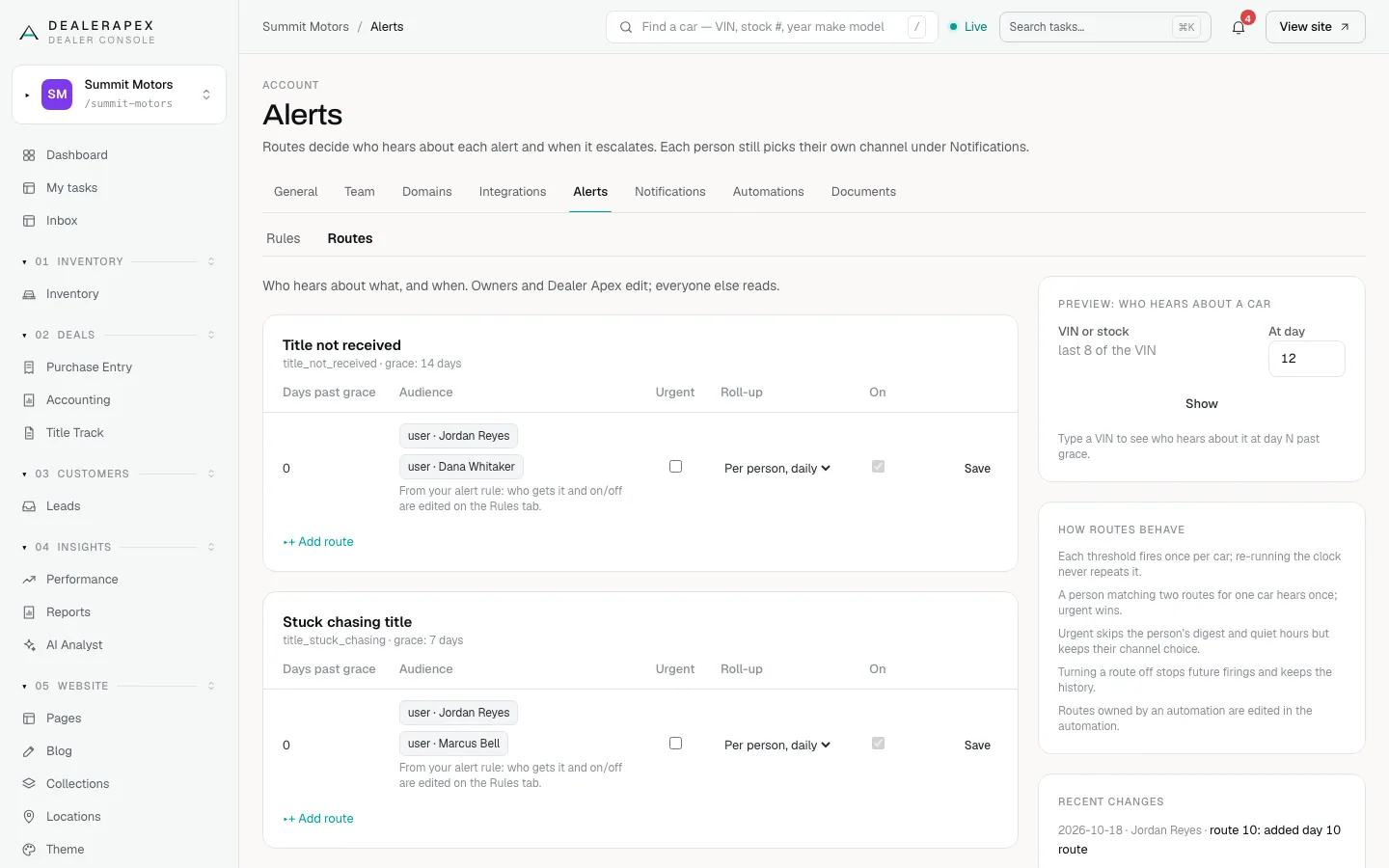
Cars already past a step when you set it up are marked as escalated, not sent, so you don't get a flood of alerts at once. Owners get an inbox notice saying how many cars were already past day 10. From then on, each car escalates once as it crosses day 10 and day 20.
Urgent means the owner hears straight away, even in quiet hours. You can change any step on the Routes tab, see Set up alerts and decide who hears about them.
Common questions
Does DealerApex send the title request email for me?
No. Send request gives you the email ready to copy or open in Gmail or your email app. You send it, then click Done so the chase is logged.
Why is every old car showing as overdue?
Your Title Track has no go-live date, so cars bought before you started count as live work. An owner, editor or inventory manager can set the Go-live date on Title Track settings to move them into Backlog.
Will the owner get an alert for every late car?
Each car escalates once at each step. The day 0 step is a daily digest, and if a person is on two routes for the same car, they hear once.
Still stuck? Email [email protected] with the page you were on and what you expected to see.