
Switch on ready-made automations
Automations are ready-made workflows that create tasks and send notices for you, such as a price-review task when a car has been in stock 45 days. You choose which ones run and change their numbers. DealerApex maintains the steps.
Who can do this: owners and editors can switch automations on and off and change their settings. Viewers can read them. Other roles can't open Automations.
Switch one on
- Go to Settings → Automations.
- Read each card: what it does, when it last ran, and how many times it ran, skipped or failed in the last 24 hours.
- Click the switch on a card to turn it On.
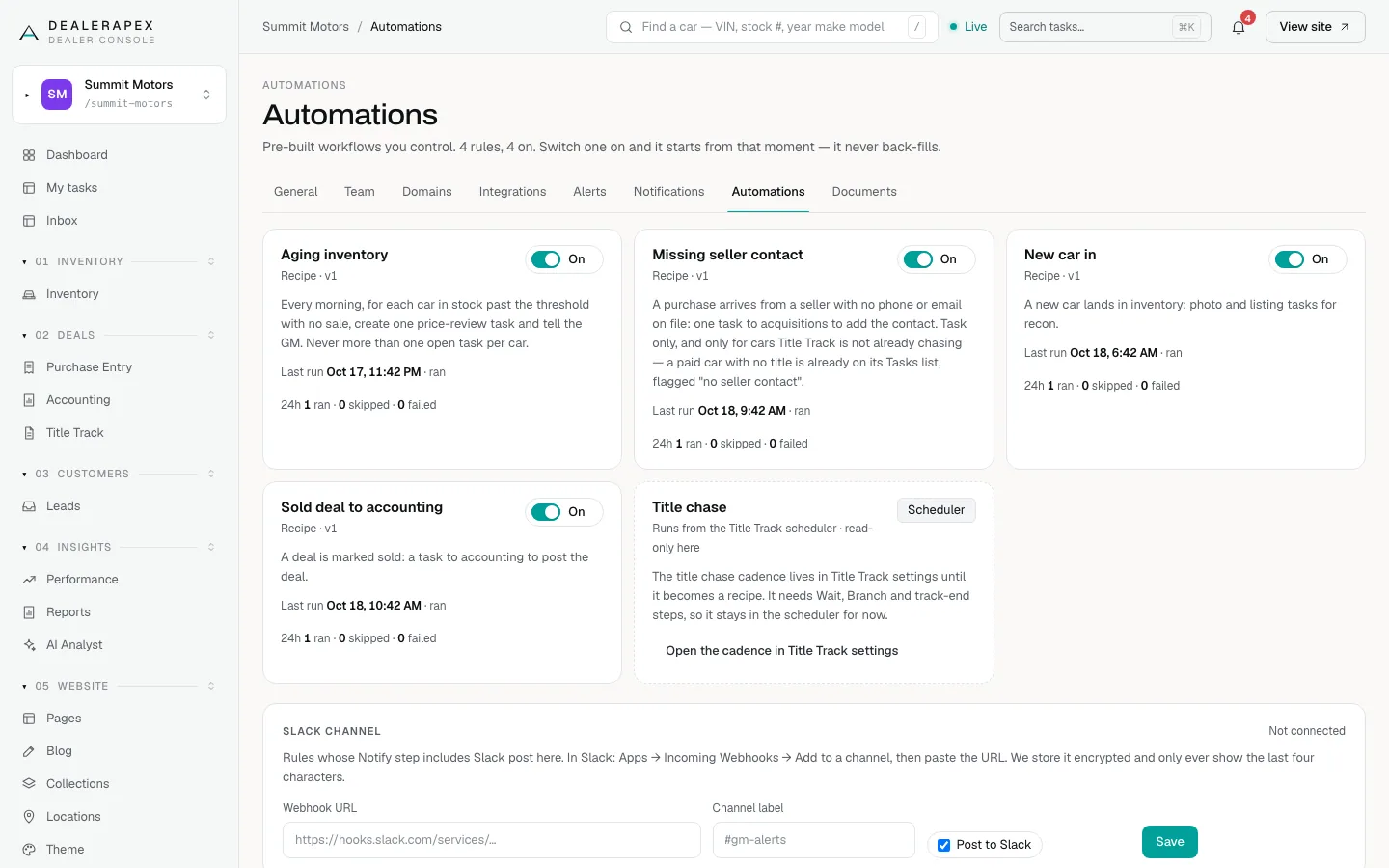
An automation starts from the moment you switch it on. It never goes back over cars that were already there, so turning on New car in does not create tasks for every car on your lot.
The automations
| Automation | What it does | Settings you can change |
|---|---|---|
| Aging inventory | Every morning, for each unsold car in stock past the threshold, creates one high-priority Price review task and tells the GM. Never more than one open task per car. | Days in stock (45, from 7 to 365), Task goes to, Due in (days) (2), Cooldown after done or skip (days) (30), Also notify |
| Missing seller contact | When a purchase comes in from a seller with no phone or email, creates one Add seller contact task. Skips cars Title Track is already chasing. | Task goes to (Acquisitions), Due in (days) (1) |
| New car in | When a new car lands in inventory, creates a Photos task and a Listing task. | Tasks go to (Acquisitions), Due in (days) (3) |
| Sold deal to accounting | When a deal is marked sold, creates a Post deal task. | Task goes to (Accounting), Due in (days) (2) |
The Title chase card is read-only here. The title chase runs from Title Track, and its steps are set in Title Track settings. See Chase titles and escalate late ones.
An automation that needs data you don't have, such as repair orders, is not listed.
Change an automation's numbers
- Click the automation's name.
- Read When, Only if and Then, in order. Numbers you can change are shown as chips.
- Scroll to Recipe settings and change the values.
- Click Save settings.
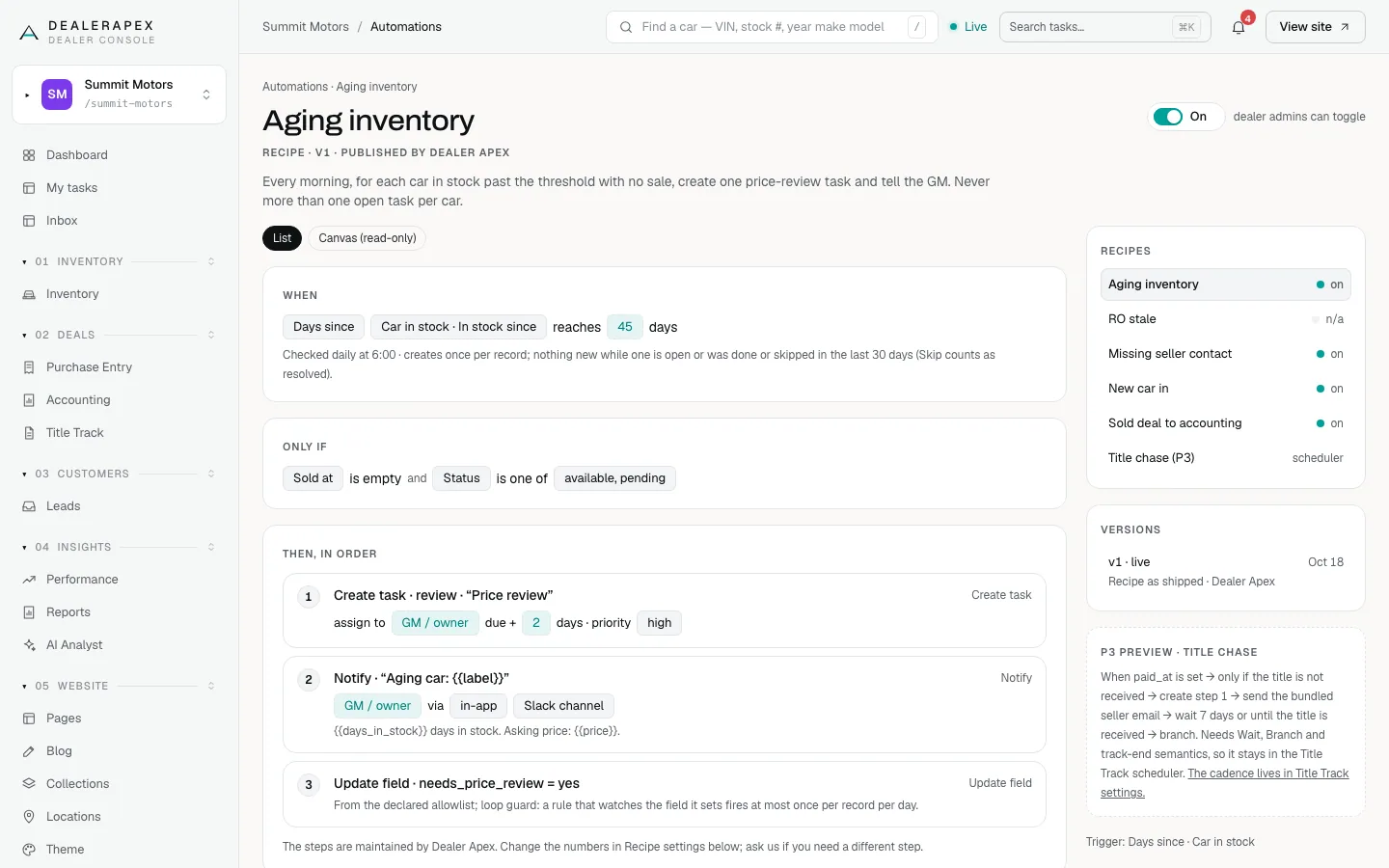
A number outside the allowed range is refused, not rounded, for example "Days in stock must be between 7 and 365." Need a different step? Email [email protected].
Test it and check the log
- Under Try it, enter a VIN (or a deal, for Sold deal to accounting).
- Click Try it. The result says what the automation would have done. Nothing is created, sent or changed.
- Scroll to Last 50 runs to see what really happened. Filter by ran, skipped, failed or try it, or search by VIN.
Automations that react to something, like a new car, check about every 10 minutes. Daily ones run after 6:00 in the morning. Skip counts as resolved: a car whose price review was skipped stays quiet until the cooldown ends.
Common questions
I switched on Aging inventory. Why are there no tasks yet?
It checks once a day, after 6:00 in the morning. Use Try it with a VIN to see what it would do for that car right now.
Can I build my own automation?
Not yet. You switch ready-made ones on and change their numbers. If you need a different step, email [email protected].
Who gets the tasks an automation creates?
The role you pick in Task goes to. The task lands in that role's queue on My tasks for everyone in the role.
Why does the switch not move for me?
Only owners and editors can switch automations on or off. Others see "read-only for your role".
Still stuck? Email [email protected] with the page you were on and what you expected to see.