
Understand the dashboard tiles
The dashboard is the first page you see after signing in. Its tiles give you this period's sales, leads and cost per car at a glance, and each one opens the report behind it.
Who can see it: owners, editors and viewers. Scoped roles land on their own section instead, because the dashboard lists recent leads.
Choose a period
- Click Dashboard at the top of the sidebar.
- Click Last 30 days, This month, Last 3 months or Last 12 months above the tiles.
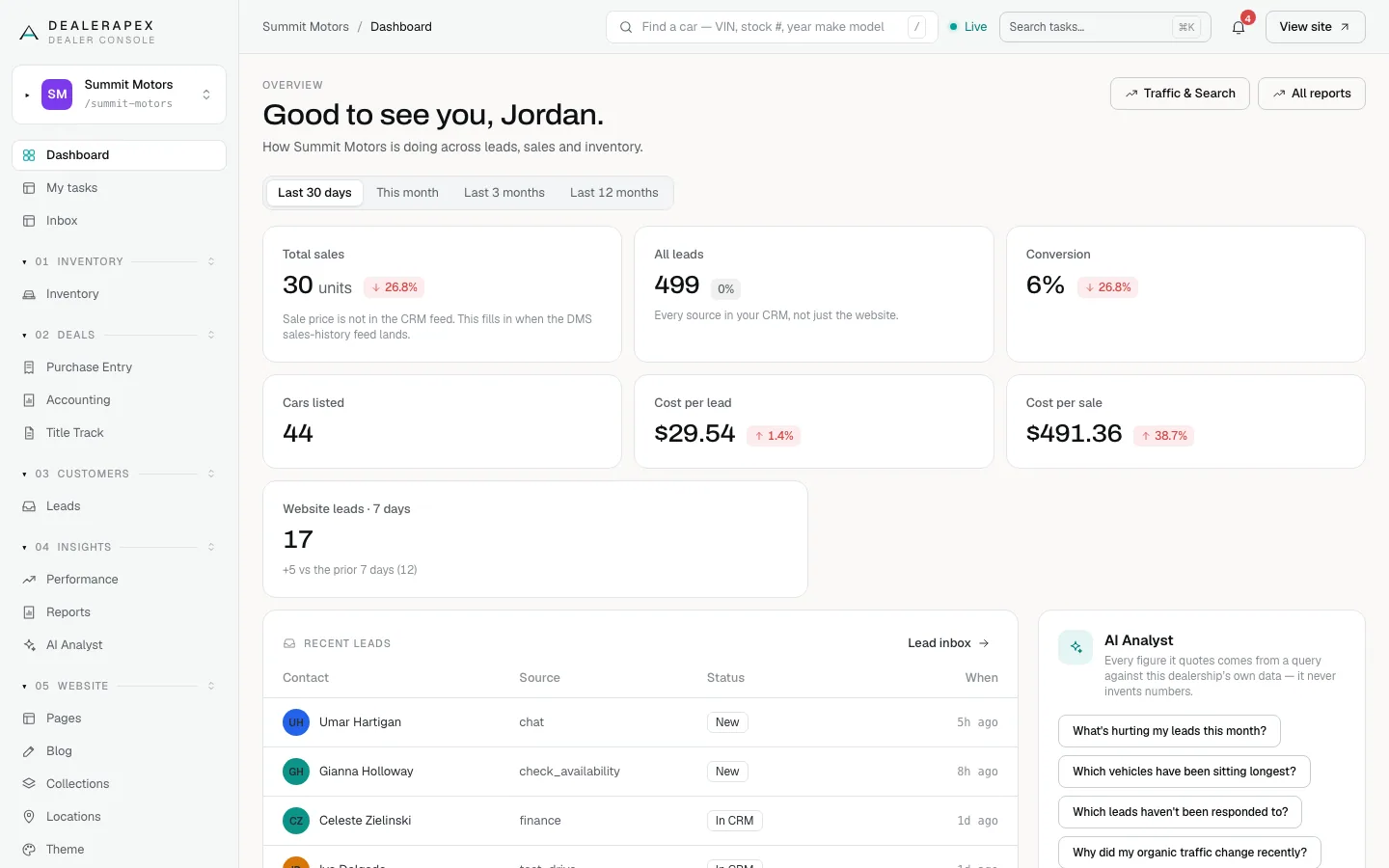
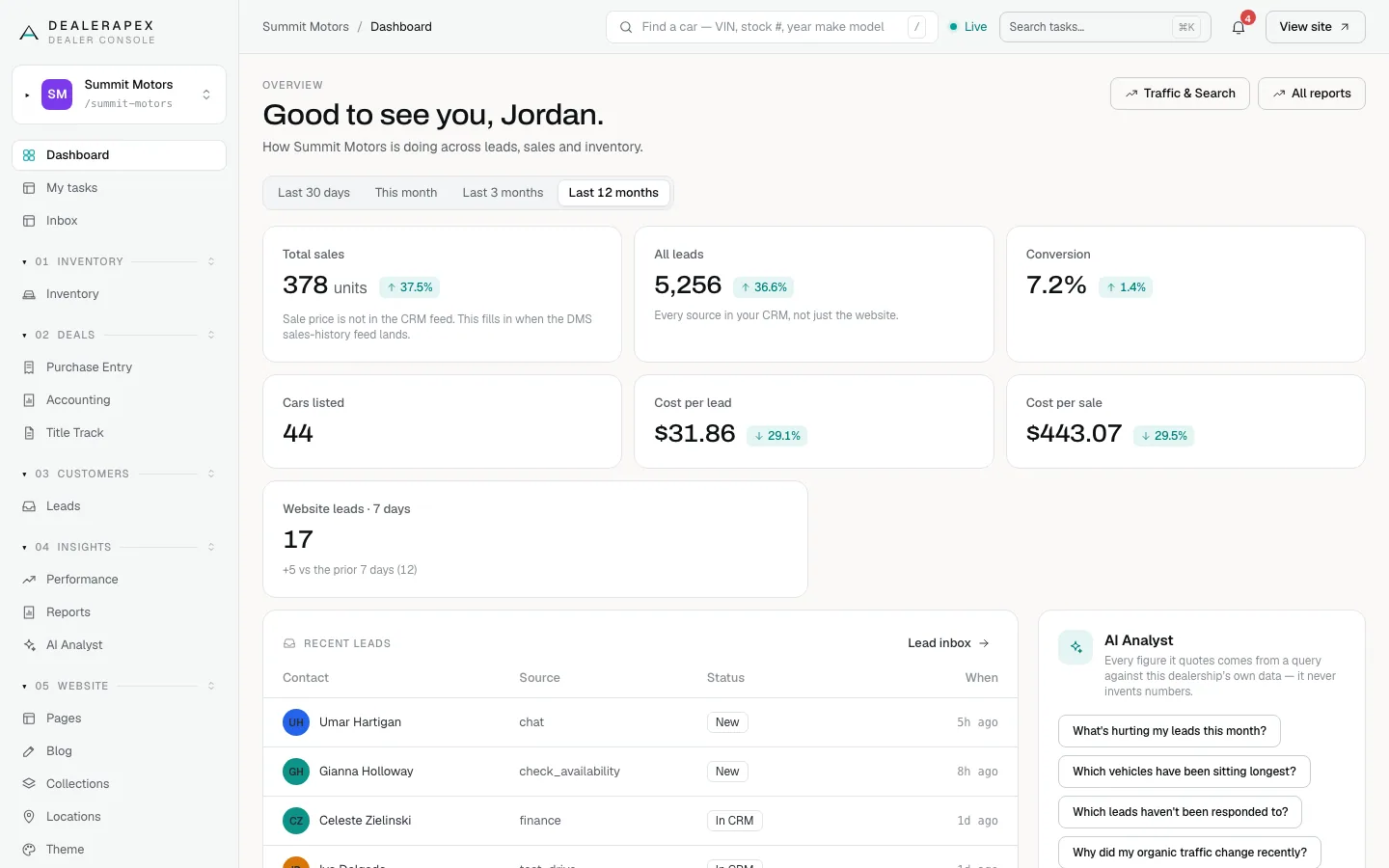
Last 30 days is the default. Each percentage badge compares the period with the one just before it. Last 30 days is compared with the 30 days before that. The other periods start on the first of a month and run to today: Last 3 months is this month plus the two before it, and Last 12 months is this month plus the eleven before it.
A green badge is good news and a red one is bad news. For the two cost tiles, a drop is green.
What each tile counts
The tiles use your CRM data and the same default filters as Performance and Reports: review and listing tools, sell-my-car and trade-in leads, and migrated DMS history are left out.
- Total sales: leads from the period that have since sold, in units. The dollar value of sales isn't shown yet, because your CRM feed doesn't include sale prices. Click it to open the Acquisition report at the Sold stage.
- All leads: every lead your CRM recorded in the period, from every source, not just your website. Click it to open the Acquisition report.
- Conversion: Total sales ÷ All leads. Click it to open the Funnel Conversion report.
- Cars listed: cars marked available in your inventory right now. It has no comparison badge, because it's a count of today. Click it to open Inventory.
- Cost per lead: your ad spend for the period ÷ All leads. Click it to open the Cost Per Lead report.
- Cost per sale: your ad spend for the period ÷ Total sales. Click it to open the Cost Per Sale report.
If you haven't entered spend for the period, the two cost tiles show a dash and "No ad spend recorded for this window." See Enter your ad spend.
Website leads · 7 days
This card counts something different. It counts only the forms and chats submitted on your own website in the last 7 days, compared with the 7 days before. It answers "are leads coming in this week?", which a monthly report can't.
Because it counts only your website, it will always be lower than All leads. See Why your numbers don't match.
Recent leads, the analyst and top inventory
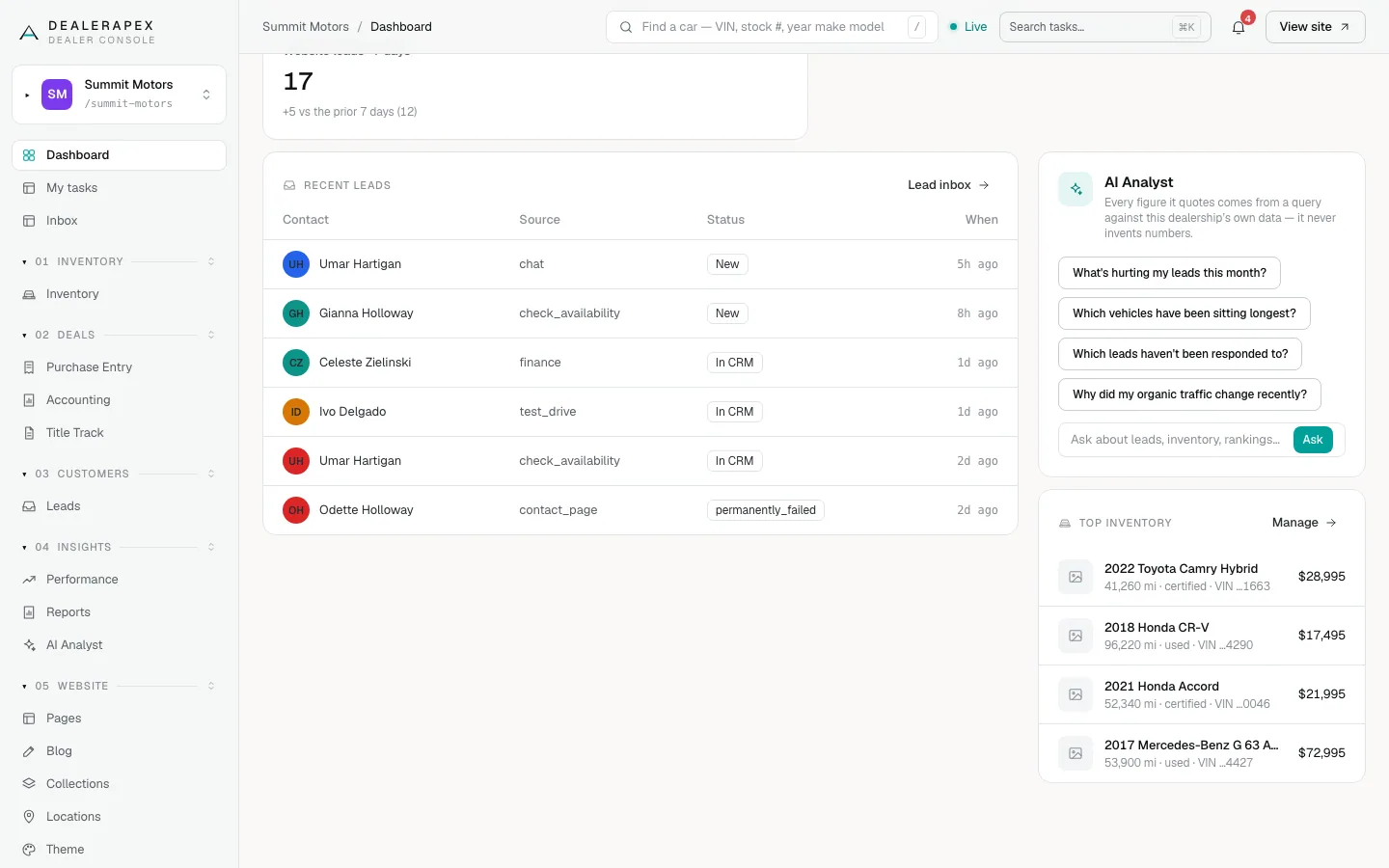
- Recent leads shows the six newest website leads. The status reads New until the lead reaches your CRM, then In CRM. Retry means delivery to your CRM failed and will be tried again. Click Lead inbox to see them all. See Read your lead inbox.
- AI Analyst lets you click a suggested question or type your own and click Ask. The answer opens on the AI Analyst page. See Ask the AI Analyst.
- Top inventory shows the four available cars added most recently. Click Manage to open Inventory.
The Traffic & Search and All reports buttons at the top right open those pages.
Common questions
Why is the dashboard’s cost per lead lower than the one on Performance?
The dashboard divides all spend by all leads, including free ones such as walk-ins. Performance divides retail spend by paid leads only. Both are correct; they answer different questions.
Can I filter the dashboard by rooftop?
No. The dashboard always shows every rooftop. Click a tile to open its report, where you can choose locations.
Why does Total sales say the sale price isn’t available?
Your CRM feed doesn’t send sale prices, so the tile shows units only. It will fill in once a DMS sales-history feed is connected.
Still stuck? Email [email protected] with the page you were on and what you expected to see.