
Set the SEO text for your inventory pages
Your inventory page and your browse-by-make pages aren’t ordinary pages, so they have their own SEO settings. Use them to control the heading shoppers see and the title and description Google shows.
Who can do this
Owners and editors can save these settings. Viewers can read them.
Placeholders
Both cards accept placeholders in curly braces. Your website swaps them for real values when the page loads:
| Placeholder | Becomes |
|---|---|
| {dealer} | Your dealership name. |
| {city} | The city of the location the shopper filtered to, or your main address if they didn’t filter. |
| {count} | How many cars are on that page right now. |
| {make} | The make, when the shopper has exactly one make selected. On a make page, it is that page’s make. |
| {model} | The model, when exactly one model is selected. Inventory page only. |
| {bodyType} | The body type, when exactly one is selected. Inventory page only. |
Double braces, such as {{count}}, work too. Leave any field blank to use the built-in default text.
Set up the inventory page
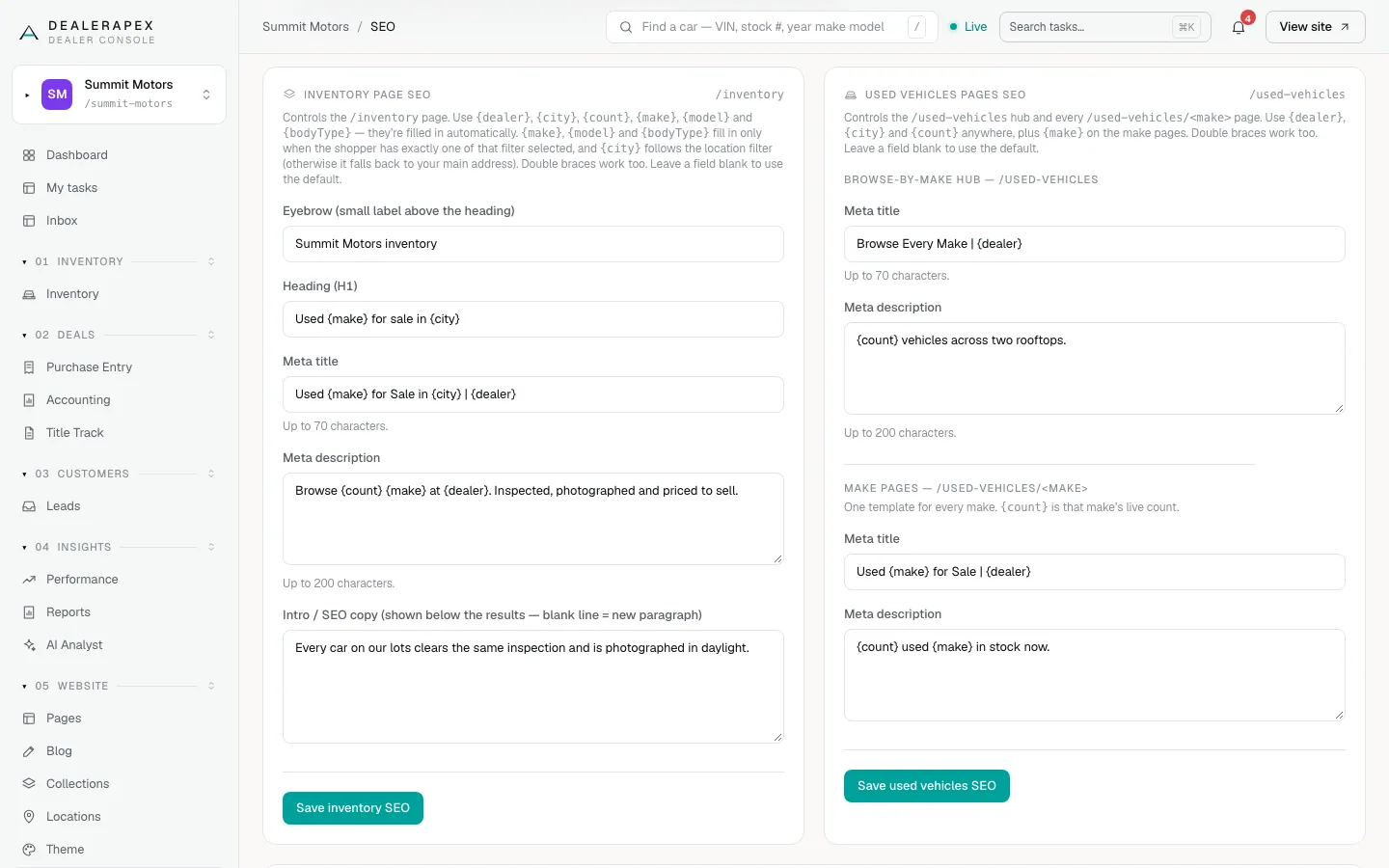
The Inventory page SEO card has five fields:
- Eyebrow (small label above the heading): a short label, such as "Summit Motors inventory".
- Heading (H1): the main heading, such as "Used {make} for sale in {city}".
- Meta title: the title in search results, up to 70 characters.
- Meta description: the line under the title in search results, up to 200 characters.
- Intro / SEO copy: a few paragraphs shown below the results. Leave a blank line between paragraphs.
- Open SEO in the sidebar, under Website.
- Find the Inventory page SEO card.
- Fill in the fields you want to change.
- Click Save inventory SEO. A message at the top of the card confirms the save.
Set up the used-vehicles pages
The Used vehicles pages SEO card covers two kinds of page: the browse-by-make hub, which lists every make you have in stock, and one page for each make.
- In the Used vehicles pages SEO card, under Browse-by-make hub, fill in the Meta title and Meta description.
- Under Make pages, fill in the Meta title and Meta description. This is one template for every make. On each make page, {make} becomes that make and {count} becomes how many of that make you have.
- Click Save used vehicles SEO.
Tips
- Test your heading with no filter as well. If a shopper hasn’t picked a make, {make} has nothing to fill in, so "Used {make} for sale" can read oddly. The default heading avoids this. Change it only if your version reads well both ways.
- Keep the intro copy useful: what you sell, where, and why to buy from you. A paragraph or two is plenty.
- For copy that changes with the filter, such as a paragraph about Toyotas on the Toyota page, use SEO content rules.
If your save doesn’t go through
If someone else saved Theme, Locations or another SEO setting while you were editing, you see "Someone else saved changes to this dealer. Reload and reapply your edits." Reload the page, make your change again and save.
Common questions
What does {count} show when there are no cars?
It shows the live number, so it can be 0. Make pages only exist for makes you have in stock, so this mostly matters on a filtered inventory page.
Can I clear a field to go back to the default?
Yes. Empty the field and save. A blank field always falls back to the built-in text.
Where does the intro copy appear?
Below the list of cars on your inventory page. Shoppers can read it, and it gives search engines words to understand the page.
Still stuck? Email [email protected] with the page you were on and what you expected to see.