
Redirect old web addresses to new pages
A redirect sends anyone who opens an old web address to a new one. Use redirects when you move from an old website, rename a page or retire a promotion, so old links and Google listings still land somewhere useful.
Who can do this
Owners and editors can add, pause, delete and import redirects. Viewers can see the list.
See your redirects
Open SEO in the sidebar, under Website, and click the Redirects tab.
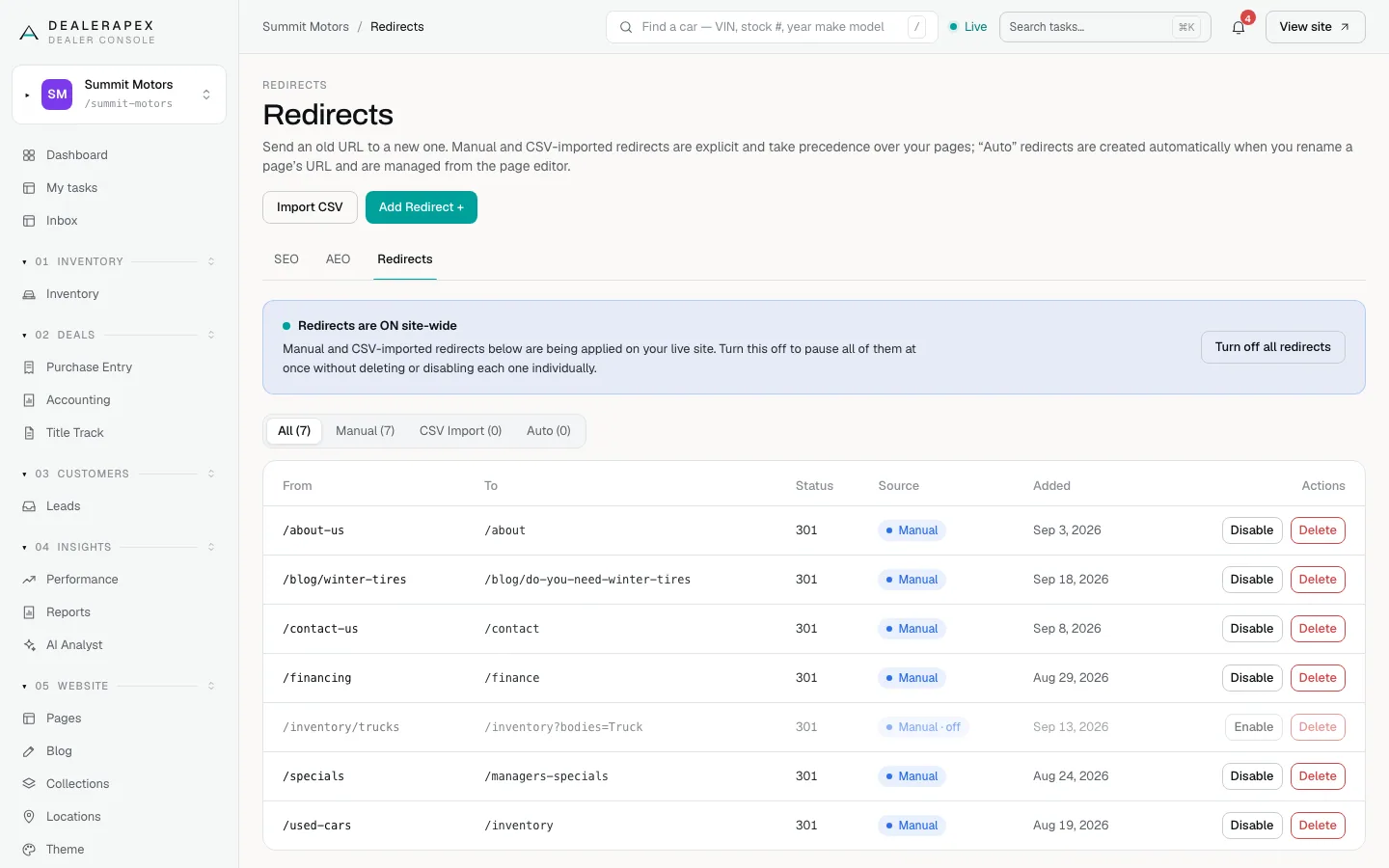
Each row shows From (the old path), To (where it goes), Status, Source and the date it was added. The tabs above the table filter by source:
- Manual: added one at a time.
- CSV Import: added from a file.
- Auto: created automatically when you change a page’s address in the page editor. These are marked System-managed and can’t be changed here.
Manual and CSV redirects win over your pages. If you redirect a path where a page exists, visitors go to the redirect’s destination instead.
Add one redirect
- Click Add Redirect +.
- In From (old path), enter the old path on your site, starting with a slash, such as /financing.
- In To (new destination), enter a path on your site, such as /finance, or a full address starting with https://.
- Under Redirect type, keep 301 — Permanent (recommended) unless the move is temporary. Choose 302 — Temporary for a short-term change.
- Click Add redirect.
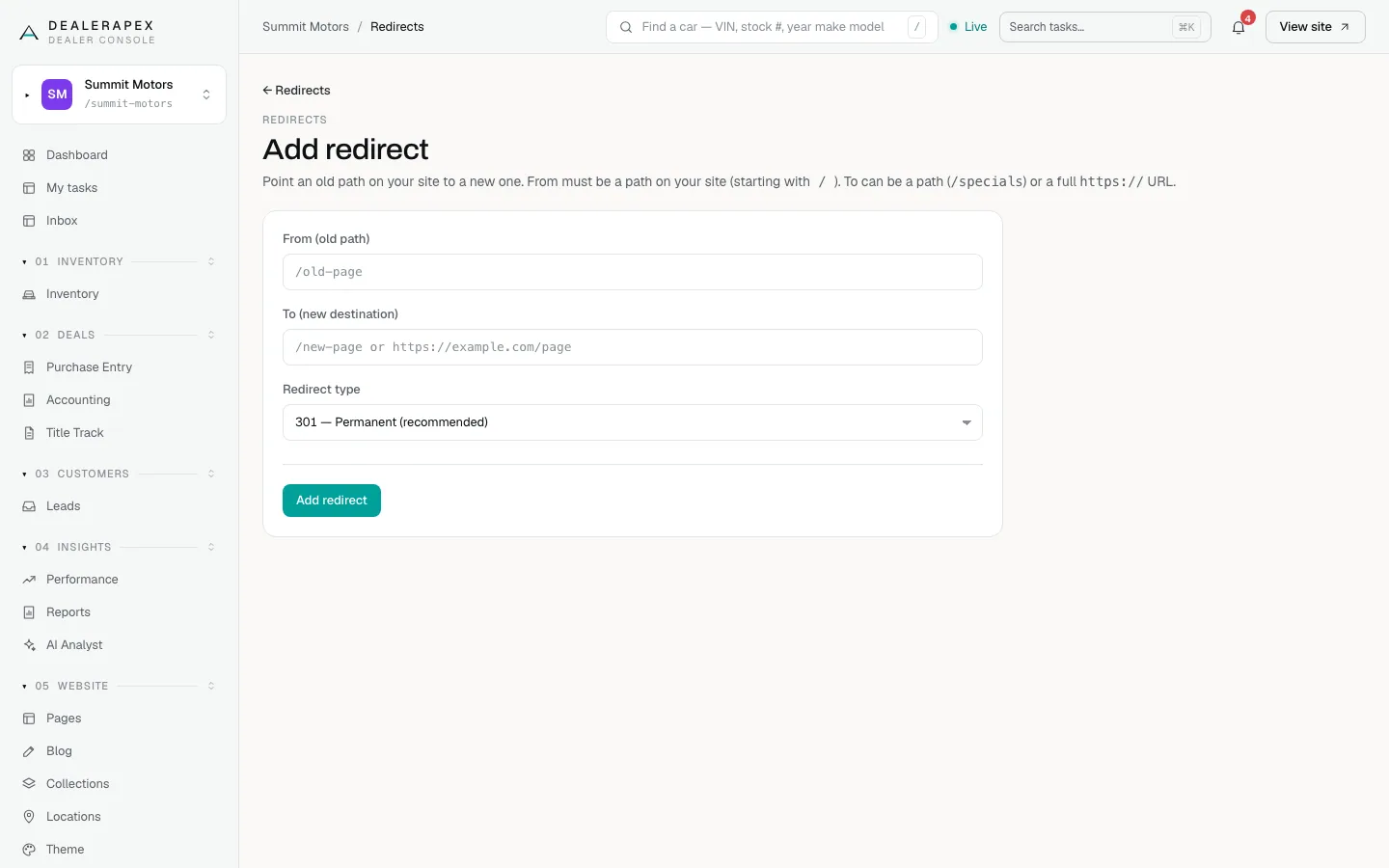
The redirect works on your live site straight away. The form refuses a redirect when:
- From doesn’t start with a single slash or contains spaces.
- To is not a path or an https:// address. Plain http:// addresses are refused.
- From and To are the same.
- A redirect from that path already exists.
- From is a page that can’t be redirected: your homepage, /contact, /inventory, /privacy or /terms.
Enter From exactly as the old path appeared, without anything after a question mark. A trailing slash is removed for you.
Import many redirects from a CSV
- Click Import CSV.
- Click Download CSV template to get a file with the right columns.
- Fill in one redirect per row: from, to and, if you want, status (301 or 302). A blank status means 301.
- Save the file as a CSV. It must be under 2 MB.
- Click Choose File, pick your file, then click Upload and import.
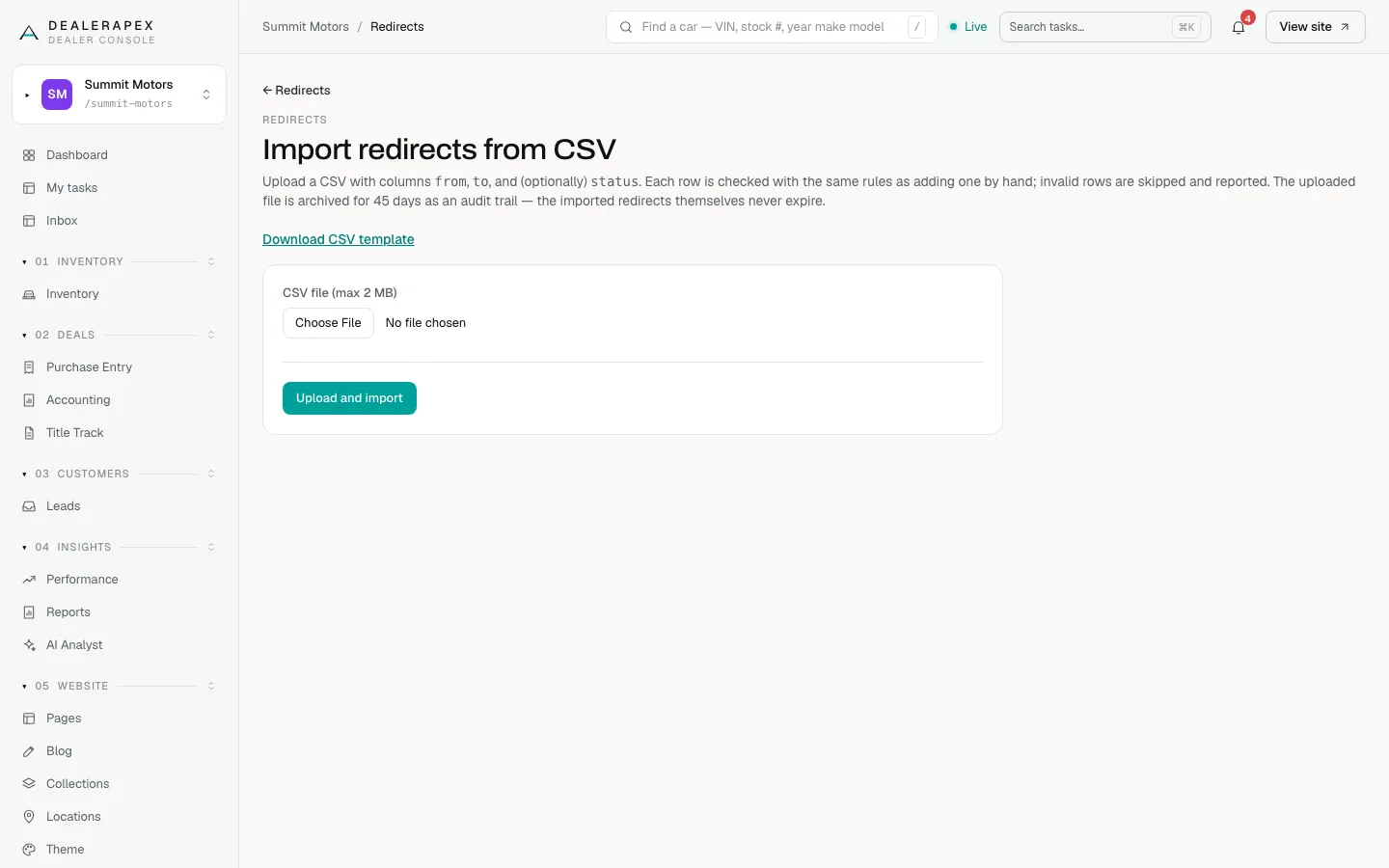
Each row is checked against the same rules as adding one by hand. When the import finishes, you see Import complete with how many were added or updated, how many were skipped, and the reason for each skipped row.
Pause, delete or switch everything off
- Disable pauses one redirect without deleting it. Click Enable to turn it back on.
- Delete removes a redirect straight away, with no confirmation step.
- Turn off all redirects pauses every manual and CSV redirect at once without deleting any. Click Turn redirects back on to restore them. Automatic page-rename redirects keep working either way.
Handled for you
You don’t need redirects for these. Your site already does them:
- An address with a trailing slash, such as /about/, goes to the version without it, /about.
- On your own domain, the www address goes to the address without www.
Common questions
Should I use 301 or 302?
Use 301 for anything permanent, such as a page from your old website. It tells search engines to move the old listing to the new page. Use 302 only when you plan to switch back.
We’re moving from another website provider. What should I redirect?
List the old site’s main pages and any address that gets traffic or appears in Google, and map each to its new page in the CSV template. Email [email protected] if you need help with a large move.
Can I redirect to another website?
Yes. Put a full address starting with https:// in To.
What happens to my uploaded CSV file?
We keep the file for 45 days as a record of the import. The redirects it created stay until you delete them.
Still stuck? Email [email protected] with the page you were on and what you expected to see.