
Connect Google Search Console and instant indexing
Google Search Console is Google’s free tool for seeing how your site does in search. Connect it to prove you own your site and to bring clicks and search terms into your DealerApex dashboard. Instant indexing does a similar job for Bing and some other search engines.
Who can do this
Only owners can change these settings. They are under Settings → Integrations.
Verify your site with Google
- In Google Search Console, add your website as a property and choose the HTML tag verification method. Copy the tag Google gives you.
- In your console, open Settings → Integrations and find Google Search Console.
- Under Site verification, paste the tag into Verification tag or token. The whole tag or just the code inside it both work.
- Click Save verification tag.
- Go back to Search Console and click Verify.
We add the tag to every page of your site, even while your site is behind the pre-launch password, so you can verify before you go live. Once Google says "Ownership verified", leave the tag in place. Removing it can un-verify your property later.
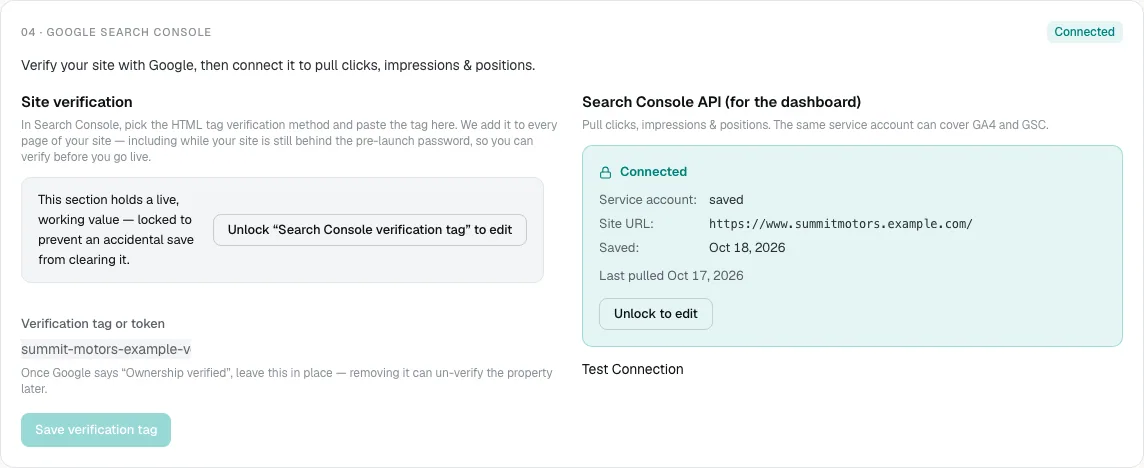
Once a value is saved, the section is locked so nobody clears it by accident. Click Unlock “Search Console verification tag” to edit to change it. See Integration secrets and the Unlock button.
Show Search Console data in your dashboard
This step needs a Google Cloud service account, which is a login for software rather than a person. Your web person or agency can set one up. The same service account can cover Google Analytics 4 as well.
- In Google Search Console, add the service account’s email address as a user on your property.
- In Search Console API (for the dashboard), enter your Site URL exactly as it appears in Search Console.
- Paste the service account’s key file into Service account JSON.
- Click Save GSC credentials.
- Click Test Connection to check it works.
When it is connected, the card shows Connected, the site URL and the date of the last pull. New data comes in once a day. You can read it under Performance on the Traffic tab. See Traffic and search.
To change the Site URL later, click Unlock to edit. You don’t need to paste the key again.
Turn on instant indexing
With instant indexing on, we tell Bing, Yandex, Seznam, Naver and Yep every hour which of your pages changed: new arrivals, sold cars, price drops and page edits. There is nothing to paste. The ownership key is created and published for you.
- In Settings → Integrations, find Instant indexing (Bing & others).
- Click Turn on instant indexing. The status changes to On.
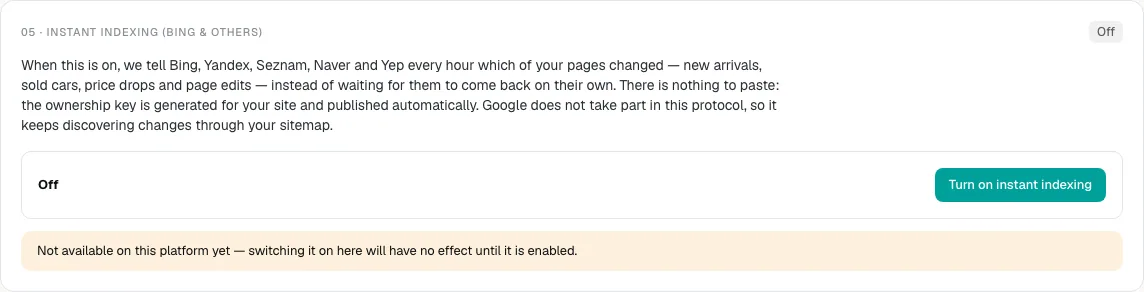
Google doesn’t take part in instant indexing. It keeps finding changes through your sitemap.
A yellow note under the switch explains when it is on but not sending:
- Waiting on your own domain: search engines check the ownership file on your own domain, so nothing is sent from a preview address. It starts by itself once your domain is live.
- Paused: your site is password-protected or set to stay out of search. It resumes on its own when you go live.
- Not available on this platform yet: switching it on has no effect until DealerApex enables it. Email [email protected] if you see this on your live site.
Common questions
Do I need both the verification tag and the API connection?
The tag proves to Google that you own the site. The API connection brings the data into your DealerApex dashboard. Most dealers want both.
Why is my Search Console data a few days behind?
Google publishes Search Console data with a delay of a couple of days, and we pull it once a day. Yesterday is usually not there yet.
Does instant indexing help with Google?
No. Google doesn’t use it. Google finds your new and changed pages through your sitemap, which updates automatically.
Still stuck? Email [email protected] with the page you were on and what you expected to see.