
Show different SEO copy for each filter
SEO content rules let you show a different block of copy at the bottom of your inventory pages depending on what the shopper is looking at. A shopper on your Toyota page can read about your Toyotas, while one browsing SUVs reads about SUVs.
Who can do this
Owners and editors can save rules. Viewers can read them.
How rules are chosen
- Rules are checked from top to bottom, and the first rule that matches is used.
- A rule matches only when the page’s filter is exactly what the rule says and nothing else. A "Honda" rule matches the Honda-only page. It does not match Honda plus a price filter.
- If you pick two makes in one rule, it matches a page filtered to exactly those two makes together, not either one alone. To cover Honda and Toyota separately, make two rules.
- When no rule matches, the Default / fallback content is shown.
Add a rule
- Open SEO in the sidebar, under Website, and scroll to Inventory SEO content rules.
- Click + Add rule.
- Give the rule a name, such as "Ford SUVs". Only you see the name.
- Under Show this copy when the filter is exactly:, click the Makes, Models and Body types the rule is for. Only values you have in stock are listed, with how many of each.
- If the rule is for one condition only, choose it under Condition. Otherwise leave Any condition (not filtered).
- Write a Title and a Body. Leave a blank line between paragraphs.
- Check the Live preview next to the rule.
- Click Save SEO content rules.
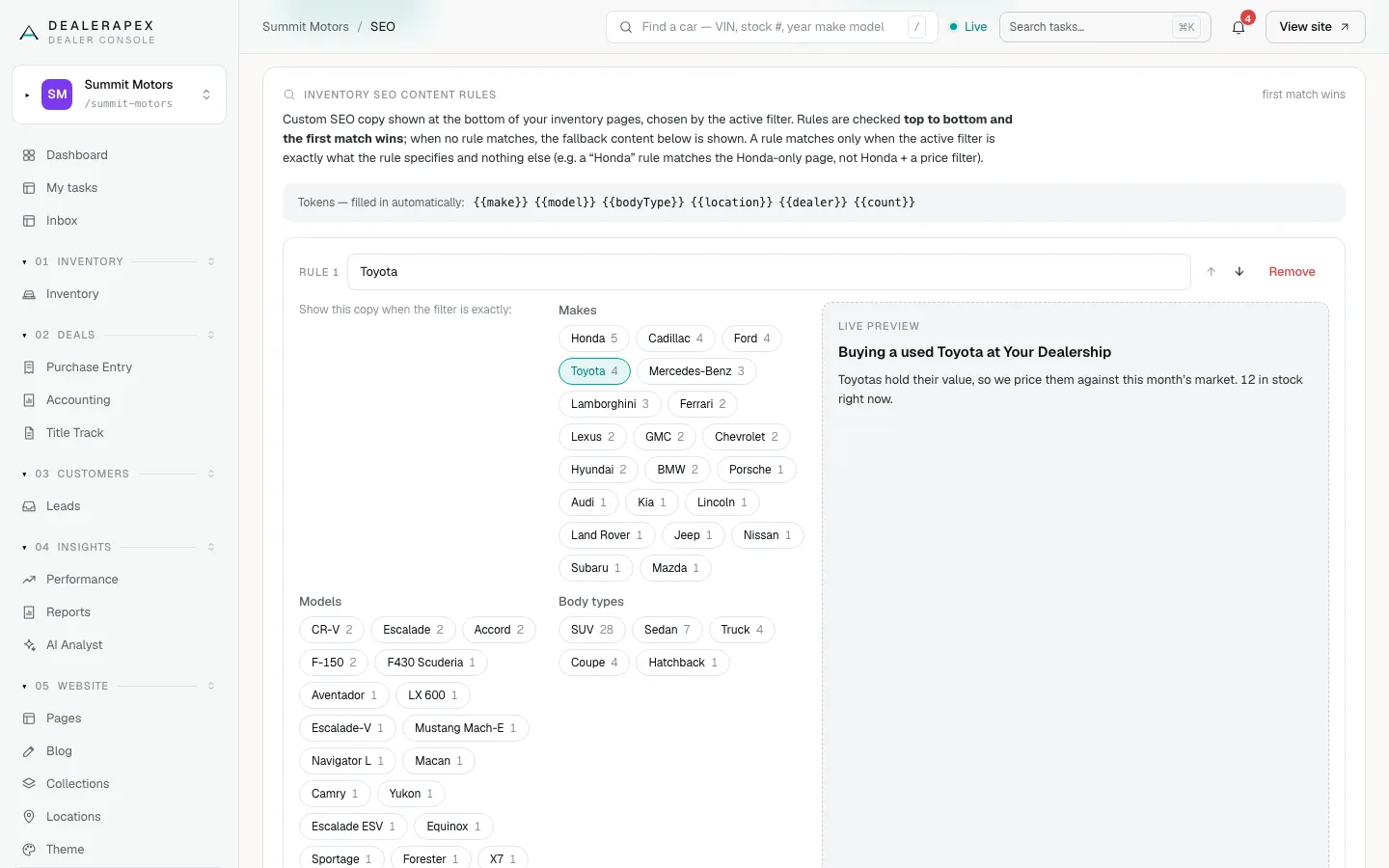
You can use these placeholders in the title and body: {{make}}, {{model}}, {{bodyType}}, {{location}}, {{dealer}} and {{count}}. The live preview fills them with sample values.
Change the order or remove a rule
- Use the up and down arrows next to a rule to move it. Order matters because the first match wins.
- Click Remove to take a rule out.
- Click Save SEO content rules after any change. Nothing changes on your site until you save.
Set the fallback copy
At the bottom of the card, Default / fallback content (shown when no rule matches) has its own Title and Body. Leave them blank to use the built-in default copy.
If you see "Convert to rules"
Accounts set up before rules existed may have copy saved in older fixed slots. A yellow notice offers Convert to rules. Click it to turn that copy into rules, then pick which makes, models or body types each one targets before you save.
Common questions
Why isn’t my rule showing on the page?
Usually the page has an extra filter, such as price or year, so the match is no longer exact. Also check that a rule higher up the list doesn’t match first.
How is this different from Inventory page SEO?
Inventory page SEO sets one heading, title and intro for the inventory page. Content rules swap the copy block at the bottom of the page depending on the filter.
What happens when I sell the last car of a make?
The rule stays saved. It simply has no page to match until that make is back in stock.
Still stuck? Email [email protected] with the page you were on and what you expected to see.