
Add a tracking pixel
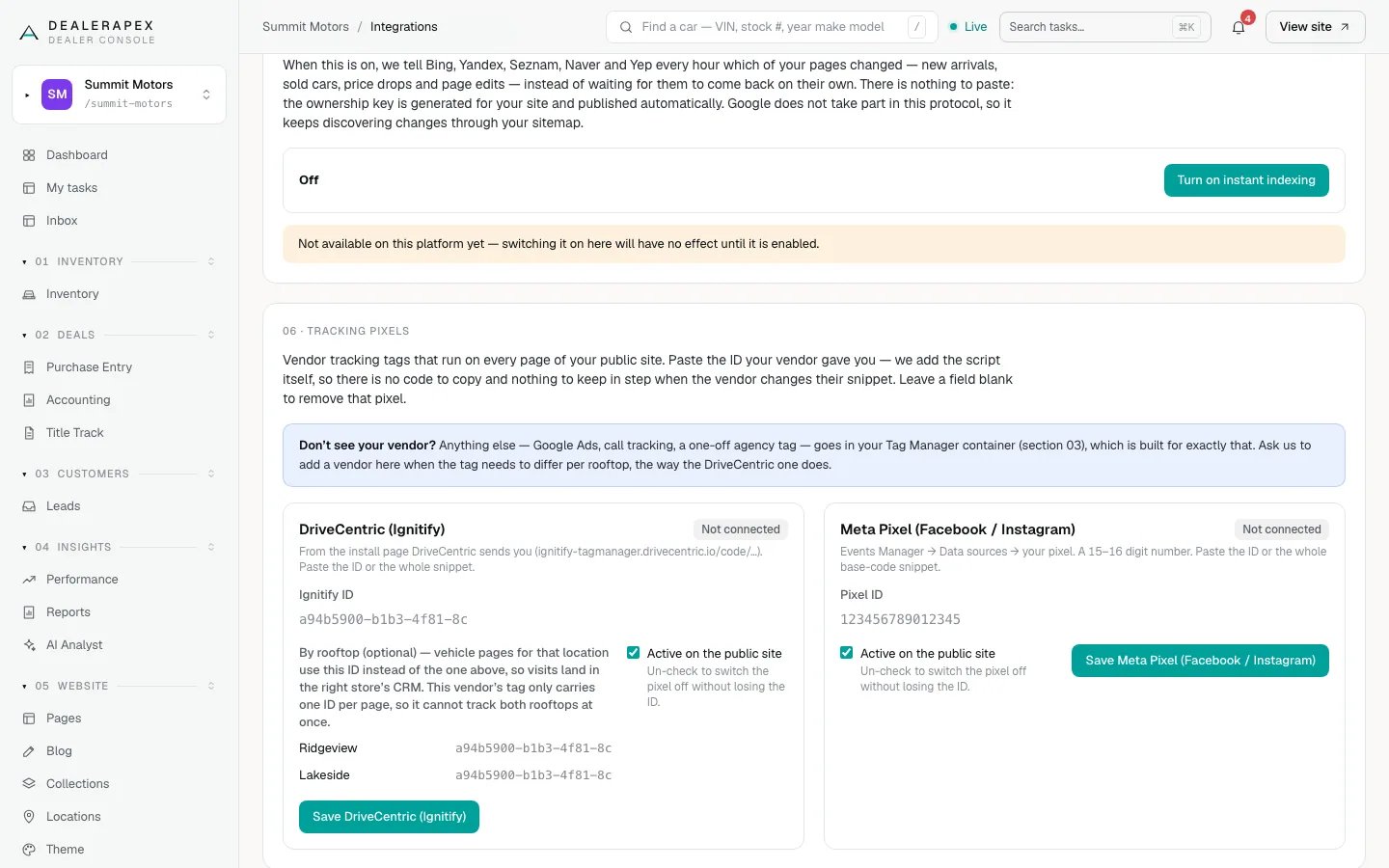
Tracking pixels are vendor tags that run on every page of your website. You paste only the ID your vendor gave you, and DealerApex adds the script, so there is no code to copy or update.
Who can do this: only an owner.
Which pixels are available
- DriveCentric (Ignitify): find the Ignitify ID in the install page DriveCentric sends you.
- Meta Pixel (Facebook / Instagram): in Meta Events Manager, go to Data sources and choose your pixel. The Pixel ID is a 15–16 digit number.
For anything else, such as Google Ads, call tracking or an agency tag, use your Google Tag Manager container. See Add Google Analytics 4 and Google Tag Manager.
Add a pixel
- Open Settings → Integrations and scroll to Tracking pixels.
- In the vendor's card, paste the ID, or the whole snippet your vendor sent. The console finds the ID in it.
- Leave Active on the public site ticked.
- Click the save button in that card, for example Save Meta Pixel (Facebook / Instagram).
The card label changes from Not connected to Active.
Use a different DriveCentric ID per rooftop
If your inventory is at more than one location, the DriveCentric card shows By rooftop (optional). Enter each location's ID. Vehicle pages for that location use its ID, so visits land in the right store's CRM. Every other page uses the main ID.
Pause or remove a pixel
- To pause a pixel and keep its ID, unlock the card, untick Active on the public site and save. The label shows Paused.
- To remove a pixel, unlock the card, clear the ID and save.
A saved pixel is locked so it can't be changed by accident. Click Unlock with the vendor's name first. If the ID you paste isn't recognised, you see a message saying what it should look like, and your current ID is left unchanged.
Common questions
Can I paste the full script my vendor sent?
For DriveCentric and Meta, yes: the console pulls the ID out of it. Other vendors' scripts can't be pasted here. Add them in Google Tag Manager.
My vendor isn't listed. Can you add it?
Use Google Tag Manager for most tags. If the tag must change per rooftop, email [email protected] and ask us to add the vendor.
Still stuck? Email [email protected] with the page you were on and what you expected to see.