
Read traffic and search data
Traffic & Search shows how many people visit your website, where they come from, and what they searched on Google to find you. Use it alongside your lead numbers to see whether a drop in leads is a drop in visitors.
Who can see it: owners, editors and viewers.
Before you start: most of these figures come from Google Analytics 4 and Google Search Console. An owner has to connect both in Integrations. See Connect Google Analytics and Tag Manager and Search Console and indexing.
The Traffic & Search page
- Click Performance in the sidebar.
- Click the Traffic tab next to Performance. You can also click Traffic & Search on the dashboard.
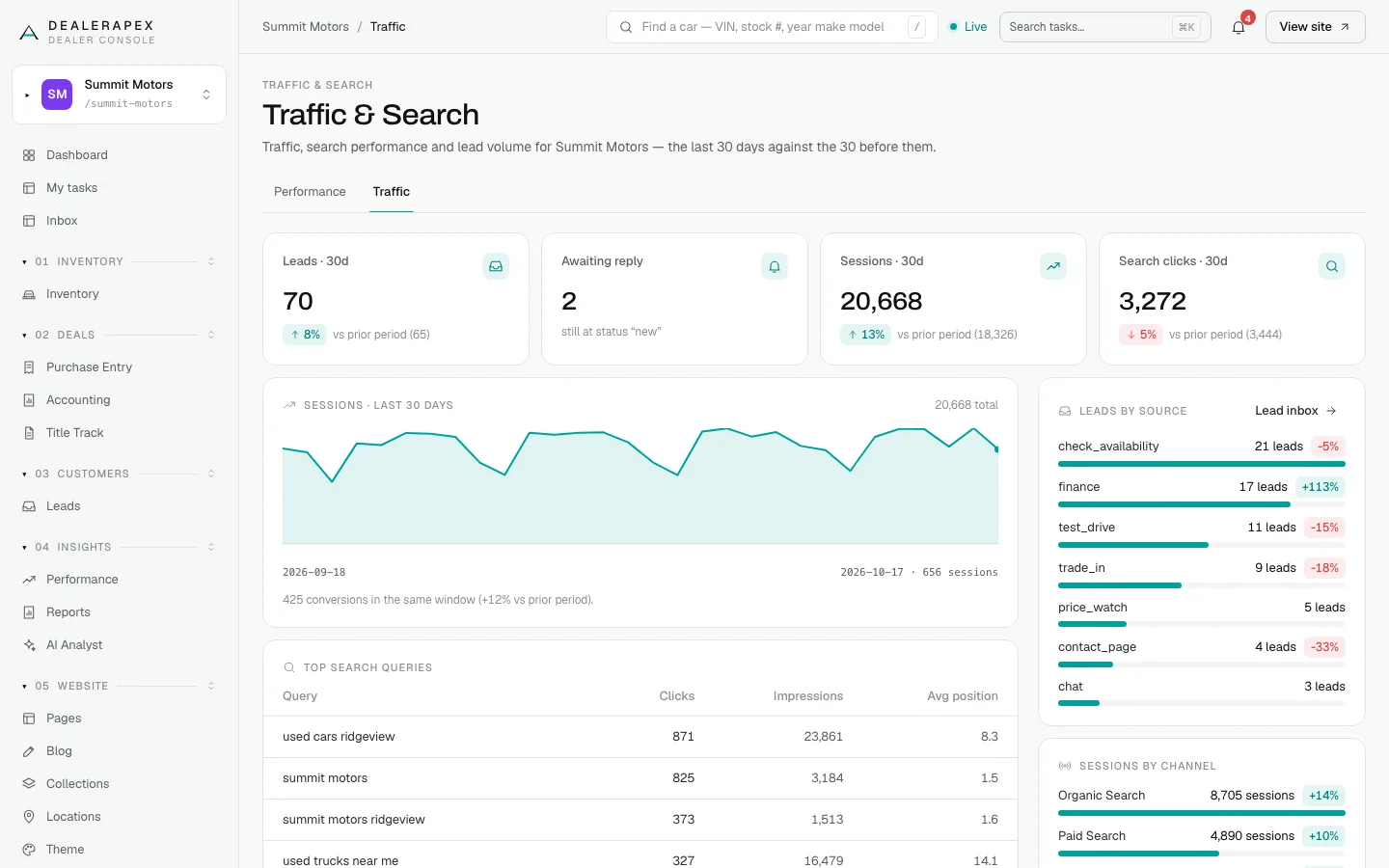
Everything on this page covers the last 30 days, compared with the 30 days before.
- Leads · 30d and Awaiting reply count forms submitted on your website. Awaiting reply is how many are still at status "new".
- Sessions · 30d and the sessions chart come from Google Analytics.
- Search clicks · 30d and Top search queries come from Search Console.
- Top landing pages, Sessions by channel and Sessions by device come from Google Analytics.
- Leads by source breaks down your website leads by form. Click Lead inbox to see them.
- Visitors and leads by UTM source puts visitors and leads side by side for each campaign tag. Visitors are counted for the US and Canada only and are synced nightly. It's a signal, not a conversion rate.
- Search demand shows what shoppers searched for on your own website.
The Traffic tab on Marketing
- Click Performance, then Marketing, then Traffic.
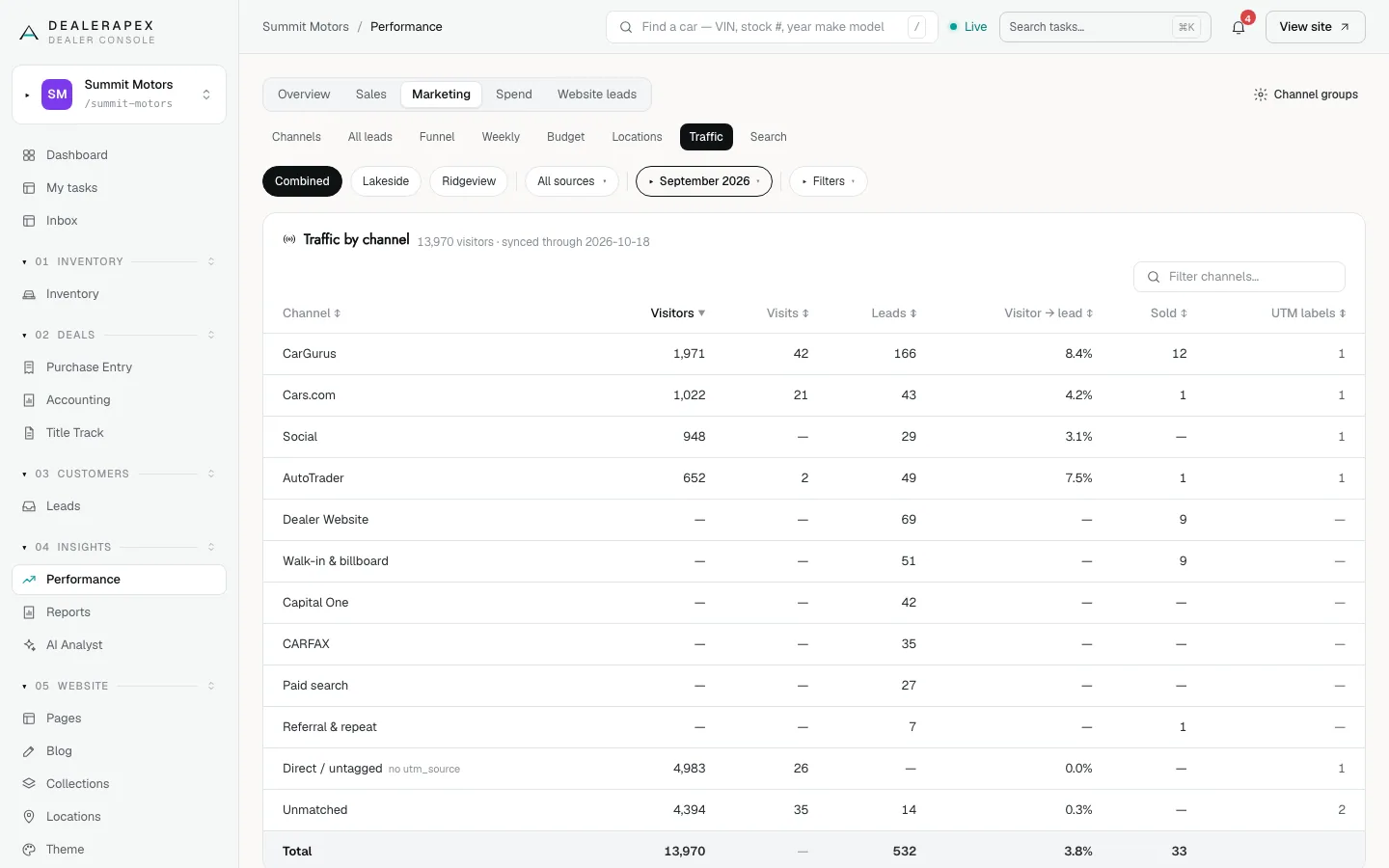
Traffic by channel groups your website visitors by the same channels as your lead groups, next to their CRM leads and sales. Direct / untagged is everyone who arrived with no campaign tag. It's usually the largest row and not one you can act on.
The Search tab on Marketing
- Click Performance, then Marketing, then Search.
- Pick a date range.
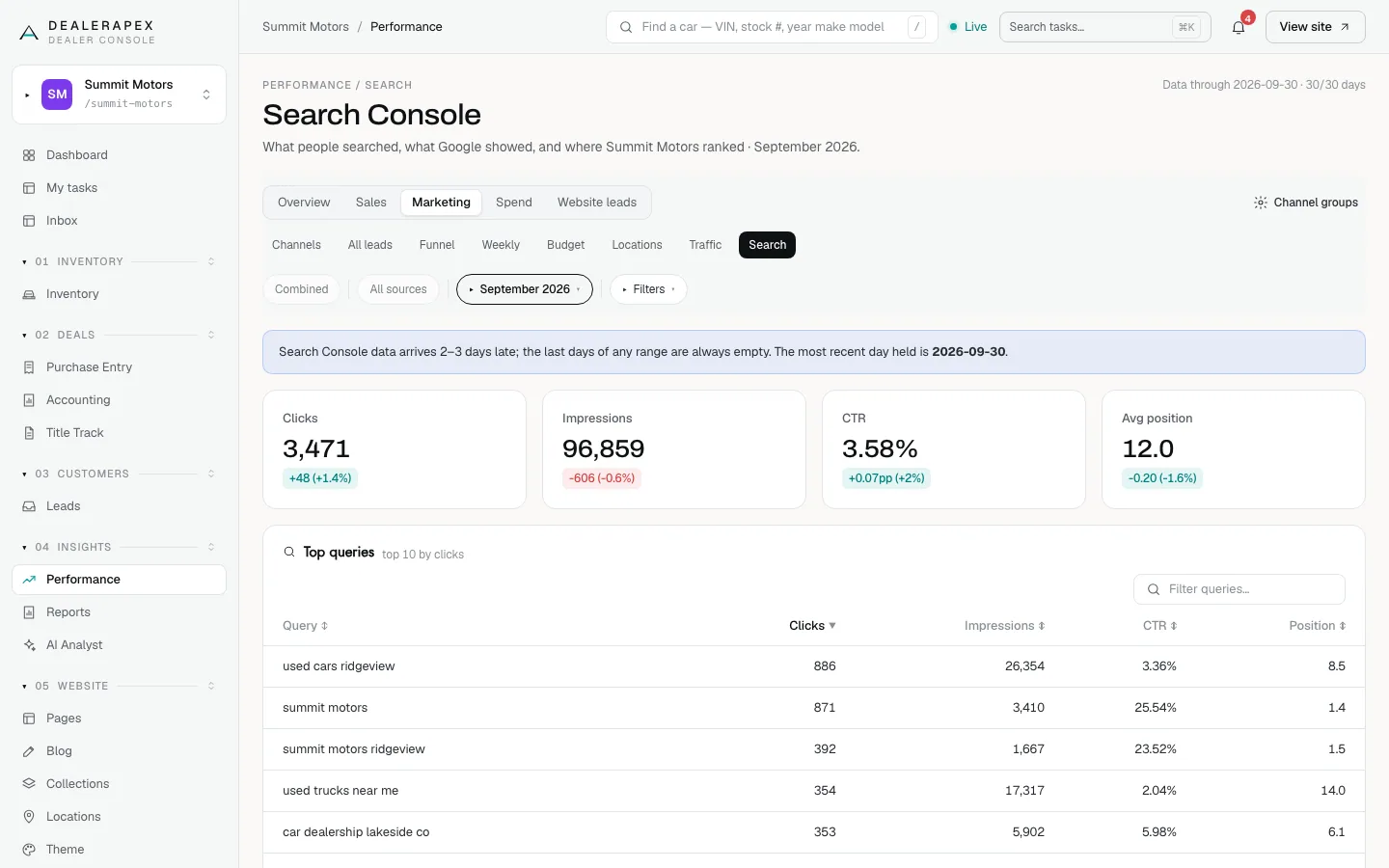
You'll see Clicks, Impressions, CTR and Avg position, compared with the prior period, plus your top 10 queries by clicks. A lower average position is better.
Search Console data arrives two to three days late, so the last days of any range are always empty. The page tells you the most recent day it holds.
If a box is empty
- "Google Analytics isn't connected." Click Connect it in Integrations. Ask an owner if you can't.
- "Connected, but no data has arrived yet." Data is pulled once a day for the day before, so a new connection stays empty until the next pull.
- "Connected but the last sync failed." Click Open Integrations and check the connection, or email [email protected] with the error shown.
Common questions
Why don’t sessions match my Google Analytics account exactly?
The figures are pulled once a day for the day before, so today is never included. Check that you’re comparing the same 30 days.
Why is the newest Search Console data a few days old?
Google publishes Search Console data two to three days late. The page shows the most recent day it has.
Do I need both integrations?
Google Analytics fills the session and channel figures and Search Console fills the search figures. Lead counts and Search demand work without either.
Still stuck? Email [email protected] with the page you were on and what you expected to see.