
Chase titles from the Title Track workstation
Title Track is where you chase titles in from the seller, then get them out to the buyer. The Workstation shows the state of every title you don't have yet, and the Tasks tab tells you what to do next.
Before you start. Owners, editors, inventory managers and title clerks can mark titles and log chases. Viewers can read the page. A title clerk lands on Title Track when they log in, or on My tasks if tasks are turned on. They see whether a car is paid, but never the purchase board or the Accounting ledger.
Read the workstation
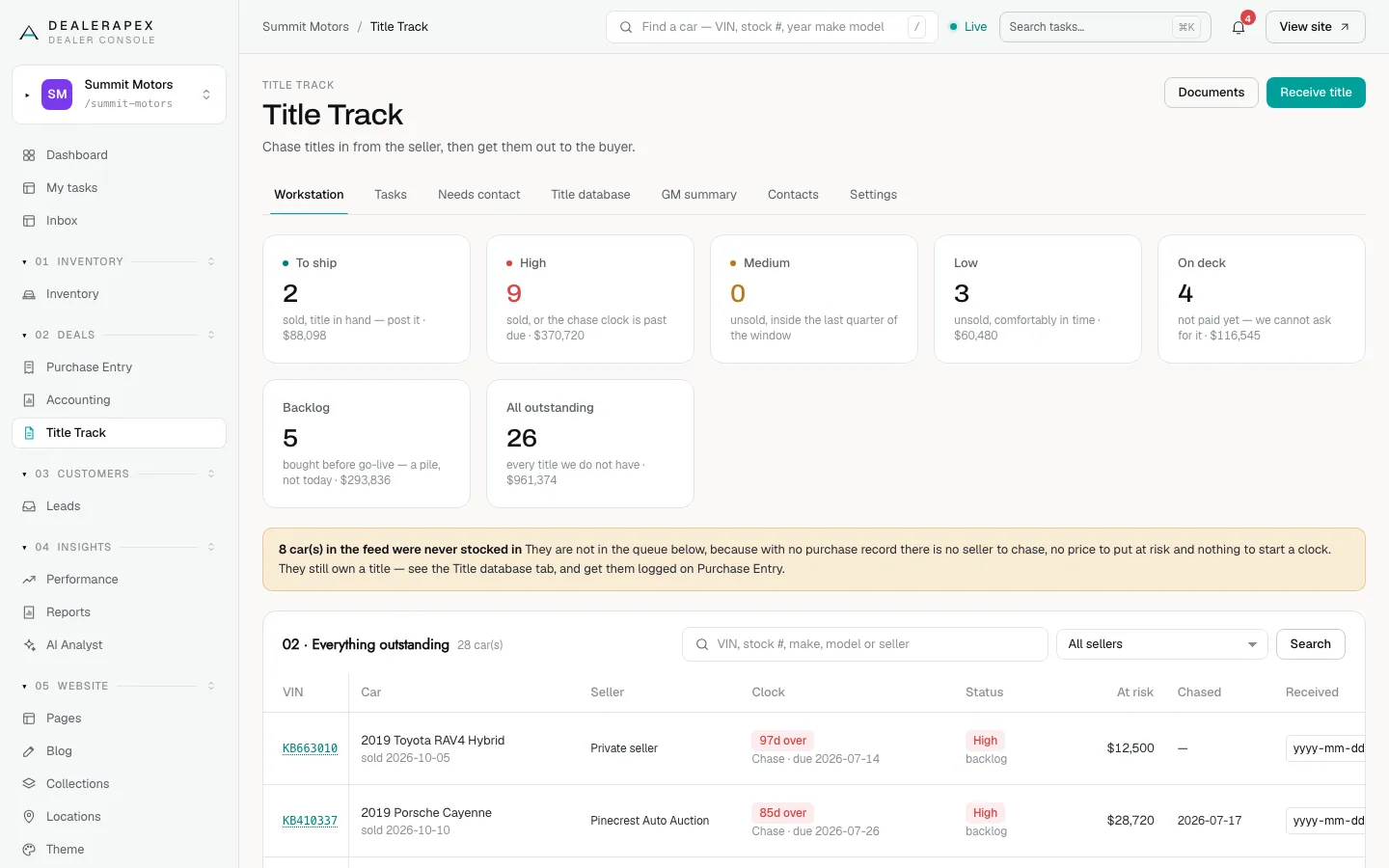
Open Title Track in the sidebar, under Deals. The Workstation tab starts with tiles that sort every outstanding title:
- To ship: sold, title in hand, ready to post.
- High: sold, or the chase clock is past due.
- Medium: unsold, inside the last quarter of the chase window.
- Low: unsold, comfortably in time.
- On deck: not paid yet, so you cannot ask for the title.
- Backlog: bought before your go-live date. A pile to work through, not today's queue.
- All outstanding: every title you do not have.
Click a tile to filter Everything outstanding below it. Each row shows the car, seller, Clock, Status, At risk dollars, when it was last Chased, and the Received and Shipped dates.
Cars in your inventory feed that were never logged on Purchase Entry are not in the queue, because there is no seller to chase and no clock to start. Get them logged on Purchase Entry.
The three tracks
Every car follows one of three tracks. Each track has its own steps and timing, set by a manager on Settings:
- Get the title (unsold): paid, still in stock, no title. Days count from the day the car is paid.
- Get the title (sold): sold with no title, so a customer is waiting. Steps come daily.
- Send the title: sold and the title is in hand. Transfer it, mail it or hand it over, then confirm the buyer has it.
A car moves between tracks by itself: selling it switches it to the sold track, and receiving its title ends the chase.
Work your tasks
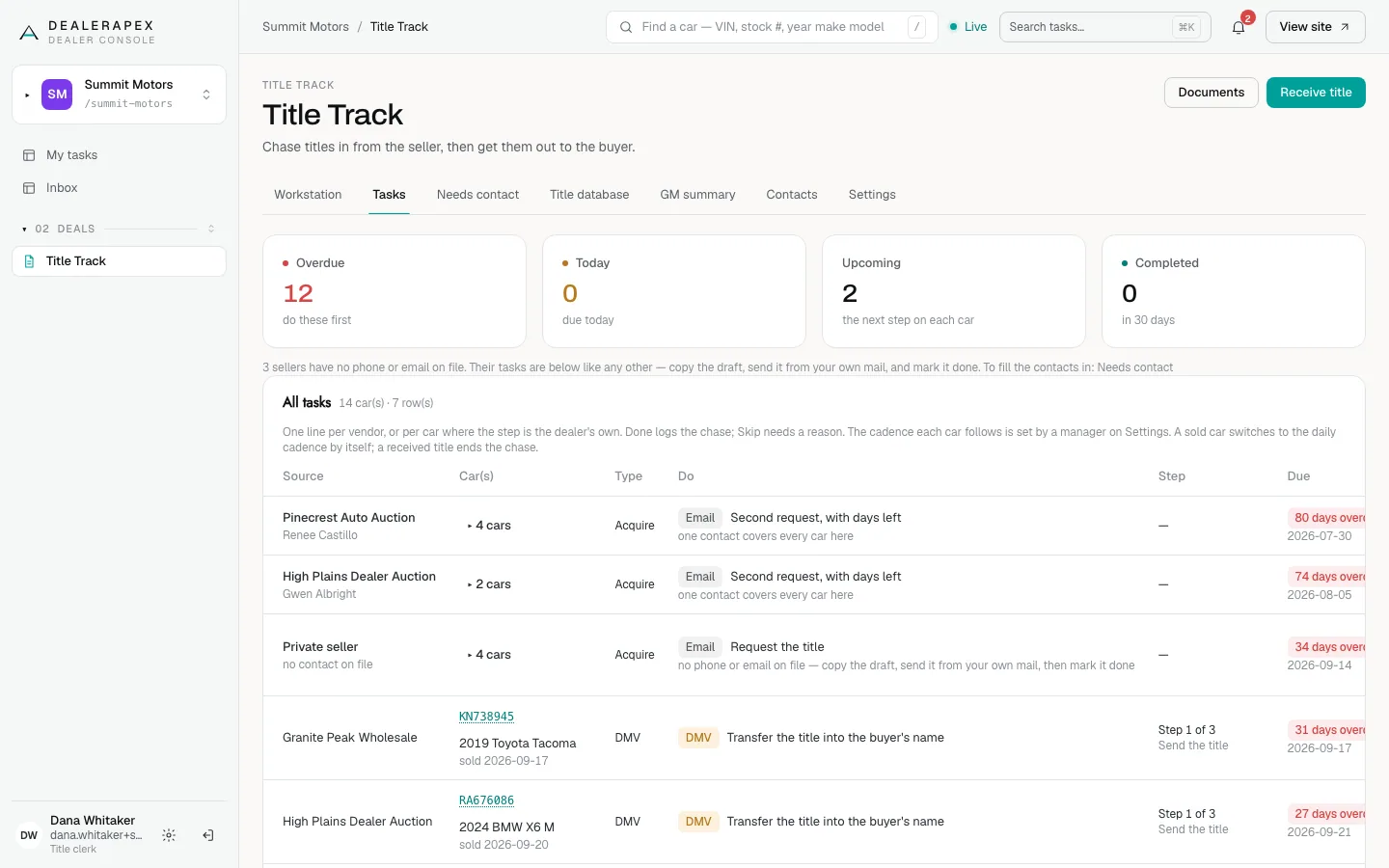
The Tasks tab lists one line per vendor (or per car, for DMV and mailing steps), with what to do and how overdue it is. The tiles count Overdue, Today, Upcoming and Completed.
- Click Done on a line.
- Copy the draft email, or open it in Gmail or your Email app if the vendor has an email on file.
- Send it, then choose How you reached them and add What they said or a Follow up on date if useful.
- Click Mark done.
To skip a step, click Skip, give a reason under Why skip this step? and click Skip it. You can undo a Done or Skip for 24 hours from the message that appears.
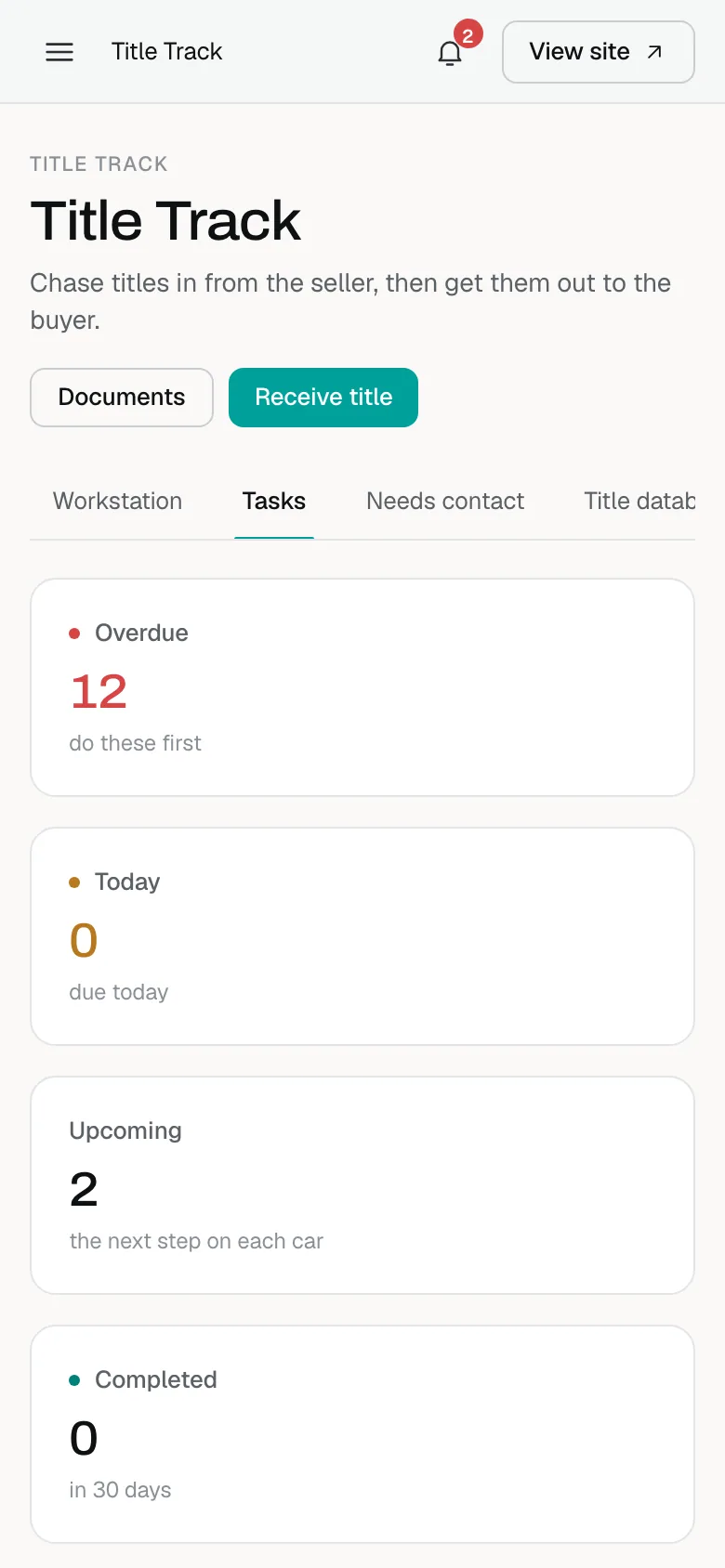
If your account uses My tasks, the Tasks tab may not appear and your title steps are in My tasks instead. See My tasks and your inbox.
Mark titles received
For a stack of titles that arrived together:
- Click Receive title at the top of the page.
- Paste the VINs, the last six of each VIN, or stock numbers, one per line, under VINs, last six, or stock numbers.
- Check Received on.
- Click Mark these received.
Any entry that matches no car is reported, not skipped, so check that paper against Purchase Entry. Any sold car whose title arrives moves straight to To ship.
For a single car, click Update on its row, choose Title received and click the Mark … received button.
Mark a title sent
- Click Update on the car's row.
- Choose Title shipped and fill Sent to, Tracking #, Carrier and Ship date. Or choose Picked up at the counter and fill Who collected it.
- Click Record shipment or Record pick-up.
A tracking number is required for a shipment because it is the proof the title moved. For anything else, choose Something else to set the Status with a reason.
You can also send a photo of a title to the Documents page and the received date is filled in from it. See Upload documents.
Common questions
Why does every old car show as overdue?
No go-live date is set, so nothing counts as backlog and the overdue-tasks email is paused. An owner, editor or inventory manager sets the Go-live date on the Settings tab. See Title settings and the contact book.
The seller has no email on file. Can I still mark the step done?
Yes. Copy the draft, send it from your own mail, then click Mark done. To add their details, use the Needs contact tab. See Title settings and the contact book.
Who decides how often we chase?
An owner, editor or inventory manager sets the chase window and the steps on each track. A title clerk cannot change them.
Still stuck? Email [email protected] with the page you were on and what you expected to see.