
Title settings and the contact book
The last three Title Track tabs set the rules and hold the phone numbers: Settings for the clocks and chase steps, Needs contact for sellers you cannot reach, and Contacts for the people to call.
Who can do this
| Tab | Owner, editor, inventory manager | Title clerk | Viewer |
|---|---|---|---|
| Settings | Change | Read only | Read only |
| Needs contact | Add contacts | Add contacts | Read only |
| Contacts | Change | Change | Read only |
A title clerk cannot change Settings on purpose. The chase window is how a clerk's queue is measured, so the person working the queue should not be the one who can widen it.
Set the clocks
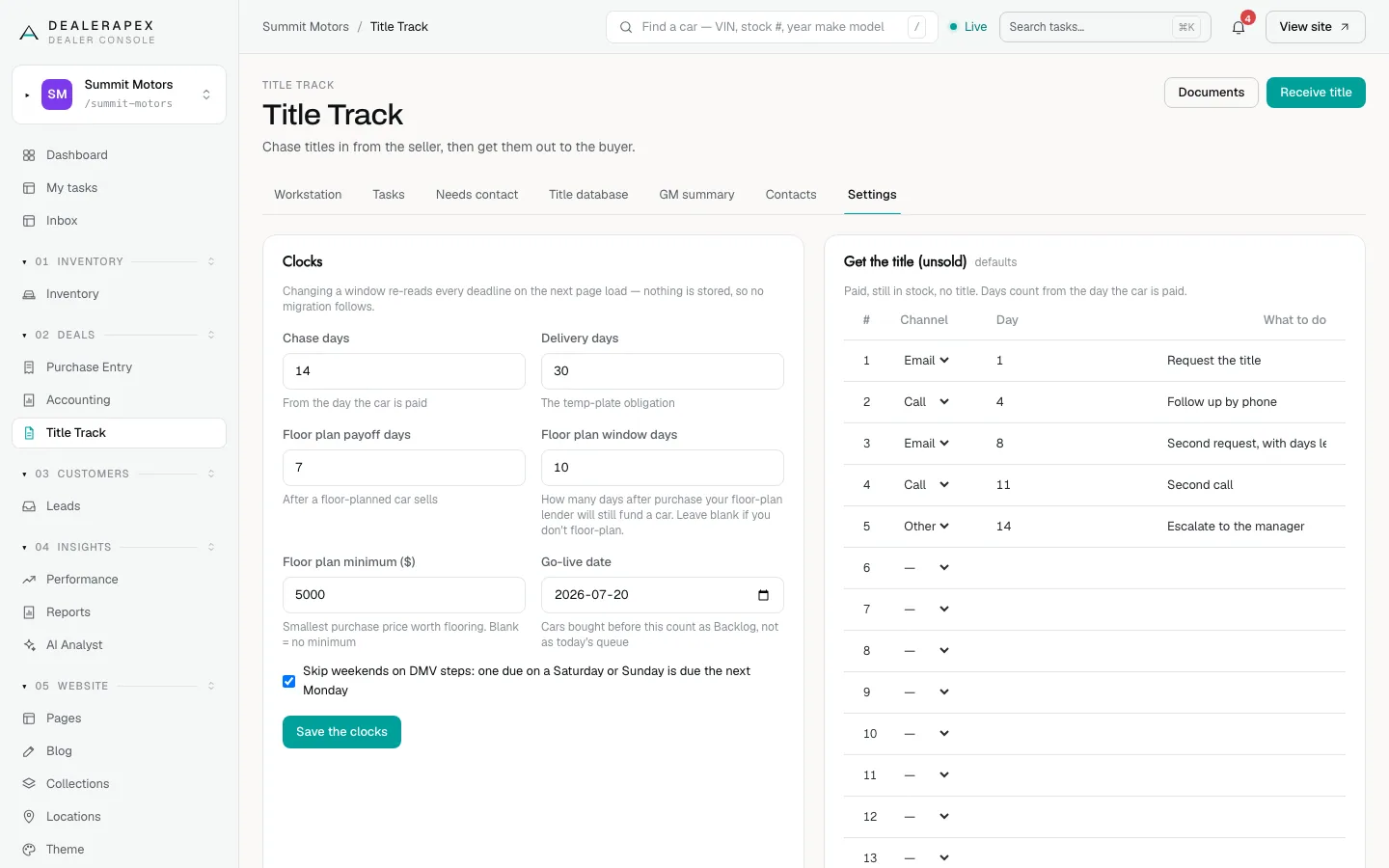
- Open Title Track and click the Settings tab.
- In Clocks, set the number of days for each window.
- Click Save the clocks.
- Chase days: how long you allow to get a title in, counted from the day the car is paid.
- Delivery days: your temporary-plate obligation to the buyer.
- Floor plan payoff days: how long after a floor-planned car sells you have to pay it off.
- Floor plan window days: how many days after purchase your floor-plan lender will still fund a car. Leave it blank if you don't floor-plan.
- Floor plan minimum ($): the smallest purchase price worth flooring. Blank means no minimum.
- Go-live date: cars bought before this count as Backlog, not as today's queue.
- Skip weekends on DMV steps: a DMV step due on a Saturday or Sunday moves to the next Monday.
Changing a window re-reads every deadline straight away. Nothing is lost if you change it back.
Change a track’s steps
Each track (Get the title (unsold), Get the title (sold) and Send the title) has its own panel.
- For each step, choose a Channel (Call, Email, Text, Mail, DMV or Other), the Day it is due and What to do. You can have up to 15 steps.
- Set Then repeat the last step every a number of days, or leave it blank so the track goes quiet after the last step.
- Click Save cadence.
A panel you have changed is marked customised and shows Reset to defaults.
Fill in missing contacts
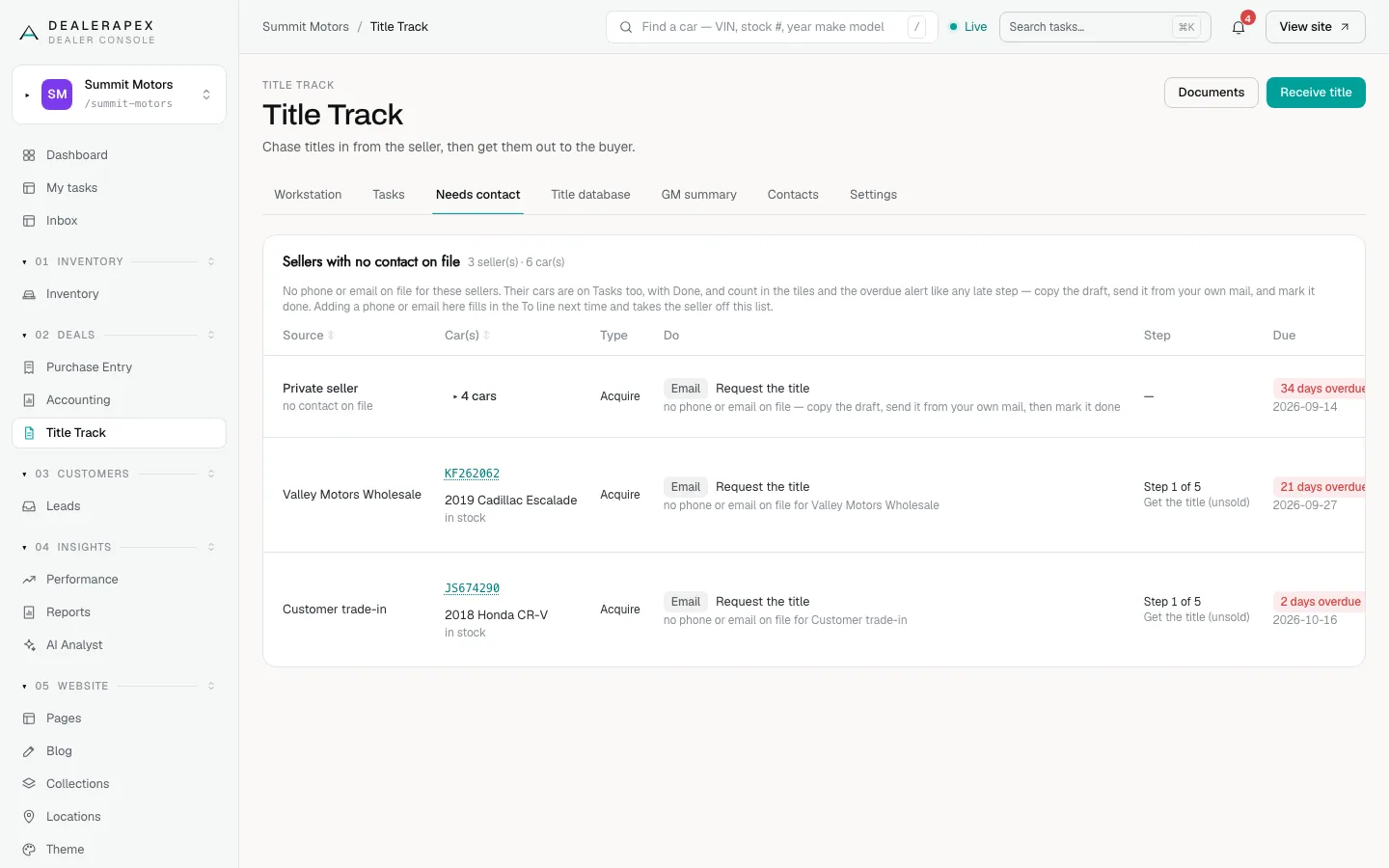
The Needs contact tab lists sellers with no phone or email on file, and their cars. Their tasks still appear on the Tasks tab with Done: copy the draft, send it from your own mail, and mark it done.
Adding a phone or email here fills in the To line next time and takes the seller off this list.
Keep the contact book
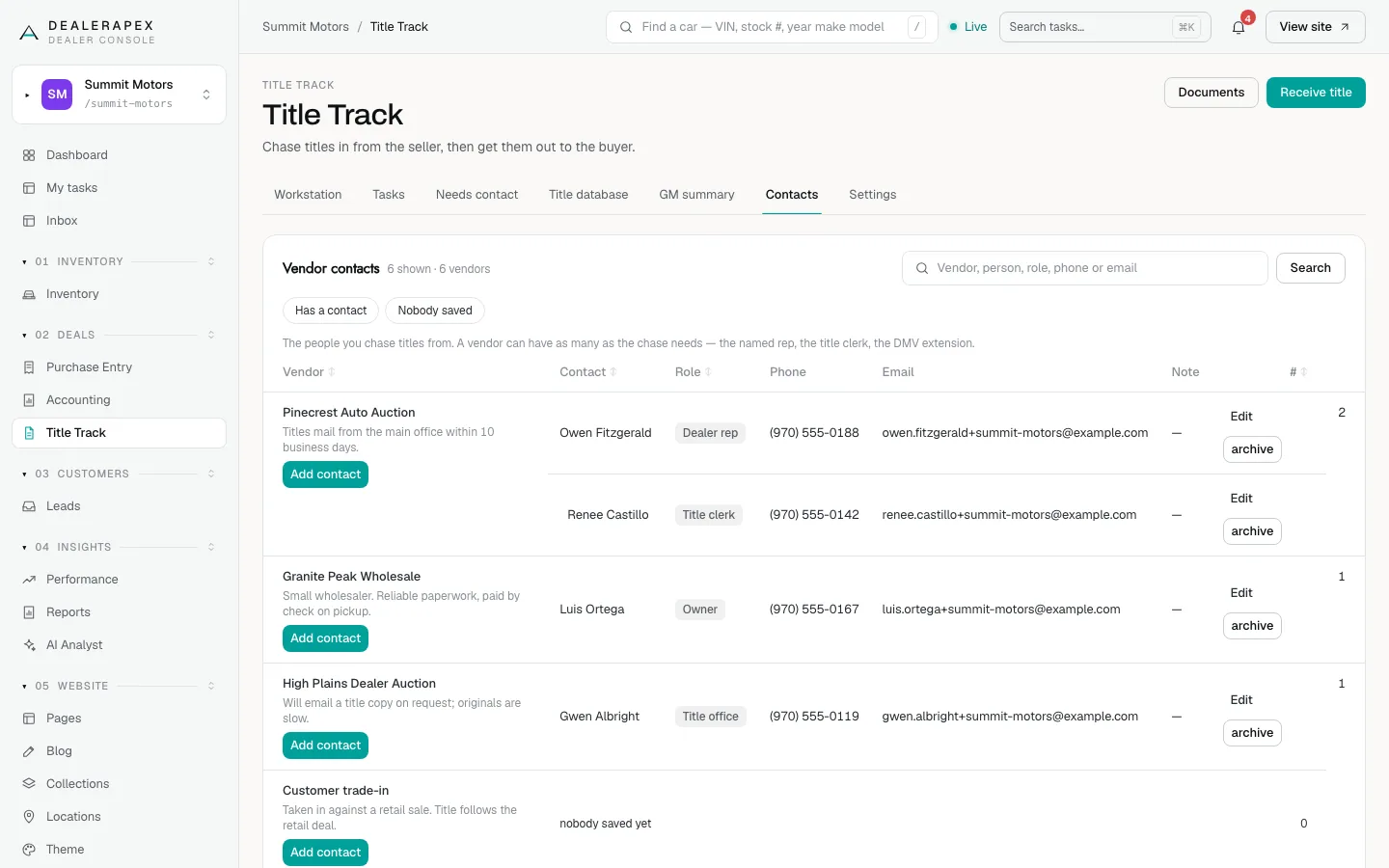
The Contacts tab lists the people you chase titles from, by vendor. Filter with Has a contact or Nobody saved, or search by vendor, person, role, phone or email.
- Click Add contact under the vendor.
- Fill Name, Phone, Email, Role and Note.
- Click Save contact.
Click Edit to change a contact or archive to retire one. This is the same contact book as Purchase Entry → Contacts, so a number saved in either place shows up in both. See Keep your vendor list and contacts.
Common questions
I am a title clerk. Why can I not change the chase days?
Settings are read-only for title clerks by design. Ask an owner, editor or inventory manager to change them.
What should I set the go-live date to?
The day your team started using Title Track. Cars bought before it go to Backlog, so they stop showing as overdue today.
Does changing a track’s steps affect cars already being chased?
Yes. Steps and due dates are worked out from the current settings every time the page loads, so every car follows the new steps straight away.
Still stuck? Email [email protected] with the page you were on and what you expected to see.