
Add a car by hand or import a CSV
You don't need a DMS feed to list cars. Add one car at a time with the form, or paste several from a spreadsheet. You can also use both alongside a feed: cars you add yourself are never removed by a feed update.
Add one car
- Open Inventory in the sidebar.
- Click + Add a vehicle to open the form.
- Fill in VIN, Year, Make and Model. These four are required.
- Add Trim, Condition (new/used/certified), Price ($), Mileage and Exterior color if you have them. A blank condition is saved as used.
- Under Photos, click Choose Files and pick your photos. Use PNG, JPEG or WebP, up to 5 MB each. The first photo is the one shoppers see on the listing card.
- Click Add vehicle. The button waits until every photo has uploaded.
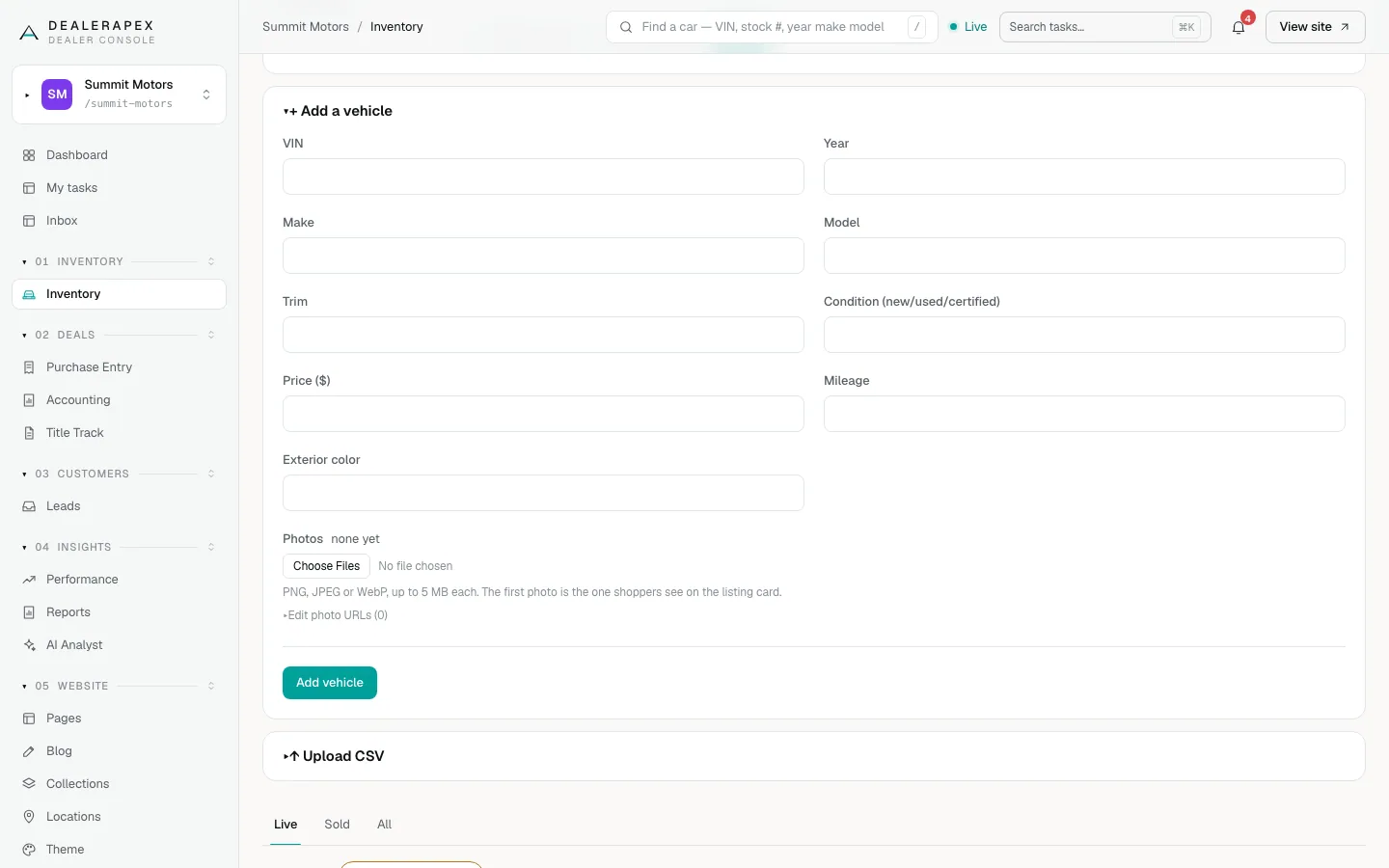
The car appears in your list with the source Manual and goes live on your website. If a required field is missing, a red message names it, for example "Vehicle not added — missing VIN", and the form opens again.
Import several cars from a CSV
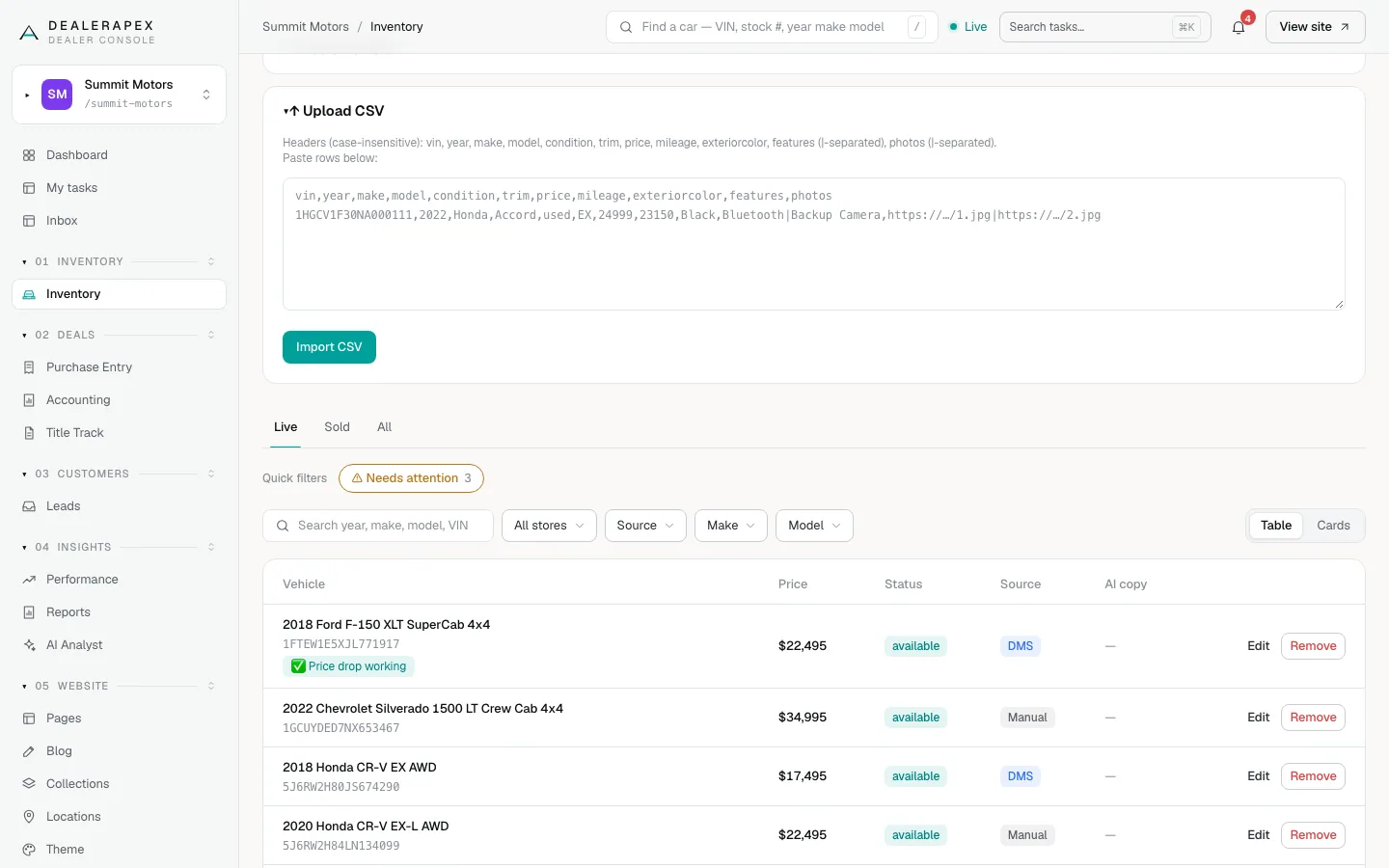
- Click ↑ Upload CSV.
- In your spreadsheet, make the first row these headers: vin, year, make, model, condition, trim, price, mileage, exteriorcolor, features, photos. Capitals don't matter.
- Separate several features with a | character, for example Bluetooth|Backup Camera. Do the same for photo links.
- Copy the header row and your data rows, and paste them into the box.
- Click Import CSV.
If the import goes wrong
- Nothing was imported — none of the rows had all of vin, year, make and model: your header names don't match. A header such as VIN Number or Yr isn't recognised. Rename them to the exact words above.
- Imported 8 of 10 rows: the skipped rows were missing a VIN, year, make or model. Fix them and paste only those rows again.
- Could not read that CSV: usually a stray quote mark, or a row with more or fewer commas than the header row.
- That CSV has a header row and no data rows: paste your cars under the header row.
Who can do this
Owners and editors can add cars and import a CSV. Sales managers can add a car by hand but cannot import a CSV. Inventory managers and viewers cannot add cars.
Common questions
Can I upload the CSV file itself?
No. Open the file in your spreadsheet program, copy the rows including the header row, and paste them into the box.
Will my DMS feed delete the cars I add by hand?
No. A feed update never removes a car you added by hand or by CSV. If the same VIN later arrives in your feed, the feed takes that car over from then on. See How your inventory feed updates your cars.
How do I take a manual car off my website?
Click Remove on its row, or open it and set Status to Sold or Hidden. Nothing removes a manual car automatically.
Still stuck? Email [email protected] with the page you were on and what you expected to see.