
Find cars in your inventory list
The Inventory page lists every car in your account. Use it to find a car quickly, check what is live on your website, and see which cars need work.
Open your inventory
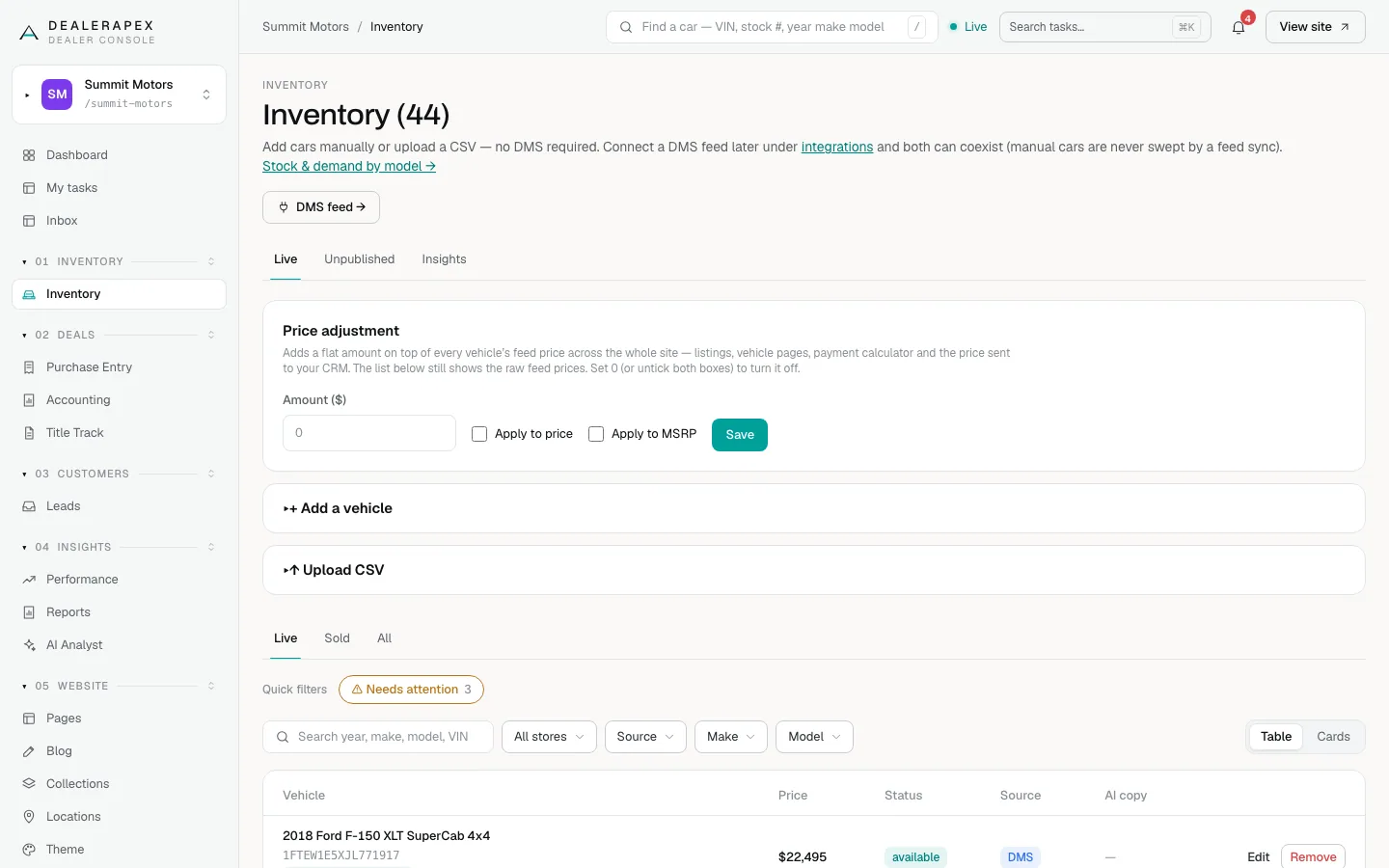
- Open Inventory in the sidebar. The page title shows how many cars match your current filters, for example Inventory (44).
- Make sure the Live tab is selected under the title. The Unpublished and Insights tabs next to it open the Unpublished Tracker and Inventory Insights.
- Scroll past the Price adjustment, + Add a vehicle and ↑ Upload CSV panels to reach the list.
Filter the list
- Choose Live, Sold or All above the filters. Live is the default and shows cars that are for sale. All also includes cars you have removed from your website.
- Type in Search year, make, model, VIN… to find a car. A stock number works too.
- Choose a rooftop from All stores if you have more than one location.
- Choose DMS or Manual from Source to see only cars from your inventory feed, or only cars you added yourself.
- Choose one or more makes from Make, then one or more models from Model.
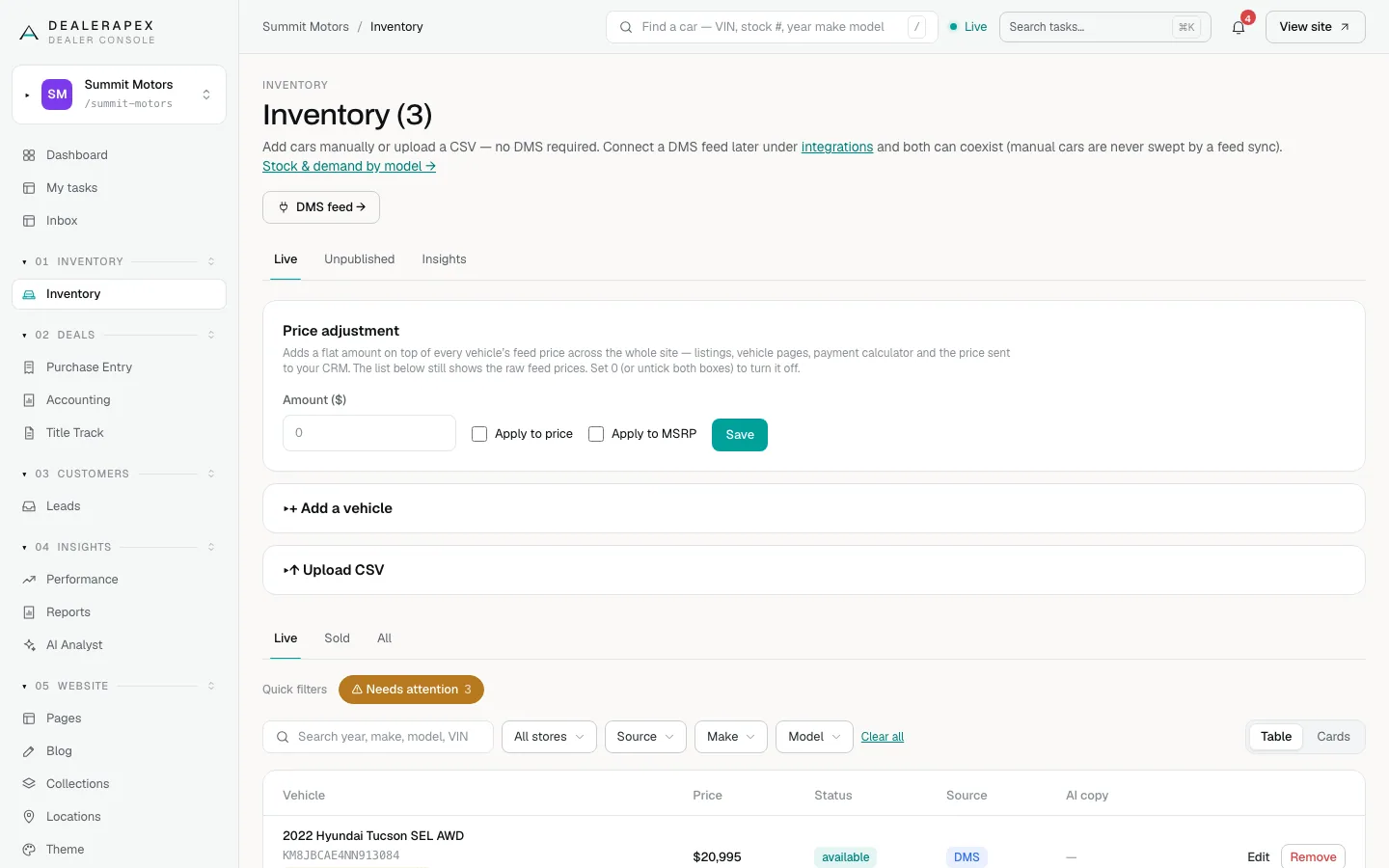
- Click Clear all to remove every filter at once.
Every filter is part of the page address, so you can copy the link and send it to a colleague. They see the same list you do.
Table or cards
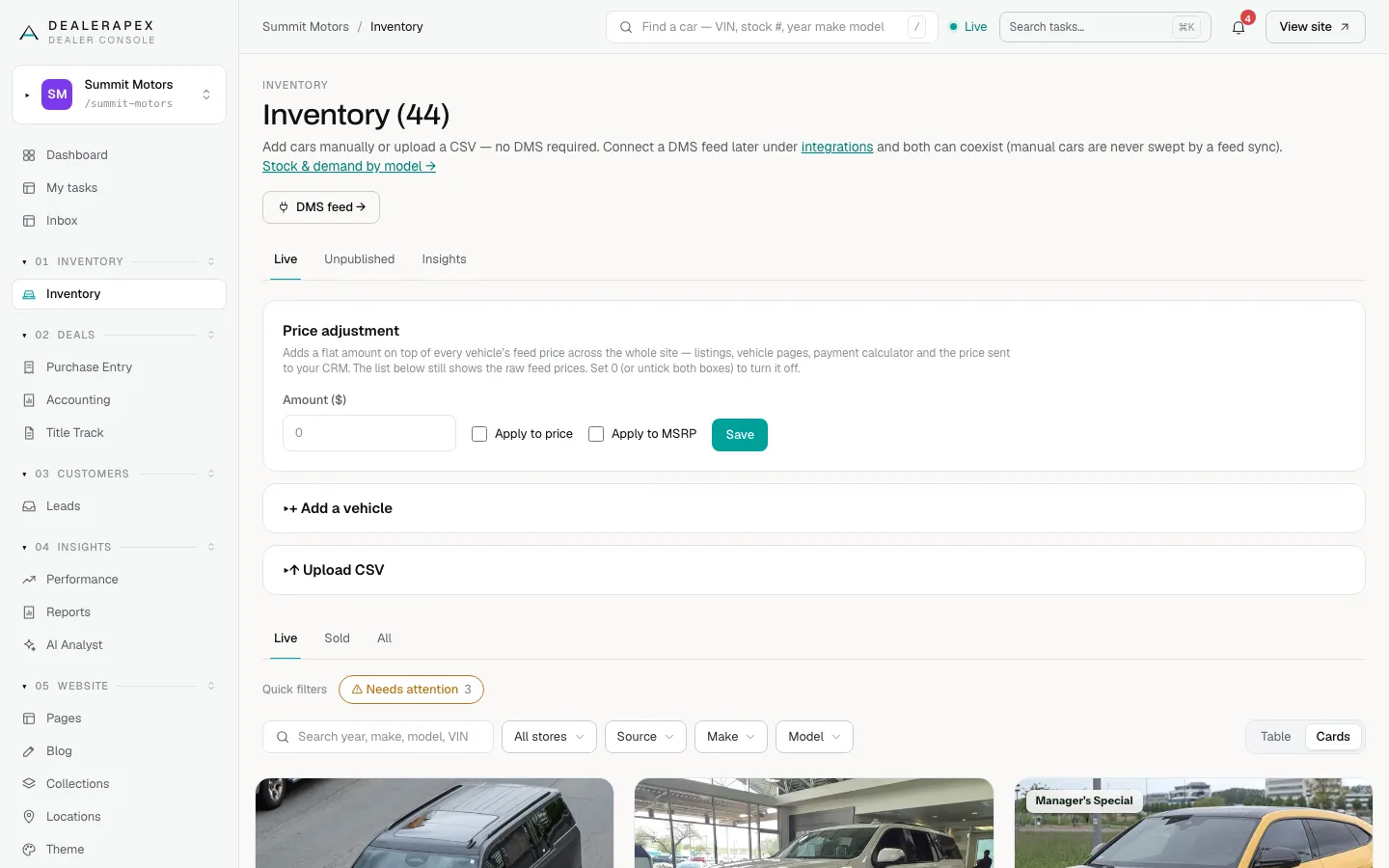
Click Table or Cards at the right of the filters. Table shows one row per car with its price, status, source and whether it has AI copy. Cards shows each car the way shoppers see it on your website, with its photo and price. The console remembers which view you picked.
What the table columns mean
- Vehicle: year, make, model and trim, with the VIN underneath. Click the name to edit the car.
- Price: the price from your feed or your last edit. It does not include a price adjustment.
- Status: available, pending, sold or hidden.
- Source: DMS means the car comes from your inventory feed. Hover over it to see when the feed last saw the car. Manual means someone added it by hand or by CSV.
- AI copy: a tick means the car's page has an AI-written description. A dash means it doesn't have one yet.
- Edit opens the car. Remove takes it off your website (see below).
Cars that need attention
Click ⚠ Needs attention under the tabs to see only the cars that may need work. The number on the button is how many there are. A car can show up here once it has been on the lot for 14 days or more and one of these labels appears under its name:
- High interest, no leads: lots of shoppers view it, but nobody has sent an enquiry in 28 days.
- Low visibility: almost nobody is viewing it. Check its photos and that it shows in search.
- Aging, cooling interest: it has been on the lot a while and views are falling.
A fourth label, Price drop working, is good news: views and leads went up after you cut the price. It shows on the car's row, but it isn't counted as needing attention.
Remove a car from your website
Click Remove on the car's row. The car is set to Hidden: it leaves your website but stays in your console under All. To put it back, open the car and set Status to Available.
If the car comes from your inventory feed, the next feed update puts it back on sale while the feed still lists it. To keep it off, see Edit a car.
Who can do this
Everyone who can open Inventory can view and filter it. Owners and editors can remove cars. Sales managers and inventory managers can edit cars, but cannot remove them. Viewers can look but not change anything.
Common questions
Why does the count at the top change when I filter?
The number in the title counts the cars that match your current tab and filters, not your whole lot. Click All and Clear all to see every car.
I removed a car and it's back. Why?
It comes from your inventory feed, and the feed still lists it as for sale. Mark it sold in your DMS, or hold the status on the car. See How your inventory feed works.
Why is a car I know is new missing from Needs attention?
Cars on the lot for less than 14 days are never flagged. That gives a new car time to collect views before it is judged.
Still stuck? Email [email protected] with the page you were on and what you expected to see.