
Feature a car as a special on your homepage
You choose which cars your homepage promotes. Mark a car as a special to put it in the specials section of your homepage, give it a badge, and optionally show your specials in a pop-up.
Mark a car as a special
- Open the car from Inventory.
- Scroll to the Homepage box in the Vehicle details card.
- Tick Show on homepage specials.
- Choose a Homepage badge: Manager's Special, Just In, Hot Deal, Low Miles, Great Value or Staff Pick. Choose No badge to show the default, Manager's Special.
- Click Save changes.
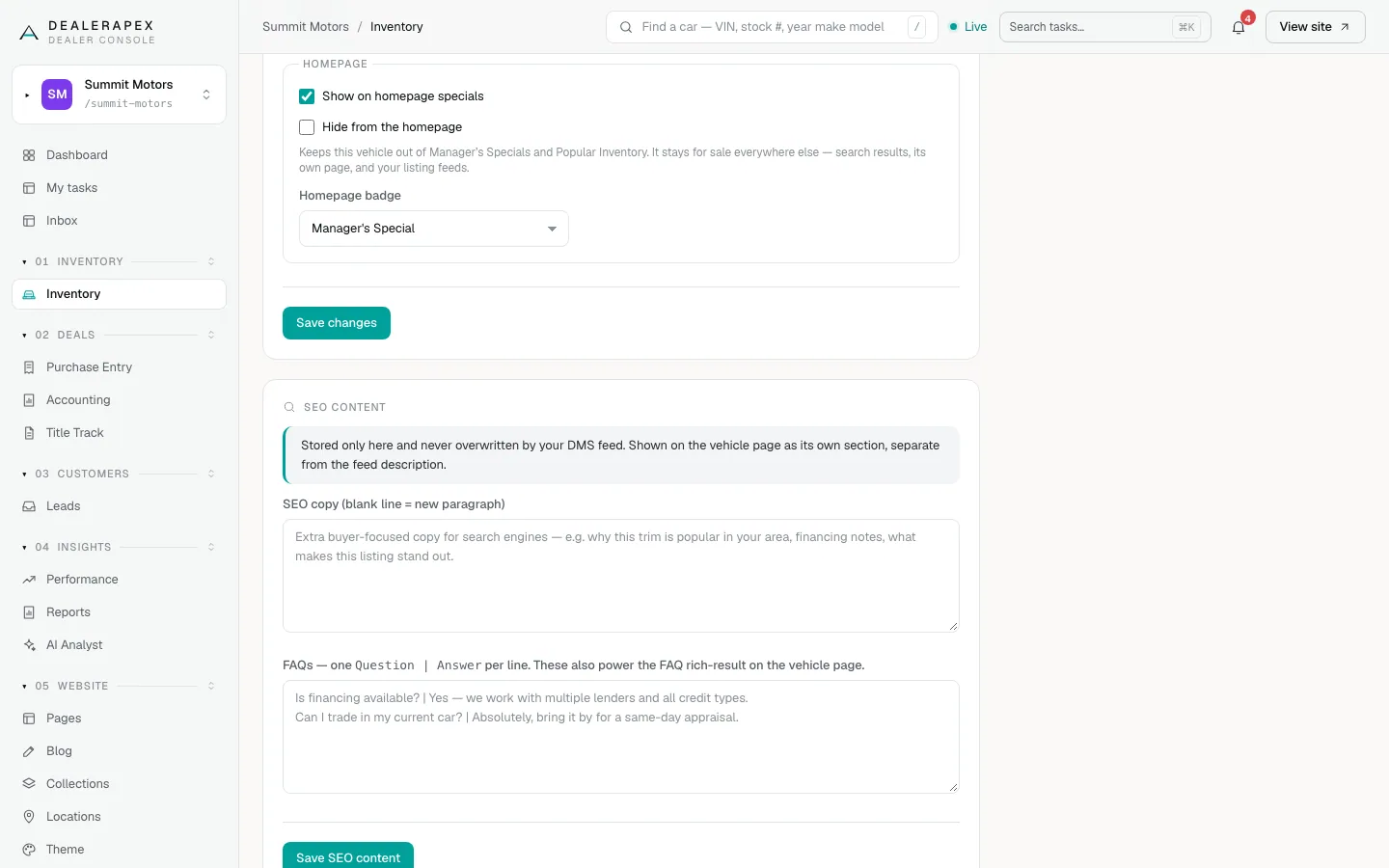
The badge also shows on the car's card in your inventory listings. These settings are never changed by your inventory feed.
What shows on your homepage
- A special only appears on the homepage if it has a price and at least one photo.
- If you mark too few specials, your homepage may fill the section with other cars from your lot, badged Manager's Special.
- Specials are shown biggest discount first, measured as the gap between price and MSRP.
Keep a car off the homepage
Tick Hide from the homepage and click Save changes. The car leaves Manager's Specials and Popular Inventory on your homepage, but stays for sale everywhere else: search results, its own page and your listing feeds.
Show your specials in a pop-up
- Open Theme in the sidebar, under Website, and find the Specials pop-up section.
- Tick Specials pop-up: show a promo pop-up on the homepage / inventory page?
- In Specials pop-up — what to show, choose Special vehicles only, Custom promo copy only or Custom copy + special vehicles.
- Fill in the heading, body copy, button label and button link.
- In Specials pop-up — when it appears, choose After a delay, Immediately on load or After scrolling down, then set the delay in milliseconds (8000 is 8 seconds) or the scroll depth.
- Choose Once per browsing session or Every eligible page load in Specials pop-up — how often per visitor.
- Set Specials pop-up — max vehicles to show (1–6).
- Click Save theme.
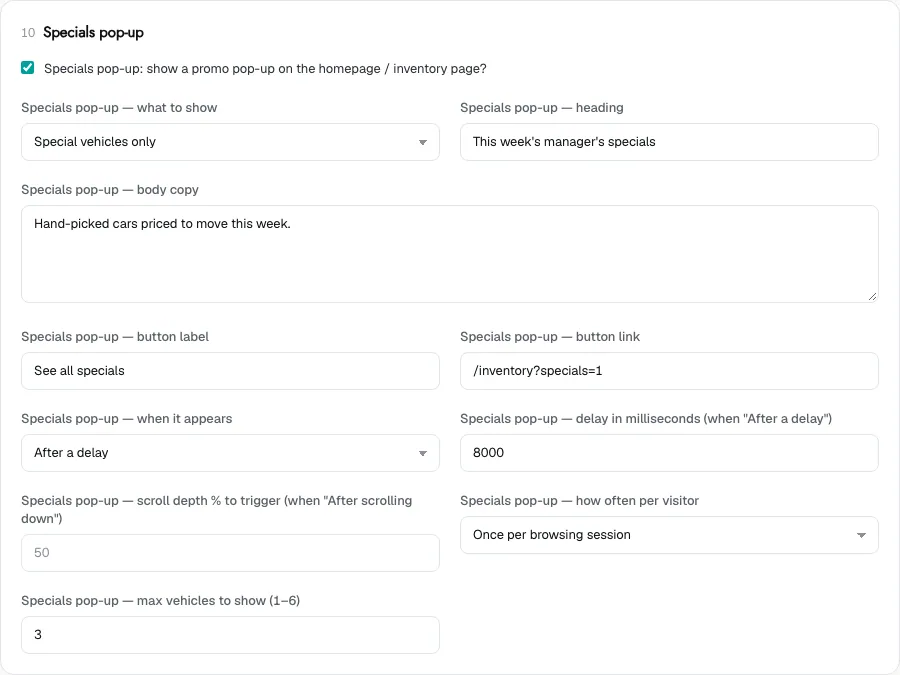
The pop-up only appears on your homepage and inventory page, never on a car's own page. If it is set to show special vehicles and none are marked, it doesn't appear at all. For other pop-ups, see Pop-ups and tab nudges.
Who can do this
Owners, editors, sales managers and inventory managers can mark specials and badges. Only owners and editors can change the pop-up in Theme.
Common questions
I marked a car special but it isn't on my homepage. Why?
Check that it has a price and a photo, that Hide from the homepage is not ticked, and that its status is Available. Your website updates within a minute of saving.
What does the Tags field do?
It stores your own labels for the car. To put a car in your homepage specials, use Show on homepage specials instead.
Can I show a list of specials on another page?
Yes. Create a collection with Manager's Specials only ticked and add it to a page. See Collections.
Still stuck? Email [email protected] with the page you were on and what you expected to see.