
How your inventory feed updates your cars
If your cars come from a DMS or inventory provider, a feed keeps your website in step with it. This article explains what the feed changes, what stays yours, and what to do when a change you made doesn't stick.
To connect a feed for the first time, see Connect your DMS feed.
Check your feed
- Open Settings → Integrations, or click DMS feed → at the top of the Inventory page.
- The Inventory feed (DMS) card shows the Feed type, the Feed URL, the Status and the time of the Last sync.
- DealerApex checks the feed every 5 minutes. To pull it now, click Sync now. If your provider drops a scheduled file instead, the card says it syncs automatically and there is no button.
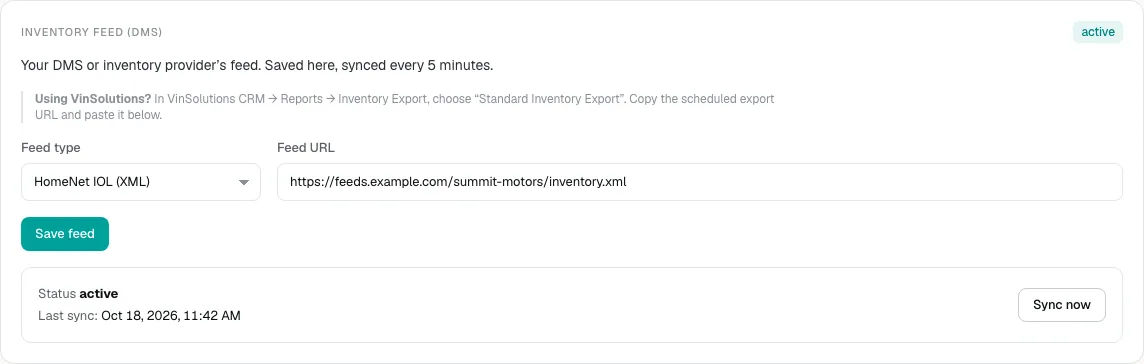
If something is wrong, the status shows Error and the error message appears under it. Email [email protected] with that message. Only an owner can change this card.
What the feed changes
Your provider sends a new copy of your inventory several times a day. On each update the feed:
- adds new cars and updates the details of cars it already sent;
- marks a car Sold when it is missing from the update;
- puts a car back on sale if it shows up again in a later update;
- never removes or changes cars you added by hand or by CSV.
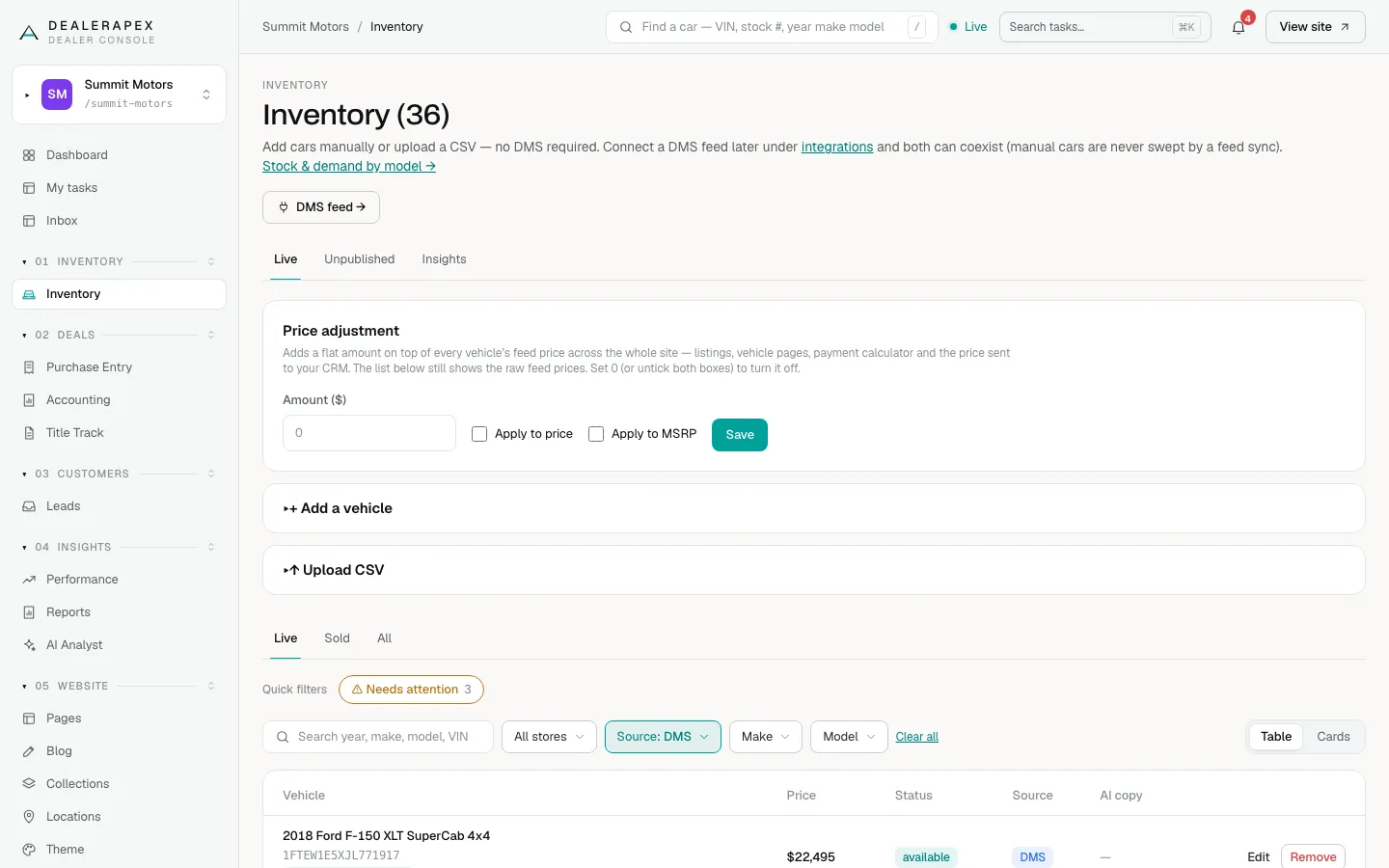
To see which cars come from the feed, choose DMS from Source on the Inventory page.
Who owns which field
| Field | What happens on a feed update |
|---|---|
| Price, MSRP, mileage, trim, condition, status, exterior color, features | The feed restores its value, unless you ticked Keep my value on that field |
| Year, make, model, photos, description, stock number and other specs | Always the feed's. Change them in your DMS |
| Walkaround video | Yours stays, unless the feed sends its own video for that car |
| SEO copy and FAQs, homepage specials, homepage badge, Hide from the homepage, tags, video position | Always yours. The feed never touches them |
On the vehicle sheet, a small lock marked From vAuto means the feed maintains that field. See Edit a car for how to hold a field.
Why a sold car came back
- You marked it sold in the console, but your DMS still lists it. The next update set it back to available. Mark it sold in your DMS, or tick Keep my value under Status on the car and save.
- The car went missing from one update and returned in the next. The feed marked it sold, then put it back on sale when it reappeared. That usually means it was left out of one file by mistake.
- Someone imported a CSV with that VIN. A CSV row puts the car back on sale, and the feed no longer marks it sold. Open the car and set its status yourself.
Raise every price by the same amount
Don't edit prices one by one on feed cars. The feed would put them back. Use Price adjustment at the top of the Inventory page instead:
- Enter a dollar amount in Amount ($).
- Tick Apply to price, Apply to MSRP, or both.
- Click Save.
The amount is added to every car's feed price across your website: listings, vehicle pages, the payment calculator and the price sent to your CRM. Because it is added when the page is shown, the feed can't undo it. The Inventory list still shows the raw feed prices. To turn it off, set the amount to 0 or untick both boxes.
Common questions
How quickly does a change in my DMS reach my website?
As soon as your provider sends its next update. DealerApex checks every 5 minutes, and most providers send a new copy several times a day.
Can I use a feed and add cars by hand at the same time?
Yes. Cars you add by hand are never removed by the feed. If the same VIN later arrives in the feed, the feed takes that car over.
Who can use Price adjustment?
Owners, editors, sales managers and inventory managers. Viewers can see the Inventory page but cannot change it.
Still stuck? Email [email protected] with the page you were on and what you expected to see.