
Edit a car's price, mileage and status
Open a car's page in the console to change its details, mark it sold, or check how it is doing. If the car comes from your inventory feed, read the section on the feed before you save.
Open a car
- Open Inventory in the sidebar.
- Click the car's name, or click Edit on its row.
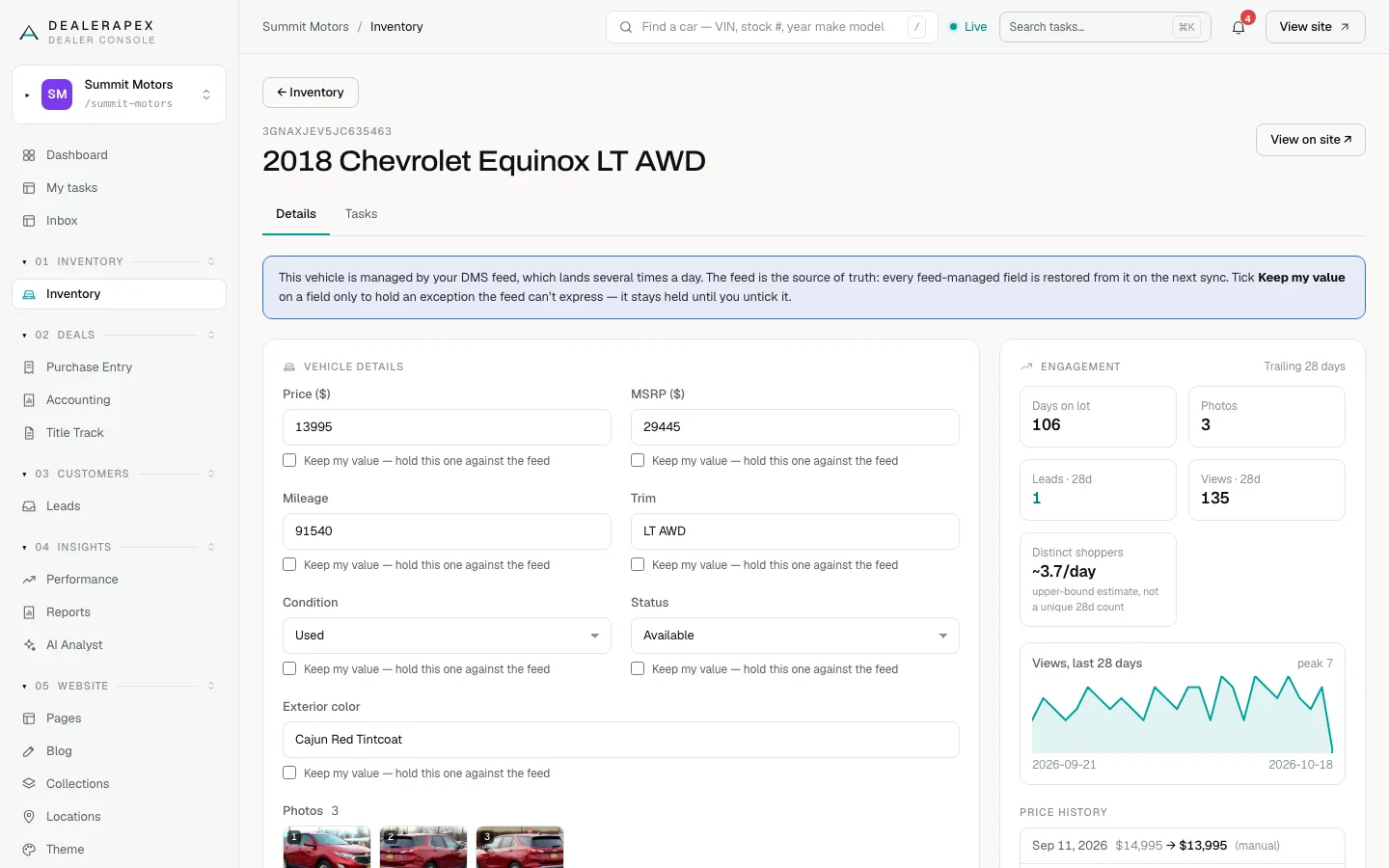
- The car's page opens. The VIN is above the name. Click View on site ↗ to open its public page in a new tab, or ← Inventory to go back.
Change the details
- In the Vehicle details card, edit any of these: Price ($), MSRP ($), Mileage, Trim, Condition, Status, Exterior color and Features (one per line).
- Click Save changes at the bottom of the card. If photos are still uploading, the button waits for them to finish.
- The page reloads with your changes. Your website shows them within a minute.
Status has four choices:
- Available: for sale on your website.
- Pending: a deal is in progress. Shoppers can still find the car, but its card is marked Sold.
- Sold: the car leaves your live listings.
- Hidden: the car never shows on your website.
For photos, video, tags, homepage specials and SEO content further down the page, see Photos, video and descriptions and Specials and homepage badges.
If the car comes from your inventory feed
A blue notice at the top says the car is managed by your DMS feed. The feed updates several times a day, and it is the source of truth. On every update it puts back its own value for these fields, even if you changed them: price, MSRP, mileage, trim, condition, status, exterior color and features.
To make your change stick:
- Under the field you changed, tick Keep my value — hold this one against the feed.
- Click Save changes.
- The feed now leaves that field alone on this car. It stays held until you untick the box.
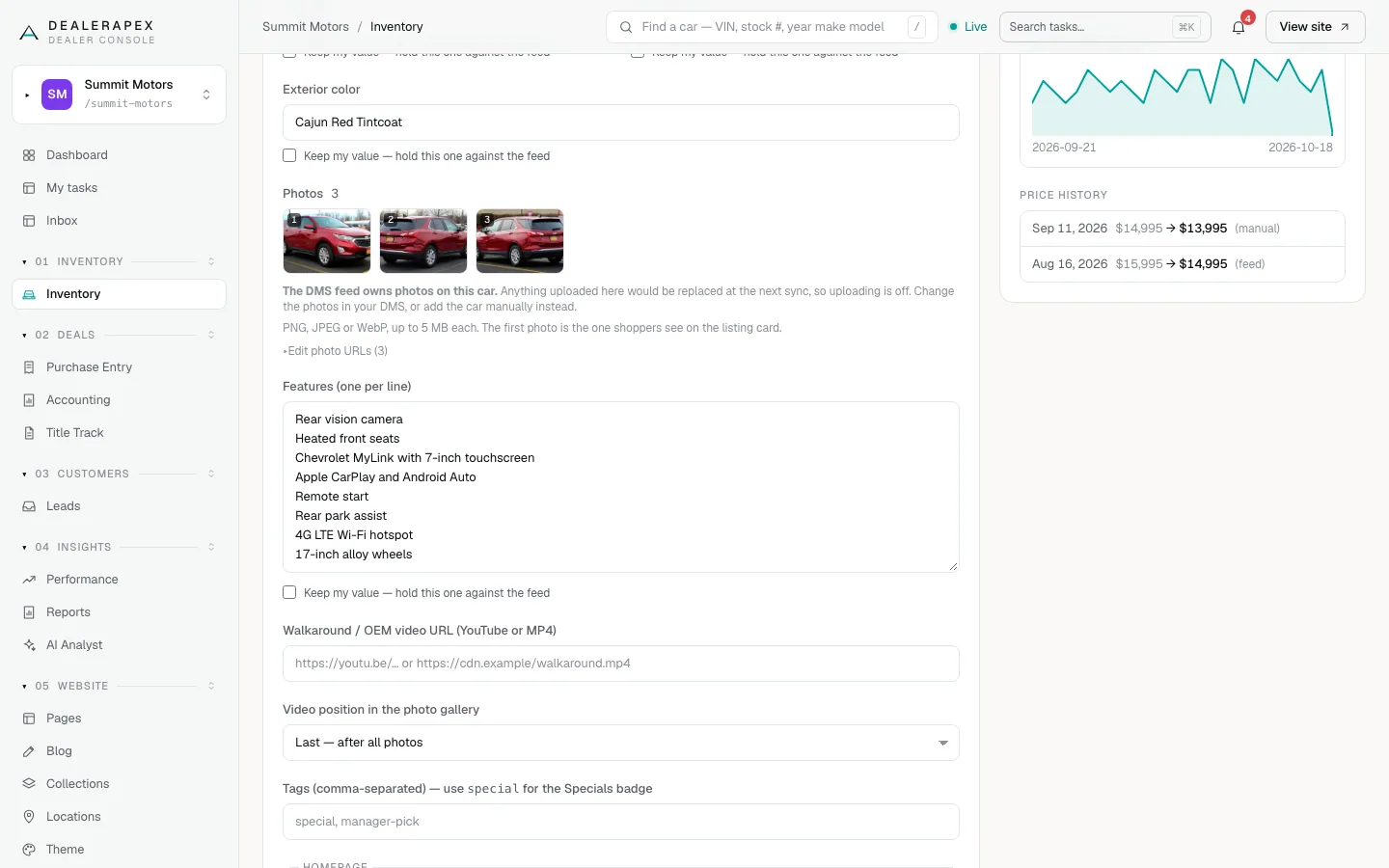
Use Keep my value only for an exception, such as marking a car sold the moment it sells, before the feed reports it. Most of the time the better fix is to change the car in your DMS. Photos, year, make and model on a feed car can only be changed in your DMS. To raise every price by the same amount without fighting the feed, use Price adjustment. See How your inventory feed works.
Read the Engagement card
The card on the right covers the last 28 days: Days on lot, Photos, Leads · 28d, Views · 28d and Distinct shoppers, plus a chart of daily views. Price history lists each price change, marked (manual) for an edit in the console or (feed) for a change from your feed. If the car has a label such as Low visibility, it shows under Flags with a tip on what to do.
Who can do this
Owners, editors and sales managers can edit every part of the page. Inventory managers can edit the vehicle details but not the SEO content. Viewers can look but not save.
Common questions
I marked a car sold and it came back as available. Why?
Your feed still listed it as for sale, so the next update put its status back. Tick Keep my value under Status and save again, or mark it sold in your DMS. See How your inventory feed updates your cars.
Do I need to untick Keep my value later?
Yes, if you want the field to follow your DMS again. A held field never updates from the feed on its own, so untick it once your DMS has caught up.
Why don't I see the Keep my value boxes?
The boxes only appear on cars that come from your inventory feed. Cars you added by hand or by CSV are never changed by the feed, so they don't need them.
Still stuck? Email [email protected] with the page you were on and what you expected to see.