
Manage photos, video and descriptions for a car
A car's page on your website is built from its photos, an optional video, a description and any extra copy you add. All of these are on the car's page in the console, under Inventory.
Photos
- Open the car from Inventory.
- In the Vehicle details card, find Photos. Each thumbnail is numbered. Photo 1 is the one shoppers see on the listing card.
- To add photos, click Choose Files. Use PNG, JPEG or WebP, up to 5 MB each.
- To remove a photo, hover over it and click the ×.
- To change the order, click Edit photo URLs and move the links up or down. The first link is photo 1.
- Click Save changes.
If the car comes from your inventory feed, the page says "The DMS feed owns photos on this car" and uploading is turned off. Anything you added would be replaced on the next feed update. Change the photos in your DMS instead.
Add a walkaround video
- Paste a YouTube or MP4 link into Walkaround / OEM video URL (YouTube or MP4).
- Choose where it goes in Video position in the photo gallery: First — before all photos, Second — after the lead photo or Last — after all photos.
- Click Save changes.
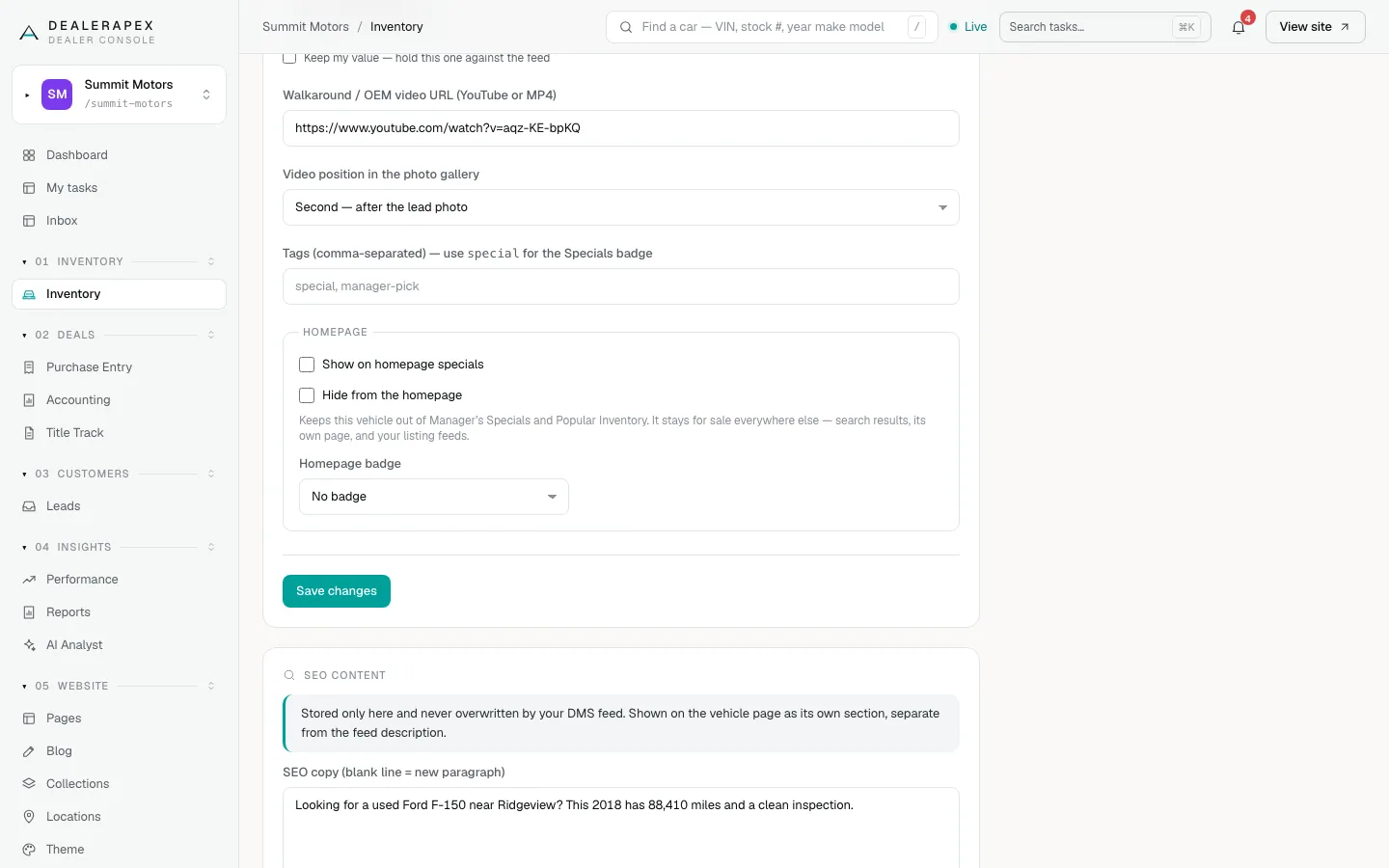
A video you add stays when the feed updates, unless your feed sends its own video for that car. Then the feed's video replaces yours.
The description
DealerApex writes a description for each car from its year, make, model, trim, mileage and features, and rewrites it when those change. A tick in the AI copy column on the Inventory page means the car has one. You can't edit this description in the console. To add your own words, use SEO content.
Add SEO copy and FAQs
The SEO content card is stored only in DealerApex and is never overwritten by your DMS feed. It shows on the car's page as its own section, separate from the description.
- In SEO copy (blank line = new paragraph), write extra copy for shoppers and search engines, such as why this trim is popular in your area or your financing options.
- In FAQs, write one question and answer per line, with a | between them. For example: Is financing available? | Yes, we work with several lenders.
- Click Save SEO content. This button saves only this card, not the details above it.
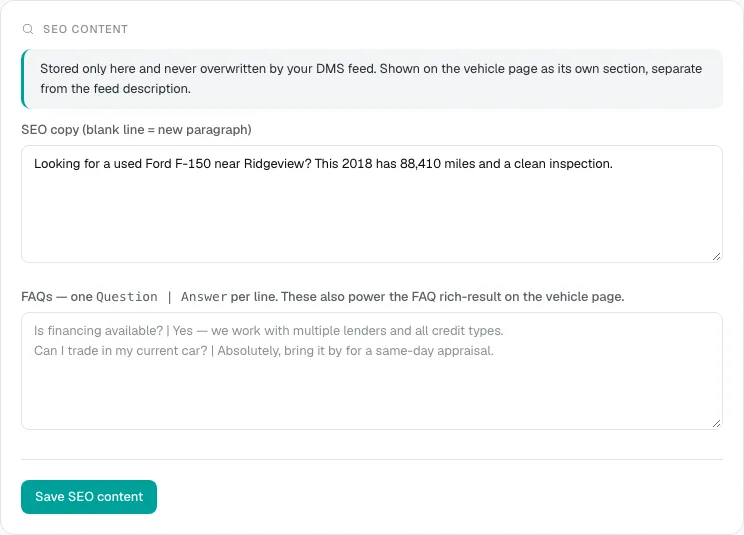
Your FAQs also give search engines a question-and-answer summary they can show in results. To write copy for many cars at once, see SEO content rules.
Who can do this
Owners, editors and sales managers can change everything here. Inventory managers can change photos and video but not SEO content.
Common questions
Why can't I upload photos for some cars?
Those cars come from your inventory feed, which owns their photos. Upload the photos to your DMS and they arrive with the next feed update. See How your inventory feed updates your cars.
Will the feed overwrite my SEO copy?
No. SEO copy and FAQs are never touched by the feed.
Why do I need both Save changes and Save SEO content?
They are two separate forms. Save changes saves the vehicle details, photos and video. Save SEO content saves only the SEO copy and FAQs. Save each one before you leave the page.
Still stuck? Email [email protected] with the page you were on and what you expected to see.