
Upload bills of sale and titles
Documents reads the figures off a Bill of Sale or a Title so nobody has to type them. A clean document goes straight onto the car. Anything that does not check out waits in a queue for someone to review.
Before you start. Owners, editors and inventory managers can send and apply both document types. Title clerks can send and apply Titles, but not Bills of Sale. Viewers can see the queue only. Accountants and sales managers do not see Documents.
Open Documents
Click Documents at the top of Title Track, or Open Documents → on Purchase Entry. Owners, editors and viewers can also open it from Settings → Documents.
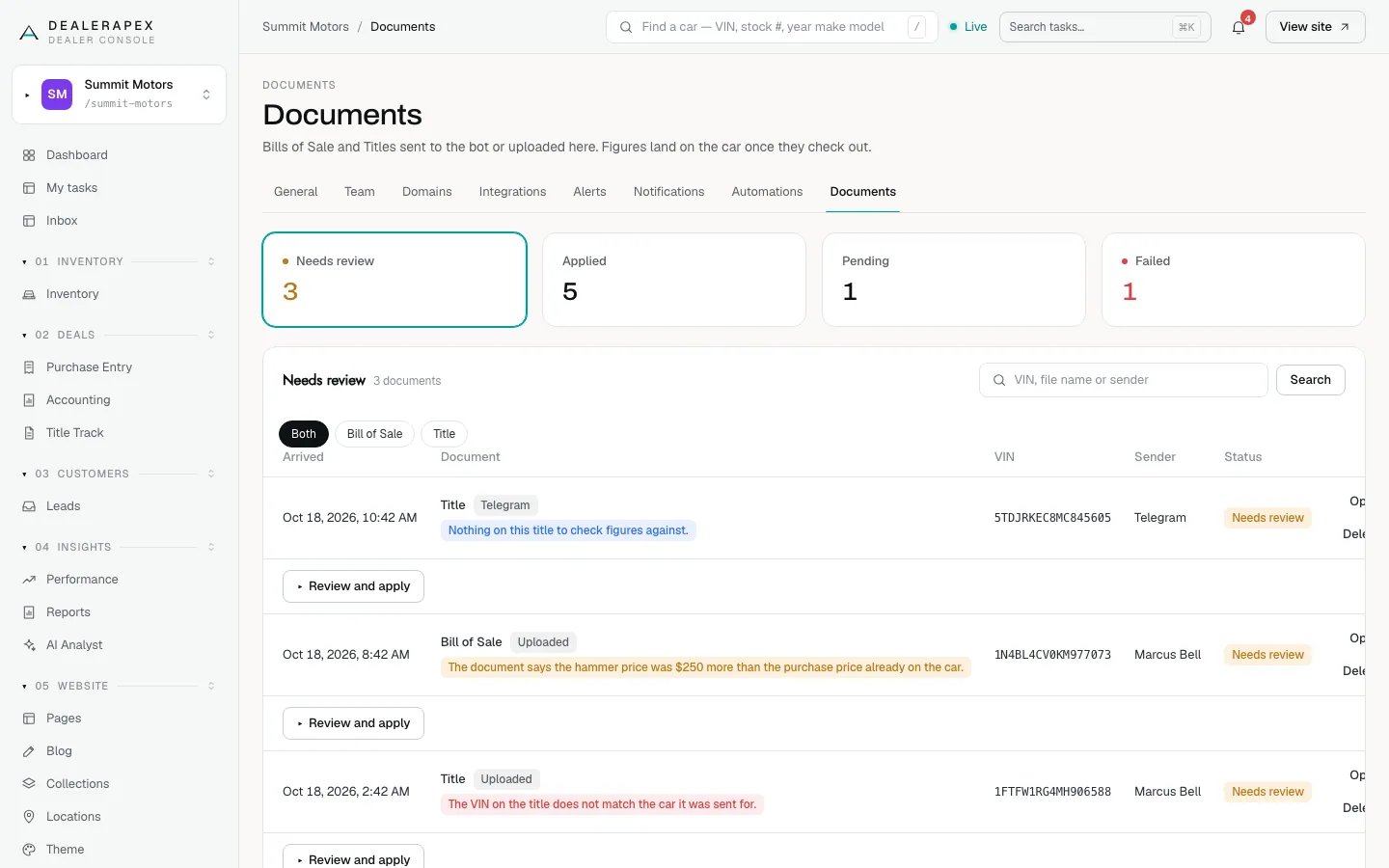
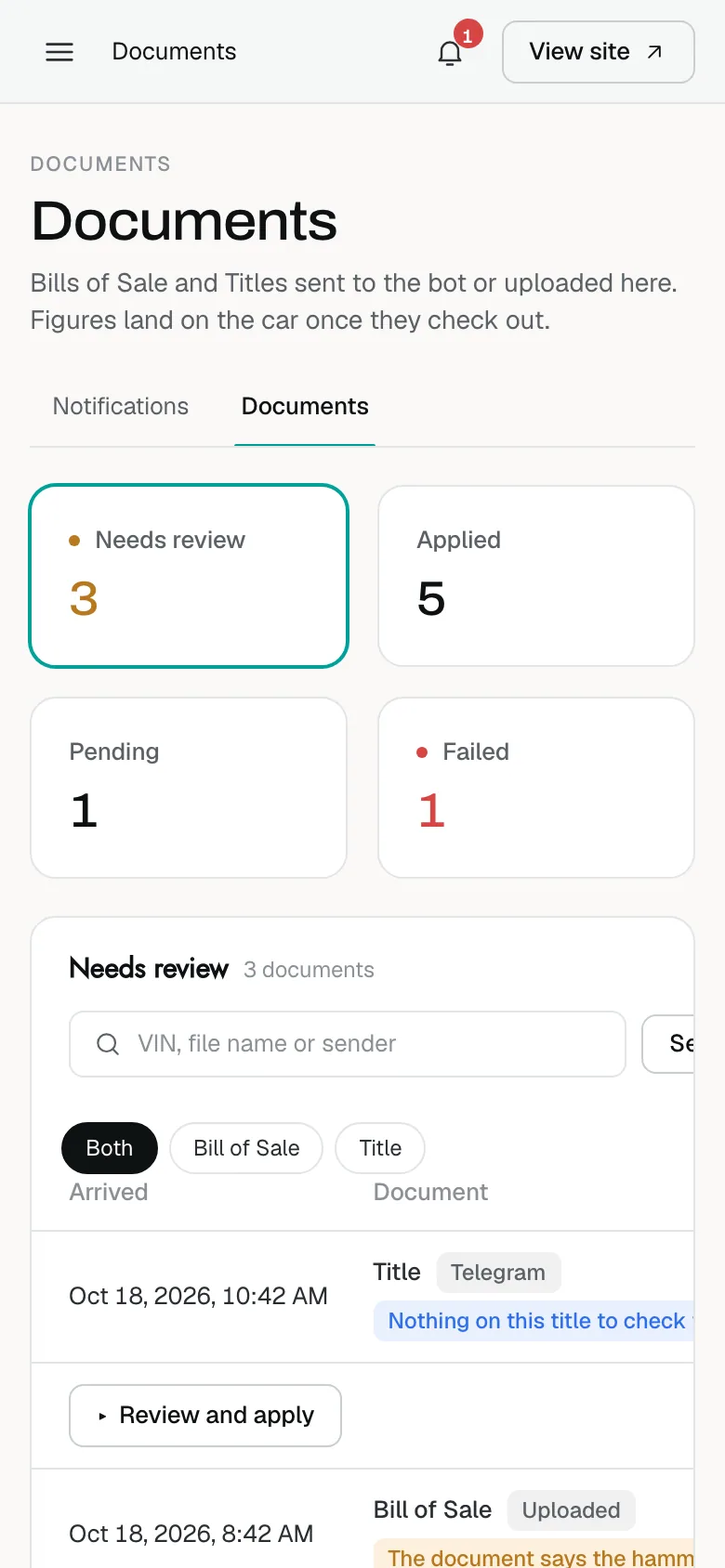
The tiles count Needs review, Applied, Pending and Failed. Click one to see that list, and use Both, Bill of Sale or Title to filter by type.
Upload a document
- Scroll to Upload a document.
- Choose the Document type.
- Under File, pick a JPEG, PNG, WebP or PDF, up to 10 MB.
- Type the VIN (optional) if you know it.
- Click Upload and read.
iPhone HEIC photos are not accepted. Re-save them as JPEG first.
Send it by Telegram
If your account has the DealerApex Telegram bot, you can send documents straight from your phone at the auction.
- In Your Telegram, click Connect Telegram.
- Click Open Telegram and connect, or message the code shown to the bot. The code works once and expires.
- Send a photo or PDF of a Bill of Sale or Title to the bot.
The document is read and filed against the VIN. Click Disconnect to stop. Owners can also give a teammate bot access, or revoke it, under Telegram senders.
If the panel says the bot is not configured, use the upload form instead and email [email protected] to ask about Telegram.
What a document changes
- A Bill of Sale writes the purchase figures onto the car on Purchase Entry: hammer price, buyer fee, other fees and the details printed on it.
- A Title records the date the title was received, which ends the title chase on Title Track.
Review a document
A document waits in Needs review when something does not add up: the VIN does not match the car, the figures disagree with what is already on the car, or part of it was hard to read.
- Click Review and apply on the document.
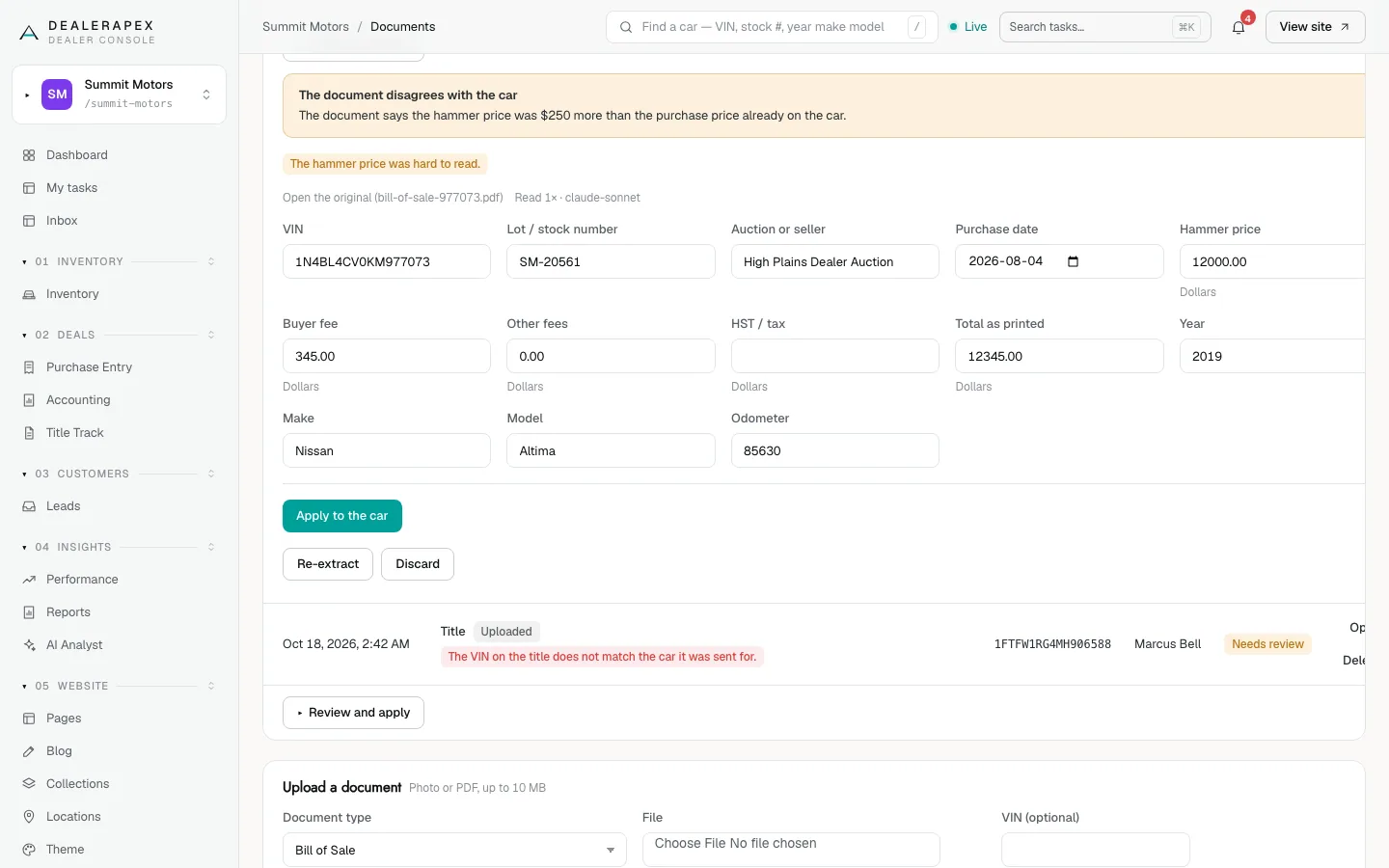
- Read the warning. The document disagrees with the car shows exactly which figure differs.
- Click Open the original to compare with the paper.
- Correct any field that was misread.
- Click Apply to the car.
Click Re-extract to have the document read again, or Discard if it is unusable. A discarded document is kept on record but never applied.
Common questions
Why did my document go to Needs review when it looks fine?
Something did not check: a figure differs from what is already on the car, the total does not add up, or part was hard to read. The tags on the row say which.
I am a title clerk. Why can I not apply a Bill of Sale?
A Bill of Sale writes purchase prices and fees, which title clerks do not handle. An owner, editor or inventory manager applies it. See Who can do what in Deals.
Can I upload a document without knowing the VIN?
Yes. Leave the VIN blank and it is read off the document.
Still stuck? Email [email protected] with the page you were on and what you expected to see.