
Log a bought car in Purchase Entry
Purchase Entry is where you record every car you buy: who sold it to you, what you paid, and where it is going. Accounting and Title Track both work from what you enter here, so a car that is never logged has no cost and no title chase.
Before you start. Owners, editors and inventory managers can add and change cars. Viewers can read and export the board but not change it. Sales managers, title clerks and accountants do not see Purchase Entry at all. See Who can do what in Deals.
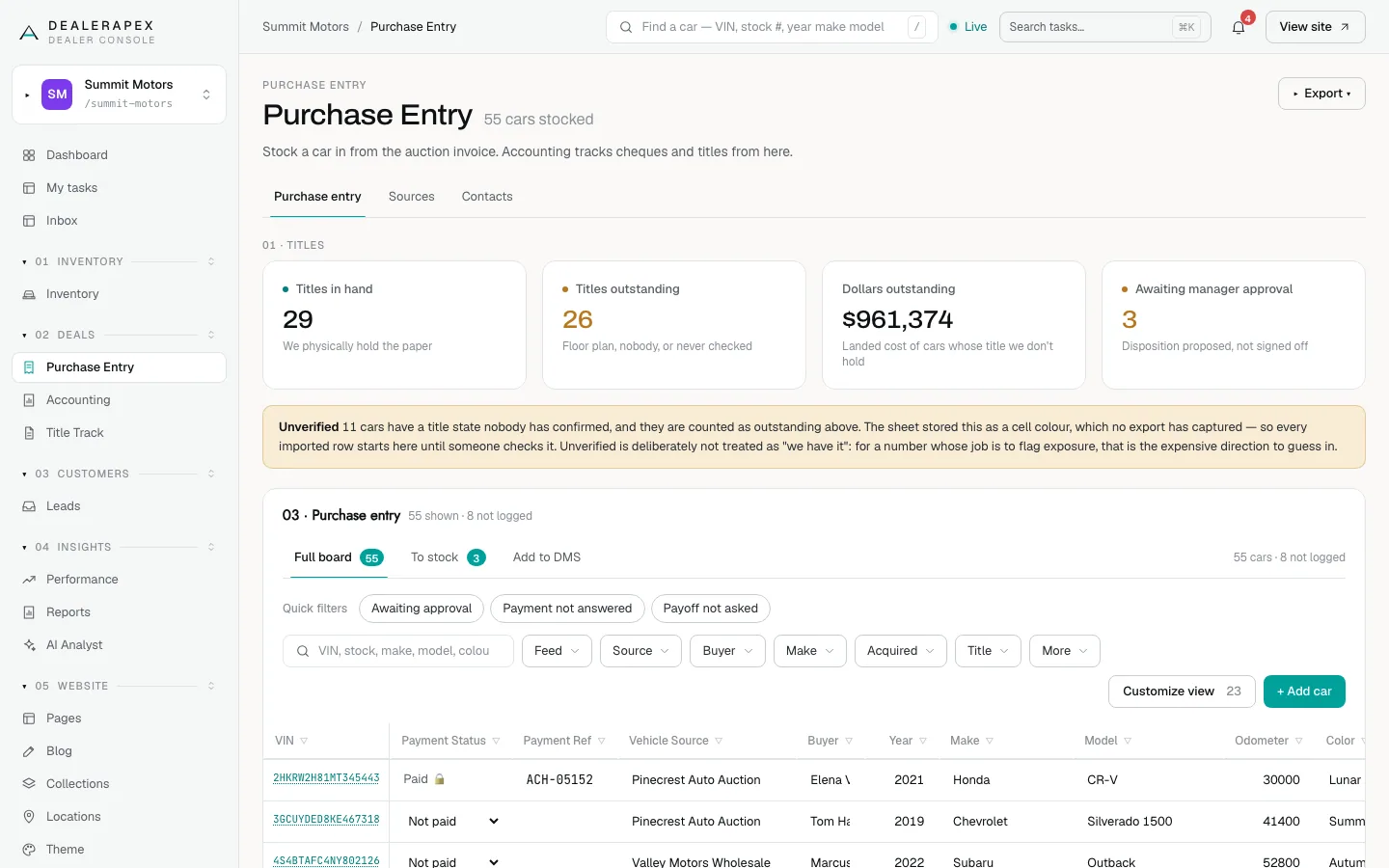
What the page shows
Open Purchase Entry in the sidebar, under Deals. The tiles at the top are Titles in hand, Titles outstanding, Dollars outstanding (the landed cost of cars whose title you do not hold) and Awaiting manager approval.
An Unverified note can appear under the tiles. It counts cars whose title state nobody has confirmed yet. They are counted as outstanding until someone checks them, because guessing "we have it" is the expensive mistake.
Stock a car in
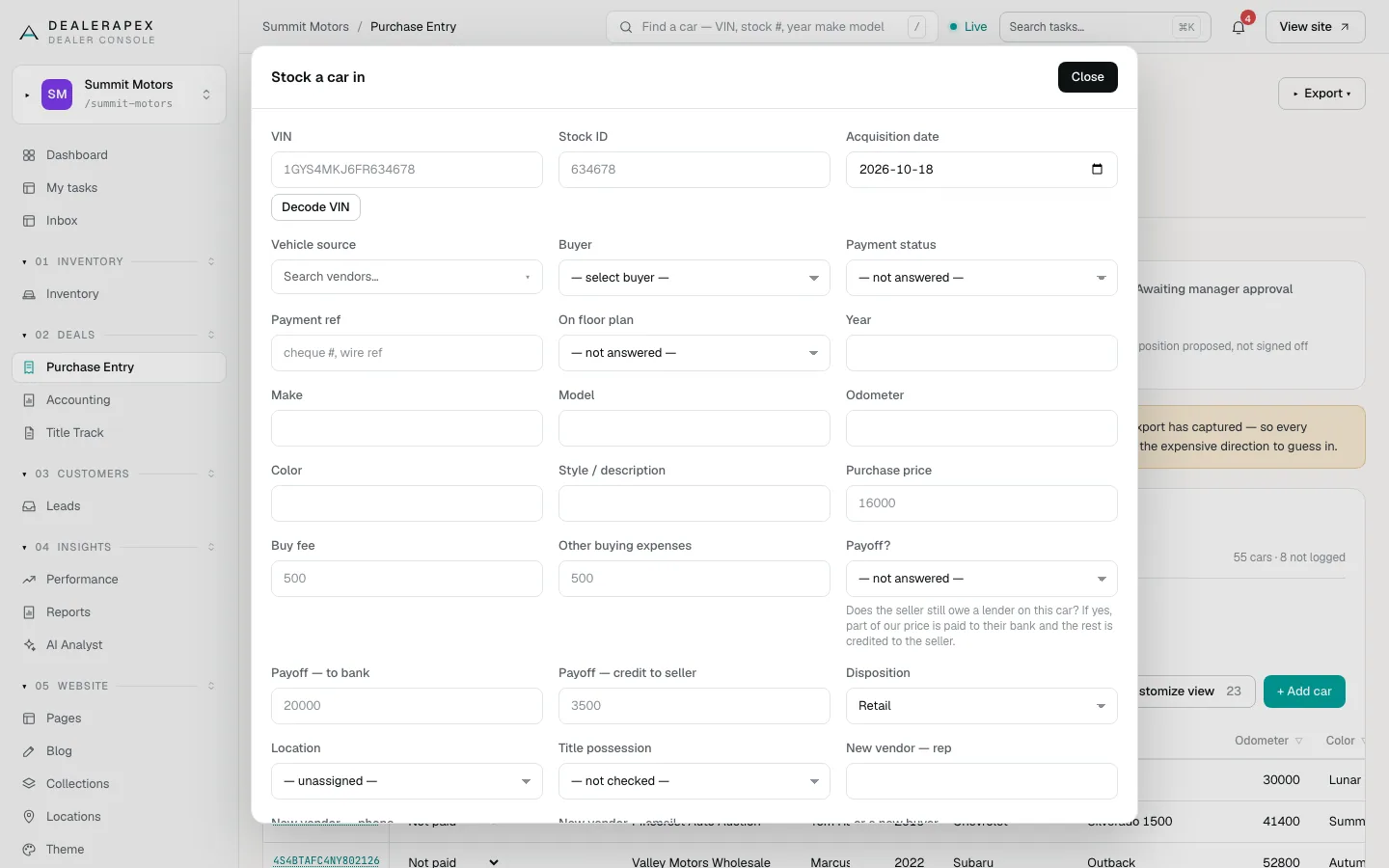
- Click + Add car. The Stock a car in window opens.
- Type the VIN and click Decode VIN. It fills Year, Make and Model if they are empty.
- Check the Acquisition date. It starts as today.
- In Vehicle source, search your vendors and pick one. For a seller you have never bought from, type the name and add it, then fill New vendor — rep, New vendor — phone and New vendor — email if you have them.
- Choose the Buyer, or type a name in …or a new buyer.
- Enter the Purchase price, Buy fee and Other buying expenses.
- Answer Payment status, On floor plan and Payoff?.
- Choose a Disposition, a Location and the Title possession.
- Click Stock in.
Only the VIN and the acquisition date are required. You can fill in the rest later, and the To stock view lists what is still missing.
Payoff? asks whether the seller still owes a lender on the car. If yes, part of your price goes to their bank (Payoff — to bank) and the rest is credited to the seller (Payoff — credit to seller). It is never your own floor plan.
Approve a disposition
The Disposition you choose (Retail, Wholesale, Return, OVE or Retail + OVE) is a proposal until someone approves it. The Awaiting manager approval tile counts these cars, and the Awaiting approval quick filter lists them.
- Click the car's VIN on the board. Its sheet opens.
- At the top, read the plan marked awaiting sign-off and who proposed it.
- Click the approve button. It names the plan, for example Approve Retail.
- Or, if something is missing, type it under Send back — say what is missing and click Send back.
A car sent back stays proposed and shows your reason to the person who stocked it in. Cars that are already in your inventory feed skip this step, and the sheet says no sign-off is needed.
Once approved, the car appears on the Add to DMS view. After you enter it in your DMS, click Entered in DMS to clear it from that list.
Work the board
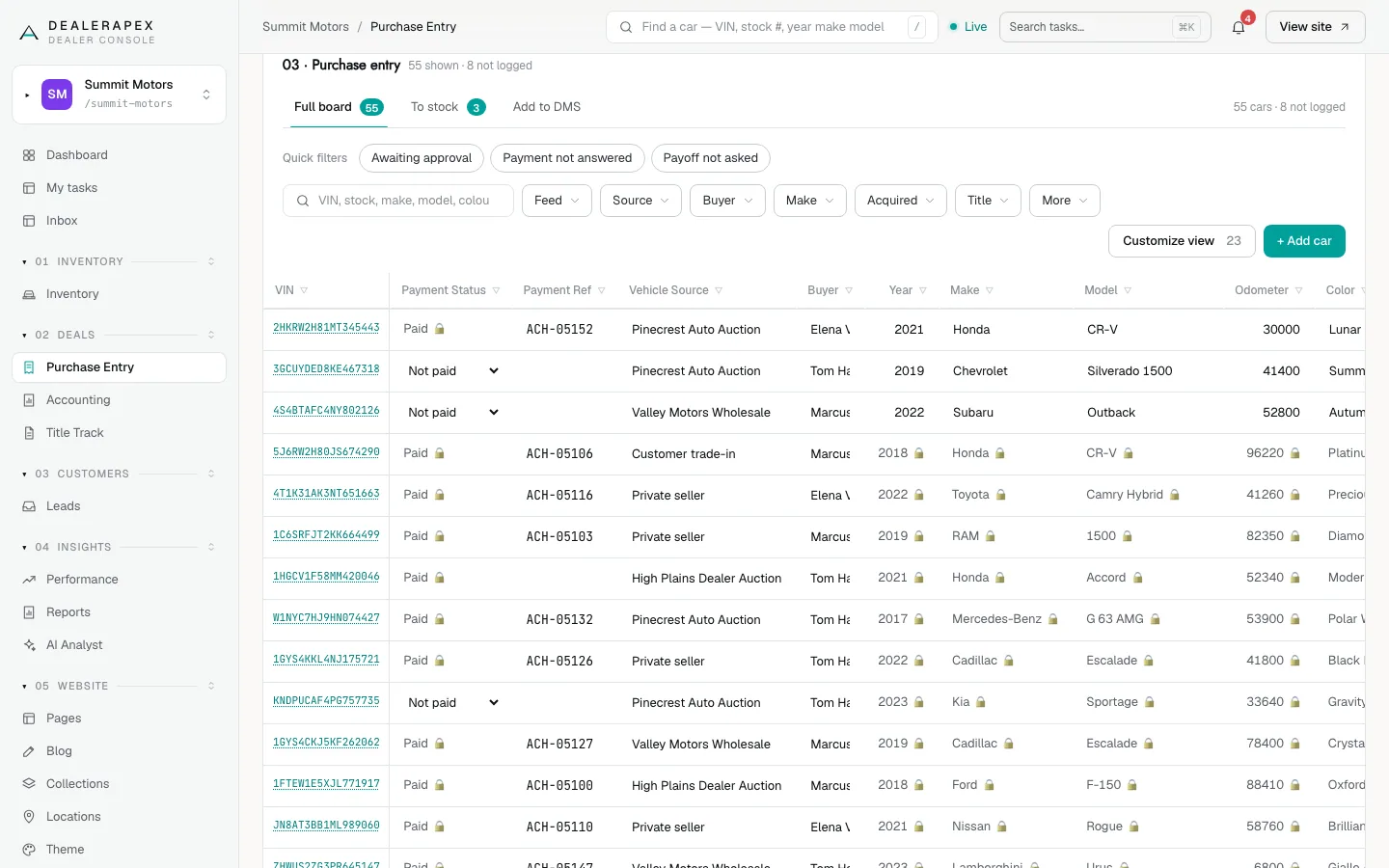
- Full board shows every car. To stock shows cars still missing a vendor, a price, a payment answer, a financing answer or a sign-off. Add to DMS shows approved cars nobody has entered yet.
- The quick filters are Awaiting approval, Payment not answered and Payoff not asked. Click one again to turn it off.
- Use the search box and the Feed, Source, Buyer, Make, Acquired, Title and More filters to narrow the list.
- Click a cell to edit it. It saves when you click away.
- A lock on a cell means the value is owned elsewhere: vehicle details come from your inventory feed, and Payment Status belongs to Accounting once a payment has been recorded against the car.
- Rows tagged Not logged are cars in your inventory feed with no purchase record. Click Log this car to open the stock-in window with the feed details filled in.
Choose columns and export
- Click Customize view.
- Add a column from Available to add, hide one, or drag the Shown list to reorder it.
- Click Reset to default to start over.
Your column layout is saved for you only. Your teammates keep their own.
To download the board, click Export and choose Export current view (the rows and columns on screen, with your filters) or Export all data (every car and every column, ignoring filters).
Remove a car stocked in by mistake
Open the car's sheet, type a reason under Remove this car — say why and click Delete. The record and its history are kept; the car just stops appearing on the board and in the title numbers. Typing the same VIN again brings it back, but clears the figures entered for it.
You cannot delete a car that has been approved, or a car your inventory feed already has a stock number for.
Common questions
Why can I not edit the year, make or mileage on some cars?
Those cars are in your inventory feed, which owns the vehicle details. The cell shows a lock, and your edit would be overwritten by the next feed update. Fix the details in your inventory system instead.
Why is Payment Status locked?
Once a payment is recorded on Accounting, Accounting owns the payment status. Record or void the payment there and Purchase Entry follows.
Can I see a car I deleted?
Anyone who can approve dispositions can choose More → Deleted cars → Shown to list deleted cars, then open one and click Restore.
Still stuck? Email [email protected] with the page you were on and what you expected to see.