
Set your brand and homepage
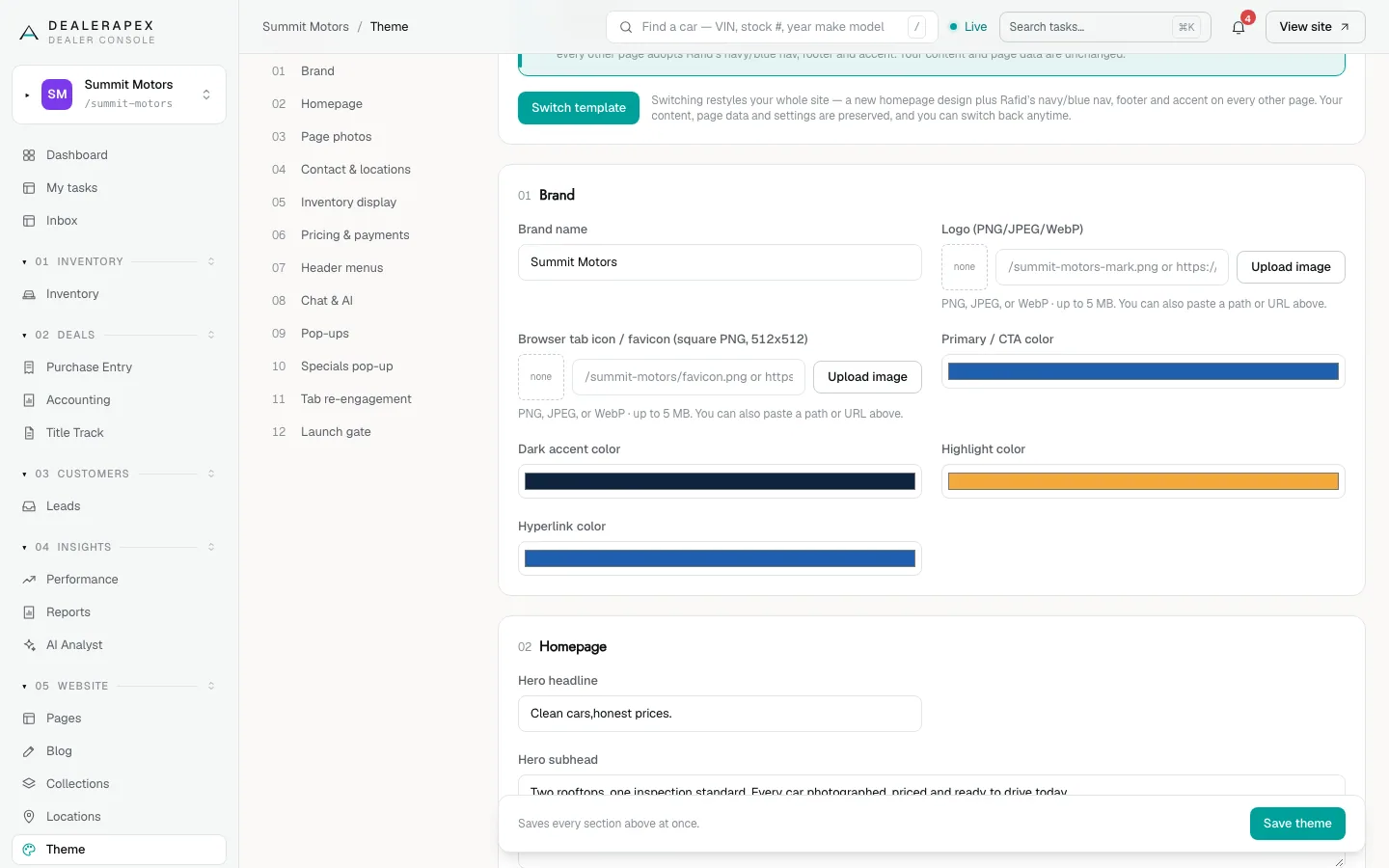
The Theme screen holds your site-wide settings: brand, homepage, contact details, pricing display, pop-ups and more. This article covers the Brand, Homepage, and Contact & locations sections.
Who can do this
Owners and editors can make changes here. Viewers can open every screen but can’t save. Sales managers, inventory managers, title clerks and accountants don’t see the website sections at all.
How the Theme screen works
- Open Theme in the sidebar, under Website.
- The settings are grouped into numbered sections, such as Brand, Homepage, Page photos and Pricing & payments. On a wide screen, click a section name on the left to jump to it.
- Change what you need in any section.
- Click Save theme in the bar at the bottom. It saves every section at once.
The sections and fields you see depend on your site’s design, so your list may be shorter or longer than the one in the screenshots.
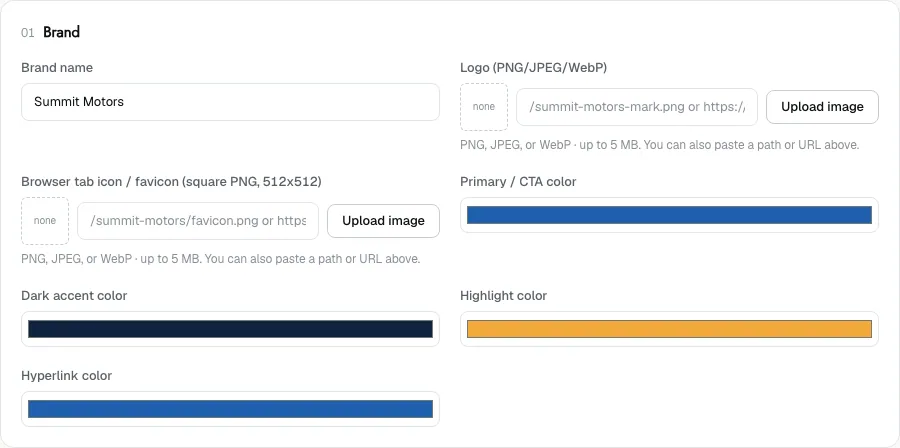
Brand
- Brand name: your dealership name as shoppers should see it.
- Logo (PNG/JPEG/WebP): click Upload image, or paste an image address. Up to 5 MB.
- Browser tab icon / favicon (square PNG, 512x512): the small icon in the browser tab. Use a square image, or it will look squashed.
- Primary / CTA color: buttons and key links.
- Dark accent color, Highlight color and Hyperlink color: the supporting colours. Click a colour bar to pick a new colour.
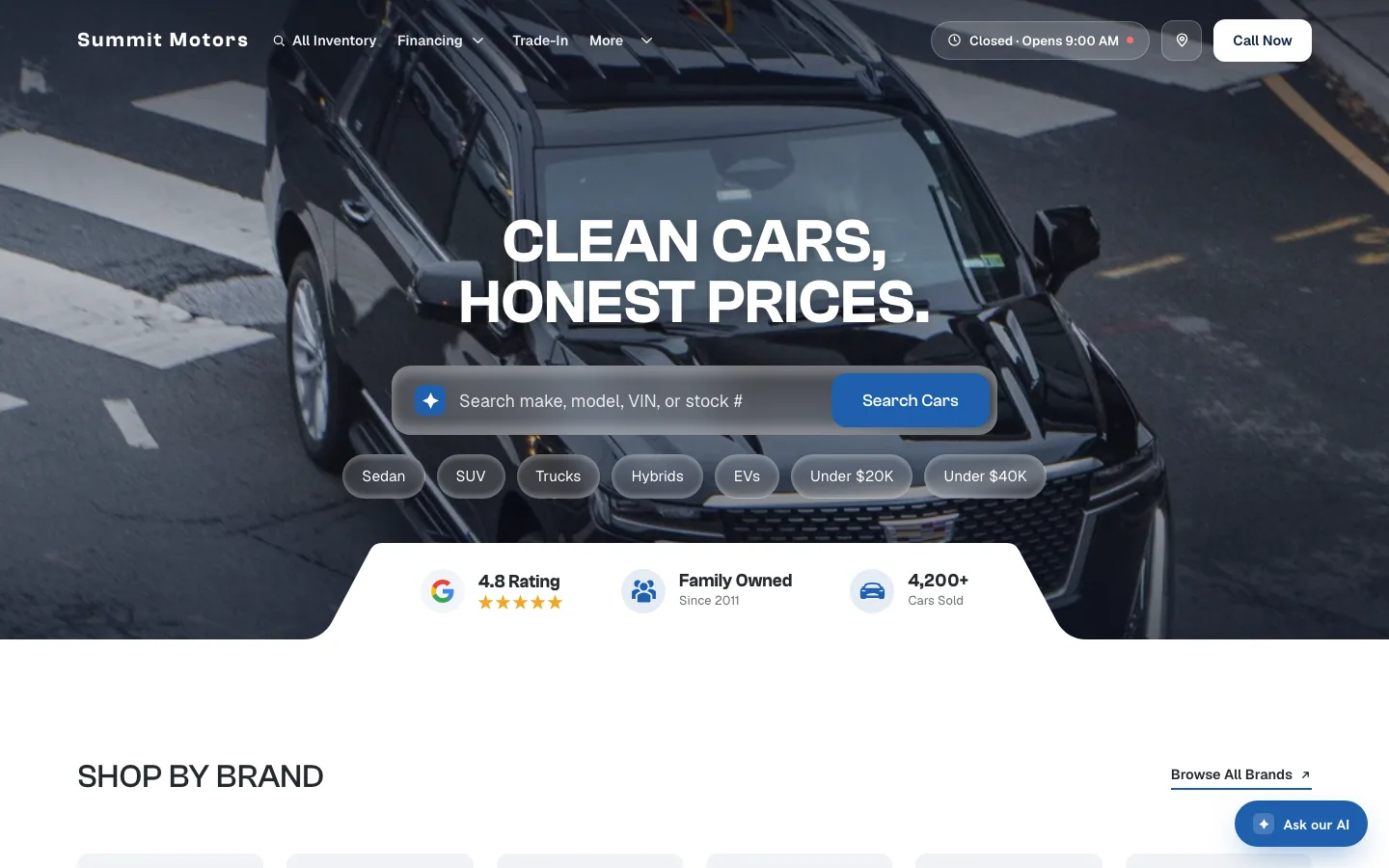
Homepage
Fields that are on every design:
- Hero headline and Hero subhead: the big message at the top of your homepage.
- Rating, Review count and Cars sold: the trust stats near the top, for example 4.8, 487 and 4,200+.
- Approval claim: a short line such as "All credit welcome".
Depending on your site’s design, you may also see Hero background image, Hero region label, Family owned since (year), About section image and Homepage brand carousel. A field left blank uses a built-in default or is left off the page. For example, a blank Family owned since (year) drops that item from the stats strip rather than inventing a year.
The reviews and testimonials fields are covered in Show reviews on your homepage.
Contact & locations
- Phone (display) and Sales email: how shoppers reach you, shown across your site.
- Address — location 1, Address — location 2 and Hours.
- Instagram (handle or URL) and Footer tagline.
This section also has two advanced boxes. Locations holds the same rooftop list as the Locations screen, which is easier to edit. Location display names changes the name shoppers see for a rooftop. Both are covered in Edit your locations.
If saving fails
Some fields hold a list typed in a format called JSON, such as testimonials or the brand carousel. If one isn’t valid, the page says that field "isn’t valid JSON, so nothing was saved" and nothing in the theme changes. Fix the field it names and click Save theme again.
If someone else saved the theme while you were editing, you’ll be asked to reload. Reload, make your change again and save.
Switching your site’s design
The Template card at the top of the screen lists the designs available to your site. Choosing one and clicking Switch template restyles your whole site. Your content and settings are kept, and you can switch back. Talk to your DealerApex account manager before you switch a live site.
Common questions
How long until my changes show on the website?
Usually within a minute of clicking Save theme. Refresh the page to see them.
Why don’t I see a field shown in this article?
Some fields only apply to certain site designs, so the Theme screen shows only the ones your design uses.
What file should I use for my logo?
A PNG with a transparent background works best, up to 5 MB. Wide logos work well in the header.
Still stuck? Email [email protected] with the page you were on and what you expected to see.