
Show reviews on your homepage
Your homepage can show customer reviews in one of three ways. This article explains each option and how to set it up.
Who can do this
Owners and editors can make changes here. Viewers can open every screen but can’t save. Sales managers, inventory managers, title clerks and accountants don’t see the website sections at all.
Choose what to show
- Open Theme and go to the Homepage section.
- Choose an option in Homepage reviews section — what to show.
- Click Save theme.
The three options are:
- Our own testimonial cards (default): the quotes you type in Testimonials.
- Live Birdeye reviews widget: your real reviews, pulled live from Birdeye.
- No reviews section: hides the section.
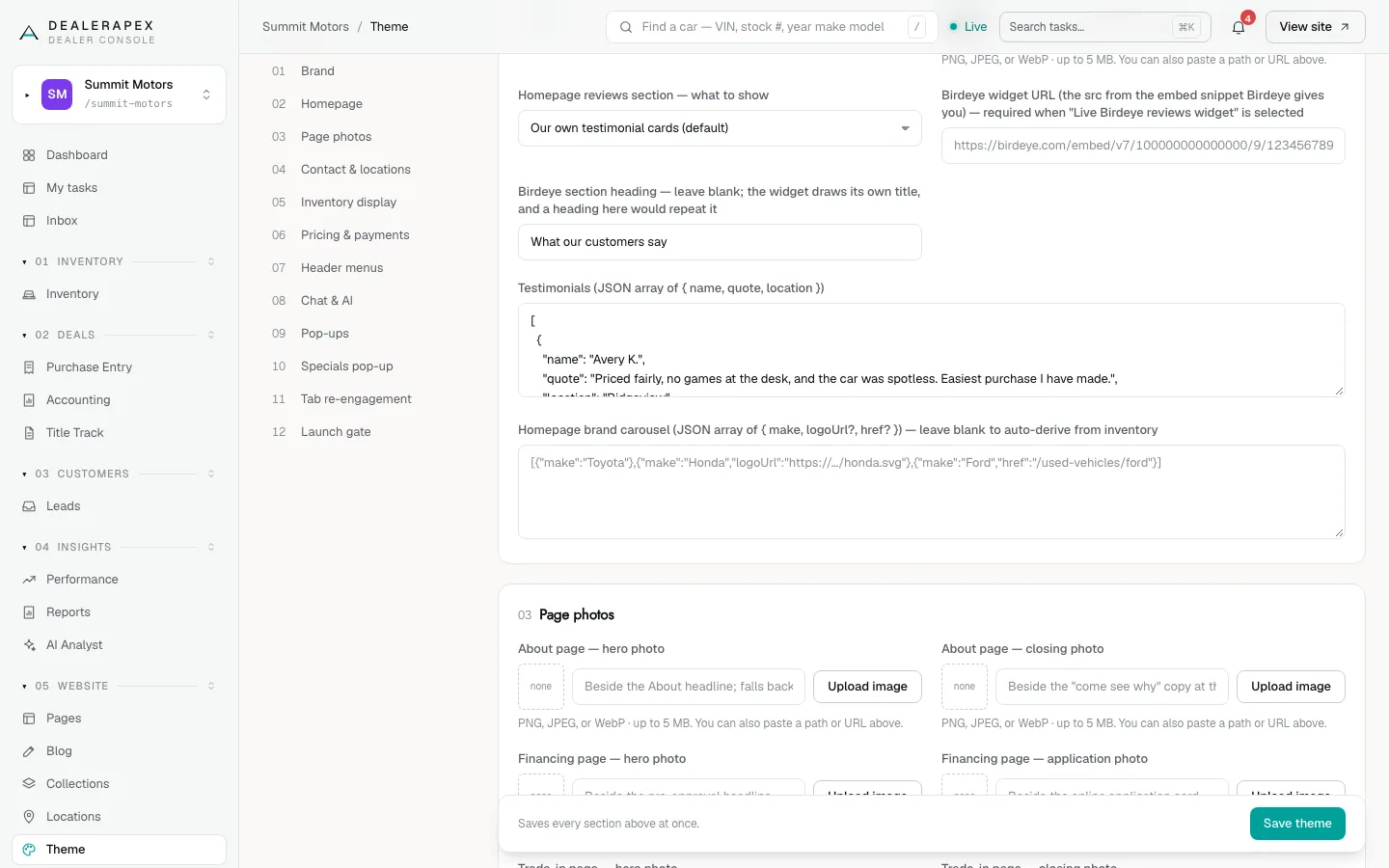
Depending on your site’s design, the homepage may always show your testimonial cards. If you don’t see the reviews mode menu, or changing it does nothing, your design uses testimonials only.
Write your own testimonials
The Testimonials box takes a list in JSON format. Each testimonial has a name, a quote and a location. For example:
[{"name":"Avery K.","quote":"Priced fairly, no games at the desk.","location":"Ridgeview"},{"name":"Sam T.","quote":"Easiest purchase I have made.","location":"Lakeside"}]
Keep the quotation marks, commas and brackets exactly as shown. If the box isn’t valid, the theme won’t save and the page tells you which field to fix. If you leave the box empty, a set of built-in sample reviews is shown, so replace them with real ones before you launch.
Only use real reviews from real customers, with their permission.
Use the live Birdeye widget
- In Birdeye, copy the embed code for your review widget.
- Find the address in the code that starts with https://birdeye.com/embed/.
- Paste that address into Birdeye widget URL (the src from the embed snippet Birdeye gives you).
- Leave Birdeye section heading blank. The widget draws its own title, and a heading here would repeat it.
- Choose Live Birdeye reviews widget and click Save theme.
If the address is missing or isn’t a Birdeye widget address, your homepage falls back to your own testimonial cards rather than showing an empty gap.
If the widget shows up empty on your live site, check that your website’s domain is allowed in your Birdeye account settings.
Common questions
I chose Birdeye but my homepage still shows testimonial cards. Why?
The Birdeye widget URL is missing or isn’t the right address. Paste the address from the embed code that starts with https://birdeye.com/embed/ and save again.
Can I show reviews from Google?
Not as a live feed. You can copy a few real Google reviews into your testimonial cards, with the customers’ permission.
Still stuck? Email [email protected] with the page you were on and what you expected to see.