
Group your lead sources into channels
Your CRM often spells the same vendor several ways, for example "CarGurus", "cargurus" and "CarGurus - Highlight". Lead groups bundle those names into one channel, so every report shows the vendors you actually pay.
Who can do this: owners and editors can create and change groups. Viewers can see them.
To open them, click Performance in the sidebar, then click Channel groups at the top right of the tabs.
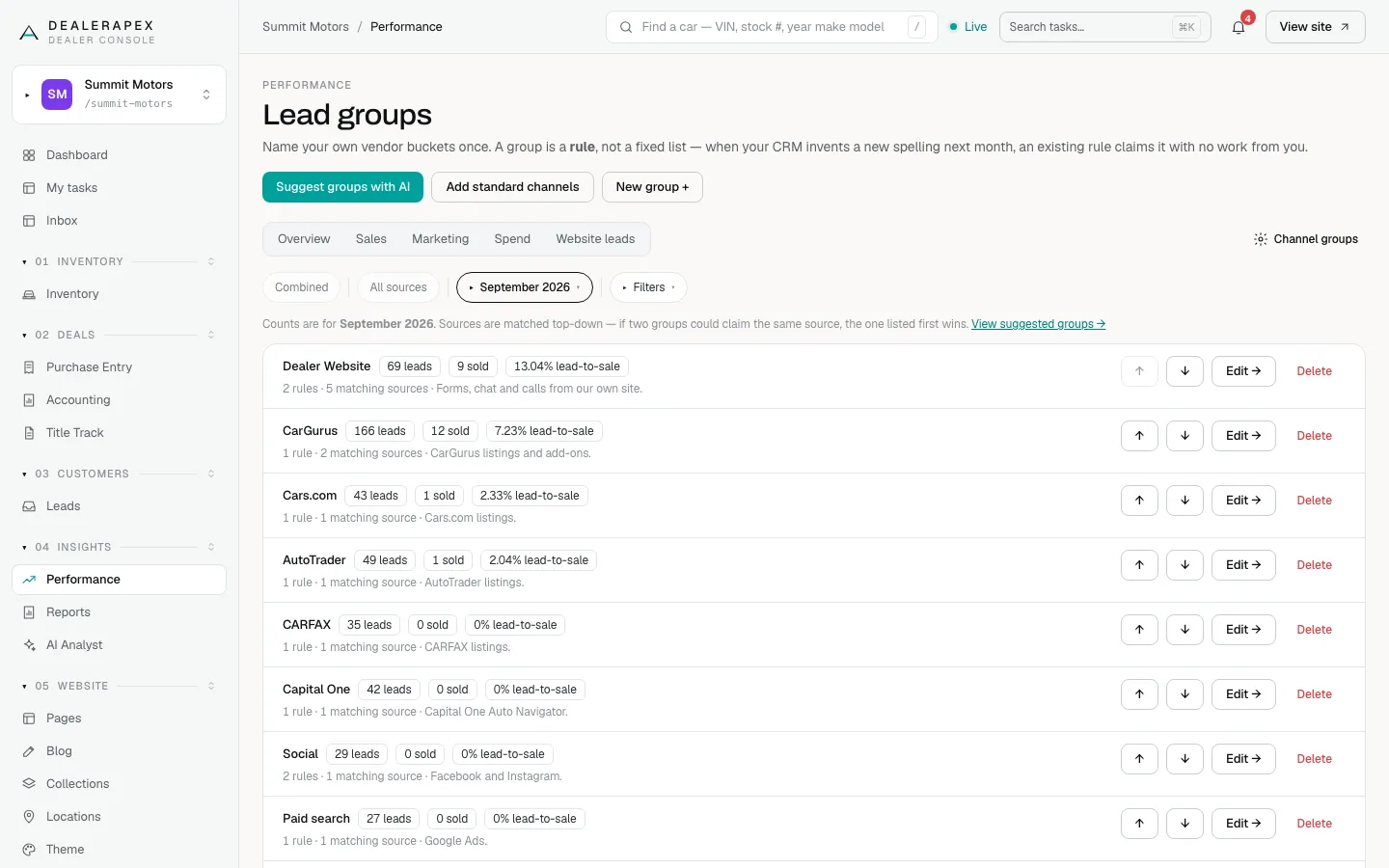
Each group shows its leads, sales and lead-to-sale rate for the date range you've chosen. Sources are matched from the top down: if two groups could claim the same source, the one higher in the list wins. Use the ↑ and ↓ buttons to change the order.
Start quickly
You have two shortcuts:
- Click Add standard channels to create a ready-made set: CarGurus, Cars.com, AutoTrader, CARFAX, Capital One, Organic SEO, Direct, Walk-in, and Referral & repeat. Any group whose name you already use is skipped. Check the result: the rules are a starting point, and they're yours to edit.
- Click Suggest groups with AI to have DealerApex read your own source names and propose groups.
Accept AI suggestions
- Click Suggest groups with AI.
- Click Generate suggestions.
- Read each proposal. It lists the sources it would claim, and any it can't take because another group already owns them.
- Click Accept on the ones you want.
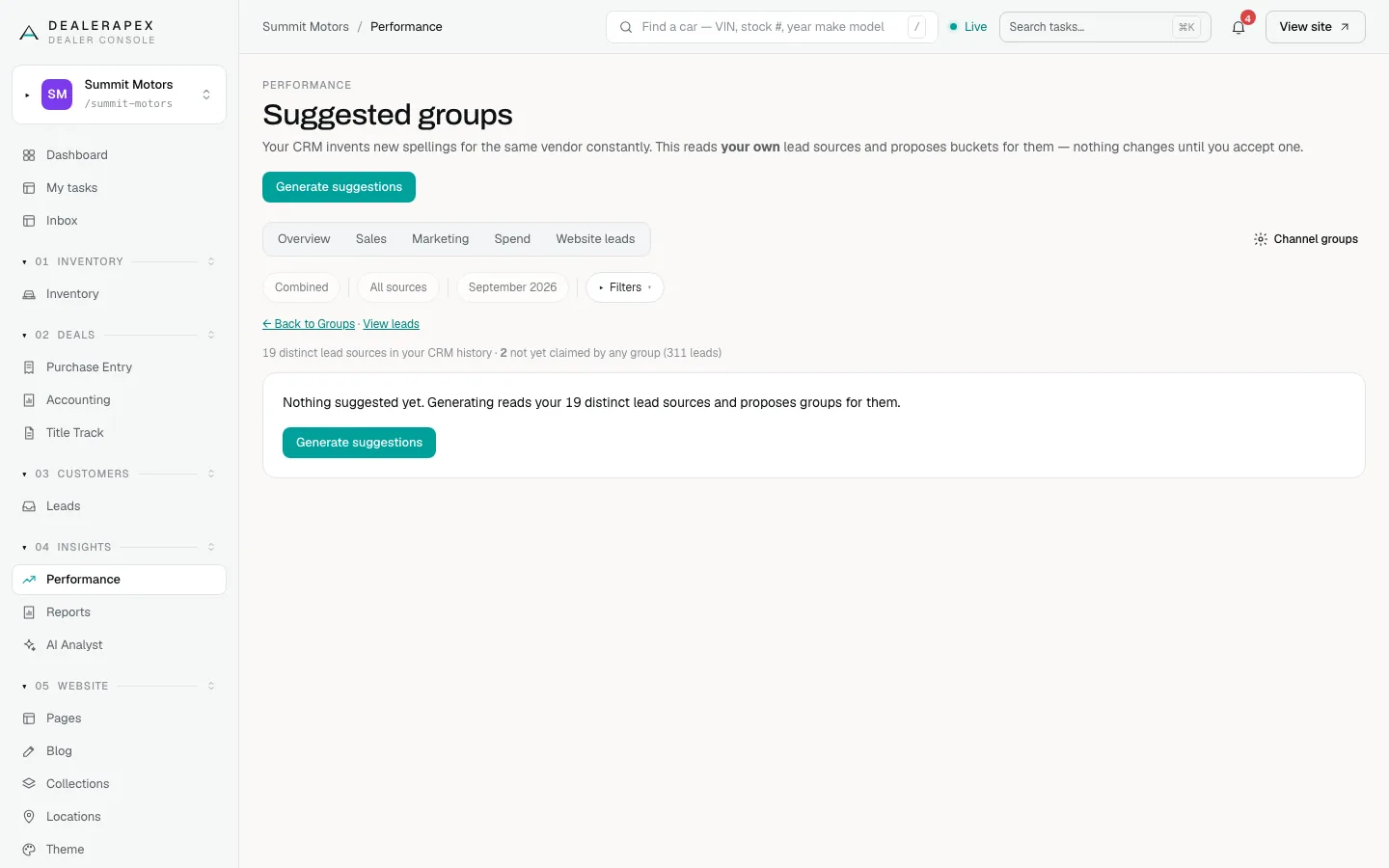
Nothing changes until you click Accept. An accepted suggestion becomes an ordinary group you can edit.
Create or edit a group yourself
Name the group and tick its sources
- Click New group +, or click Edit → next to an existing group.
- Enter a Group name and, if you like, a Description (optional).
- Under Which sources belong to this group?, search for and tick every source name that means this vendor. Each name shows which group it's in now and how many leads it has.
Add a matching rule
- Click Add rule +.
- Choose is exactly, starts with or contains, and type the text to match.
- Check What this matches at the bottom of the page.
- Click Create group or Save changes.
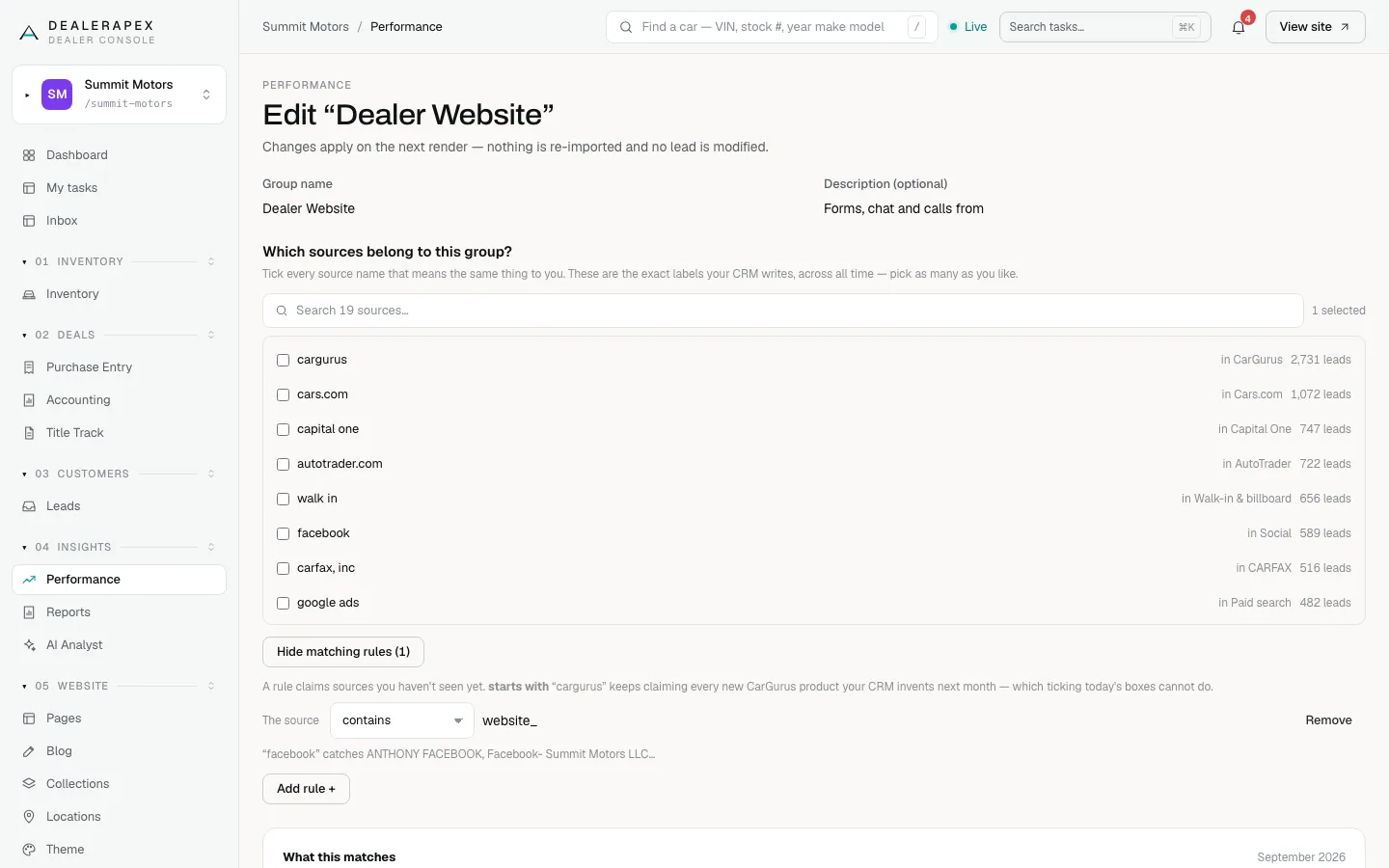
A rule is better than ticking boxes for vendors that add new products. A rule that a source starts with "cargurus" will claim next month's new CarGurus product without any work from you. Ticking only covers the names you can see today.
Changes apply the next time a page loads. No lead is changed or re-imported, so you can experiment safely.
What groups affect
Groups are the channels on the Overview's vendor scorecard, the Channels tab, the Budget tab and every report. Spend joins its channel the same way, so a spend line for "CarGurus - Highlight" counts toward your CarGurus group automatically.
Leads no group claims appear as Unmatched. Spend no group claims appears as Unlinked. Both are signs a rule needs adding.
Click Delete to remove a group. Its sources go back to Unmatched, or to the next group whose rules match them. No leads are deleted.
Common questions
Does editing a group change my CRM?
No. Groups only change how DealerApex adds up your leads. Nothing is written back to your CRM and no lead is modified.
Why are some leads still Unmatched after I added a group?
Their source name doesn’t match any rule. Open the group, search for the name, tick it or add a contains rule, and save.
What if two groups match the same source?
The group higher in the list wins. Move groups up or down with the arrow buttons to decide which one claims it.
Still stuck? Email [email protected] with the page you were on and what you expected to see.