
Read the Performance overview
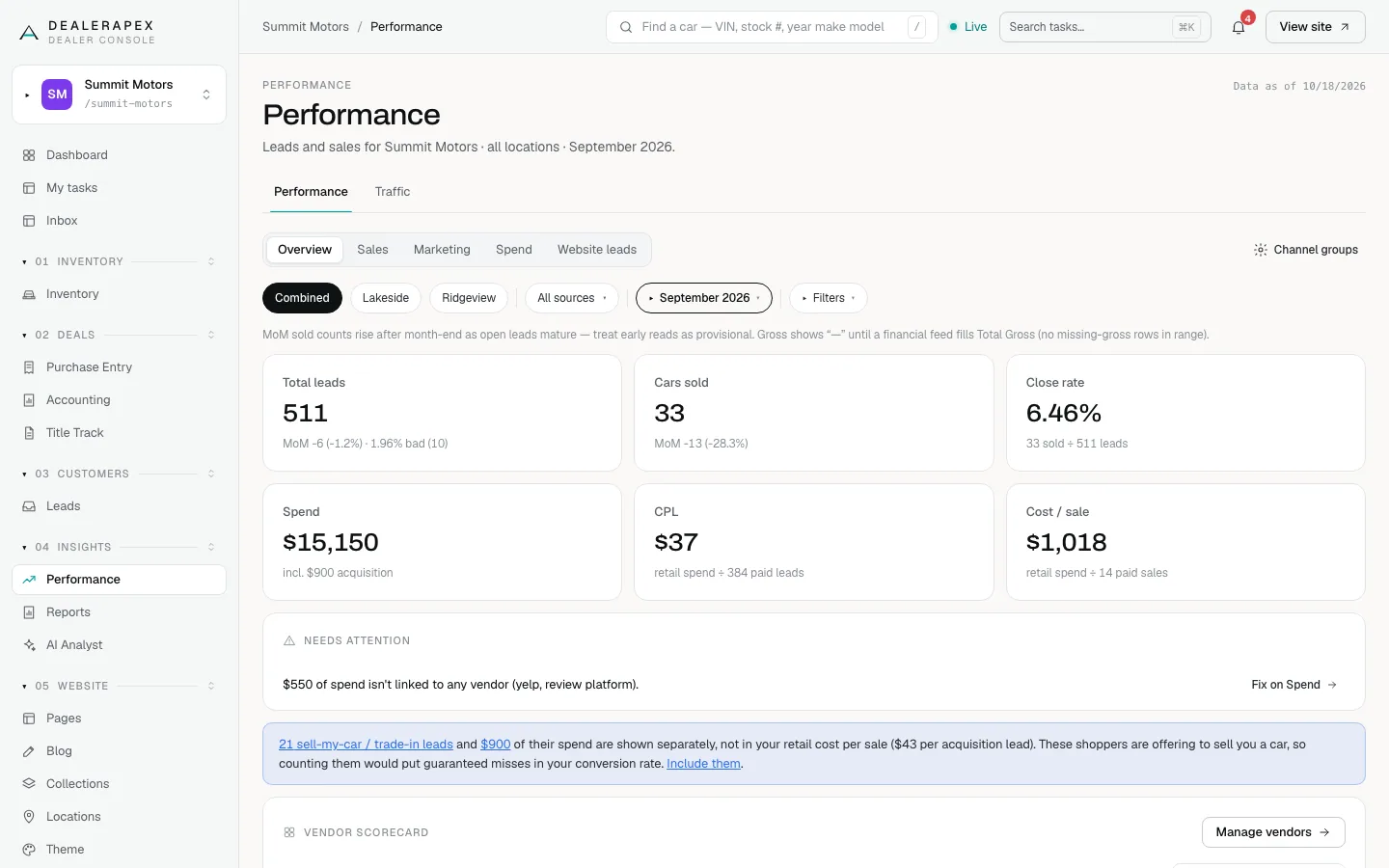
The Performance overview is the one-screen answer to "what did my marketing cost, and what did it sell?" Use it to check leads, sales and cost per car for a month, a rooftop or a group of lead sources.
Who can see it: owners, editors and viewers. The scoped roles (sales manager, inventory manager, title clerk and accountant) can't open Performance, because it lists real customer leads. See Roles and permissions.
Open the overview
- Click Performance in the sidebar, under Insights.
- Make sure the Performance tab and the Overview tab are selected.
- Read the "Data as of" date at the top right. That is when your CRM data last arrived.
Where the numbers come from
Performance reads your CRM, not your website. A lead here is a deal your CRM created in the date range, from any source: walk-ins, phone calls, marketplaces such as CarGurus, and your own website. The date that counts is the day the lead arrived.
| Tile | What it counts |
|---|---|
| Total leads | Leads that arrived in the range, after the filters below. The line underneath shows the change against the prior period and how many leads were bad. |
| Cars sold | Leads from this range that have since sold. A deal counts as sold when your CRM marks it delivered or moves it to the sold stage. A sale is counted in the month the lead arrived, not the month the car was delivered. |
| Close rate | Cars sold ÷ Total leads. |
| Spend | All the ad spend that applies to the range. Spend is entered by month and spread evenly across the days, so a 7-day range gets 7 days' worth. |
| CPL | Retail spend ÷ paid leads. |
| Cost / sale | Retail spend ÷ paid sales. |
A few words in that table need explaining:
- Bad leads are deals your CRM flags as bad, or dead deals whose reason says the lead was junk: a bad lead, bad contact information or a test lead.
- Paid leads are leads from sources you pay for. Walk-ins, drive-bys, referrals, repeat customers, your own website and AI chat leads count as free. A source the system doesn't recognise counts as paid.
- Retail spend is Spend minus what you paid for sell-my-car and trade-in leads. Those leads can never become a retail sale, so their cost is shown on its own and left out of CPL and cost per sale.
The Spend, CPL and Cost / sale tiles only appear once you've entered spend. A channel with no spend shows "—", never $0. See Enter your ad spend.
Pick a date range
- Click the date chip (it shows the current range, for example September 2026).
- Choose Last 7 days, Last 30 days, This month, Last month, Last 3 months or Year to date.
- For your own dates, enter a From date and a To date under Custom and click Apply.
Last month is the default. The "MoM" figure on a tile compares the range with the period just before it, of the same length. This month is compared with the same days of last month, not the whole month. If the earlier period falls before your CRM feed started, the tile says "MoM n/a — partial prior month" rather than showing a misleading percentage.
Narrow by rooftop and source
- Click Combined to see every rooftop, or click a rooftop's name to see only that one.
- Click All sources and tick the lead sources you want to see together.
Your choices follow you from tab to tab, and you can send the page link to a colleague.
The four filter toggles
Click Filters to see four switches. Two are on by default. The number in Filters (1) counts only the switches you've moved away from their default, so a page nobody has touched shows no number.
| Toggle | Default | What it does |
|---|---|---|
| Hide AI chat leads | Off | Removes AI Buying Signals leads, a retargeting product rather than a shopper who contacted you. |
| Hide review & listing tools | On | Removes review and listing tools (Birdeye, iPacket and Carfax Report) from both leads and spend. That money buys something other than leads. |
| Hide sell-my-car / trade-in leads | On | Removes shoppers offering to sell you a car from leads, sales and close rate, and moves their spend out of CPL and cost per sale. |
| Show DMS history | Off | Adds migrated back-office records from your DMS. Turn it on only to match your CRM's all-in totals. |
Click Reset to defaults to go back to these settings. The dashboard tiles and Reports use the same defaults.
The rest of the page
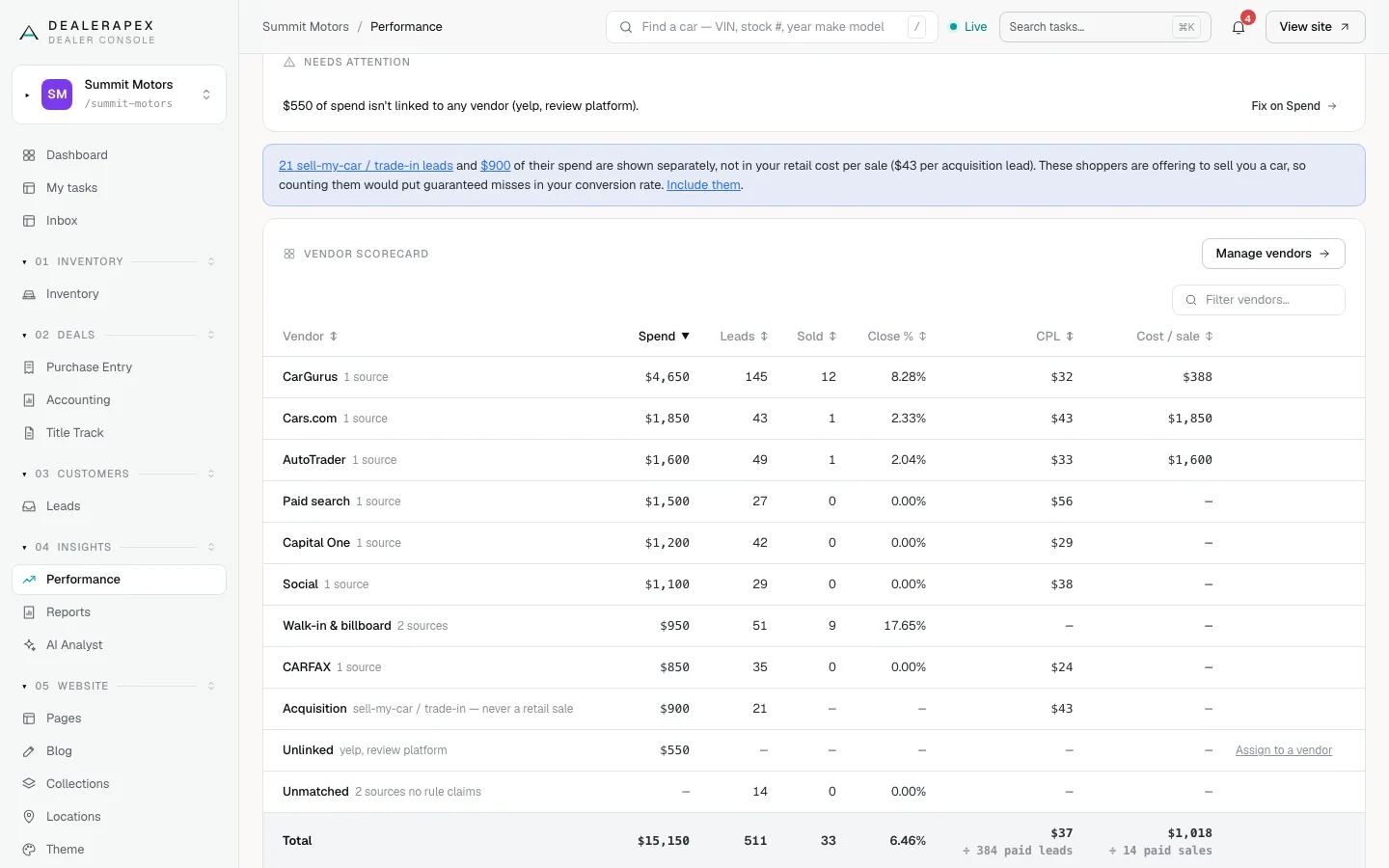
- Needs attention lists up to three problems, biggest dollar amount first: spend that isn't linked to a vendor, a vendor with spend but no leads, or a vendor costing far more per car than the rest. Each has a button that takes you to the fix.
- A blue note tells you how many sell-my-car or trade-in leads were set aside. Click Include them to count them.
- The Vendor scorecard shows Spend, Leads, Sold, Close %, CPL and Cost / sale for each of your lead groups. Acquisition holds sell-my-car leads, Unlinked is spend no group claims, and Unmatched is leads no group claims. Click How is this calculated? under the table for the working.
- Click any tile, or any number in the scorecard, to see the leads behind it. The cards at the bottom link to the detailed tabs.
If something looks wrong
- "No CRM data has been imported yet." Your CRM feed isn't connected. Click Open Integrations, or email [email protected].
- "Incomplete lead history." Part of the range is from before your CRM feed started. Sales came across but many old leads didn't, so close rates for that period read too high.
Common questions
Why does the overview show fewer leads than my CRM?
By default it leaves out migrated DMS history, review and listing tools, and sell-my-car or trade-in leads. Turn on Show DMS history and turn off the two Hide toggles to get closer to your CRM total.
Why is CPL higher than total spend divided by total leads?
CPL divides only by paid leads. Walk-ins, referrals and website leads cost nothing, so leaving them out shows what a lead you paid for actually cost.
Why did last month’s Cars sold go up since I last looked?
Cars sold counts leads from that month that have sold so far. Leads that were still open keep closing for weeks, so the number grows after the month ends.
Still stuck? Email [email protected] with the page you were on and what you expected to see.