
Enter your ad spend
Your CRM knows your leads and sales but not what you paid for them. Entering ad spend is what fills in Spend, CPL and Cost per sale across Performance, the dashboard and Reports.
Who can do this: only owners can add, import or delete spend. Editors and viewers can see every line.
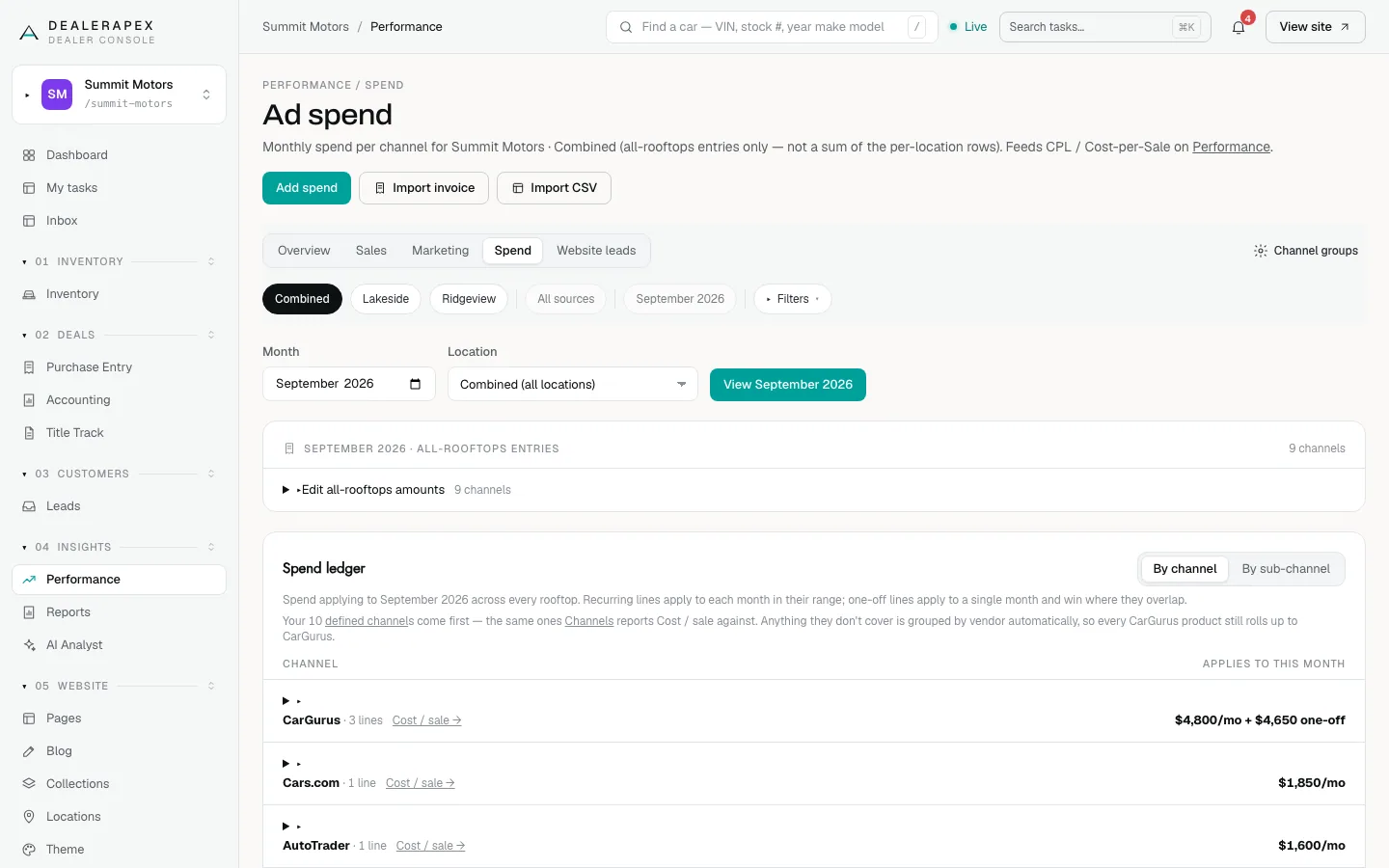
To open it, click Performance in the sidebar, then click the Spend tab.
Why spend is entered by month
Vendors bill by the month, so spend is stored one month at a time, per rooftop and per sub-channel. When you pick a shorter date range, each month's spend is spread evenly across its days. For the same reason, reports that divide by spend show months, not days or weeks.
Spend can be entered for one rooftop, or for Combined (all locations). Combined spend can't be split between stores later, so enter it per rooftop if you want to compare stores.
Add one month's spend
- Click Add spend.
- Leave One-time selected.
- Choose the Location.
- In Sub-channel, start typing and pick the name, or type a new one.
- Choose the Month and enter the Spend ($).
- Add Notes (optional), such as an invoice number.
- Click Add spend.
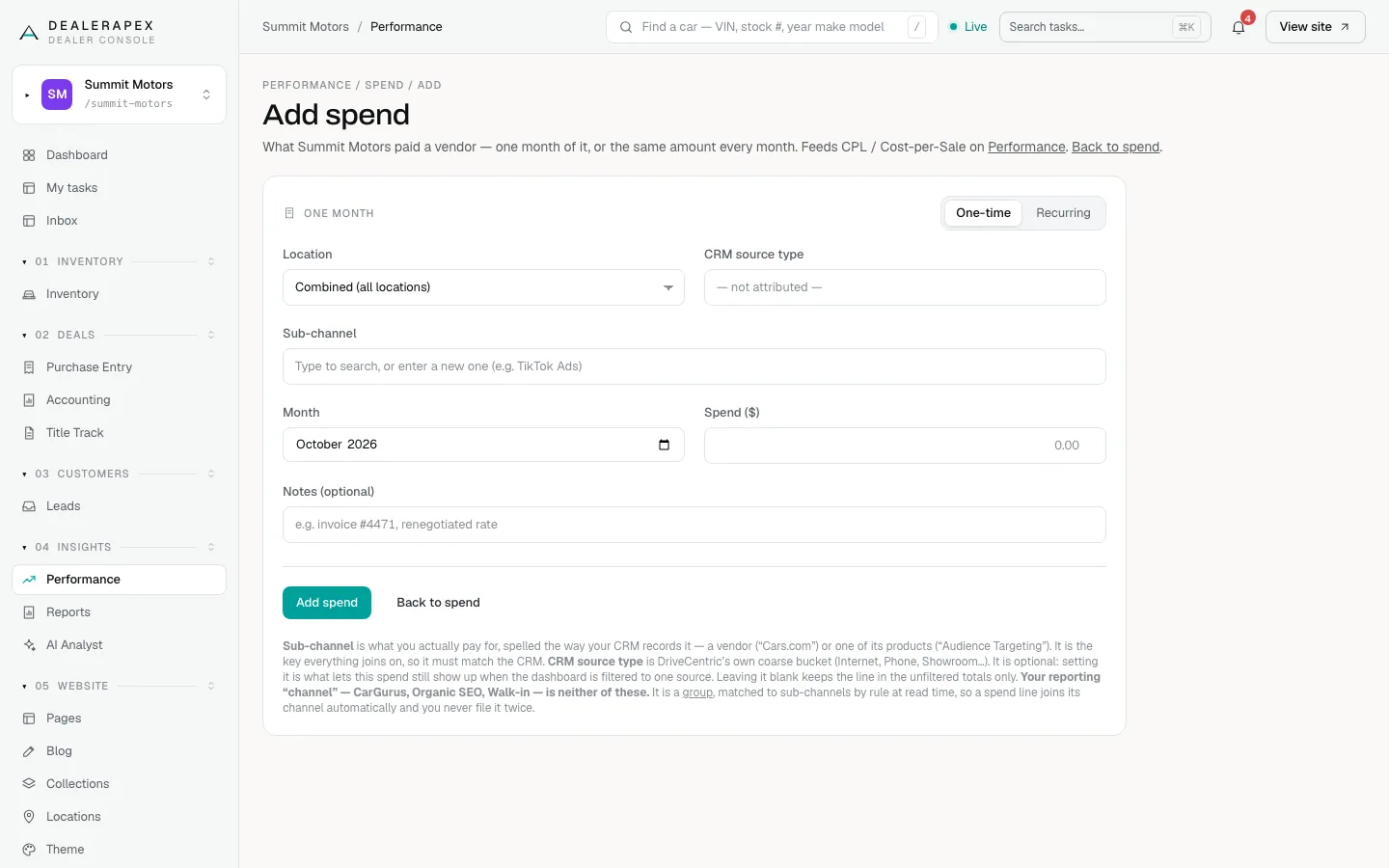
The Sub-channel is what you pay for, spelled the way your CRM records it: a vendor such as "Cars.com" or one of its products. It must match your CRM, because that's how spend is joined to leads. CRM source type is optional. Fill it in only if you want this spend to show when Performance is filtered to one source.
Set up a recurring retainer
- Click Add spend, then click Recurring.
- Fill in the location and sub-channel.
- Enter the Amount / month and the Starting month.
- Leave Until (optional) blank to keep billing until you end it.
- Click Save recurring.
A one-time amount you enter for a month always overrides the recurring amount for that month.
Import a CSV
- Click Import CSV.
- Choose a file, or paste the rows with the header row included.
- Click Parse & preview.
- Check every row on the preview, then click Confirm & write spend.
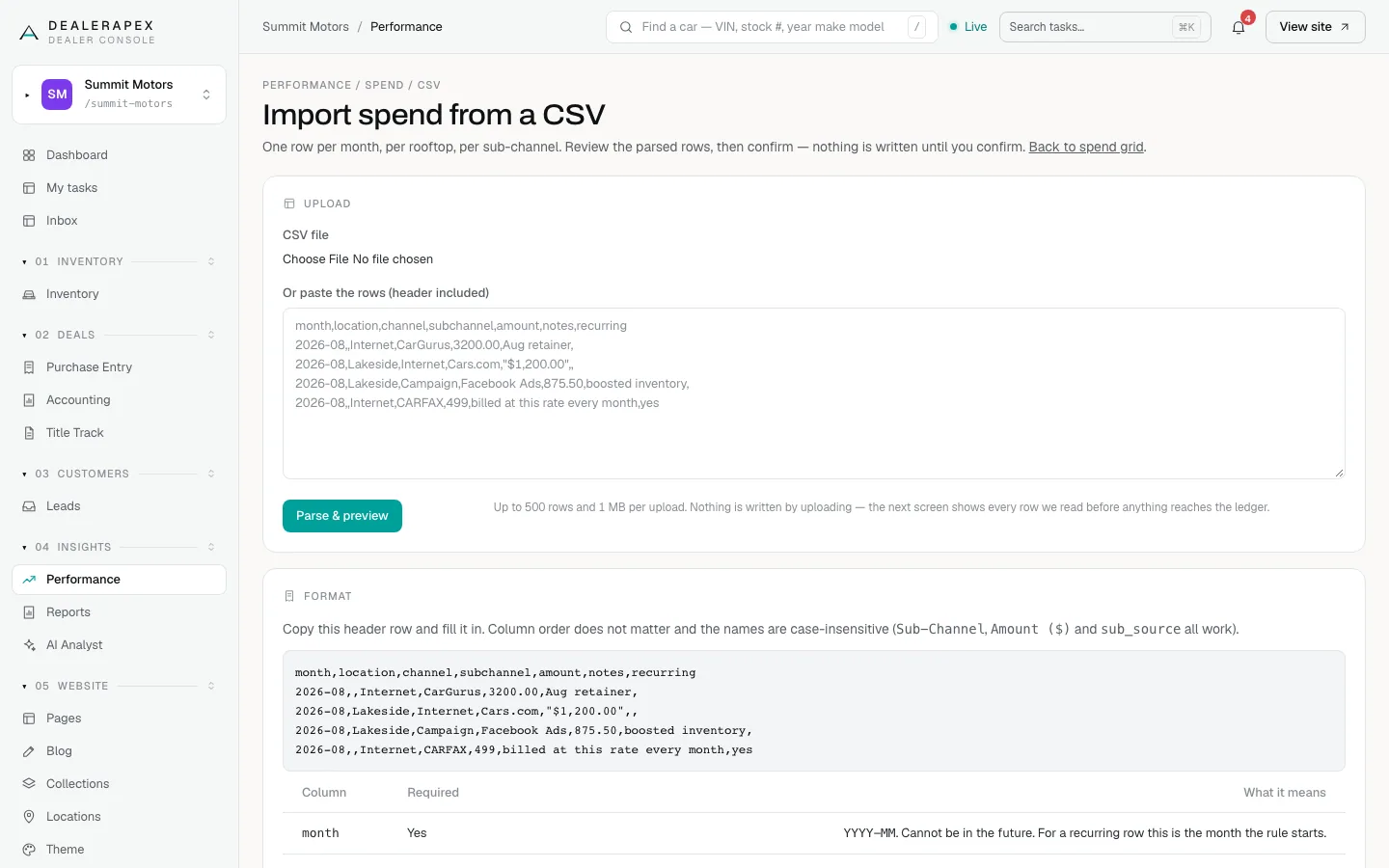
The required columns are month (YYYY-MM, not in the future), subchannel and amount. Optional columns are location (blank means Combined), source_type, notes and recurring (yes makes the row a monthly rule). Column order doesn't matter. A file can have up to 500 rows and be up to 1 MB. If any row can't be read, the whole file is refused, so nothing is ever half-imported.
Import vendor invoices
- Click Import invoice.
- Upload one or more PDF invoices, or paste the invoice text.
- Click Extract line items.
- Check the month, location and amounts for each invoice, then click Confirm & write spend.
CarGurus, CARFAX, AutoTrader and Cars.com invoices are read with templates built for them. Nothing is saved until you confirm.
Check and fix the ledger
Pick a Month and Location and click the View button (for example View September 2026). The Spend ledger lists every line for that month, grouped by channel. Click By sub-channel to see each line on its own.
If a box says Unlinked spend, some spend matches none of your lead groups, so it has no cost per lead. Add a matching rule to the right group and it joins that vendor on the next page load.
Common questions
I entered spend but CPL still shows a dash. Why?
Check that the sub-channel is spelled the way your CRM spells it, and that a lead group claims it. Spend that matches no group shows as Unlinked and has no cost per lead.
Can an editor enter spend?
No. Spend drives every cost figure, so only owners can add, import or delete it. Editors and viewers can still read the ledger. See Roles and permissions.
Should I enter spend per rooftop or Combined?
Per rooftop if the vendor bills each store separately. Combined spend still counts in every total, but the Locations tab can’t give each store its own cost per sale.
Still stuck? Email [email protected] with the page you were on and what you expected to see.