
Set up pop-ups and the tab nudge
Theme has three ways to catch a shopper’s attention: custom pop-ups, the specials pop-up, and tab re-engagement. Each has its own section. Use them sparingly, since too many pop-ups annoy shoppers.
Who can do this
Owners and editors can make changes here. Viewers can open every screen but can’t save. Sales managers, inventory managers, title clerks and accountants don’t see the website sections at all.
Custom pop-ups
A custom pop-up shows one image, such as a service special, on the pages you choose.
- Open Theme and go to Pop-ups.
- Use an empty row. There are always two blank rows at the end of the list.
- Tick Show this pop-up.
- Give it a Name (internal only — not shown to shoppers).
- Add an Image, and optionally a Phone image for small screens.
- Fill in Image description for screen readers, unless the image is purely decorative.
- In Where clicking the image goes, type a page address such as /inventory, or leave it blank.
- Fill in the timing and dates described below.
- Click Save theme.
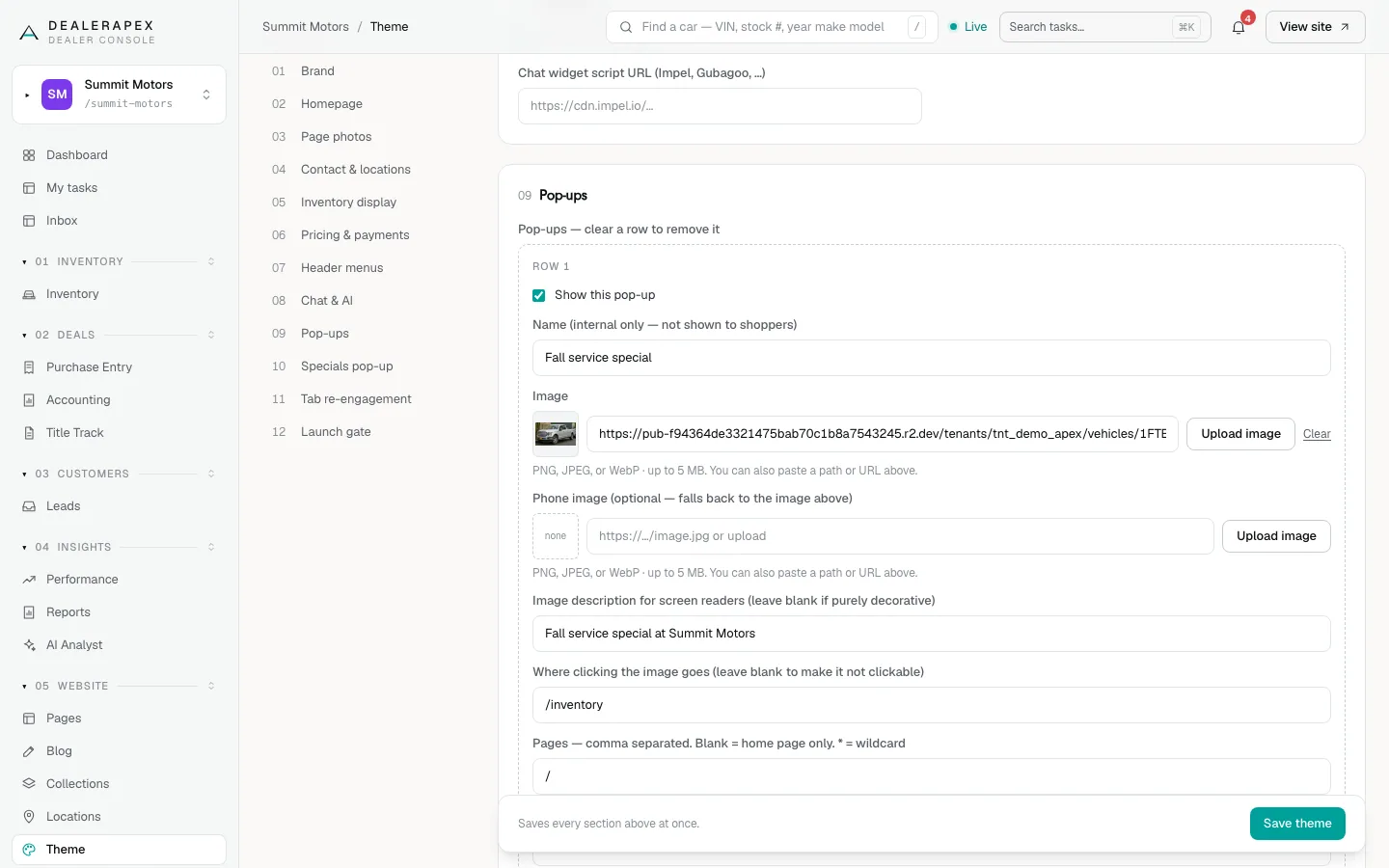
- Pages: the page addresses to show it on, separated by commas. Leave it blank for the homepage only. For example, type / for the homepage, or /,/inventory for the homepage and the inventory page. An asterisk works as a wildcard: /finance followed by an asterisk covers every page that starts with /finance, and an asterisk on its own covers every page.
- Seconds on the page before it appears (default 5).
- How often one shopper sees it: Once per visit, Once per day or Every page load.
- Start date and End date: optional, typed as YYYY-MM-DD, such as 2026-11-01.
To pause a pop-up, untick Show this pop-up. To delete it, clear its name and image fields and save. To add more than two pop-ups, save, and two new blank rows appear.
Specials pop-up
The specials pop-up shows on your homepage or inventory page and promotes cars you have marked as specials, your own message, or both.
- Go to Specials pop-up and tick Specials pop-up: show a promo pop-up on the homepage / inventory page?
- In Specials pop-up — what to show, choose Special vehicles only, Custom promo copy only or Custom copy + special vehicles.
- Fill in the heading, body copy, button label and button link.
- In when it appears, choose After a delay, Immediately on load or After scrolling down, then set the delay in milliseconds (7000 is 7 seconds) or the scroll depth as a percentage.
- In how often per visitor, choose Once per browsing session or Every eligible page load.
- Set max vehicles to show (1–6) and click Save theme.
The cars come from vehicles marked as specials. See Specials and badges.
Tab re-engagement
When a shopper switches to another browser tab, your site can change its tab title to a short message that draws them back.
- Go to Tab re-engagement.
- Tick Tab re-engagement: change the browser-tab title when a visitor switches away?
- Write the Away message on a vehicle page. Type {vehicle} where the car’s name should go, for example "Still thinking about the {vehicle}?"
- Write the Away message on other pages (home, inventory, blog).
- Tick Flash the tab title to alternate between your message and the real title.
- Click Save theme.
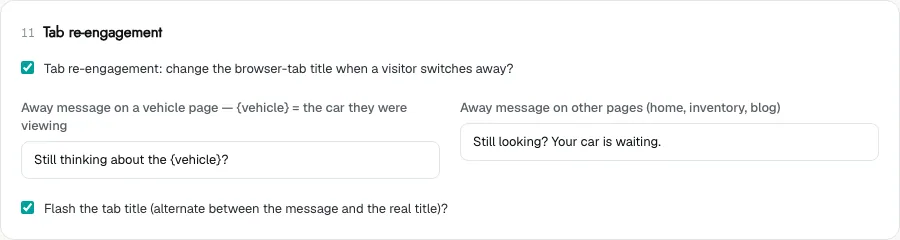
Tab re-engagement is on by default for new sites. Untick the first box to turn it off.
Common questions
My pop-up isn’t showing. What should I check?
Check that Show this pop-up is ticked, the Pages box includes the page you’re on, today is between the start and end dates, and you haven’t already seen it this visit or today.
Why is my specials pop-up empty?
If it is set to show special vehicles, you need at least one car marked as a special. Mark one in the vehicle editor, or switch to Custom promo copy only.
Still stuck? Email [email protected] with the page you were on and what you expected to see.