
Add blog authors
Authors are the people your blog posts are credited to. Each author gets their own page on your site that lists their posts, which helps shoppers and search engines trust your content.
Who can do this
Owners and editors can make changes here. Viewers can open every screen but can’t save. Sales managers, inventory managers, title clerks and accountants don’t see the website sections at all.
Add an author
- Open Blog in the sidebar and click the Authors tab.
- Click New Author +.
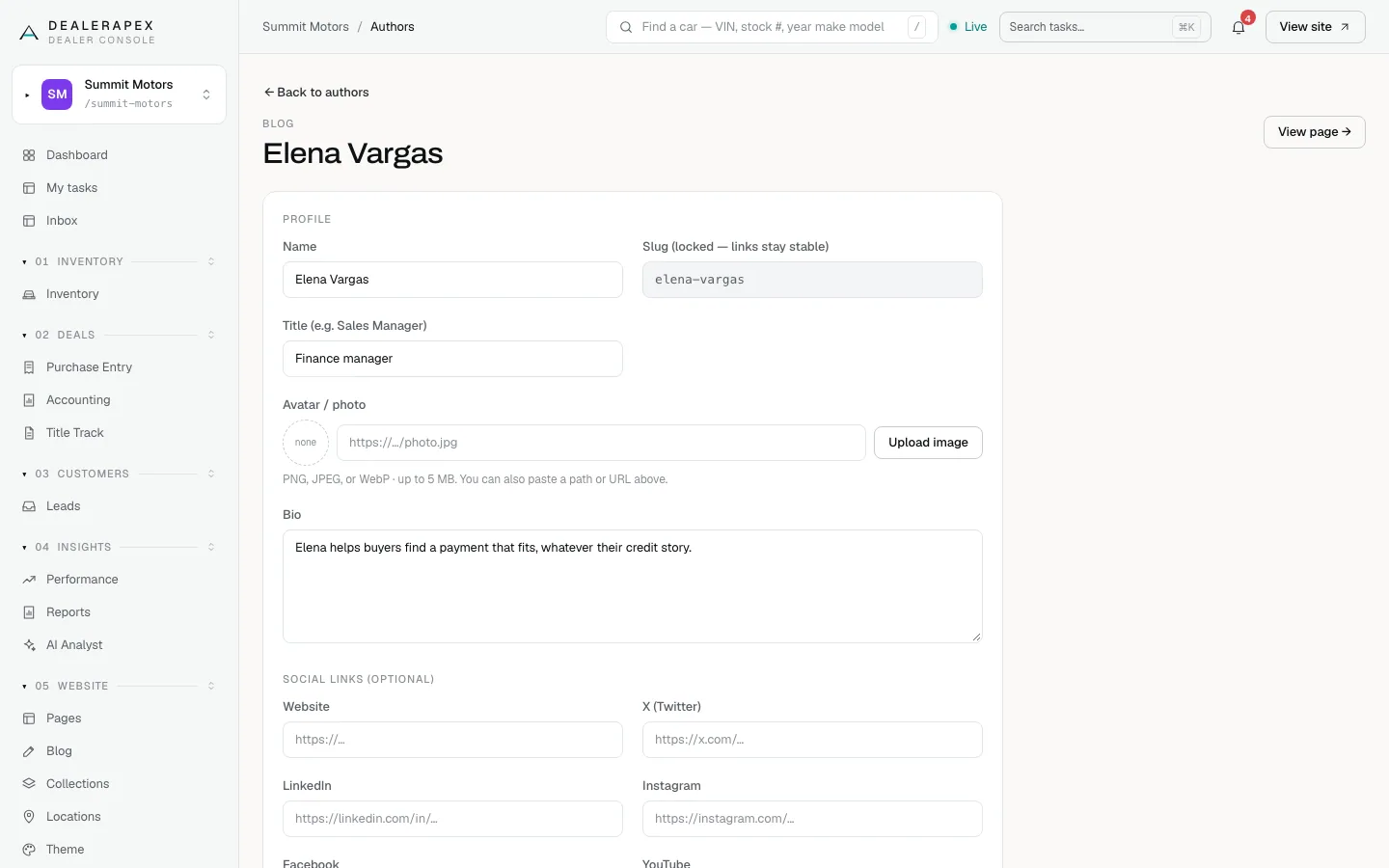
- Fill in Name and Title (e.g. Sales Manager).
- Add an Avatar / photo: click Upload image or paste an image address. PNG, JPEG or WebP, up to 5 MB.
- Write a short Bio: two or three sentences about who they are and what they know.
- Optionally add links under Social links (optional): Website, X (Twitter), LinkedIn, Instagram, Facebook and YouTube.
- Click Create Author.
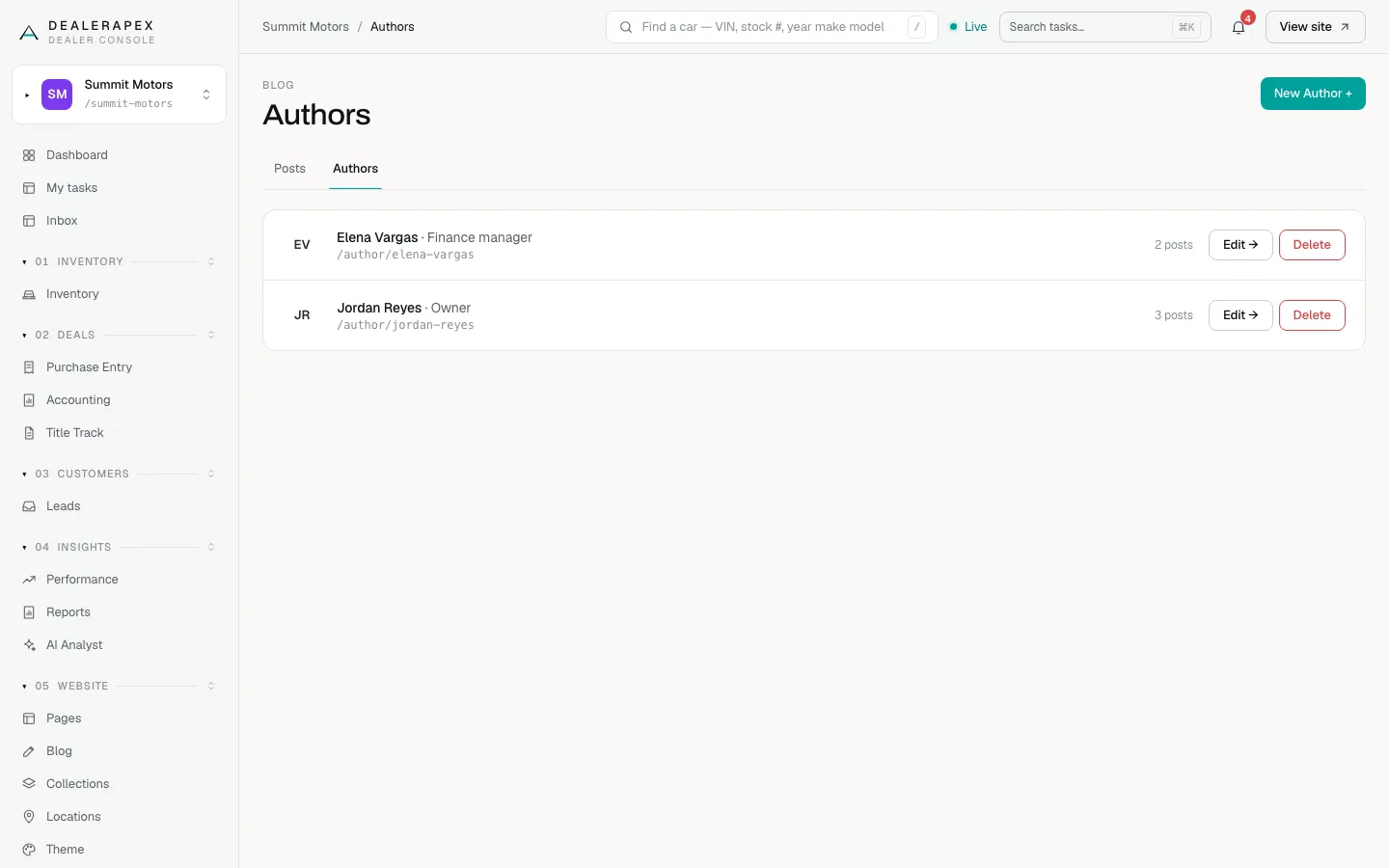
Each author’s page is at /author/ followed by their name, for example /author/jordan-reyes. The address is set when you create the author and never changes, so links to it keep working even if you edit the name.
Edit an author
- On the Authors tab, click Edit →.
- Change any field. Slug (locked — links stay stable) can’t be changed.
- Click Save changes.
- Click View page → to see the author page on your site.
Credit a post to an author
Open the post, choose the author in the Author menu and click Save changes. See Write a blog post.
Remove an author
Click Delete on the author’s row. Their posts stay up and keep showing the author’s name as plain text, but the name no longer links to an author page.
Common questions
Does every post need an author?
No. You can leave the Author menu on — none — and type a name in Author name instead, or leave both blank.
Can I change an author’s page address?
No. It is locked when you create the author so links to the page never break.
Still stuck? Email [email protected] with the page you were on and what you expected to see.