
Add and edit pages on your website
The Pages screen lists every page on your website. Use it to add a page, change what a page says, and publish the change when you are happy with it.
Who can do this
Owners and editors can make changes here. Viewers can open every screen but can’t save. Sales managers, inventory managers, title clerks and accountants don’t see the website sections at all.
Find your pages
- Open Pages in the sidebar, under Website.
- Pages are grouped by type, such as Home, Content and About. Each row shows the page title, its address on your site, and a status dot: Live or Draft.
- To find a page fast, type part of its title or address in Search slug, title, meta… and click Search.
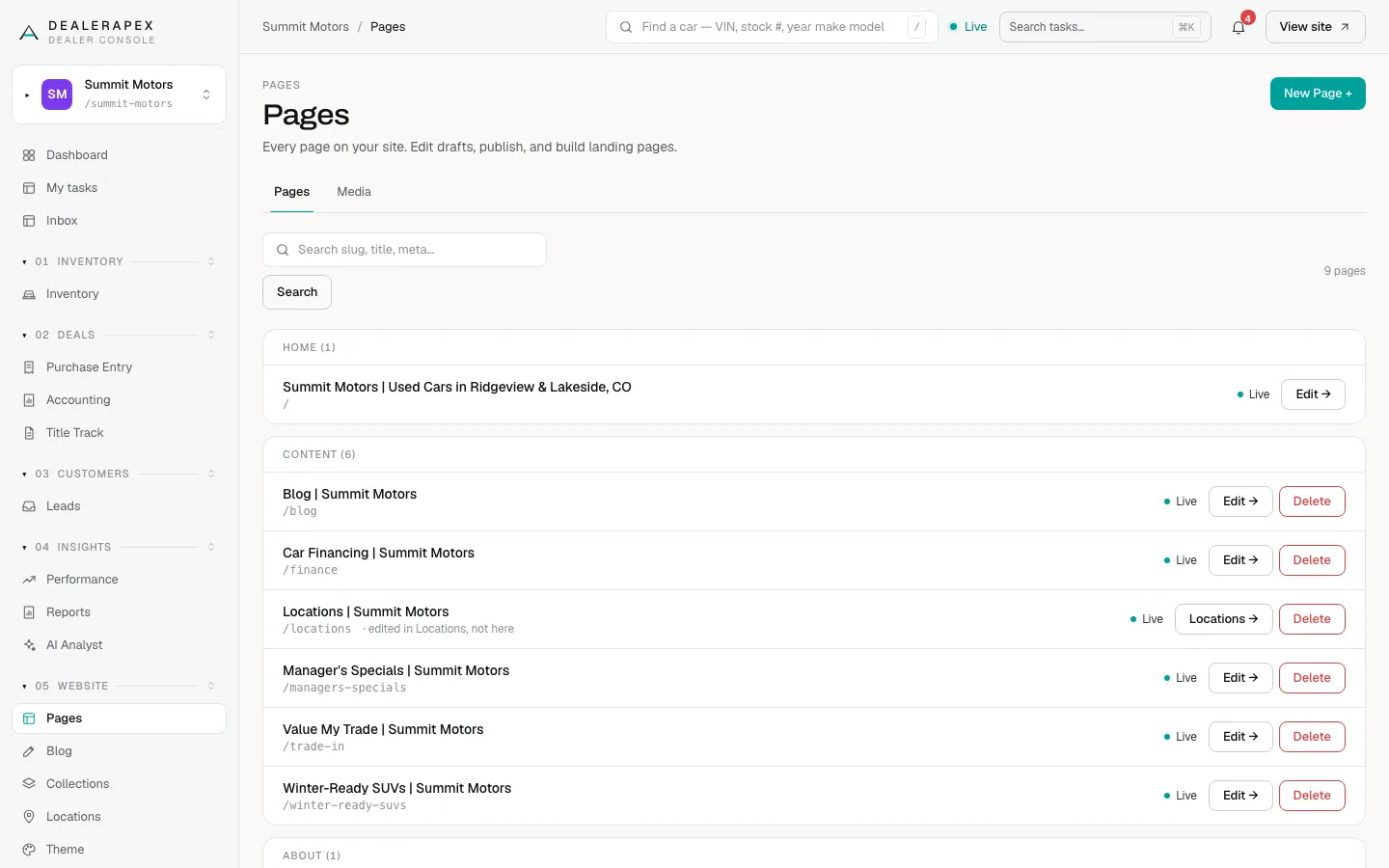
A few rows behave differently:
- Locations shows a Locations → button instead of Edit →, with the note "edited in Locations, not here". Those pages are built from your rooftop settings. See Edit your locations.
- Your homepage, /contact, /inventory, /privacy and /terms have no Delete button. They are core pages your site needs.
- A page someone has hidden from Google shows "hidden from search" under its address.
Add a page
Click New Page +, then start the page one of two ways:
- Custom landing page: type a Page title, optionally a URL slug, and click Create landing page. See Build a landing page for what to put on it.
- Standard pages: pick a page from Choose a page to add and click Create Page.
The standard list only shows pages your site doesn’t have yet, such as Finance, Value My Trade, About, Privacy Policy or Terms of Service. If every page already exists, the list says so.
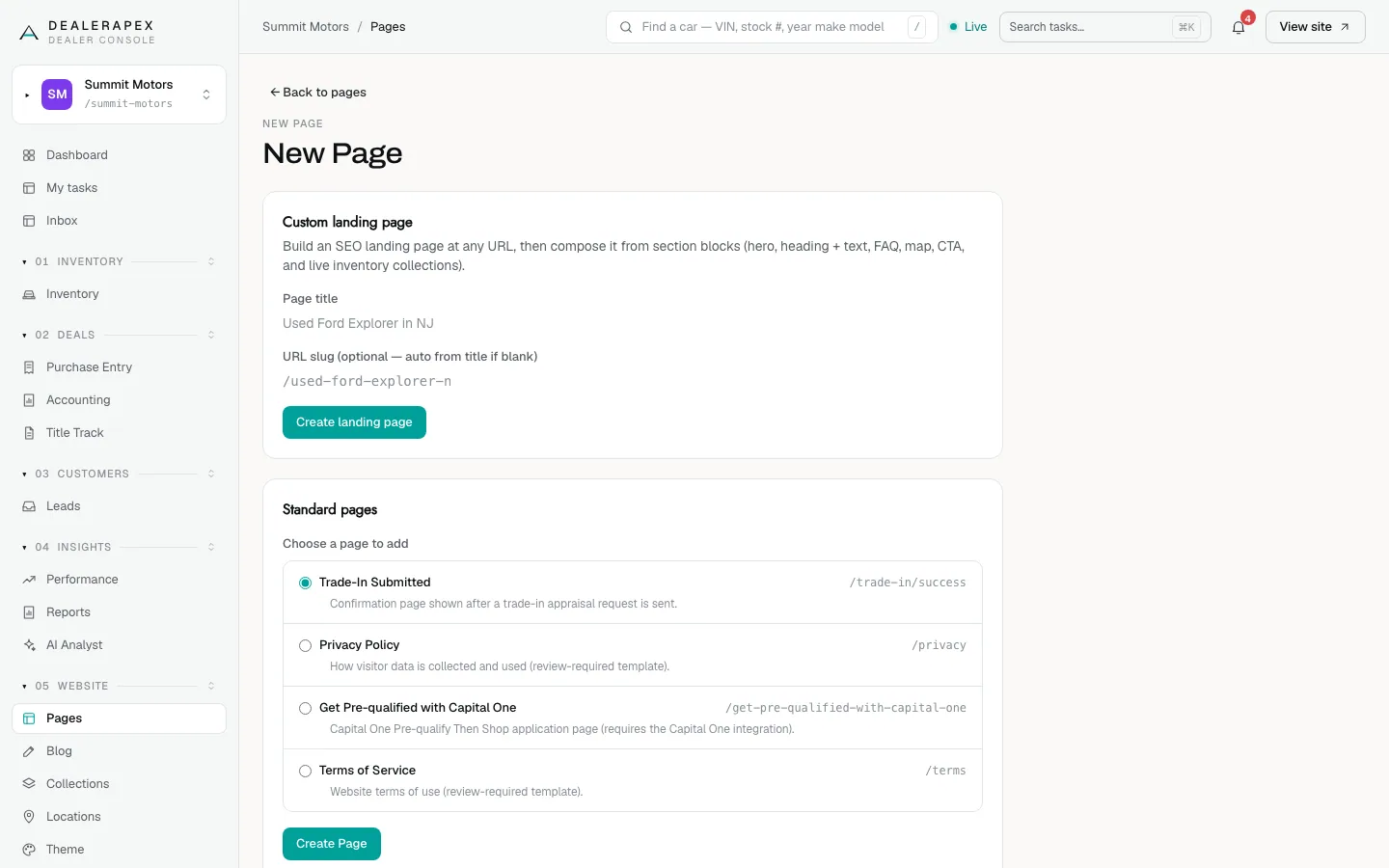
A new page starts as a draft. Nobody on your website sees it until you publish it.
Edit a page
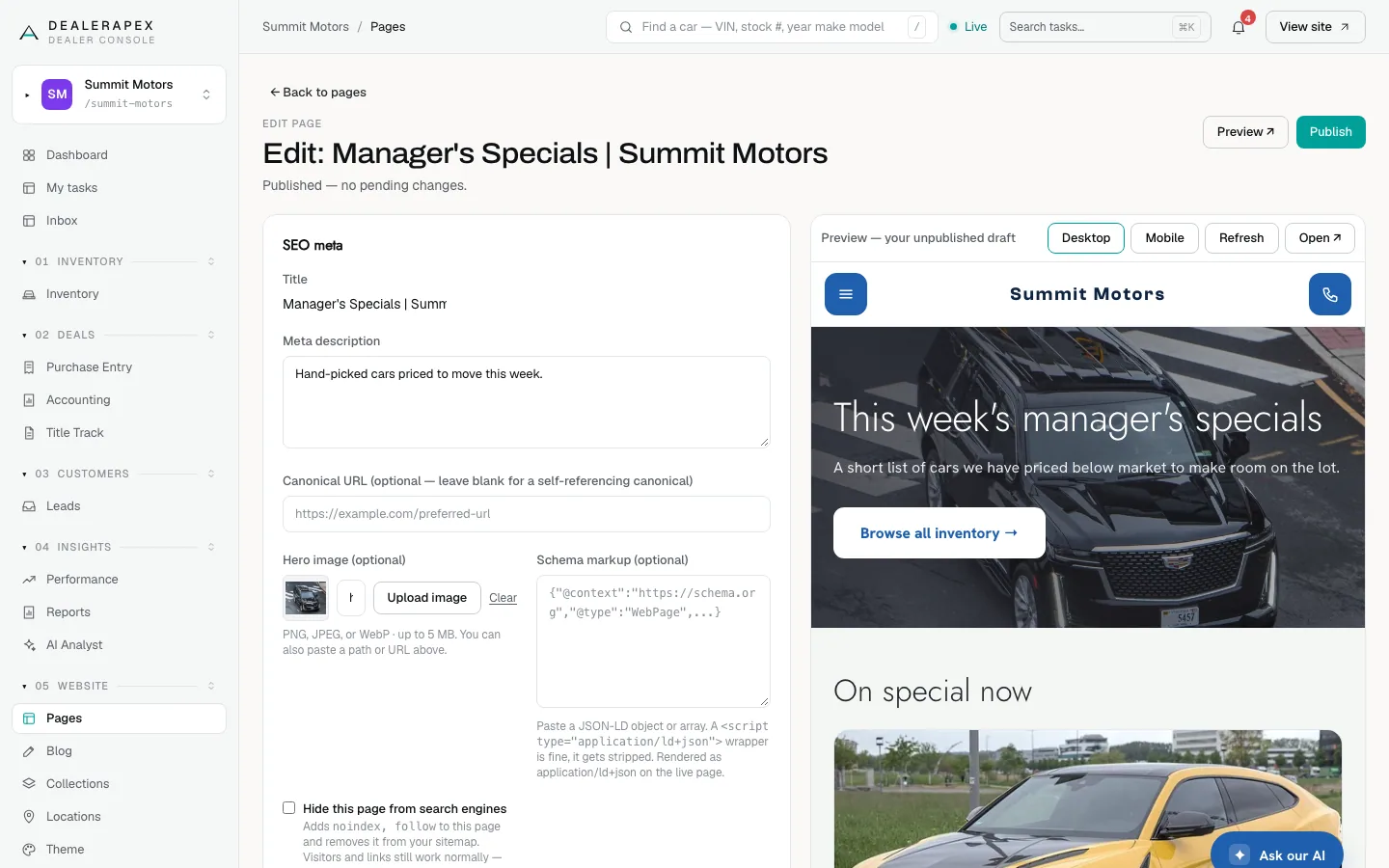
- Click Edit → on the page’s row. The page editor opens with your fields on the left and a live preview on the right.
- Scroll to the section you want to change. Each section is a card with its own fields, such as Heading and Subheading.
- Change the text or image, then click Save block at the bottom of that card. A Changes saved. message appears.
- Use the ↑ and ↓ buttons on a card to move that section up or down the page, or Delete to remove it.
- To add a section, choose a type in the box at the bottom of the page and click Add block.
You can also hover a section in the preview to get Move up, Move down, Edit this section and Delete this section buttons.
Preview and publish
Saving a section changes your draft, not the live page. The heading under the page title tells you where you stand: You have unpublished changes. or Published — no pending changes.
- Check the preview pane. Click Mobile to see the page at phone width, and Refresh to reload it.
- Click Preview ↗ to open the draft in a full browser tab.
- When it looks right, click Publish. Your live page updates straight away.
Undo a published change
Every publish is kept under Version history at the bottom of the editor. Click Revert next to an older version to put it back. Reverting changes the live page immediately.
Things to know
- The SEO meta card and the URL slug card save straight to the live page. They don’t wait for Publish. See Edit a page’s SEO and meta.
- Changing a page’s URL slug sets up an automatic 301 redirect from the old address. If another page already uses the new address, nothing changes and you are told why.
- Delete takes a page off your site straight away, with no confirmation step. Deleted pages move to Archived pages at the bottom of the list, and you can’t restore them from there. Email [email protected] if you delete a page by mistake.
- Your colours, logo and homepage headline are not on this screen. They are in Theme. See Set your brand and homepage.
Common questions
I saved my changes but the website hasn’t changed. Why?
Saving a section only updates your draft. Click Publish at the top of the page editor to put the changes live.
Can I get a deleted page back?
Not from the console. If you add the same standard page again it starts fresh from the template. Email [email protected] if you need the old content back.
Why can’t I change the address of my homepage or contact page?
Your homepage, /contact, /inventory, /privacy and /terms are core pages. Their addresses are fixed so links across your site keep working.
Still stuck? Email [email protected] with the page you were on and what you expected to see.