
Write a blog post
Blog posts are articles on your website, such as buying guides and local news, that bring shoppers in from search. This article covers writing a post, formatting it, and publishing it.
Who can do this
Owners and editors can make changes here. Viewers can open every screen but can’t save. Sales managers, inventory managers, title clerks and accountants don’t see the website sections at all.
Start a post
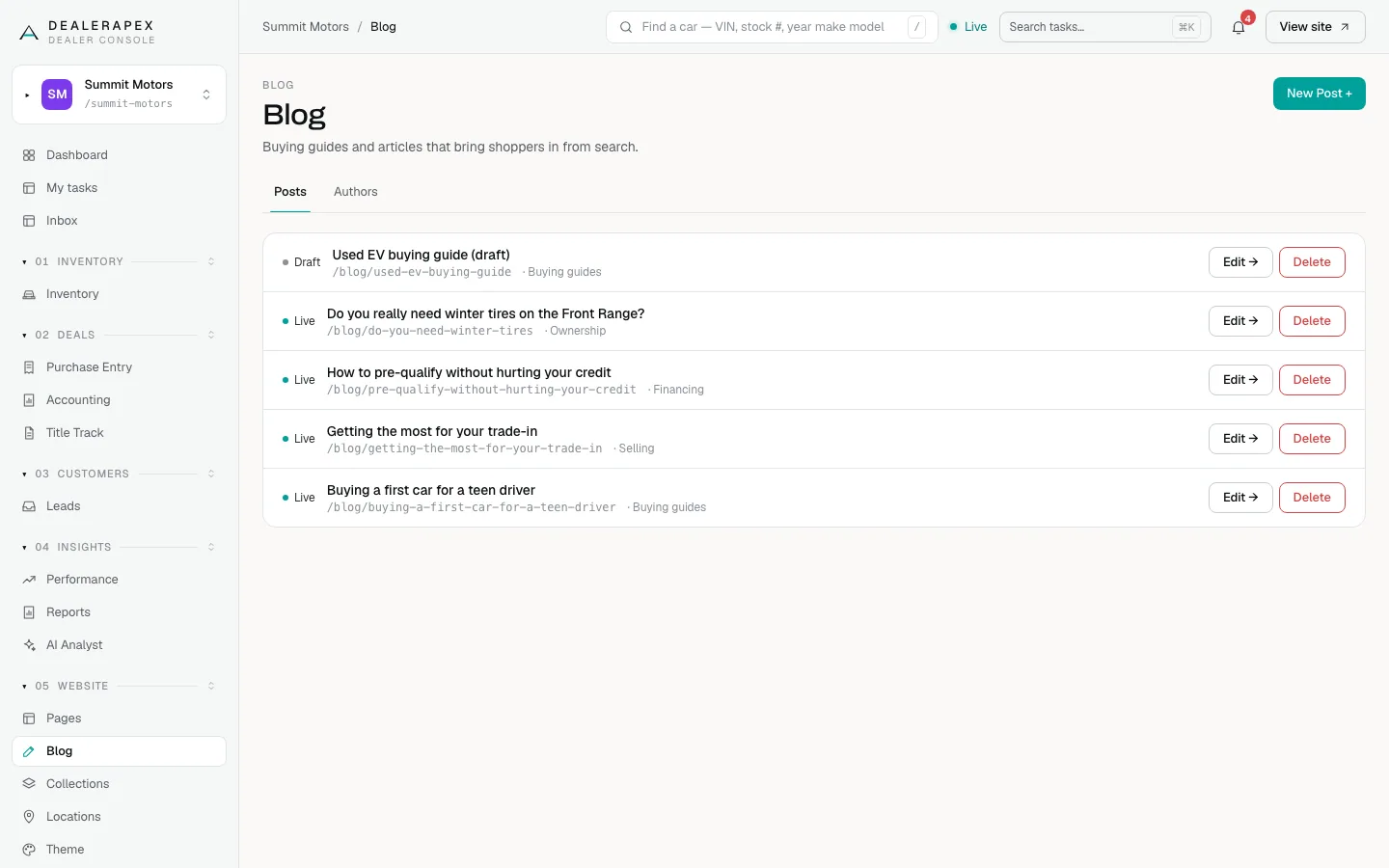
- Open Blog in the sidebar, under Website. The Posts tab lists every post with its status, address and category.
- Click New Post +.
- Fill in Title. Leave Slug (blank = derived from title) empty unless you want a specific address.
- Fill in the other fields described below, then write the body.
- Click Create Post. The post is saved as a draft and the editor opens.
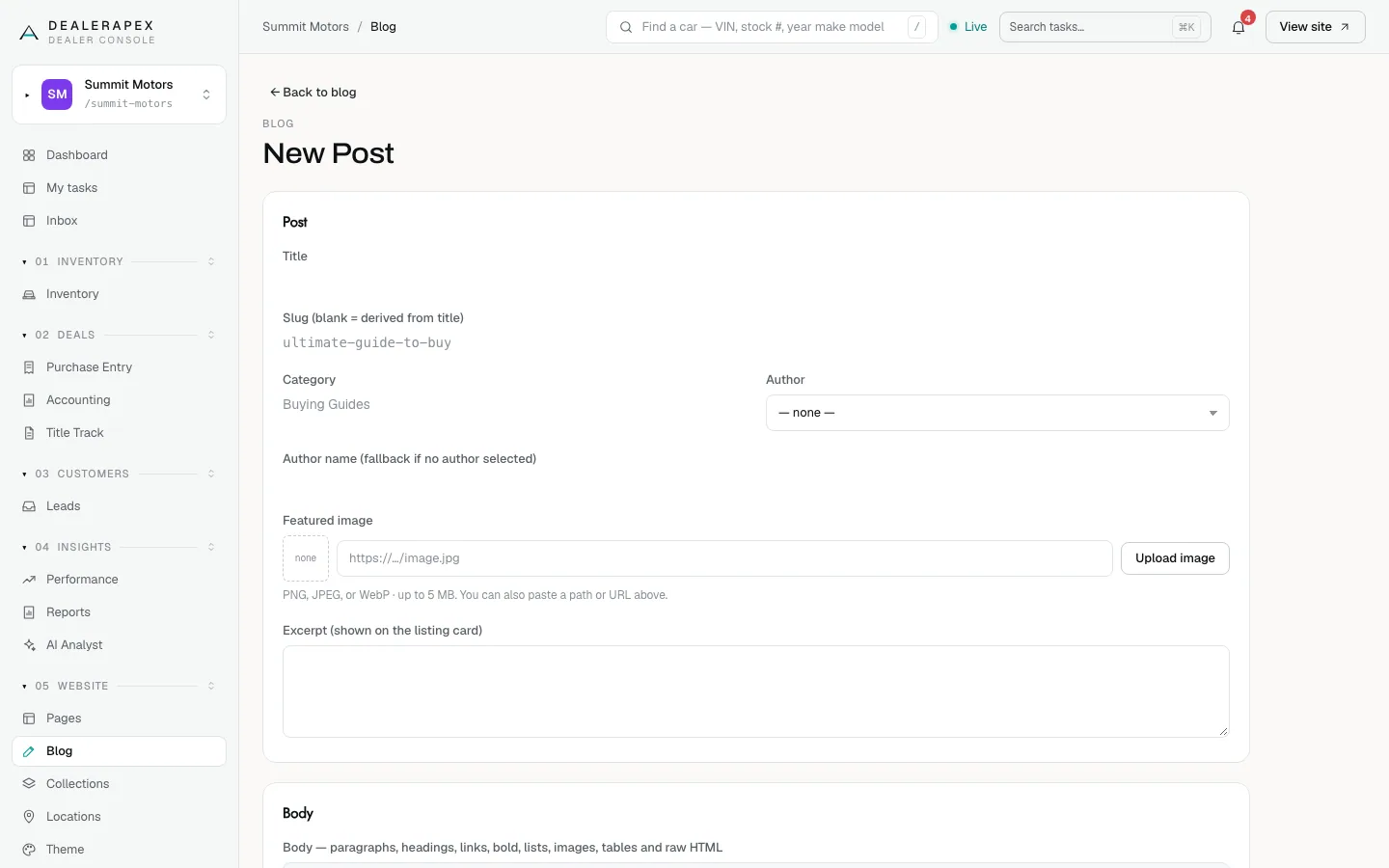
The post fields
| Field | What it does |
|---|---|
| Category | A label such as "Buying guides". It shows on the post’s card in your blog list. Type it the same way each time. |
| Author | Pick one of your blog authors. Their name links to their author page. |
| Author name (fallback if no author selected) | A plain name to show when no author is picked. |
| Featured image | The picture on the post’s card in your blog list. It is also used when someone shares the link. |
| Excerpt (shown on the listing card) | One or two sentences that sum up the post. |
| Body width | Comfortable (easiest to read) or Full width. |
Format the body
The body editor uses simple text formatting. The toolbar above it adds the formatting for you: H2, H3, H4, B, I, Link, • List, 1. List, Table, Image and HTML. Headings and bold text show at their real size as you type. Click Formatting reference under the editor for a reminder.
If you prefer to type the formatting yourself, this is everything the blog understands:
| To get | Type |
|---|---|
| A new paragraph | Leave a blank line. A single Enter starts a new line in the same paragraph. |
| A heading | Start the line with two hash signs and a space. Use three for a subheading and four for a smaller one. Put a blank line before and after it. |
| Bold | Two asterisks on each side of the words. |
| Italic | One asterisk on each side of the words. |
| A link | The link text in square brackets, followed straight away by the address in round brackets. The address must start with https://, http://, /, #, mailto: or tel:, and can’t contain spaces. |
| A link Google shouldn’t follow | The same, with a space and the word nofollow after the address, inside the round brackets. Use it for paid or untrusted links. |
| A bulleted list | Start each line with a hyphen and a space. An asterisk or a bullet character also works. |
| A numbered list | Start each line with a number, then a full stop or a closing bracket, then a space. The list numbers itself, so the digits you type don’t matter. |
| An image | An exclamation mark, then a description of the image in square brackets, then the image address in round brackets, all on a line of its own with blank lines around it. |
| A table | A row of cells separated by the pipe character, then a row of three hyphens per cell, then your rows of data. Add colons to the hyphens to align a column left, centre or right. |
| An embed or custom markup | A line with three backticks and the word html, your HTML, then a line with three backticks. |
The easiest way to add an image is the Image button. It opens Insert an image, where you pick a picture from your media library or click Upload new image. Type a description in the Alt text box, then click Insert image. You can also paste the line from Copy markdown in the media library.
What the body doesn’t support
- A single hash sign for a top heading. The post’s Title is the page’s main heading, so body headings start one level down.
- Images inside a paragraph or a list. An image needs its own line.
- Lists inside lists, quotes, and bold inside italic.
- Script tags in the HTML block. They are removed. Embeds from YouTube, Vimeo, Google Maps, Google Docs and Calendly work. For structured data, use the schema markup box under FAQ and search instead.
If the blog doesn’t recognise something you typed, it shows the characters exactly as you typed them. A mistake looks like stray symbols on the page, not a broken page, so read your post on the site after publishing.
FAQs and search settings
Under FAQ and search:
- FAQ (optional): type one question per line, then a pipe character, then the answer. The questions appear on the post and are marked up for Google.
- Meta title (optional, falls back to Title) and Meta description: what Google shows in results.
- Hide this post from search engines: asks Google not to list the post. It still publishes and still appears in your blog list.
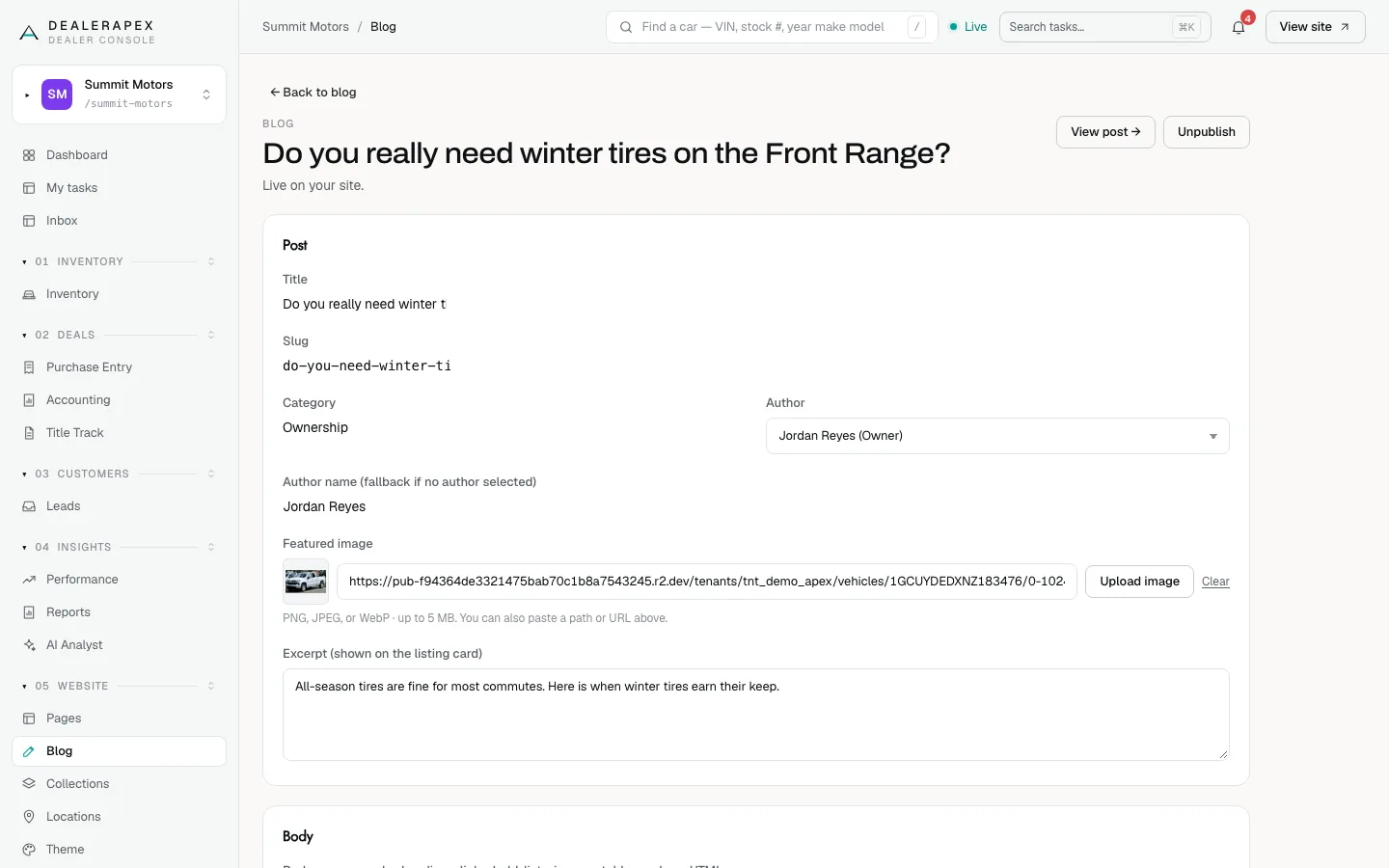
Publish, edit and unpublish
- Click Save changes to save what you’ve typed.
- Click Publish at the top. The heading changes to Live on your site. and a View post → button appears.
- To take a post down, click Unpublish. It goes back to being a draft.
Click Save changes before Publish. The Publish button doesn’t save edits you haven’t saved yet.
On a live post, Save changes updates the live post straight away. There is no separate draft for a published post.
Things to know
- Changing the slug of a live post changes its address, and the old address stops working. Add a redirect from the old address. See Redirects.
- If another post already uses the slug you typed, your other changes save and the slug stays as it was. A message tells you so.
- Delete takes the post off your site straight away. Deleted posts move to Archived posts and can’t be restored from the console.
- Your blog lists 7 posts per page.
Common questions
Why do I see stray symbols on my live post?
The blog shows any formatting it doesn’t recognise exactly as typed. Common causes are an image that isn’t on its own line, a heading with no space after the hash signs, or a link address with a space in it.
Can I paste a post from Word or Google Docs?
Yes. Bulleted and numbered lists and paragraphs come across well. Check headings, bold text and links afterwards and use the toolbar to fix any that came through as plain text.
How do I add a YouTube video?
Click HTML in the toolbar and paste YouTube’s embed code between the two lines it adds. YouTube, Vimeo, Google Maps and Calendly embeds are allowed.
Can I schedule a post to publish later?
No. A post goes live when you click Publish. Save it as a draft until you are ready.
Still stuck? Email [email protected] with the page you were on and what you expected to see.