
Password-protect your site before launch
The launch gate puts a coming-soon page in front of your whole website. Shoppers see your message and an optional link to your old site. Your team types a password to get in and review the new site.
Who can do this
Owners and editors can make changes here. Viewers can open every screen but can’t save. Sales managers, inventory managers, title clerks and accountants don’t see the website sections at all.
Turn on the launch gate
- Open Theme and go to Launch gate.
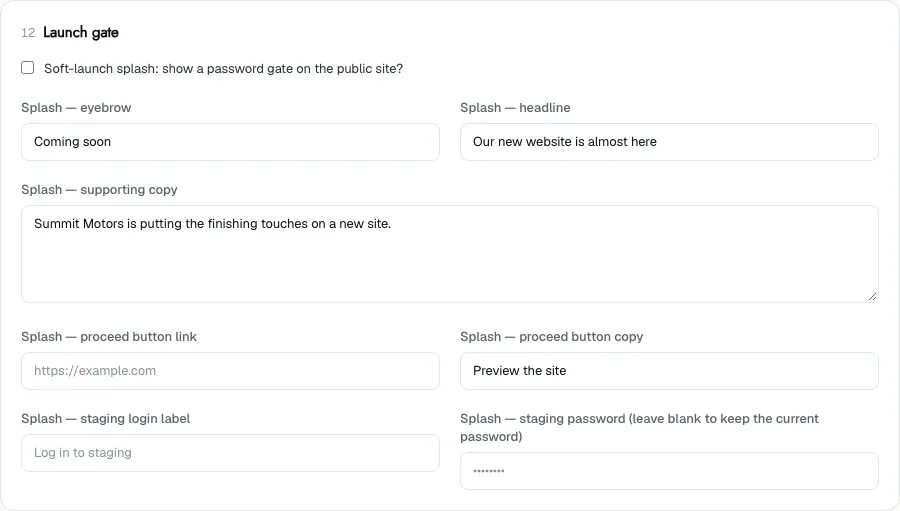
- Tick Soft-launch splash: show a password gate on the public site?
- Fill in Splash — eyebrow (a small label, such as "Coming soon"), Splash — headline and Splash — supporting copy.
- Optionally fill in Splash — proceed button link with your current website’s address, and Splash — proceed button copy with the button text, such as "Visit our current site".
- Fill in Splash — staging login label, the label above the password box, such as "Log in to staging".
- Type a password in Splash — staging password.
- Click Save theme.
What shoppers and your team see
Every visitor sees a card with your eyebrow, headline and supporting copy. If you set a proceed link, a button takes them to it. Below a Staff divider is the password box.
Someone who types the right password goes straight to the page they were trying to reach. Their browser remembers it for 30 days, so they don’t have to type it on every visit. A wrong password shows "Incorrect password." After too many tries in a short time, the page says "Too many attempts. Wait a minute."
The proceed button only appears when you fill in the link. Without a password set, nobody can get past the gate.
Change the password
The password box is always empty when you open Theme. That’s on purpose: leave it blank to keep the current password. Type a new one and save to change it. Changing the password signs everyone out of the gate, so they’ll need the new one.
Launch
Untick Soft-launch splash and click Save theme. Your site opens to everyone within about a minute.
While the gate is on, search engines can’t see your site either. Turn it off on launch day and check Search engine visibility.
Common questions
I forgot the launch gate password. How do I get in?
Type a new password in Splash — staging password and click Save theme. The old one stops working.
Do I need to type the password every time?
No. After the right password, the browser remembers it for 30 days, unless someone changes the password.
Still stuck? Email [email protected] with the page you were on and what you expected to see.