
Upload images to your media library
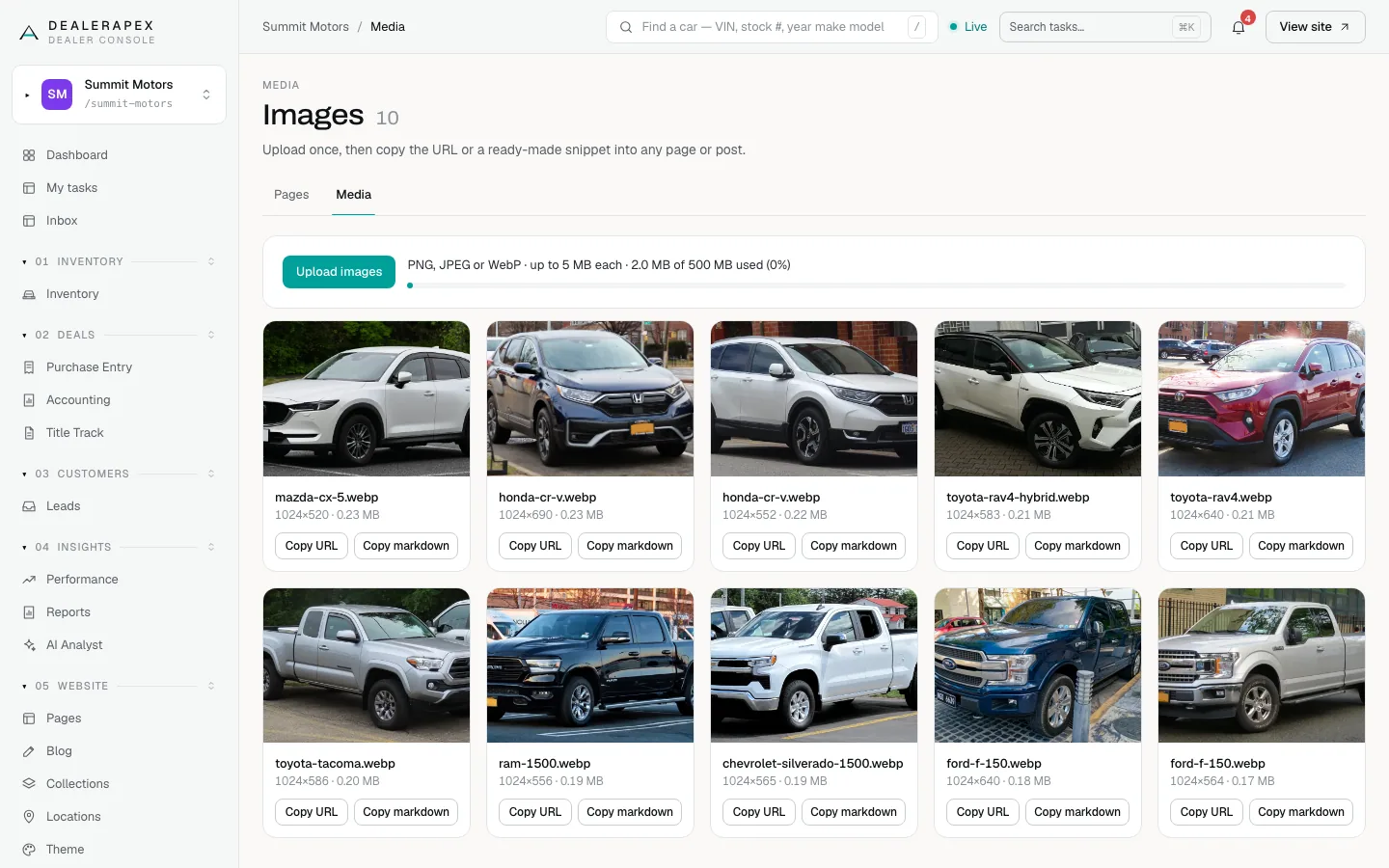
The media library holds the images you upload for your website. Upload an image once, then copy its address into any page, blog post or theme setting.
Who can do this
Owners and editors can make changes here. Viewers can open every screen but can’t save. Sales managers, inventory managers, title clerks and accountants don’t see the website sections at all.
Upload images
- Open Pages in the sidebar and click the Media tab.
- Click Upload images and choose one or more files.
- Each image appears as a card with its file name, size in pixels and file size.
Limits
- Formats: PNG, JPEG or WebP. Other formats are refused with "Only PNG, JPEG, and WebP images are allowed."
- Size: up to 5 MB per file.
- Storage: 500 MB for your whole site. The bar above the grid shows how much you’ve used. It turns amber when the library is nearly full and red when it is full.
Images you upload anywhere else in the console, such as a logo in Theme or a featured image on a blog post, also land here.
Name files before you upload
Give each file a clear name before you upload it, such as "2021-honda-cr-v-silver.webp" rather than "IMG_4471.jpg". The name shows on the card, and Copy markdown turns it into the image’s description, so a good name saves you a step.
Use an image
- Copy URL copies the image’s web address. Paste it into any image field that says "You can also paste a path or URL above", such as a page’s hero image or a pop-up image.
- Copy markdown copies a ready-made image line for a blog post body. Paste it on a line of its own in the post, then edit the description in the square brackets so it describes the photo. See Write a blog post.
The button changes to Copied for a moment. If your browser blocks the clipboard, the page says "Could not copy — your browser blocked clipboard access."
Things to know
- The library shows 48 images per page. Use the page numbers at the bottom to see more.
- There is no delete button in the library yet. If you are running out of space, email [email protected] and we will help clear out old images.
- Vehicle photos come from your inventory feed or the vehicle editor, not from here. See Photos, video and descriptions.
Common questions
My upload failed with "File is larger than the 5 MB limit." What do I do?
Resize or compress the image and try again. Most photos look fine on a website at 2,000 pixels wide, which is well under 5 MB as a JPEG or WebP.
Can I upload a PDF or a video?
No. The library takes PNG, JPEG and WebP images only. For a video, use a YouTube or Vimeo embed in a Custom HTML section or a blog post.
How do I remove an image?
There is no delete button yet. Email [email protected] with the file names you want removed.
Still stuck? Email [email protected] with the page you were on and what you expected to see.