
Edit your locations
The Locations screen holds your rooftops: their name, address, phone and hours, plus the copy for each rooftop’s own page and for your /locations directory page.
Who can do this
Owners and editors can make changes here. Viewers can open every screen but can’t save. Sales managers, inventory managers, title clerks and accountants don’t see the website sections at all.
The locations directory page
- Open Locations in the sidebar, under Website.
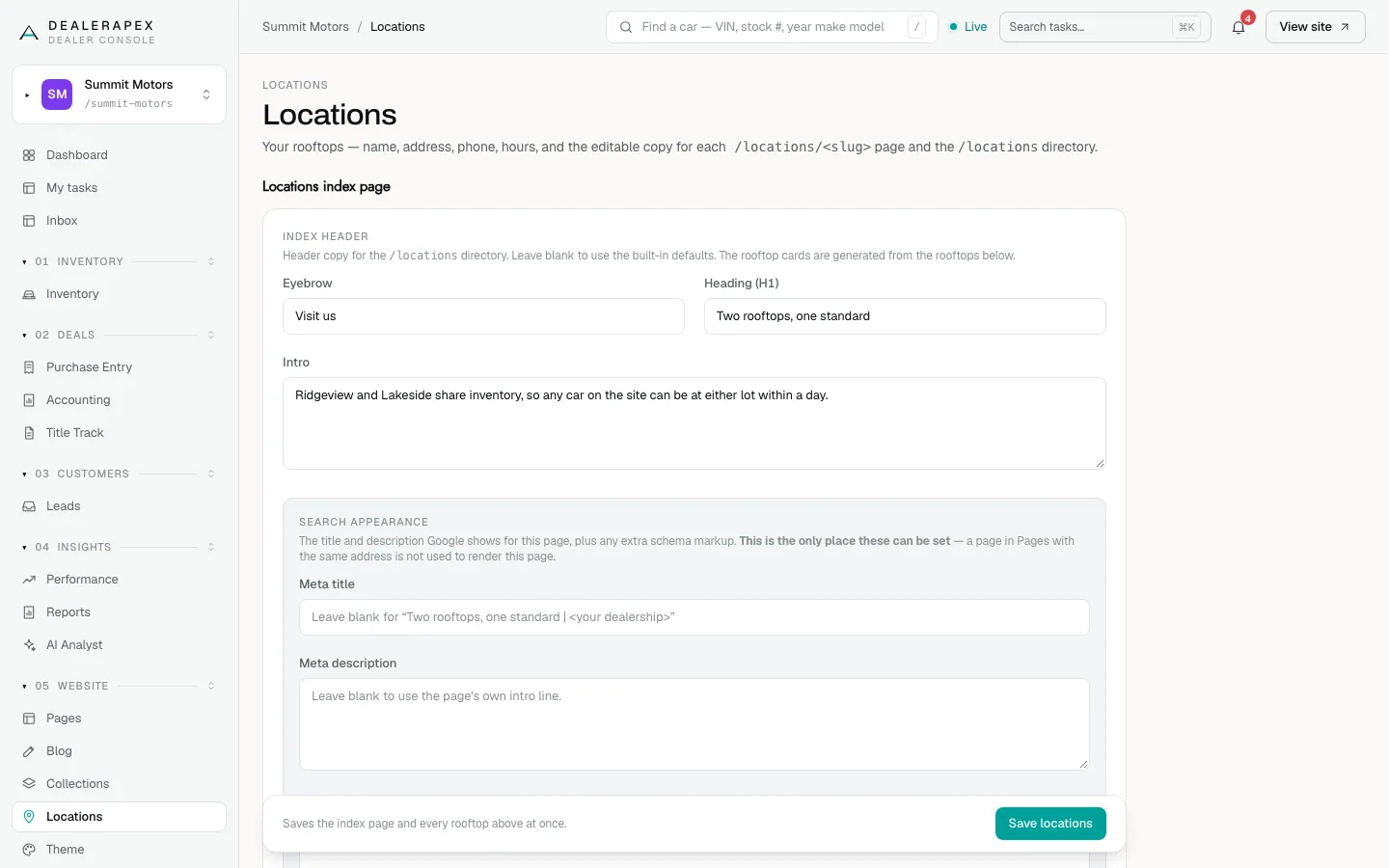
- Under Locations index page, fill in the Eyebrow (a small label above the heading), Heading (H1) and Intro. Leave them blank to use the built-in wording.
- Under Search appearance, optionally set a Meta title and Meta description for Google.
The rooftop cards on the directory page are built from the rooftops below, so you don’t add them here.
Add or edit a rooftop
- Under Rooftops, open a rooftop or click + Add rooftop.
- Fill in Label (must match the vehicle feed location to link up). See the next section before you change it.
- Fill in Address, Phone and Hours.
- Optionally add a Storefront photo URL and a Showroom interior photo URL. Leave the storefront photo blank to show a map instead.
- To give the rooftop its own page, fill in Slug (sets /locations/<slug> — leave blank if no detail page), for example "lakeside".
- Click Save locations. This saves the directory page and every rooftop at once.
The label must match your feed
Your inventory feed tags each car with a location name. The Label is how your website matches cars to a rooftop, so it must be spelled exactly as the feed spells it. When it matches, the rooftop’s cars show on its page, vehicle pages link to the right rooftop, and shoppers can filter inventory by location.
If the label doesn’t match, nothing breaks loudly. The rooftop page just shows no cars. If you’re not sure how your feed spells a location, check a car’s location in Inventory or email [email protected].
To show shoppers a different name from the feed’s, don’t change the label. Use Location display names in Theme → Contact & locations instead. It takes a list in JSON format that maps the feed’s name to the name shoppers see, for example {"Lakeside Auto Mall":"Lakeside"}. It changes only what shoppers read, so cars stay linked to the rooftop.
The rooftop’s detail page
Once a rooftop has a slug, fill in its page under Detail page content. Every field is optional and falls back to sensible wording.
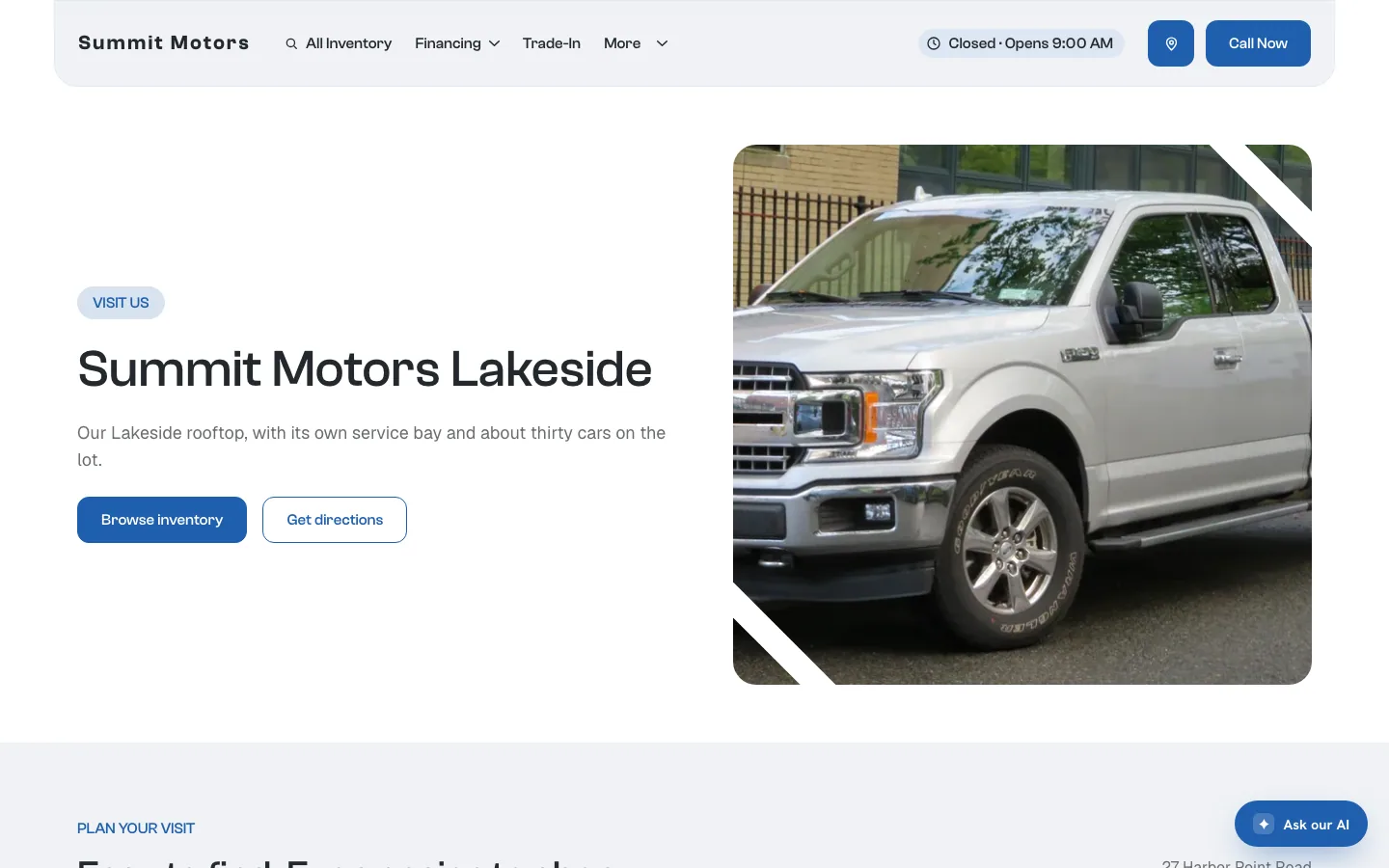
- Eyebrow, Heading (H1), Subhead and Area intro: the top of the page.
- Service-area towns (chips): the towns you serve. Click + Add town for each one. They help the page show up for searches in those towns.
- “Why this lot” reasons: short reasons to visit, each with a heading and a sentence. Click + Add reason.
- Inventory heading and Inventory body: the text above the rooftop’s cars.
- FAQs (both question and answer required to save): click + Add FAQ.
- CTA headline and CTA body: the closing call to action.
- Meta title, Meta description and Schema markup (JSON-LD): how the page appears in Google. This is the only place to set them for a rooftop page.
Remove a rooftop
Click Remove rooftop at the bottom of its card, then Save locations. If the rooftop had a page, that page stops working, so add a redirect if other sites link to it. See Redirects.
Things to know
- The locations pages are listed under Pages, but editing them there changes nothing. That screen says so and links back here.
- Your website already adds your business details and FAQs to each rooftop page for Google. Only paste extra schema markup if you have something more to add.
Common questions
Why does my rooftop page show no cars?
The rooftop’s Label probably doesn’t match the location name in your inventory feed exactly. Check the spelling, spaces and capitals.
Do I need a slug for every rooftop?
No. Set a slug only when you want that rooftop to have its own page. Without one, the rooftop still appears in the directory and in location filters.
I clicked Save locations and got an error about schema markup. What happened?
One of the Schema markup boxes isn’t valid JSON-LD. The error names the rooftop. Fix or clear that box and save again.
Still stuck? Email [email protected] with the page you were on and what you expected to see.