
What shoppers see on your inventory pages
This is a tour of the two pages shoppers spend the most time on: the inventory results page, which lists your cars, and the vehicle page for each car. For each part, it tells you where to change it in the console.
The exact layout depends on your site’s design. The parts below are on every dealer site.
The inventory results page
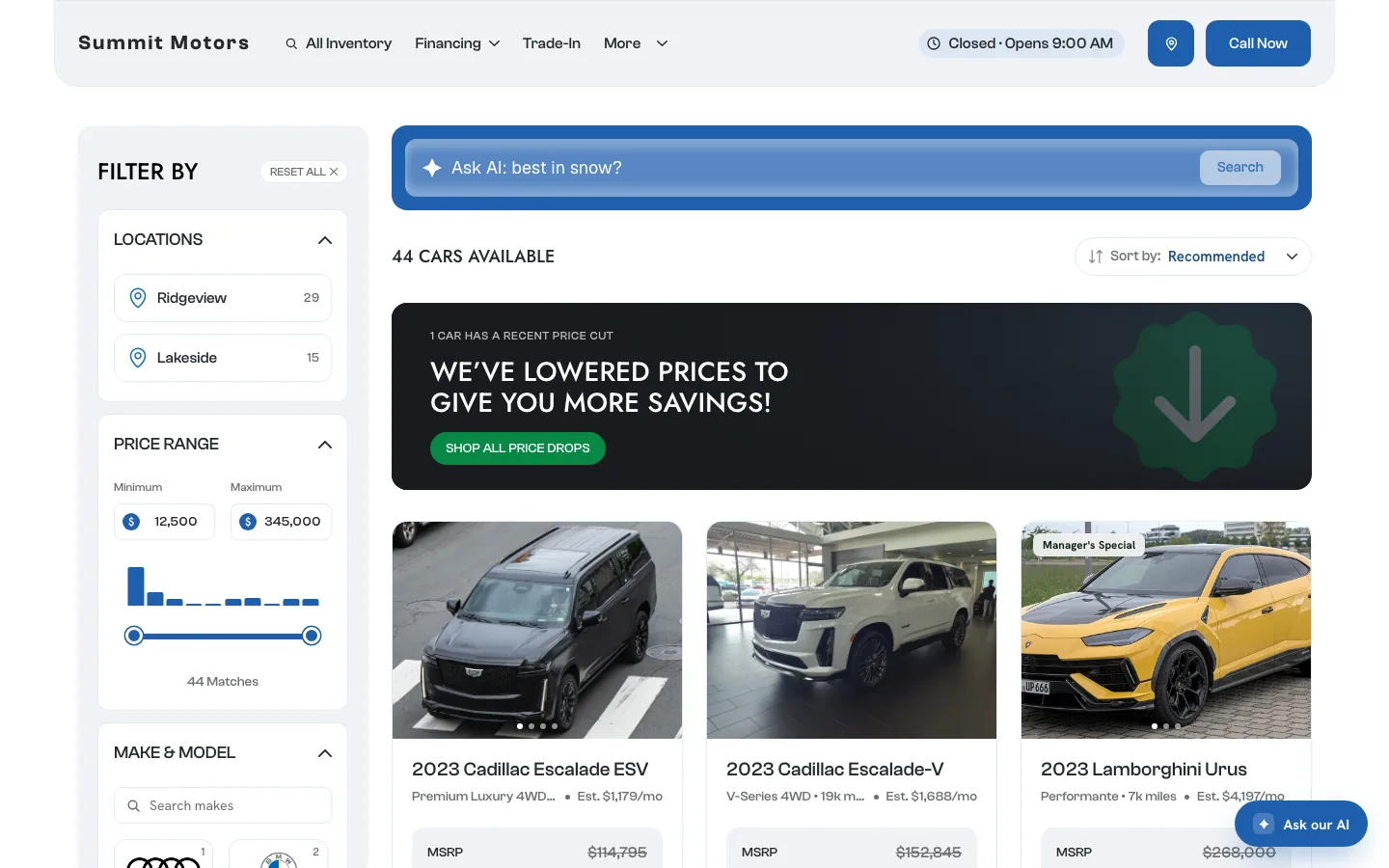
| What shoppers see | Where you control it |
|---|---|
| Filters such as location, price range, make and model, and body style | Built from your inventory data. Location filters use your rooftop labels. See Edit your locations. |
| The Ask AI search bar | Built in. Shoppers can type a plain question, such as "best in snow?" |
| Sort by | Built in. |
| Pages or infinite scroll, badge position, promo tiles | Theme → Inventory display. See Change how your inventory page looks. |
| A price-drop banner, on some designs | Appears by itself when cars have had a recent price cut. |
| Badges such as Manager’s Special | The vehicle editor. See Specials and badges. |
| MSRP crossed out and Est. $X/mo on cards | Theme → Pricing & payments. See Set your financing and payment display. |
| Photos, year, make, model, trim and mileage | Your inventory feed or the vehicle editor. See Edit a vehicle. |
| The page title in Google | SEO. See Inventory page SEO. |
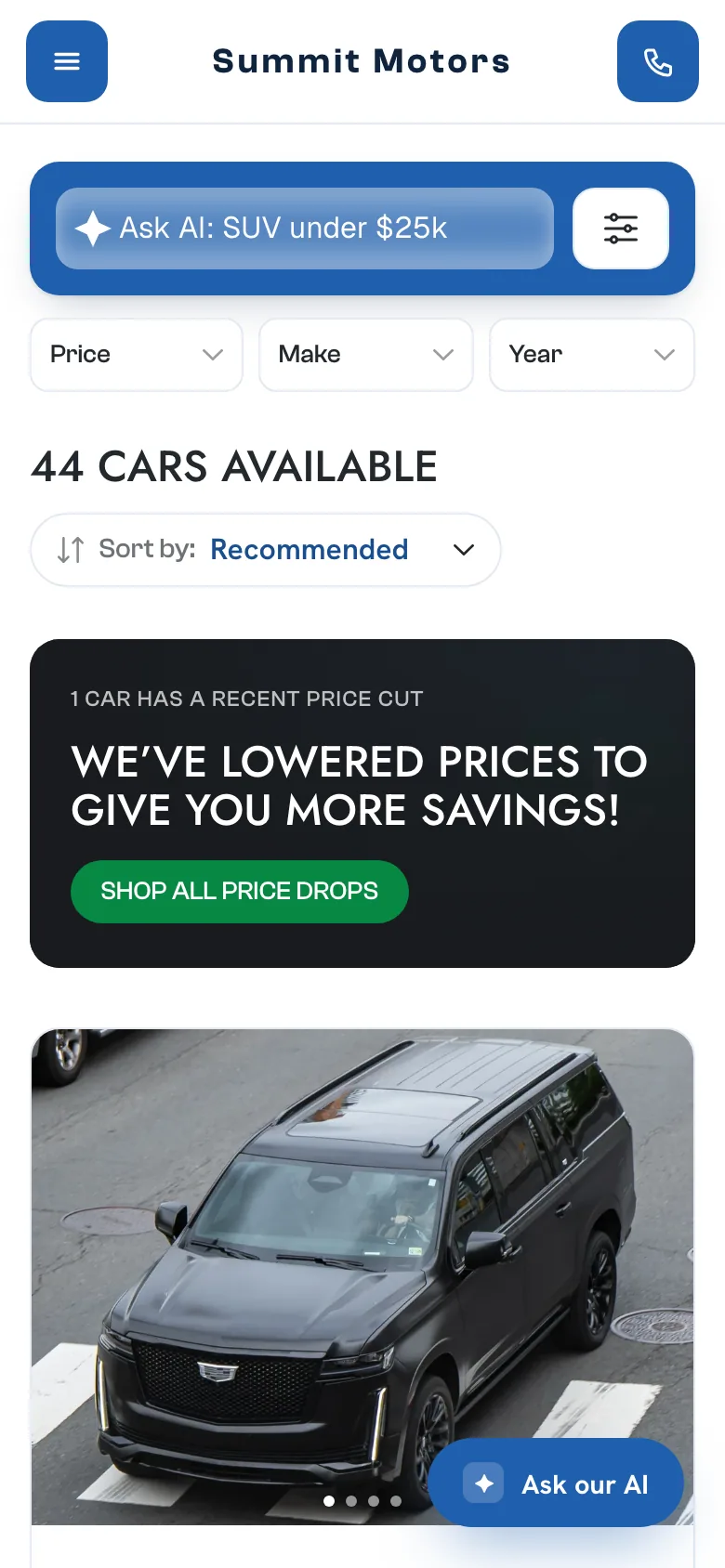
On a phone, the filters fold into a button beside the search bar, with quick Price, Make and Year menus underneath.
The vehicle page
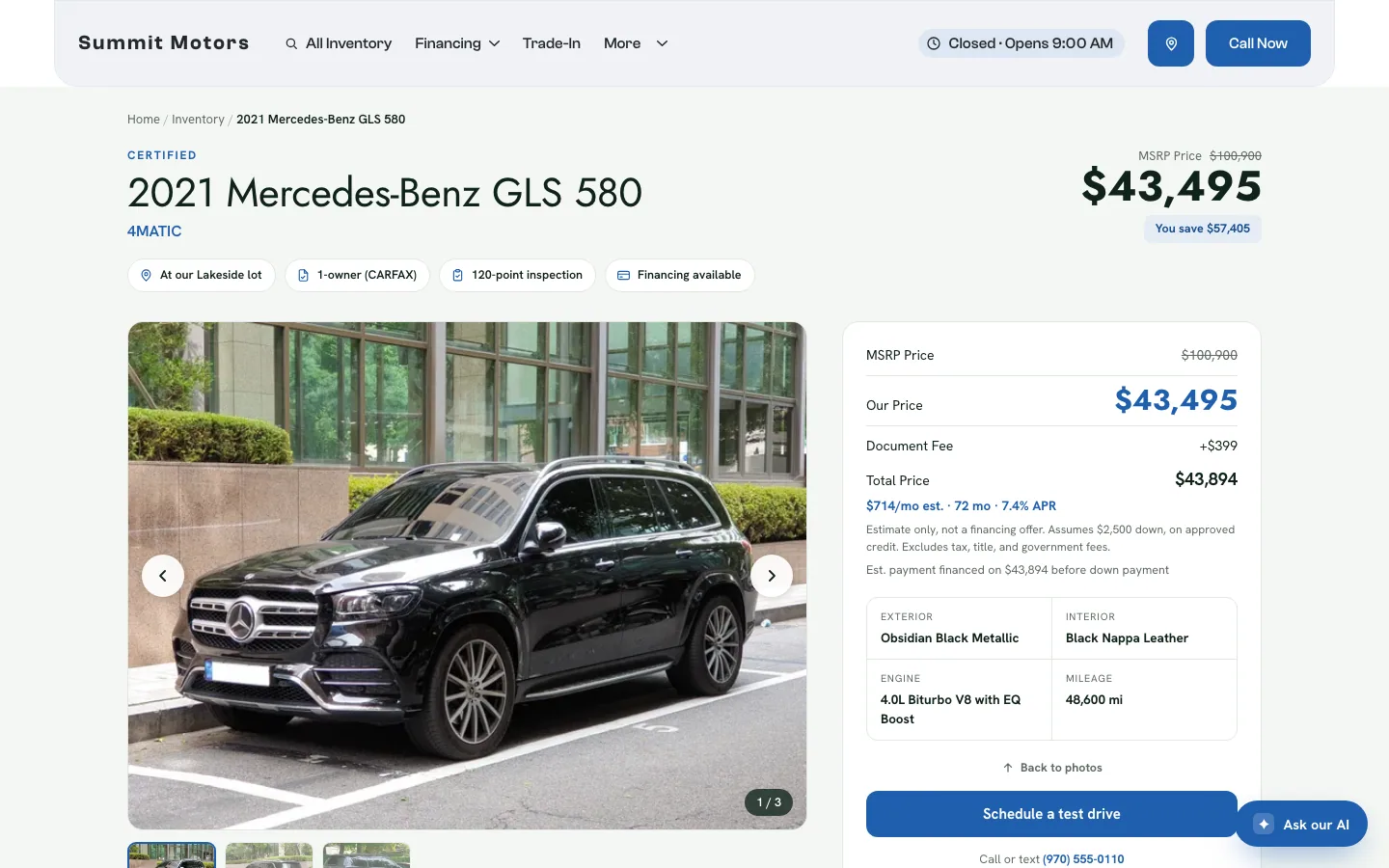
| What shoppers see | Where you control it |
|---|---|
| Title, trim, colours, engine and mileage | Your feed or the vehicle editor. See Edit a vehicle. |
| The photo gallery and video | See Photos, video and descriptions. |
| The lot chip, such as "At our Ridgeview lot" | The car’s location from your feed, matched to a rooftop. See Edit your locations. |
| MSRP Price, Our Price, Document Fee and Total Price | The car’s price and MSRP in the vehicle editor, and the doc fee in Theme → Pricing & payments. |
| The estimated payment and the payment calculator | Theme → Pricing & payments. |
| Get a price-drop alert | Built in. Shoppers leave their name and email and are told when the price drops. It is hidden on cars with no price. |
| Schedule a test drive | The booking picker. See Block out test-drive times. |
| About this vehicle, features and Vehicle details | The description and features in the vehicle editor, plus your feed. |
| Frequently asked questions, when a car has them | The FAQs box in the vehicle editor. |
| Other vehicles you may like | Built in. It shows similar cars from your inventory. |
| The phone number | Theme → Contact & locations, or the rooftop’s phone in Locations. |
Things to know
- Your inventory feed updates several times a day and can overwrite some edits you make in the console. See Feed and sync for which fields the feed controls.
- Every enquiry form on these pages sends a lead to your Leads screen. See Lead inbox.
- The AI chat button in the corner is covered in Turn the website chat on or off.
Common questions
Why does a car show the wrong price or photos?
Prices and photos usually come from your inventory feed. If you changed them in the console, the next feed update may have put the feed’s values back. See How your inventory feed updates your cars.
Can I add my own filter to the inventory page?
No. Filters are built from your inventory data. If a filter is missing, it usually means your feed doesn’t send that information.
How do I mark a car as a special?
In the vehicle editor. Specials get a badge on their card and can appear in the specials pop-up. See Feature a car as a special on your homepage.
Still stuck? Email [email protected] with the page you were on and what you expected to see.