
Build a landing page
A landing page is a page you build for one purpose, such as "Used trucks in Ridgeview" or a winter sale. You put it together from ready-made sections, called blocks.
Who can do this
Owners and editors can make changes here. Viewers can open every screen but can’t save. Sales managers, inventory managers, title clerks and accountants don’t see the website sections at all.
Create the page
- Open Pages and click New Page +.
- Under Custom landing page, type a Page title, for example "Winter-Ready SUVs".
- Optionally type a URL slug. Leave it blank to build one from the title.
- Click Create landing page. The page editor opens.
A new landing page starts with three sections: a Hero, an Inventory collection and a Heading + text. Edit them, delete the ones you don’t need, and add others from the box at the bottom of the editor.
If the address is already taken, a number is added to the end, such as /winter-ready-suvs-2. A few addresses are reserved and can’t be used: /, /inventory, /contact, /blog, /privacy and /terms.
The sections you can add
| Section | What it shows | Fields |
|---|---|---|
| Hero | A large banner at the top of the page. | Heading, Subheading, Background image (optional), Button label (optional), Button link (optional) |
| Heading + text | A heading and paragraphs of text. | Heading level, Heading, Body, Text width |
| FAQ | Questions and answers that open and close. | Heading, Questions & answers |
| Map | A Google map of an address. | Heading (optional), Address or place |
| Call to action | A heading with one button. | Heading, Button label, Button link |
| Inventory collection | Live cars from one of your collections. | Collection, Heading (optional), Max vehicles to show |
| Image grid | A grid of photos, each with an optional caption and link. | Heading (optional), Images |
| Custom HTML | Your own HTML, such as a video embed or a spec table. | HTML |
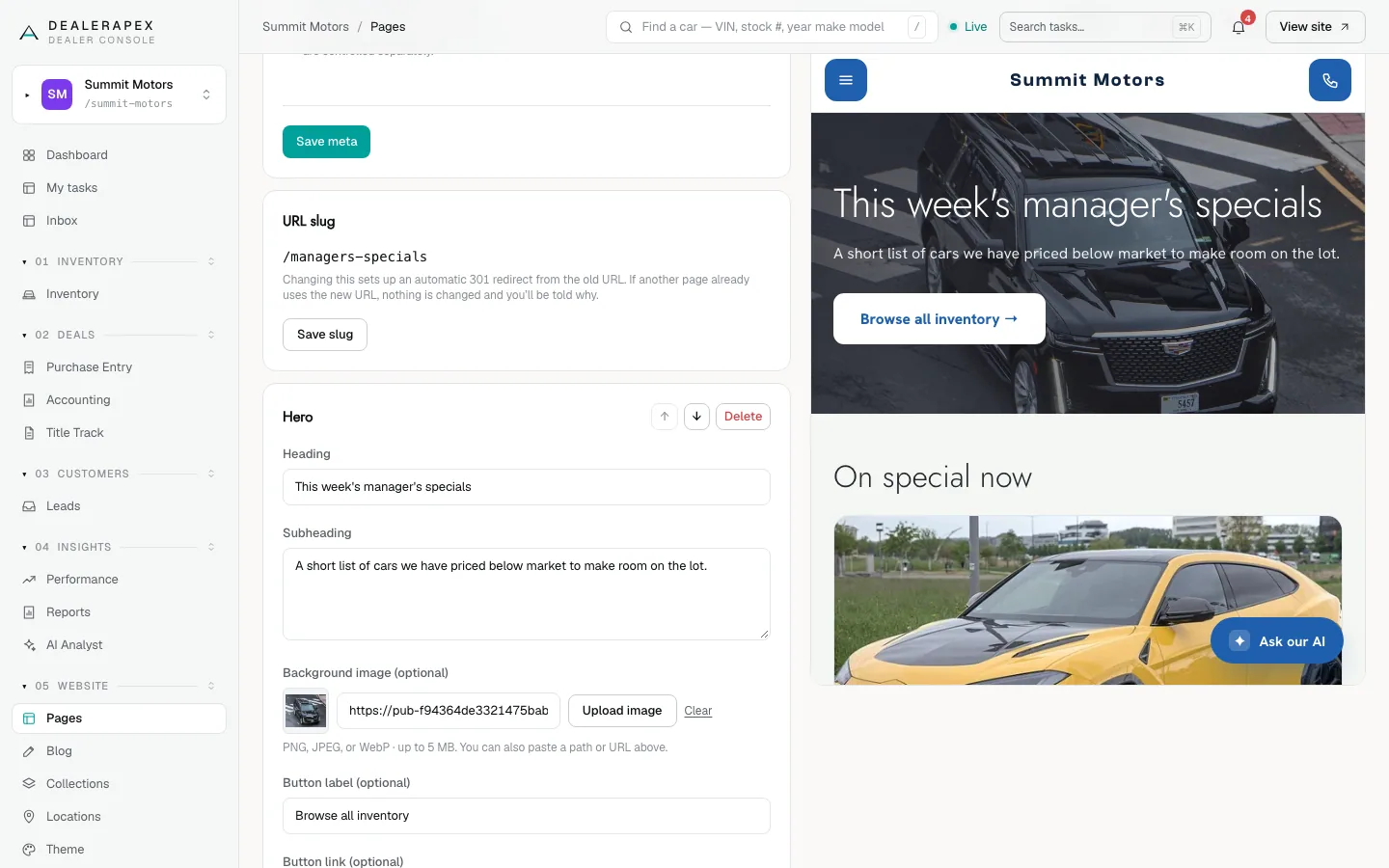
Tips for each section
- Heading + text: put one paragraph per line in Body. To link, type the link text in square brackets followed by the page address in round brackets. Choose H1 (page title) for the first heading on the page only.
- Inventory collection: create the collection first under Collections, then pick it here. It shows up to 48 cars, 6 by default. Until you pick a collection, the section shows nothing. See Collections.
- Image grid and FAQ: each has a list of rows. Fill in a row per image or question. Rows with no image or no question are skipped.
- Image grid: always fill in Alt text. It describes the photo to search engines and screen readers.
- Map: type a full street address, or a place name Google will recognise.
- Custom HTML: headings, text, lists, tables, images, links and embeds from YouTube, Vimeo, Google Maps and Calendly all work. Script tags are removed. Put tracking tags in Google Tag Manager instead. See Google Analytics and Tag Manager.
Each section saves on its own: click Save block on the card you changed. A section left empty, such as an FAQ with no questions, shows nothing on the live page.
Publish it
- Fill in the SEO meta card at the top: a Title and Meta description that match what shoppers search for. See Edit a page’s SEO and meta.
- Click Preview ↗ to check the page.
- Click Publish.
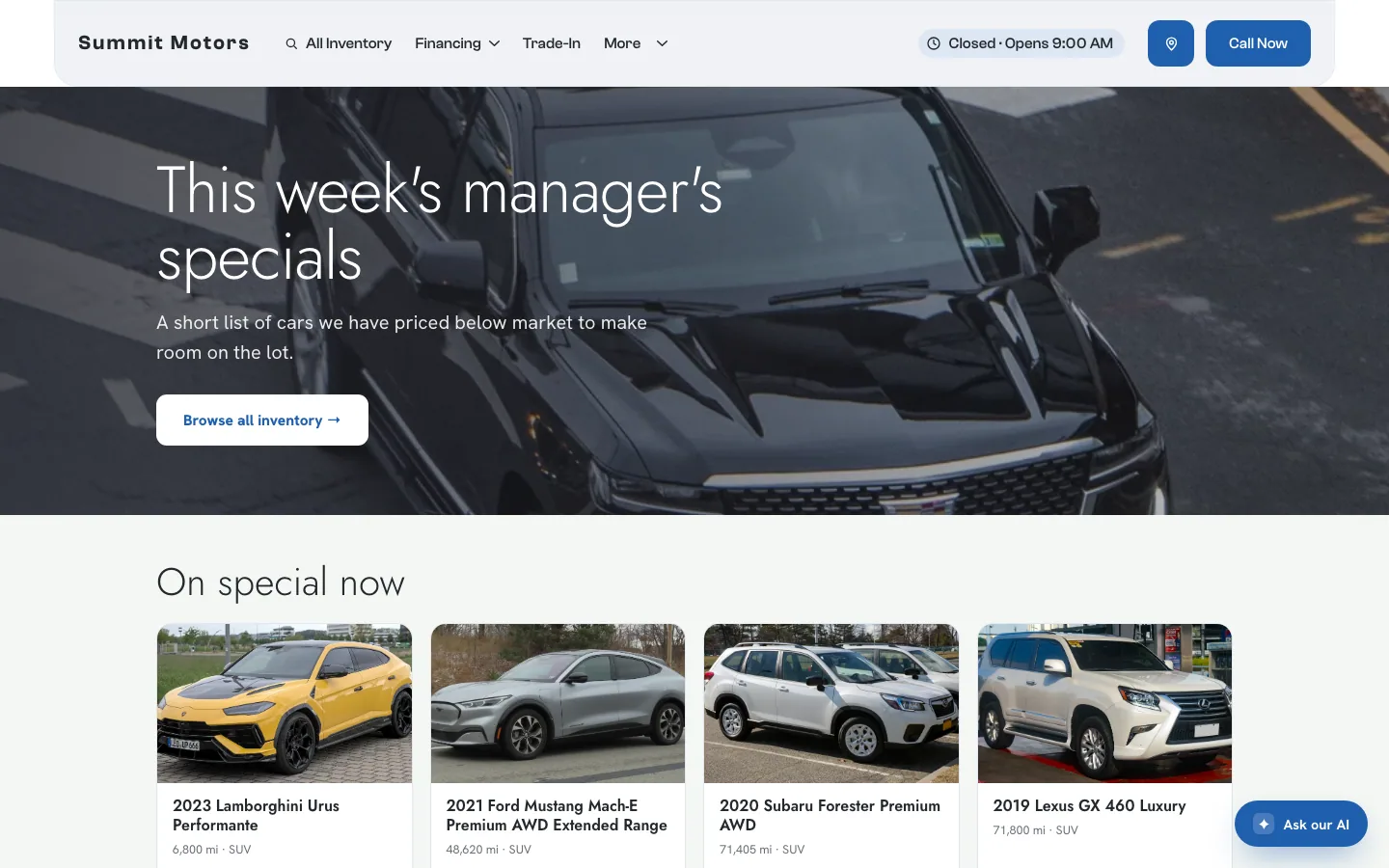
A landing page isn’t added to your menu automatically. Link to it from an ad, an email, a blog post or another page.
Common questions
Why is my inventory section empty on the live page?
Either no collection is picked, or no cars match the collection right now. Open the section, choose a Collection and click Save block, then Publish. An empty collection shows "No vehicles match this collection right now." See Collections.
Can I put a tracking script in a Custom HTML section?
No. Script tags are removed for security. Add tracking through Google Tag Manager or Tracking pixels instead.
Will the landing page show up in my site’s menu?
No. Landing pages are meant to be reached from ads, search results and links. It is still listed in your sitemap unless you hide it from search engines.
Still stuck? Email [email protected] with the page you were on and what you expected to see.