
Set up your trade-in and finance pages
Your website has a Value My Trade page at /trade-in and a Finance page at /finance. This article covers their photos, what shoppers send you, and why the trade-in form never shows a price.
Who can do this
Owners and editors can make changes here. Viewers can open every screen but can’t save. Sales managers, inventory managers, title clerks and accountants don’t see the website sections at all.
Add the pages if you don’t have them
Open Pages, click New Page +, and under Standard pages choose Value My Trade, Trade-In Submitted or Finance. If a page isn’t in the list, your site already has it. See Add and edit pages on your website.
Add page photos
- Open Theme and go to Page photos.
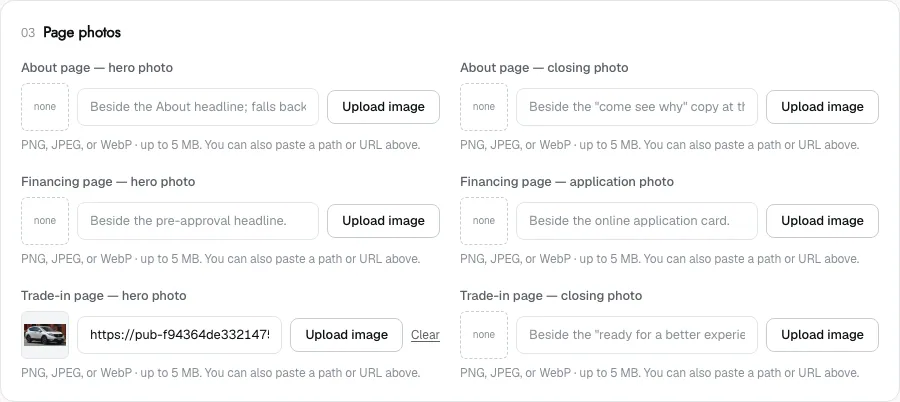
- For each slot you want to fill, click Upload image or paste an image address. PNG, JPEG or WebP, up to 5 MB.
- Click Save theme.
| Slot | Where it shows |
|---|---|
| About page — hero photo | Beside the About headline. |
| About page — closing photo | Beside the "come see why" copy at the foot of the About page. |
| Financing page — hero photo | Beside the pre-approval headline. |
| Financing page — application photo | Beside the online application card. |
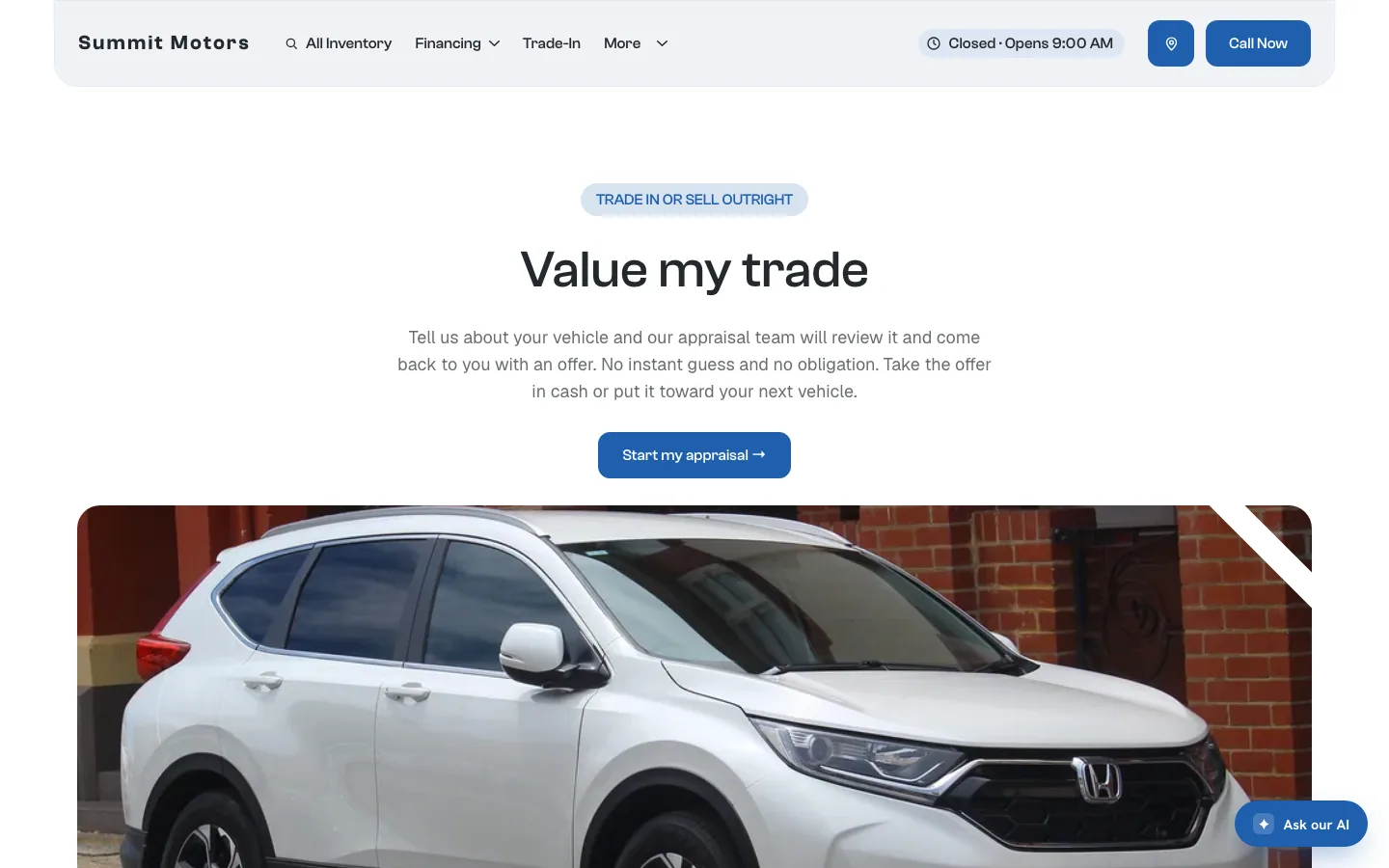
| Trade-in page — hero photo | A full-width band under the trade-in button. |
| Trade-in page — closing photo | Beside the closing buttons at the foot of the page. |
Every slot is optional. A blank slot shows a branded panel in your colours instead. Use real photos of your lot, team or customers where you can.
What the shopper sends from the trade-in page
A shopper clicks Start my appraisal and fills in:
- the vehicle’s year, make, model and mileage;
- its condition: Excellent, Good, Fair or Rough;
- their name, phone number and email;
- a consent box so your team can contact them.
They click Request my trade offer, and the form sends a trade-in lead to your Leads and to your CRM if you have one connected. The shopper then lands on your Trade-In Submitted page.
Why there’s no instant valuation
The trade-in form never shows the shopper a dollar figure. An automatic estimate is a number your dealership never agreed to honour, and it causes arguments at the desk. Instead, the page tells the shopper your appraisal team will review the car and come back with a real offer. Follow up fast: the shopper is waiting for your number.
The finance page
The finance page has a pre-approval section, a payment calculator and frequently asked questions. The calculator uses the defaults from Pricing & payments. Lender widgets, such as Capital One pre-qualification, are set up by DealerApex. See Lender and vendor widgets.
Common questions
Can the trade-in page show an estimated value?
No. The form collects the vehicle details and contact information so your team can make a real offer. It never shows an automatic estimate.
Where do trade-in requests go?
They arrive as trade-in leads in your Lead Inbox, and in your CRM if lead delivery is set up. See Send your website leads to your CRM.
Still stuck? Email [email protected] with the page you were on and what you expected to see.