
Block out test-drive times
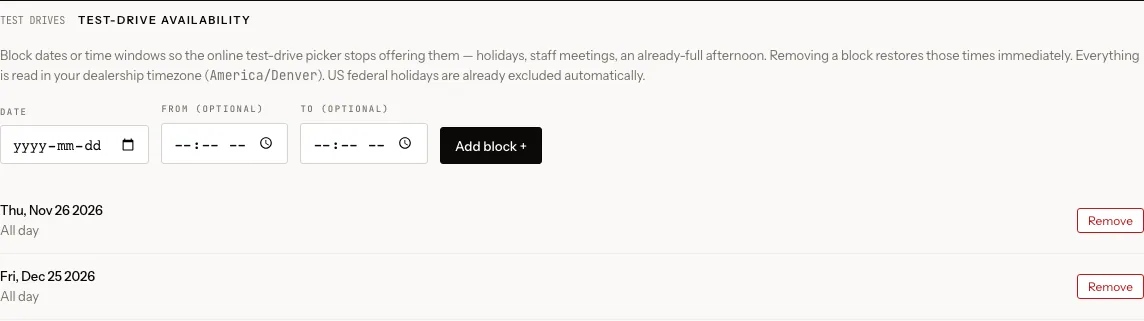
Shoppers can book a test drive on your website by picking a day and time. Use Test-drive availability to block out times when nobody can take them out.
Who can do this
Only an owner or editor can add or remove blocks. Anyone else sees the list but not the controls.
Block a day or a time window
- Open Theme and scroll to the bottom, to Test-drive availability.
- Pick a Date.
- To block the whole day, leave From (optional) and To (optional) empty. To block part of the day, fill in both.
- Click Add block +.
The block appears in the list below, with its date and either "All day" or the time window. The picker on your website stops offering those times straight away.
Remove a block
Click Remove next to the block. Those times are offered again immediately.
Things to know
- Times are in your dealership’s time zone, shown in the description above the form.
- US federal holidays are already blocked. You don’t need to add them.
- If you fill in only From or only To, nothing is saved and you see "Enter both a start and end time, or leave both blank to block the whole day."
- The end time must be after the start time.
- These blocks are separate from the rest of Theme. You don’t need to click Save theme.
- The picker offers times within your test-drive hours: Monday to Saturday, 10 AM to 7 PM, unless DealerApex has set different hours for you. There is no setting for these hours in the console. If they are wrong, for example you open earlier or you’re open on Sundays, email [email protected].
Test-drive requests arrive as leads. See Test-drive requests.
Common questions
Do I need to block Thanksgiving and Christmas?
Thanksgiving and Christmas Day are US federal holidays, so they are blocked already. Add any other days you close, such as Christmas Eve.
Does blocking a time cancel test drives already booked?
No. A block only stops new bookings. Contact anyone already booked for that time yourself.
Still stuck? Email [email protected] with the page you were on and what you expected to see.