
Edit a page’s SEO and meta
Each page has an SEO meta card that controls how it looks in Google results and when someone shares the link. This article covers each field on that card.
Who can do this
Owners and editors can make changes here. Viewers can open every screen but can’t save. Sales managers, inventory managers, title clerks and accountants don’t see the website sections at all.
Edit the SEO meta
- Open Pages and click Edit → on the page.
- The SEO meta card is the first card in the editor.
- Fill in the fields described below.
- Click Save meta. A green Saved. message appears at the top of the card.
These fields go live as soon as you click Save meta. You don’t need to click Publish.
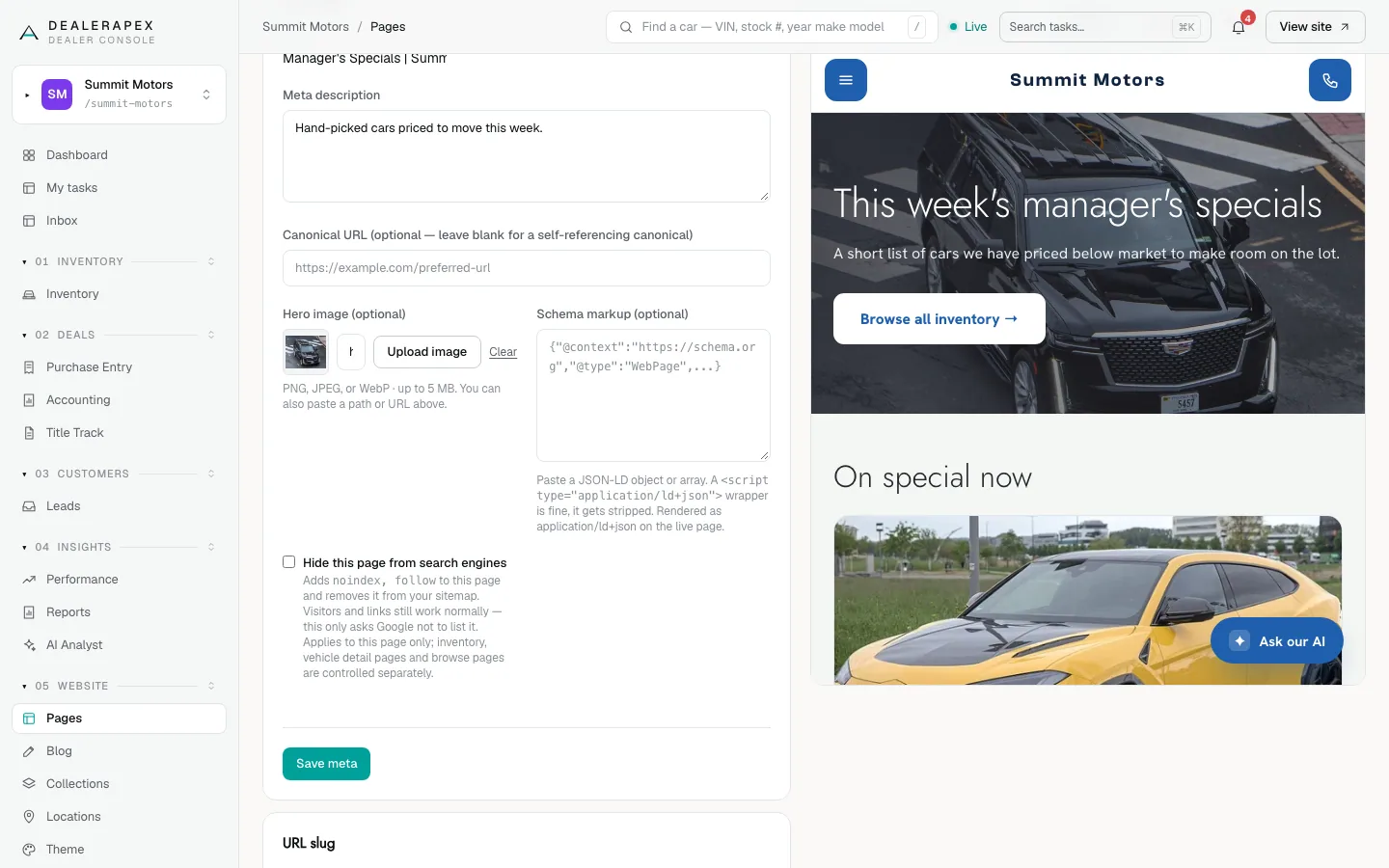
What each field does
| Field | What it does |
|---|---|
| Title | The headline Google shows for the page, and the text in the browser tab. Up to 70 characters. |
| Meta description | The short summary under the title in Google results. Up to 160 characters. |
| Canonical URL | Leave it blank in almost every case. Fill it in only when this page copies another page and you want Google to credit the other one. |
| Hero image | The picture shown when someone shares the page on social media or in a text message. A landing page’s Hero section also uses it when that section has no image of its own. |
| Schema markup | Optional structured data for search engines. Paste a JSON-LD object or array. Leave it blank if you don’t have one. |
For the hero image, click Upload image to pick a file (PNG, JPEG or WebP, up to 5 MB), or paste the address of an image from your media library. Click Clear to remove it.
If the schema markup isn’t valid, the card says "Server rejected the schema markup" and keeps the old markup. Everything else on the card still saves.
Hide one page from Google
Tick Hide this page from search engines and click Save meta. The page stays on your site and its links still work, but Google is asked not to list it and the page is removed from your sitemap. Use it for pages such as a thank-you page or a private offer.
This setting is for this page only. Your inventory, vehicle pages and browse pages are controlled separately. To hide the whole site, see Search engine visibility.
Tips for good titles and descriptions
- Put what the page is about first and your dealership name last: "Car Financing | Summit Motors".
- Give every page its own title.
- Write the description as one plain sentence that tells a shopper why to click.
To review every page’s title and description in one table, use Page titles and meta on the SEO screen.
Common questions
Do I need to publish after saving the SEO meta?
No. The SEO meta card saves straight to your live page. Only changes to the page’s sections wait for Publish.
When will Google show my new title?
Your site updates right away, but Google only sees the change the next time it visits the page. That can take days or a few weeks.
Where do I set the SEO for my locations pages?
On the Locations screen. Each rooftop with a slug has its own Meta title, Meta description and schema fields. See Edit your locations.
Still stuck? Email [email protected] with the page you were on and what you expected to see.